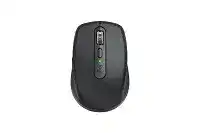
Here you will get the latest Logitech MX Anywhere 3 for Mac driver and software that support Windows and Mac OS.
Logitech MX Anywhere 3 for Mac Windows Driver Download
Logitech Options
Supported Windows OS: Windows 11 Windows 10 (32-bit ,64-bit) Windows 7 (32-bit ,64-bit)
‘MX Anywhere 3 for Mac’ for Windows Operating System (277.51 MB)
Logitech MX Anywhere 3 for Mac OS Driver Download
Supported Macintosh OS: macOS 12.0, macOS 11, macOS 10.15, macOS 10.14, macOS 10.13
Logitech Options lets you toggle between standard and enhanced key functions on your Mac, displays battery status, and many more.
‘MX Anywhere 3 for Mac’ for Macintosh Operating System (274.42 MB)
The Logitech MX Anywhere 3 driver plays a pivotal role in ensuring smooth performance and compatibility of the MX Anywhere 3 mouse across various operating systems. Designed primarily for Windows (11, 10, and 7) and macOS (12.0, 11, 10.15, 10.14, and 10.13), the driver enhances functionality with features such as customizable button assignments, gesture controls, and smooth scrolling capabilities. This versatile mouse boasts a precise sensor capable of tracking on a wide range of surfaces, including glass. The driver is optimized to provide a seamless user experience, making it a crucial component for maximizing the capabilities of the MX Anywhere 3 mouse.
Download MX Anywhere 3 Driver and Software Download Software
You can find the necessary driver files readily available for both Windows and macOS users. The software suite enhances your MX Anywhere 3 mouse’s functionality, allowing adjustments to settings and preferences to suit individual workflows. Whether you’re a professional needing precision for graphic design or an everyday user looking for efficiency, the driver will help leverage the product’s features effectively. Locate the installation file on your device for immediate setup and configuration.
How to install MX Anywhere 3 Driver and Software Download Software on Windows and Mac OS?
To set up the MX Anywhere 3 driver on your system, it’s essential to begin by locating the installer file already saved on your computer. The installation will guide you through various settings that contribute to the customization of your mouse. Follow the steps outlined below for both Windows and macOS to ensure a proper installation.
Installing MX Anywhere 3 Driver and Software Download Software on Windows 11, 10…
1. **Locate the downloaded installer file**: The file may typically be found in your Downloads folder or the location you selected for saving.
2. **Open the installer executable**: Double-click on the file to initiate the setup process.
3. **Follow the on-screen prompts**: You may be required to agree to the license terms and conditions as part of the installation.
4. **Select installation options**: During installation, you may also choose which features to install or customize based on your preferences.
5. **Complete the installation**: Once installation is finished, restart your computer if prompted to ensure all changes are applied.
6. **Connect your mouse**: Ensure your MX Anywhere 3 is connected to the device, and check the settings to customize it according to your needs.
Installing MX Anywhere 3 Driver and Software Download Software on Mac OS
1. **Locate the downloaded file**: Access your Downloads folder or designated archive to find the installer.
2. **Run the installer executable**: Double-click the setup file to commence installation.
3. **Accept the license agreement**: Follow the pop-up instructions and accept the license to proceed.
4. **Configure installation settings**: You can choose the software components to install, tailoring the experience to your specific needs.
5. **Wait for the installation to finish**: Allow the installation process to complete fully before closing the window.
6. **Connect your device**: After the installation is complete, connect your MX Anywhere 3 to verify that the driver is operational and make any needed adjustments in system preferences.
Why choose our website for MX Anywhere 3 Driver and Software Download Drivers Downloads?
Our platform provides a user-friendly environment to assist you in managing driver downloads effectively. You can expect:
- Comprehensive resources: We provide detailed information on the installation process and troubleshooting tips.
- Direct access: Enjoy straightforward access to drivers that enhance your MX Anywhere 3 experience without unnecessary hassling.
- User reviews and feedback: Engage with content that shares experiences and solutions shared by other users.
- Compatibility assurance: All drivers listed ensure that your software is compatible with various operating systems, streamlining your experience.
Uninstalling the MX Anywhere 3 Driver and Software Download Software
Occasionally, you may need to uninstall the driver to resolve issues or free up space. Here’s how you can do it:
1. **Open Control Panel** on your Windows system or **Finder** on a Mac.
2. **Navigate to Programs or Applications**:
– For Windows: Select “Uninstall a program” under the Programs section.
– For Mac: Access the Applications folder.
3. **Select the MX Anywhere 3 software** from the list of installed software.
4. **Initiate the uninstallation**: Click on “Uninstall” or drag the application to the Trash on Mac.
5. **Follow any remaining prompts** and restart your device to remove all components completely.
Conclusion about MX Anywhere 3 Driver and Software Download Driver
It’s common to face challenges while using the MX Anywhere 3 driver, such as connectivity issues or inconsistent tracking. Ensuring that you have the appropriate software version installed can significantly minimize these frustrations. Here are some valuable troubleshooting tips:
- System Compatibility Checks: Verify that your operating system aligns with the driver specifications.
- Firmware Updates: Regularly check for any software updates to maintain optimum mouse performance.
- Mouse Configuration: Explore the settings to ensure customizations are working as intended.
Consistent maintenance of your MX Anywhere 3’s settings optimizes responsiveness and tracking accuracy. Schedule regular checks of settings and functionality to tailor the experience to your preferences.