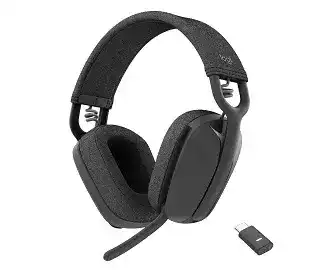
Calls that suddenly lose audio, a microphone that seems dead, or a headset that refuses to reconnect often need more than a change in the computer’s sound menu. The Logitech Zone Vibe Wireless Headphones Driver setup centers on Logi Tune, Bluetooth 5.2, and, on versions supplied with one, the Logitech USB receiver. The headset also supports multipoint connections, firmware updates, flip-to-mute microphone control, sidetone adjustment, and a rechargeable battery.
| Driver Name | Description | Supported OS | File Size | Download |
|---|---|---|---|---|
| Logi Tune | Logi Tune software package for Logitech Zone Vibe Wireless Headphones on Windows. | Windows 11, Windows 10 32-bit/64-bit | 195.9 MB |
Logitech Zone Vibe Wireless Headphones Mac OS Driver Download
| Driver Name | Description | Supported OS | File Size | Download |
|---|---|---|---|---|
| Logi Tune | Mac edition of Logi Tune software for Logitech Zone Vibe Wireless Headphones. | macOS 26, macOS 15, macOS 14, macOS 13, macOS 12.0, macOS 11, macOS 10.15 | 315.89 MB |
Logitech Zone Vibe Wireless Headphones Driver When Audio Keeps Disappearing
Audio loss can happen even though the Zone Vibe Wireless still appears connected. Before removing the headset from Windows or Bluetooth, power it off, wait a couple of seconds, and switch it back on. This gives the existing connection a chance to recover without destroying a working pairing. Older firmware also caused audio-loss and connection-stability problems with certain Bluetooth devices, so Logi Tune deserves a check when the symptom keeps returning.
Music pauses or sound vanishes during Bluetooth use
Open Logi Tune and check the firmware version when playback cuts out without an obvious disconnect. Logitech has released Zone Vibe Wireless updates that addressed auto-pause glitches, Bluetooth audio loss, interference-related instability, and general connection behavior. Keep the headset powered and connected while Tune performs the update. For receiver-equipped versions, Logitech requires the receiver to remain connected while the headset receives its firmware over the air.
Sound switches to another device unexpectedly
Multipoint can make an apparently random audio change completely normal. Zone Vibe Wireless can maintain two active device connections, such as a computer and phone. Audio from the second device can interrupt what you were hearing on the first. Temporarily disconnect one device when diagnosing this behavior. If the unwanted switching disappears, the headset itself was not losing audio; the competing multipoint connection was taking control.
Connection priority also depends on how the headset is being used. Logitech documents different priority behavior between native Bluetooth and receiver connections, so a notification, call, or active stream from another paired device may redirect what you hear. Keep only the two devices you actually need active during troubleshooting rather than repeatedly pairing the headset with additional phones and computers.
Fix Microphone Mute Problems Before Changing Windows Audio
A microphone that appears broken during Teams, Zoom, or another meeting can simply be muted at the headset. Zone Vibe Wireless has a microphone boom on the left ear cup that automatically mutes the microphone when raised. Lower the boom before changing input devices or reinstalling software. The headset also provides a microphone mute control, so check its voice notification if people can hear system audio but not your speech.
People cannot hear you after the boom was moved
Move the microphone boom fully down into its speaking position. Raising it to the vertical stowed position activates flip-to-mute, and lowering it unmutes the microphones again. This mechanical action is easy to overlook because the computer may continue showing the Zone Vibe Wireless as the selected communication device. The Bluetooth or receiver link can therefore remain healthy while no voice reaches the call.
If lowering the boom does not solve it, press the headset mute control once and listen for the mute status announcement. Then confirm that the meeting program has selected Zone Vibe Wireless for microphone input. Testing those controls separately is quicker than removing the entire Bluetooth pairing when playback already works normally.
Your own voice sounds too loud or too distant
Sidetone is adjustable through Logi Tune. It controls how much of your own voice you hear through the earcups while speaking. A level set too high can make you unconsciously lower your voice, while very little sidetone may make you speak louder than necessary. Change the sidetone level in Tune rather than trying to correct this particular effect with the computer’s speaker volume.
Logitech Zone Vibe Wireless Headphones Software for Receiver and Bluetooth Recovery
The Logitech Zone Vibe Wireless Headphones Driver package is most useful as the route into Logi Tune rather than as a traditional audio driver that replaces Windows Bluetooth support. Tune handles headset information, firmware, reset functions, audio adjustments, and receiver re-pairing for compatible versions. The exact hardware matters because Logitech sells receiver-equipped Zone Vibe Wireless versions as well as a native Bluetooth version.
The supplied USB receiver no longer connects
A receiver-equipped headset normally arrives paired to its receiver. When the connection is healthy, the receiver indicator becomes solid white. If that pairing is lost, connect the Logitech receiver directly to an appropriate USB port, open Logi Tune Desktop, and use its Pair headset function. Put Zone Vibe Wireless into pairing mode by moving the power switch toward the pairing position and holding it there for about two seconds.
During successful pairing, the headset and receiver indicators flash while they search for each other, then become solid when the connection completes. This procedure also applies when replacing the original Zone Vibe Wireless receiver. Do not treat an unrelated Logitech dongle as interchangeable simply because it fits the computer’s USB port.
Bluetooth disappears after a call or after moving away
Zone Vibe Wireless normally attempts to reconnect after a Bluetooth signal interruption. If it stays disconnected, switch the headset off, wait briefly, and turn it back on. For a phone connection that still refuses to return, restarting the phone’s Bluetooth radio can clear the stalled link. After that, select Zone Vibe Wireless again from the phone’s known Bluetooth devices instead of immediately creating another duplicate pairing.
Pairing mode never starts
A headset that will not enter pairing mode may need a reset. Hold the Call button and Volume Down button together for about five seconds. The indicator should pulse rapidly and the headset powers down as it returns to its default state. Turn it back on and begin the pairing process again. Logi Tune also provides a Factory Reset command under the headset information area when the software can still detect the device.
Random Shutdowns, Sleep Recovery, and Charging Trouble
Zone Vibe Wireless normally saves battery by switching itself off after a period of inactivity, and Logi Tune offers sleep-timer choices. That behavior can be mistaken for a connection failure when the headset has been sitting unused. Earlier firmware also corrected cases involving sleep timers, unexpected power-off behavior, and receivers that did not reconnect properly after sleep, which makes firmware status particularly relevant when shutdowns happen without a clear pattern.
The headset will not turn on
Cycle the power switch and listen for the battery-level voice prompt. If there is no response, charge the headset for at least 15 minutes before trying again. Zone Vibe Wireless uses an internal rechargeable lithium-polymer battery and charges through USB. A completely depleted battery can make the headset look unresponsive even though its Bluetooth pairing and computer configuration remain intact.
If charging produces no recovery, use the hardware reset with the Call and Volume Down controls. A reset returns headset preferences to their defaults, so reserve it for a device that remains unresponsive after receiving charge. When the headset wakes normally after this process, reconnect the devices you actually need and restore any preferred Tune adjustments gradually.
Battery drains faster than expected
Logitech rates Zone Vibe Wireless for long listening and talk sessions, but actual battery time varies with use and connection conditions. The headset normally powers down after about 30 minutes without activity to conserve energy. Open the sleep section in Logi Tune if the headset stays awake longer than you want or if you previously changed its automatic shutoff behavior.
The battery indicator and voice prompts provide better information than estimating charge from the number of days since the last cable connection. A full recharge takes roughly two hours under the documented charging conditions. If charging seems inconsistent, test another suitable USB power connection and make sure the cable seats firmly in the headset before assuming that the internal battery has failed.
Meeting Controls Can Fail Even When the Headset Still Plays Music
Call buttons and media controls do not behave identically in every application. Zone Vibe Wireless can answer and end calls, reject incoming calls, control media, and invoke supported voice-assistant functions, but Logitech notes that music commands can depend on the application. A web-based player that ignores a control therefore does not prove that the headset buttons or wireless link have stopped working.
Teams calls stop behaving normally after hold
Update the headset before spending time rebuilding every meeting-app preference. Logitech previously corrected Zone Vibe Wireless firmware behavior involving Teams calls that failed to continue after being placed on hold and missing Teams call notifications. After the firmware finishes, close and reopen the meeting application, then verify that Zone Vibe Wireless is selected for both playback and microphone duties.
Audio distorts through a dock
If sound becomes distorted only when the receiver runs through a laptop dock, test the receiver from a computer USB port. Logitech has addressed a Zone Vibe Wireless distortion case involving certain laptops with a receiver connected through a Dell dock. A direct connection provides a useful comparison and can show whether the headset itself is healthy before any factory reset.
After establishing a stable direct connection, install the newest headset firmware through Logi Tune before trying the dock again. This keeps the test focused: first establish whether the headset and receiver produce normal sound together, then add the dock back into the path. Changing Bluetooth pairings at the same time only makes the source of the distortion harder to identify.
Separate a Connection Fault From a Headset Fault
The Logitech Zone Vibe Wireless Headphones Driver software cannot repair every symptom, but Logi Tune gives this model several useful recovery paths: receiver re-pairing, firmware maintenance, sidetone adjustment, sleep preferences, and factory reset. Bluetooth 5.2 and multipoint add flexibility, yet they also mean two connected devices can influence which call, notification, or music stream reaches the headset at a given moment.
When a fault returns, narrow the problem to one path. Use Bluetooth with one device, or test the supplied receiver by itself if your Zone Vibe Wireless version includes one. Confirm the microphone boom position for voice problems and charge the headset before diagnosing a dead connection. If that stripped-down arrangement works, restore multipoint, meeting software, and any dock connection one at a time rather than changing everything together.