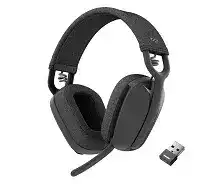
A headset that plays music normally but loses its microphone in a meeting usually has a connection or audio-routing problem rather than a failed speaker. The Logitech Zone Vibe 125 Headphones Driver works alongside the headset’s Bluetooth and USB receiver connections, while Logi Tune provides access to supported device controls and updates. The most useful fixes depend on whether the problem follows Bluetooth, the receiver, the microphone, or one particular calling application.
Logitech Zone Vibe 125 Headphones Windows Driver Download
| Driver Name | Description | Supported OS | File Size | Download |
|---|---|---|---|---|
| Logi Tune | Software for managing supported headset settings, audio controls, microphone options, and device preferences. | Windows 11, Windows 10 32-bit/64-bit | 195.9 MB |
Logitech Zone Vibe 125 Headphones Mac OS Driver Download
| Driver Name | Description | Supported OS | File Size | Download |
|---|---|---|---|---|
| Logi Tune | Headset management software for adjusting audio, microphone, device controls, and compatible headset preferences. | macOS 26, macOS 15, macOS 14, macOS 13, macOS 12.0, macOS 11, macOS 10.15 | 315.89 MB |
Logitech Zone Vibe 125 Headphones Driver When Calls Lose Audio
The Zone Vibe 125 can connect wirelessly through Bluetooth or its supplied USB receiver, which means Windows or macOS may expose more than one audio path. That flexibility becomes confusing when a meeting program keeps an older microphone or speaker selection. If a call has no sound while music still plays, open the meeting application’s audio controls and select the Zone Vibe 125 explicitly for both speaker and microphone.
Music works but the meeting is silent
Do not judge the headset only by a successful music test. Playback and communication software can use different output devices. A browser, conferencing client, or operating system may continue sending call audio to laptop speakers after the headset reconnects. Check the program’s own speaker choice first, then compare it with the system output selection. Restarting the call application after changing the audio device can clear an older route that remains cached.
The microphone disappears after reconnecting
When the headset reconnects but the microphone does not return, confirm that the calling program has selected the Zone Vibe 125 input rather than a built-in laptop microphone. Disconnecting and reconnecting the headset can make Windows reorder available inputs. The Logitech Zone Vibe 125 Headphones Driver and Logi Tune can help with device recognition, but they cannot force every conferencing program to follow a newly selected system microphone.
Also check microphone privacy permissions when every application suddenly loses access. Windows and macOS both control whether programs may use an attached microphone. If the headset appears as an audio device but no application receives speech, permission is a more useful place to look than repeatedly pairing the headset.
Bluetooth Pairing Can Fail While the Headset Still Looks Connected
Bluetooth problems often appear as a device that remains listed on the computer even though audio no longer reaches it. Remove the existing Zone Vibe 125 Bluetooth entry when repeated reconnect attempts fail, put the headset into pairing mode again, and create a new connection. This clears an outdated Bluetooth relationship rather than asking the operating system to repair the same broken entry each time.
The headset appears in the list but will not connect
A stored Bluetooth entry is not proof of an active connection. Turn Bluetooth off and back on at the computer, power-cycle the headset, and retry. If that fails, delete the saved Zone Vibe 125 entry before pairing again. This is particularly useful after operating-system updates or after the headset has spent time connected to another device.
Audio jumps to another paired device
The headset can remember wireless connections, so a nearby phone or another computer may become part of the problem. When troubleshooting unexplained switching, temporarily disable Bluetooth on the other paired device and keep only the computer active. If the audio then remains steady, restore the second device later and watch which one takes the connection when a call or media session starts.
This test is more informative than reinstalling software because it isolates wireless handoff behavior. It also explains why the headset may seem perfect at one desk yet become unpredictable when a previously paired phone returns to the room.
Zone Vibe 125 USB Receiver Problems Need a Different Test
The included USB receiver provides another wireless route and should be treated separately from Bluetooth. If the headset behaves badly through the receiver, do not remove its Bluetooth pairing first. Plug the receiver directly into another USB port and let the operating system detect it again. The Logitech Zone Vibe 125 Headphones Driver setup is easier to diagnose when only one connection method changes at a time.
The receiver is present but no sound reaches the headset
Windows may recognize the receiver without automatically choosing it as the active playback device. Open the sound output menu and select the Zone Vibe 125 path associated with the receiver. Do the same for the microphone input. A conference program may need the same adjustment inside its own audio menu because application-level choices can override the system default.
USB hubs, docks, and monitor ports add another variable. During diagnosis, connect the receiver to a computer USB port instead. If sound immediately returns, the headset itself may be fine and the original USB path deserves attention. Afterward, reconnect the dock or hub only if you need to determine which component caused the failure.
Audio cuts out at one desk position
Short dropouts can come from the radio environment rather than the audio package. Move the receiver away from crowded USB areas and large metal surfaces where practical. A desktop tower under a desk can also place more material between the receiver and headset. If changing receiver position stops brief audio gaps, keep that physical arrangement before making further software changes.
Microphone, Mute, and Call Controls Cause Their Own Confusion
The Zone Vibe 125 uses a boom microphone with flip-to-mute behavior. That makes microphone position part of troubleshooting. If people suddenly cannot hear you, lower the boom fully before changing software. Raising it mutes the microphone, so a partly moved boom can easily look like a driver problem during a call.
The microphone works, then suddenly goes quiet
Watch what happens immediately before the mute. If adjusting the boom triggers the problem, return it to the speaking position and test again. Also check the mute state shown by the conferencing program because software mute and headset mute can exist at the same time. Clearing only one of them may leave the call silent.
If the microphone remains inactive with the boom down, record a short voice sample outside the meeting application. A successful recording points toward the meeting program’s input choice or permissions. A failed recording across several programs moves the investigation toward the headset connection, operating-system input selection, or microphone hardware.
Your voice sounds too quiet
Low microphone level does not always require another installation. Check the operating system’s input volume and then the meeting program’s microphone level. Some conferencing software automatically adjusts gain, while other programs keep a fixed value. Disable or change automatic adjustment only when the program itself produces inconsistent volume; otherwise leave the headset controls alone and correct the input level where the problem occurs.
Logi Tune, Charging, and Wake Problems
Logi Tune is the Logitech control application associated with the Zone Vibe line and is useful when the computer sees the headset but supported configuration or update functions are missing. Open the utility with the headset actively connected rather than relying on an older saved entry. If Logi Tune cannot see the Zone Vibe 125, test the other supported connection path before changing several system components at once.
Logi Tune cannot detect the headset
Close and reopen the application after reconnecting the headset. On Windows, also check whether another audio or conferencing program has taken control during startup. If Bluetooth detection fails, try the supplied receiver; if the receiver path fails, test Bluetooth. A headset that appears through one method gives you a working reference and helps separate software detection from a broader hardware problem.
The Logitech Zone Vibe 125 Headphones Driver page should therefore not be treated as a cure for every missing control. The operating system handles much of the basic audio connection, while Logi Tune adds Logitech-specific management where supported. When ordinary sound already works, concentrate on the missing function instead of replacing every audio component on the computer.
The headset will not charge or runs down unusually fast
The Zone Vibe 125 uses USB-C charging. If the battery level does not rise, try another known-working charging cable and USB power source before assuming the battery has failed. Check that the connector seats fully and leave the headset connected long enough to confirm that charging has started. A cable that powers another low-demand accessory can still be unreliable when flexed or poorly seated.
Battery runtime also changes with call time, listening volume, and wireless use. If the headset suddenly shuts down much sooner than it previously did, charge it fully and repeat the test under normal use. A one-time short session after an incomplete charge tells less than a repeated pattern after full charging.
No sound after sleep or waking the computer
A sleeping computer can restore the headset connection without restoring the application’s audio route. After wake, check whether the Zone Vibe 125 still appears as both output and input. Reconnect the headset if either side is missing, then reopen the affected calling application. This sequence is usually faster than restarting the entire computer and shows which layer failed to return.
Separate Headset Faults From Computer Audio Faults
The final test should change the host device, not every headset setting. Connect the Zone Vibe 125 to another compatible computer or phone and check playback, microphone operation, mute behavior, and connection stability. If all of those functions work elsewhere, return to the original computer and focus on its Bluetooth records, USB path, permissions, sound selections, or conferencing software.
If the same microphone loss, charging failure, or repeated wireless dropout follows the headset across different devices and both connection methods, software becomes a weaker explanation. At that point, keep the testing narrow rather than cycling through more audio packages. The Logitech Zone Vibe 125 Headphones Driver, Logi Tune, Bluetooth connection, and supplied receiver each solve different parts of the chain, so identifying which part fails saves far more time than reinstalling everything together.