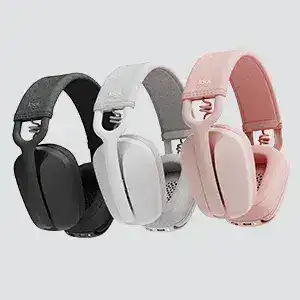
A headset can stay paired yet still lose its microphone, change sound quality when a meeting begins, or jump between two devices at an awkward moment. The Logitech Zone Vibe 100 Headphones Driver setup is mainly a Bluetooth and Logi Tune matter rather than a traditional audio-driver package. Zone Vibe 100 connects directly through Bluetooth, supports two simultaneous device connections, and uses Logi Tune Desktop for its Logitech software controls.
Logitech Zone Vibe 100 Headphones Windows Driver Download
| Driver Name | Description | Supported OS | File Size | Download |
|---|---|---|---|---|
| Logi Tune | Software for managing compatible headset settings, audio controls, device preferences, and firmware-related functions. | Windows 11, Windows 10 32-bit/64-bit | 195.9 MB |
Logitech Zone Vibe 100 Headphones Mac OS Driver Download
| Driver Name | Description | Supported OS | File Size | Download |
|---|---|---|---|---|
| Logi Tune | Mac software for adjusting headset preferences, microphone and audio options, connected-device controls, and supported updates. | macOS 26, macOS 15, macOS 14, macOS 13, macOS 12.0, macOS 11, macOS 10.15 | 315.89 MB |
Logitech Zone Vibe 100 Headphones Driver When Bluetooth Pairing Goes in Circles
If Zone Vibe 100 never appears in the Bluetooth list, check the headset itself before changing Windows audio components. Move the three-position power switch into its pairing position and hold it there for about two seconds. The indicator should flash white rapidly. A headset that is simply powered on, rather than actively pairing, may remain invisible to a computer or phone that is searching for new devices.
The headset disappeared from the Bluetooth list
Turn Bluetooth off and back on at the computer or phone when the search list becomes stale. If Zone Vibe 100 already has an entry there, try reconnecting that entry first. When the stored pairing no longer works, remove it and put the headphones back into pairing mode before adding them again. Updating the operating system is also worth checking when pairing fails on only one computer or phone.
Windows and macOS can pair directly with this model, so a USB headset receiver is not required for Zone Vibe 100. That detail matters when troubleshooting. Searching for a Logitech receiver utility or buying a dongle intended for another Zone headset will not repair a direct Bluetooth pairing problem on this model.
One computer stutters while another sounds normal
Choppy audio can come from the computer’s Bluetooth hardware rather than the headphones. This becomes especially likely when the same headset plays normally from a phone or another laptop. On desktop PCs, check the Bluetooth antenna if the motherboard uses an external antenna. Also update the computer’s Bluetooth software and test at close range before assuming that the headset itself has developed an audio fault.
Fix Call Audio Before Reinstalling Logitech Zone Vibe 100 Software
Music that sounds full before a call but suddenly becomes narrower during voice chat is not always a failed speaker. Bluetooth uses different audio behavior for high-quality listening and two-way communication. The microphone must operate during calls, so the computer may switch the headset into its communication profile. Closing other programs that are simultaneously using the microphone or headphones can also clear unexpected audio changes.
People hear you, but you cannot hear them
This has a specific Windows 10 and earlier fix. Direct Bluetooth pairing may leave Headphones (Zone Vibe 100 Stereo) selected as the playback device even though a call needs the communication profile. For a meeting or voice call, select Headset (Zone Vibe 100 Hands-Free AG Audio) in the calling application and in Windows sound controls. That gives Windows the input-and-output path required for conversation.
Do not use the same adjustment blindly for ordinary music. The stereo path exists for listening, while the hands-free path handles two-way calls. If music quality changes only after the microphone becomes active, compare which Zone Vibe 100 audio endpoint the program has selected. Switching profiles deliberately is more useful than repeatedly removing the Bluetooth pairing.
Volume drops or the audio becomes distorted
Close games, media players, browser tabs, or communication programs that may still hold the headset’s audio or microphone channel. Then test one application by itself. Zone Vibe 100 has separate talk and music operating characteristics, so several programs competing for its Bluetooth audio path can make a software problem look like damaged speakers.
Microphone Problems, Boom Mute, and Meeting Controls
The Logitech Zone Vibe 100 Headphones Driver configuration becomes more important when playback works but the microphone vanishes from a meeting application. Zone Vibe 100 uses dual beamforming microphones and provides both a microphone mute control and flip-to-mute behavior. Raising the boom mutes it; moving the boom down unmutes it. Check that physical state before changing application permissions or Bluetooth entries.
The microphone is paired but records nothing
Open the operating system’s audio input controls and confirm that Zone Vibe 100 is the active microphone. Then check the meeting application separately, because Teams, Zoom, a browser, or another calling program may retain a different input even after Windows changes. Shut down other software that may already have microphone access and test again with only the intended calling program open.
If the microphone disappears together with Bluetooth audio, treat it as a connection fault rather than a microphone-only fault. Power-cycle the headset and reconnect it from the Bluetooth list. A computer that repeatedly loses both input and output may need its Bluetooth software updated or its wireless hardware checked, especially when Zone Vibe 100 remains stable with other devices.
The headset mute state and Teams no longer agree
A more confusing fault occurs when the boom or headset mute control works locally but Microsoft Teams shows a different mute state. First make sure Teams has Zone Vibe 100 selected for both its speaker and microphone. Then turn the headset off, fully restart Windows, reconnect the headphones, and open Teams after Bluetooth has finished reconnecting. This can restore the control handshake after Windows or Teams changes.
Problems can also appear when one computer regularly pairs with two different Zone Vibe 100 headsets. If mute synchronization stops after swapping units, remove the unused headset entry and reconnect the one currently in use. Keeping similarly named Bluetooth audio devices stored at the same time can make it harder to tell which microphone and hardware-control entry the meeting software has chosen.
Play, pause, or track controls do nothing in a browser
The earcup includes call, volume, play and track controls, but media commands depend on the application. A button that works in a desktop music player may do nothing on a particular web page. Test the control in another media application before resetting the headphones. When only one website ignores the command, changing Bluetooth pairing or reinstalling Logi Tune is unlikely to correct the site-specific behavior.
Multipoint Can Look Like a Random Disconnect
Zone Vibe 100 can maintain two active standby Bluetooth connections and remember additional trusted devices. This is useful for a laptop and phone, but it also creates situations that resemble connection failures. Calls and video collaboration take priority over music. A phone receiving a call can therefore interrupt audio that was playing from the computer even though neither Bluetooth connection has actually failed.
Audio suddenly jumps to the other device
When this happens repeatedly, temporarily disconnect Zone Vibe 100 from the second host and test the first device alone. If the interruption disappears, multipoint switching rather than radio instability was responsible. Reconnect the second device only after confirming that both hosts behave normally by themselves. Pay particular attention to communication apps running in the background because a call event has higher priority than music streaming.
Eight devices can remain trusted, but only two active connections operate at once. Old pairings may therefore be worth clearing when the headset keeps reconnecting somewhere you no longer expect. Remove unused Zone Vibe 100 entries from computers, tablets, and phones that stay nearby, then establish the two connections you actually want.
Charging, Logi Tune, and a Headset That Will Not Wake
The Zone Vibe 100 contains a rechargeable 3.7 V lithium-polymer battery and charges through its USB cable. Logitech specifies about two hours from empty to full under its stated charging conditions, with voice prompts indicating battery levels. If the headphones refuse to switch on, charging and a power cycle should come before Bluetooth removal or application changes.
No power prompt after moving the switch
Connect the charging cable and leave the headset charging for at least 15 minutes before testing again. Then move the power switch off and back on. A working unit normally gives a spoken battery-status prompt after startup. If nothing happens despite confirmed charging power, move on to the headset reset rather than repeatedly pairing and unpairing it from the computer.
Battery percentage falls much faster than expected
Compare the problem across several charge cycles instead of judging one unusually busy day. Call use, music playback, connection behavior, and battery age all affect operating time. If the headset no longer approaches its normal runtime after a full charge, check whether it actually reaches a full battery prompt and whether the charging cable and power source complete charging consistently.
A charging problem that follows the headphones between different USB power sources points more strongly toward the headset or its battery. By contrast, a unit that charges correctly from one source but not another directs attention to the original port, cable connection, or power supply. Avoid treating short battery runtime as a software fault until full charging has been confirmed.
Use a factory reset when the controls freeze
For a Zone Vibe 100 that remains unresponsive after charging and power cycling, hold the Call Answer/End button and Volume Down together for five seconds. The indicator should pulse rapidly and the headset will power off. Turn it back on afterward. Logi Tune also provides a factory-reset option under the headset information area when the application can still detect the device.
Resetting removes a useful variable when Bluetooth behavior, controls, or stored state becomes inconsistent, but it should not be the first answer to every audio issue. A Windows call-profile mistake, an application choosing another microphone, or multipoint switching will usually return after a reset unless that underlying selection is corrected.
Use Logi Tune for the Headset, Not Unrelated Logitech Utilities
Logi Tune Desktop is the application Logitech listed for Zone Vibe 100 at release. The product support area may not present a conventional standalone Logitech Zone Vibe 100 Headphones Driver download, because Bluetooth audio also relies on the operating system’s own Bluetooth and audio components. Logi Tune supplies the Logitech-side device management rather than replacing the computer’s Bluetooth stack.
If Logi Tune cannot see the headset, first confirm that Windows or macOS has an active Zone Vibe 100 Bluetooth connection. Restart the application after reconnecting the headphones. When the operating system itself cannot see the headset, work on pairing first; repeatedly reinstalling Logi Tune cannot repair a Bluetooth connection that never reaches the computer.
When software fixes stop making sense
Separate the fault by function. Test Bluetooth pairing, playback, microphone input, boom mute, charging, and the earcup controls individually. A headset that works completely on another computer points back toward the first machine’s Bluetooth or audio configuration. A single physical control or microphone that fails everywhere after reset, while the rest of the headphones operate normally, gives software troubleshooting much less room to help.
The best use of the Logitech Zone Vibe 100 Headphones Driver software is therefore to support a connection that is already behaving as Bluetooth hardware should. Keep the intended two multipoint devices paired, choose the hands-free audio path for calls where Windows requires it, verify the meeting application’s microphone selection, and use the hardware reset only when the headset itself becomes unresponsive. Those checks target the failures this Bluetooth model actually develops instead of treating every symptom as a missing driver.