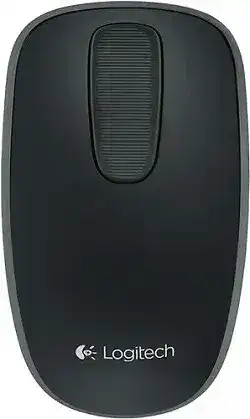
When the touch strip scrolls but the computer treats the device like a plain pointer, the Logitech ZONE TOUCH T400 MOUSE Driver is mainly about restoring the right Logitech software path, receiver pairing, and touch gesture behavior. This model uses a USB Unifying receiver, not Bluetooth, so the receiver and the software utility matter more than any wireless pairing menu in Windows. The page below focuses on connection recovery, touch strip response, clicking zones, battery warnings, and practical fixes for this older Windows-focused Logitech touch mouse.
Logitech Zone Touch Mouse T400 Windows Driver Download
| Driver Name | Description | Supported OS | File Size | Download |
|---|---|---|---|---|
| Logitech Unifying Software | Add or remove compatible Unifying receiver devices and manage wireless pairing for the mouse. | Windows 11, Windows 10 32-bit/64-bit | 3.96 MB | |
| SetPoint Software 32-bit | Full 32-bit SetPoint package for offline setup with mouse button settings and tracking speed control. | Windows 11, Windows 10 32-bit, Windows 8 32-bit, Windows 7 32-bit | 78.04 MB | |
| SetPoint Software 64-bit | Full 64-bit SetPoint package for offline installation with hot-key support and device-specific settings. | Windows 11, Windows 10 64-bit, Windows 8 64-bit, Windows 7 64-bit | 80.45 MB | |
| SetPoint Smart Installer | Small SetPoint installer for mouse settings, battery status, Caps Lock, and Num Lock alerts; internet is required during installation. | Windows 11, Windows 10 32-bit/64-bit, Windows 8 32-bit/64-bit, Windows 7 32-bit/64-bit | 4.61 MB |
Logitech ZONE TOUCH T400 MOUSE Driver When Touch Gestures Do Not Respond
The T400 is not built around a normal mechanical scroll wheel. Its main control area is the touch strip, which handles vertical and sideways swipes, middle-click behavior, and the Windows Start screen shortcut from the upper part of the strip. If the pointer moves but swipes feel missing, the computer may only be reading standard mouse input and not the enhanced touch controls.
Install the Logitech ZONE TOUCH T400 MOUSE Driver package or compatible Logitech mouse software before spending time on deeper fixes. After installation, restart the computer, turn the mouse off, turn it back on, and test the touch strip again in a browser window or file window. This separates a missing software layer from a physical strip problem.
Touch strip scrolls in one direction only
The touch strip should react to finger movement upward, downward, and sideways. When only vertical movement works, check the active application first because some programs ignore horizontal scroll input. Try a wide spreadsheet, a large image, or a window with a horizontal bar before changing software. If sideways movement works there, the mouse is sending the input correctly.
If horizontal movement fails everywhere, reinstall the Logitech control software and remove older mouse utilities that may still hold custom scroll rules. The T400 was made for touch gestures, so a normal HID entry alone may leave its special strip behavior partly unavailable.
Middle click feels inconsistent
The T400 uses left, right, and middle click areas on the mouse surface. A missed middle click is often a finger placement issue rather than a broken switch. Press the middle area with a direct downward click instead of sliding across the strip. If scrolling starts instead, lift your finger, click again, and avoid dragging during the press.
Dust or skin oil around the touch strip can also make gestures feel uneven. Clean the surface gently with a dry microfiber cloth and keep liquid away from the gaps. After cleaning, power-cycle the mouse and test left, right, and middle clicks separately.
Unifying Receiver Checks for the Logitech ZONE TOUCH T400 MOUSE
This model connects through a Logitech Unifying receiver plugged into a USB port. It does not use Bluetooth pairing, so Windows Bluetooth settings will not find it. The Logitech ZONE TOUCH T400 MOUSE Driver setup should be treated as a receiver-based setup: plug in the receiver, switch on the mouse, check the battery light, and then use Logitech pairing software only when the receiver no longer recognizes the device.
If the cursor does not move at all, start with the receiver before changing Windows mouse settings. Unplug the receiver, wait a few seconds, and connect it directly to the computer. Avoid a loose hub during testing because the small receiver needs a steady USB connection. Then restart the mouse with the power switch.
Receiver is detected but the mouse is not
A receiver can appear in Windows while the mouse still refuses to respond. In that case, the receiver may not be paired with this device anymore, especially after using the receiver with another Logitech product. Open the Logitech Unifying pairing utility or the current Logitech device software that offers Unifying receiver pairing, then add the mouse again by following the on-screen power-cycle prompt.
Do not try to pair the T400 with a random non-Unifying nano receiver. A compatible Unifying receiver has the orange Unifying mark and can connect multiple supported Logitech devices. If the original receiver was lost, use a replacement Unifying receiver and pair the mouse through Logitech software.
Connection drops near metal or crowded USB ports
A desk frame, metal laptop stand, external drive, or crowded USB adapter can block or disturb the short wireless path between the T400 and its receiver. Move metal items away from the working area and try another USB port. A direct port on the computer usually gives a clearer signal than a multiport adapter sitting behind a monitor.
The fix is not always a new driver. Sometimes the receiver position changes everything. After moving the receiver, leave the mouse still for a moment, then swipe the touch strip and move the pointer in slow circles. If the pointer becomes steady, the wireless path was the cause.
Software Install Problems and Old Logitech Entries
Because the T400 is an older touch mouse, software confusion can happen on newer Windows systems. Logitech support pages may show limited downloads for the product, while newer Logitech pages may point users toward newer device software for supported hardware. For this mouse, the safest approach is to install only the Logitech package that actually detects the T400 or its Unifying receiver.
If Logitech software cannot see the device, remove duplicate or outdated Logitech mouse entries from Windows, restart, and then reconnect the receiver. This is useful when several Logitech mice have been used on the same computer. Old device records can make the pairing utility behave as if the receiver is present but no supported mouse is waiting to connect.
Software opens but no prompt appears
The original setup flow expected a software prompt after the receiver was plugged in. On modern systems, that prompt may not appear. Download and open the Logitech software manually, then look for device detection, Unifying receiver pairing, or add-device options. Keep the mouse switched on during this process and check that the battery status light does not show a low-power warning.
A restart after installation is worth doing for this model. The mouse may work as a basic pointer before the enhanced controls become available, so testing too early can make the install look unsuccessful. Restart first, then test scrolling, middle click, and the Windows shortcut area.
Two Logitech utilities conflict
Running more than one Logitech mouse utility can create confusing behavior. One utility may detect the receiver while another controls scroll or click settings. Keep the software environment simple by uninstalling older Logitech mouse packages that are no longer needed, restarting Windows, and then installing the package you want to use for the T400.
After cleanup, plug in only the T400 receiver while testing. That makes it easier to see whether the software is reading this mouse rather than another Logitech device still saved on the computer.
Battery Light, Power Switch, and Wake Behavior
The T400 has a battery status light and a power switch on the underside. When the light shows red or blinks red, change the batteries before reinstalling software. Low power can make the pointer stop, gestures misread, or pairing fail during the exact moment the utility asks you to turn the mouse off and on.
Open the battery compartment and reseat the batteries firmly. If the mouse was stored for a long time, check the contacts for dull residue and clean them gently with a dry cloth. Do not scrape the contacts with sharp tools. Once the batteries sit firmly, switch the device on and watch the status light before testing movement.
Mouse wakes slowly after idle time
A short pause after idle time can be normal for wireless mice, but a long wake delay points to power or receiver trouble. Turn the mouse off for ten seconds, turn it back on, and move it on a plain surface. If the delay improves after battery replacement, the issue was power-related rather than software-related.
If the delay continues, test the receiver in another USB port and remove nearby metal items. Wake problems often look like battery failure, but a poor receiver position can create the same first-move hesitation.
Touch Strip and Receiver Setup Before You Replace the Mouse
Before replacing the device, confirm the T400’s two main systems separately: the Unifying receiver connection and the touch strip controls. The receiver must pair and stay connected before the touch strip can behave correctly. The touch strip must then respond to swipes and the three click zones without relying on Bluetooth menus or unsupported receiver types.
Use the Logitech ZONE TOUCH T400 MOUSE Driver only as part of that focused recovery process. Pair the mouse with a compatible Unifying receiver, keep the receiver in a clear USB position, install only the Logitech utility that recognizes the device, and check the battery light before each software retry. When those basics are stable, the T400 can still handle pointer movement, touch scrolling, middle click, and its Windows touch shortcut without unnecessary reinstall loops.