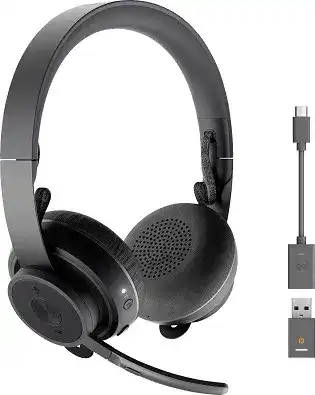
A headset can stay paired and still give you the wrong microphone, muffled music, or a mute state that disagrees with the meeting window. The Logitech Zone 900 Bluetooth Headset Driver setup is mainly handled through Logi Tune, together with the headset’s Bluetooth 5 connection or its supplied USB receiver. The software also gives access to microphone testing, sidetone, EQ adjustments, battery information, and firmware updates.
Logitech Zone 900 Bluetooth Headset Windows Driver Download
| Driver Name | Description | Supported OS | File Size | Download |
|---|---|---|---|---|
| Logi Tune | Headset management software for adjusting audio settings, microphone controls, device preferences, and supported firmware features. | Windows 11, Windows 10 32-bit/64-bit | 195.9 MB |
Logitech Zone 900 Bluetooth Headset Mac OS Driver Download
| Driver Name | Description | Supported OS | File Size | Download |
|---|---|---|---|---|
| Logi Tune | Mac software for managing compatible headset audio, microphone behavior, device controls, and available firmware functions. | macOS 26, macOS 15, macOS 14, macOS 13, macOS 12.0, macOS 11, macOS 10.15 | 315.89 MB |
Logitech Zone 900 Bluetooth Headset Driver When Calls and Music Behave Differently
The Zone 900 changes its audio processing depending on whether you are listening to media or using the microphone. Its dynamic EQ has separate behavior for music and calls. This can make a song suddenly sound flatter or narrower when a meeting program, browser tab, game, or another application activates the headset microphone in the background.
Music quality drops even though no call is active
Close programs that may still have microphone access. On Windows, check the microphone privacy page to see which applications can use the mic. On macOS, inspect Microphone permissions under Privacy and Security. Once nothing is holding the microphone open, start the music again and check whether the headset returns to its music-oriented audio mode.
Leaving a conferencing program minimized can be enough to keep the microphone active. The same can happen with voice chat inside games. This is different from an EQ problem in Logi Tune, so changing the five-band equalizer may not solve it. First remove the unwanted microphone activity, then adjust EQ only if the sound still needs changing.
The meeting uses the laptop microphone instead
If people hear the computer’s built-in microphone rather than the Zone 900, check the input source inside the meeting application as well as the operating system. Bluetooth pairing alone does not guarantee that every program changes its audio input automatically. Select the headset microphone for the call and confirm it with the microphone test in Logi Tune before joining an important meeting.
Mute Can Work on the Headset Without Matching the App
The Zone 900 has two physical ways to mute: use the microphone mute control or raise the boom. Lowering the boom unmutes it again. A confusing case appears when the headset is connected directly through Bluetooth. The hardware mute can work while the conferencing application continues to display its own microphone icon as unmuted.
The headset says muted but Teams or another app does not
This does not necessarily mean the microphone is still transmitting. Direct Bluetooth does not provide Zone 900 mute-status synchronization with every computer application. Treat the headset mute and the program’s mute display as separate states when using that connection. If you need to verify the result, speak while watching the application’s input meter rather than relying only on its microphone symbol.
The supplied receiver provides another connection path for the headset. If call-control behavior matters more than using native Bluetooth, compare the behavior through that receiver. The Logitech Zone 900 Bluetooth Headset Driver software can then stay available through Logi Tune while you test microphone response, mute behavior, and the selected input source together.
Raising the boom does not give the expected result
Move the microphone boom fully through its mute position rather than stopping halfway. The Zone 900 also has a dedicated mute control, so check whether the headset announces or otherwise indicates the state after using either method. If the hardware controls behave unpredictably across different applications, power the headset off, restart it, and test the controls before opening several communication programs.
Bluetooth Pairing, Receiver Pairing, and Two Connected Devices
The Zone 900 can connect directly through Bluetooth 5 and can also use its supplied USB receiver. It supports two simultaneous active-standby connections and remembers additional trusted Bluetooth devices. That flexibility can create its own confusion because native Bluetooth receives priority over the USB connection, while calls and video collaboration receive priority over music.
The headset connects to the wrong device
If a phone and computer are both paired, an incoming phone call can take control while music is playing from the computer. That is expected multipoint behavior rather than a dropped computer connection. When you want to troubleshoot one source, temporarily disconnect the second device. Testing with only one active connection makes it much easier to see whether the real problem is pairing or automatic source priority.
Zone 900 disappears from the Bluetooth list
Put the headset into pairing mode deliberately instead of waiting for an old connection to recover. Hold the Bluetooth pairing control for about two seconds until the headset indicator flashes white rapidly. Open the computer or phone Bluetooth page and select Logitech Zone 900. A solid white indicator confirms that pairing completed.
If an existing Bluetooth record repeatedly fails to reconnect, remove that saved Zone 900 entry from the device and pair it again. A simple power cycle can also recover a lost connection: turn the headset off, wait briefly, then switch it on again. For a phone connection that remains stuck, restarting the phone’s Bluetooth radio before another pairing attempt can clear the stale link.
The supplied receiver no longer finds the headset
The Zone 900 normally arrives already paired with its receiver. A replacement receiver or a lost pairing can be handled through Logi Tune Desktop. Connect the receiver to USB-A, or use the included adapter for USB-C, then open Logi Tune. Put the headset into pairing mode when the utility requests it. Successful pairing leaves both headset and receiver indicators solid white.
The receiver is more than an ordinary Bluetooth dongle. It is specifically designed to connect one Zone 900 headset and also includes Logitech Unifying functionality for compatible peripherals. If you replace it, use a receiver intended for the Zone 900 rather than assuming any generic Bluetooth or Unifying device will provide the headset audio connection.
Logitech Zone 900 Bluetooth Headset Software for Sound, Sidetone, and Firmware
Logi Tune is the main control utility for the Logitech Zone 900 Bluetooth Headset Driver package. On a computer, it can test microphone and playback operation, expose battery status, adjust sidetone, change the headset EQ, and handle firmware. The mobile version also provides headset controls, but desktop Logi Tune is especially useful when diagnosing receiver or computer-audio problems.
Your own voice sounds too loud or too distant
Sidetone feeds part of your microphone signal back into the headphones so you can hear yourself while speaking. If that effect feels distracting, open Logi Tune and reduce the sidetone level. If you find yourself speaking too loudly because the ANC and earcups isolate your voice, a modest sidetone increase can make conversation feel more natural without changing the microphone level sent to other people.
ANC works, but the overall sound still feels wrong
Active Noise Canceling has its own control on the headset, while tonal changes belong to the EQ inside Logi Tune. Do not treat those functions as the same adjustment. Toggle ANC first and listen for the change in outside noise. If voices, bass, or music balance still sounds unsuitable, change the EQ separately and avoid large slider changes until you know which setting caused the difference.
Logi Tune sees the headset but firmware is old
Keep the headset powered and connected while Logi Tune performs an update. Open the device information area, check for firmware, and allow the update to complete without disconnecting Bluetooth or removing the receiver. Firmware updates can address device behavior that ordinary audio settings cannot. Afterward, confirm the reported firmware version and retest the symptom that led you to update it.
Charging and Reset Checks When the Headset Becomes Unpredictable
The Zone 900 contains a rechargeable lithium-polymer battery and supports both USB charging and Qi wireless charging. A full charge is rated for up to 14 hours of battery life, with roughly two hours needed for a complete charge from empty. A short five-minute charge can provide about an hour of call time, which is useful when the headset dies shortly before a meeting.
The charging light appears but battery life stays low
Check battery status in Logi Tune or press the headset volume plus and minus controls together for its status indication. A breathing white light indicates charging, while solid white indicates a full charge. If Qi charging seems inconsistent, reposition the headset on the charging surface or use the USB cable as a comparison. That separates a charging-pad alignment problem from a headset battery problem.
Controls, pairing, and audio remain confused after normal fixes
A factory reset is the stronger recovery option because it clears saved headset settings and disconnects existing connections. Hold the ANC control and Volume Down together for about five seconds. When the headset powers off and its indicator goes dark, the reset has completed. Turn it back on afterward and rebuild the Bluetooth or receiver connection rather than expecting the previous pairings to remain.
Use the reset only after simpler checks have failed, because it deliberately removes saved state. For a recurring Logitech Zone 900 Bluetooth Headset Driver problem, first identify whether the failure follows Bluetooth, the USB receiver, a particular conferencing application, or the microphone being active. That distinction usually points to the useful fix much faster than changing several audio and wireless options at once.