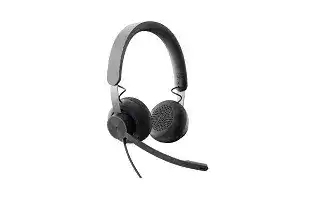
A headset can appear normally in Windows and still send calls through the laptop microphone or speakers. The Logitech Zone 750 USB Headset Driver setup works through standard USB audio together with Logi Tune Desktop for headset controls and firmware. Zone 750 is a wired model with USB-C, the supplied USB-A adapter, dual noise-canceling microphones, inline call controls, and no Bluetooth or wireless receiver to troubleshoot.
Logitech Zone 750 USB Headset Windows Driver Download
| Driver Name | Description | Supported OS | File Size | Download |
|---|---|---|---|---|
| Logi Tune | Headset management software for adjusting supported audio, microphone, sidetone, and device settings. | Windows 11, Windows 10 32-bit/64-bit | 183.14 MB | |
| Logi Tune | Desktop software for managing compatible headset controls, audio preferences, and device configuration. | Windows 10 32-bit/64-bit | 177.87 MB |
Logitech Zone 750 USB Headset Mac OS Driver Download
| Driver Name | Description | Supported OS | File Size | Download |
|---|---|---|---|---|
| Logi Tune | Mac headset software for controlling compatible microphone, sound, sidetone, and device preferences. | macOS 13, macOS 12, macOS 11 | 233.88 MB | |
| Logi Tune | Device configuration software for supported headset audio controls and settings on compatible Mac systems. | macOS 10.15 | 154.93 MB |
Logitech Zone 750 USB Headset Driver When Calls Use the Wrong Audio Device
Music playing through the headset does not prove that a meeting application has selected its microphone. Windows and conferencing software can keep separate speaker and input choices. After plugging in the Zone 750, check both. Choose the headset for output and choose its microphone for input rather than leaving either field on a laptop speaker, webcam microphone, dock, or previously connected audio device.
People cannot hear you although you hear them
Look at the inline controller before changing software. A solid red light means the microphone is muted. The Zone 750 also uses a movable microphone boom, so bring the boom into its speaking position and place it near your mouth. If the microphone still stays silent, open the computer’s sound input panel and confirm that the Zone 750 input meter reacts when you speak.
A meeting application may ignore the Windows default and retain a microphone chosen during an earlier session. Open its audio preferences while the headset remains plugged in. Select the Zone 750 explicitly for both microphone and speaker, then make a short test call. This is especially useful when ordinary music works but Teams, Zoom, a browser meeting, or another calling program behaves differently.
The laptop microphone stays active
If callers hear room noise unusually clearly, the computer may be recording from its built-in microphone instead of the headset’s noise-canceling mic array. Watch the input meters for each device while speaking close to the Zone 750 boom. Disable neither device permanently during the first test; simply select the Logitech input and verify which meter moves. That makes the source of the problem obvious.
Mute Problems Are Not Always a Broken Button
Mute behavior causes particular confusion on this headset because the inline controller gives both visual and spoken feedback. Pressing mute should change the controller state, and a red indicator identifies a muted microphone. If the button seems ineffective, first check the boom position and the application microphone state rather than assuming that the control itself has failed.
The microphone refuses to unmute
Lower the boom fully toward your mouth, then press the inline mute control once and watch the indicator. Some apparent mute failures come from trying to change microphone state while the boom remains raised. Once the boom is in its normal talking position, check whether the red light clears and whether the input meter begins moving again.
If the red light changes correctly but the caller still hears nothing, the mute button has probably done its job. The next place to inspect is the application. A meeting program can have its own software mute in addition to the headset control, so unmuting one does not necessarily unmute the other. Check both states before reconnecting the USB cable.
Mute announcements are distracting
The headset provides audible status feedback when mute changes. That can be unexpected in a quiet call because the notification is heard directly through the earcups. Do not confuse that voice prompt with meeting audio or another participant speaking. Concentrate on the controller light when checking whether the microphone is actually live, since the indicator gives a quick physical confirmation.
Use Logi Tune for Zone 750 Audio and Firmware
The Logitech Zone 750 USB Headset Driver package does not work like an old-style sound-card driver that must be installed before Windows recognizes the hardware. The headset uses USB HID and USB audio protocols, while Logi Tune Desktop adds Logitech-specific adjustment and firmware functions. It is the relevant Logitech application when you need sidetone, microphone adjustments, equalizer control, or a headset firmware update.
Logi Tune does not see the headset
Connect the Zone 750 directly to a computer USB port before opening Logi Tune. If you are using USB-A, use the adapter supplied with the headset rather than an unrelated adapter. Close and reopen Logi Tune after moving ports. A direct connection also removes docks and hubs from the test, which is useful when the operating system recognizes audio but the Logitech application does not detect the device.
If detection remains inconsistent, unplug the headset, close Logi Tune, reconnect the cable, and start the application again. Test another USB port before reinstalling anything. Because the headset receives both power and audio through USB, a problematic port can affect device discovery, microphone operation, controls, or sound at the same time.
Firmware update does not begin
Keep the Zone 750 attached throughout a firmware update and avoid moving the cable between ports during the process. In Logi Tune, select the headset and check its device information for an update. If the application cannot begin the update, restore basic headset detection first. Firmware work should come after the computer and Logi Tune can both see the headset consistently.
The current Logitech firmware process for Zone 750 runs through Logi Tune Desktop. That distinction matters when older support pages or archived utilities appear in searches. Installing unrelated legacy Logitech tools will not solve a headset that Logi Tune already supports, and adding several peripheral utilities can make later troubleshooting harder to follow.
Sound Quality Changes Between Music and Meetings
Zone 750 uses 40 mm drivers and is intended for both calls and music, yet a meeting can still sound different from a music player. Before blaming the hardware, compare the same headset outside the conferencing application. If music is clear but voices sound weak only inside one program, inspect that program’s volume, output selection, communications processing, and any automatic audio controls it applies.
Volume is low even at the inline control
The headset volume buttons and the computer’s software volume can influence the final listening level. Raise the inline volume, then check the operating system mixer and the application that is producing sound. A browser tab, media player, or meeting program can sit below the main system volume. Testing these levels separately prevents an unnecessarily loud global setting just to compensate for one quiet application.
Your own voice sounds too loud in the earcups
This may be sidetone rather than microphone feedback. Sidetone intentionally sends some of your voice back through the headset so you can judge how loudly you are speaking. Open Logi Tune and reduce the sidetone level if your voice dominates the conversation. Raise it only if the closed-ear feeling makes you speak louder than usual.
Sidetone adjustment is also useful when someone mistakes normal voice monitoring for an echo. A true call echo usually includes delayed speech, while sidetone follows your voice immediately. Lowering the sidetone temporarily is an easy comparison. If the distracting voice disappears at once, there is no reason to start replacing cables or changing meeting software.
Music sounds wrong after a call
First close the calling application completely and replay the same audio. Some communication programs keep an audio session active after the meeting window disappears, which can leave volume or processing different from ordinary playback. Logi Tune also provides a five-band equalizer, so check whether a custom EQ preset is making music unusually thin, bright, or bass-heavy before resetting computer audio settings.
USB-C and USB-A Connection Faults Need Different Checks
The Logitech Zone 750 USB Headset Driver connection can run through USB-C directly or through the supplied USB-A adapter. There is no receiver to pair and no Bluetooth list to clear. That narrows connection troubleshooting considerably. If the headset disappears completely, concentrate on the physical USB path, the included adapter when needed, the computer port, and whether another machine detects the same headset.
The headset disconnects when the cable moves
A brief sound cut when touching the connector deserves a physical test. Seat the USB-C plug fully and try another direct port. When using USB-A, check the connection on both sides of the supplied adapter. If movement at one particular connector repeatedly makes Windows lose the headset, software changes are unlikely to fix that physical interruption.
Also remove a dock or hub from the path while diagnosing intermittent detection. A dock can work perfectly with storage or a keyboard yet still behave differently with continuous USB audio. Connect the Zone 750 straight to the computer and make a longer call. If the dropouts stop, investigate the dock, its USB link, or its firmware separately.
The supplied USB-A adapter works on one computer only
Try another USB-A port before assuming the adapter has failed. Front ports, docking-station ports, and monitor hubs may sit on different USB controllers from ports built directly into the computer. If USB-C works reliably while USB-A through the supplied adapter does not, compare the ports on another computer. This isolates the headset from the host system without introducing an unverified third-party adapter.
Inline Call Controls Work in One App but Not Another
Zone 750 provides inline controls for volume, microphone mute, answering or ending calls, media playback, track changes, and compatible voice-assistant functions. Not every application handles every USB HID command in the same way. A working microphone with a call button that does nothing therefore points to software integration rather than an immediate headset failure.
The answer or end-call button does nothing
Check whether the application is actually using the Zone 750 for call audio. Then test the control in another supported calling program if one is available. The button can answer or end calls where the application recognizes the headset command, but application behavior varies. If audio and mute operate normally, avoid changing microphone permissions merely because one call-control command is ignored.
Play and pause work but call controls do not
Media commands and conferencing commands take different paths through software. Play or pause succeeding in a music application proves that the inline controller can communicate with the computer, but it does not prove that a meeting program accepts the call command. Update the meeting application, reconnect the headset, and test again before treating the inline controller as defective.
Separate a Headset Fault From a Computer Audio Fault
When several symptoms appear together, use the Logitech Zone 750 USB Headset Driver troubleshooting path to reduce the number of variables. Connect directly by USB, select the headset as both input and output, confirm mute status, and test recording outside the meeting application. Then open Logi Tune only after normal USB audio works. This order separates hardware detection from application configuration and Logitech-specific controls.
A second computer is especially useful when sound disappears, the microphone remains silent, and Logi Tune cannot detect the headset on one machine. If the Zone 750 immediately works elsewhere, return to the first computer’s USB ports and audio selections. If the same failure follows the headset through direct connections on multiple computers, the evidence points much more strongly toward the headset, cable, or supplied adapter.
Because this model is wired and USB-powered, there are no batteries to charge, wireless channels to repair, or receivers to replace. That makes diagnosis more focused. Keep the original USB-A adapter with the headset, use Logi Tune for supported adjustments and firmware, and verify microphone and speaker selection whenever a new conferencing application starts sending audio somewhere unexpected.