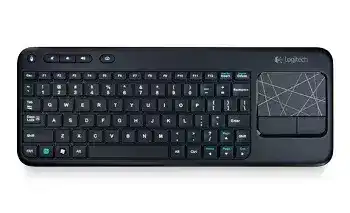
A cursor that freezes while the letter keys still work can make the keyboard seem partly broken. The Logitech Wireless Touch Keyboard K400 Driver adds the older Logitech controls used for its integrated touchpad, function shortcuts, and Unifying connection. Windows can usually accept ordinary typing through built-in input support, but scrolling, gestures, shortcut behavior, and device customization may need the matching Logitech package.
The original K400 combines a compact keyboard with a 3.5-inch multi-touch touchpad and separate left and right click buttons. It connects through a 2.4 GHz Logitech Unifying receiver and runs on two AA batteries. This model does not use Bluetooth or a Logi Bolt receiver, so Bluetooth menus and Bolt pairing tools will not repair its wireless link.
Logitech Wireless Touch Keyboard K400 Windows Driver Download
| Driver Name | Description | Supported OS | File Size | Download |
|---|---|---|---|---|
| Logi Options+ Software | Customizes keyboard shortcuts, device settings, pointer behavior, scrolling, and supported gestures. | Windows 11, Windows 10 32-bit/64-bit | 43.21 MB | |
| SetPoint 64-bit Software | Full 64-bit package for offline setup, including hot-key controls, device-specific settings, battery status, and lock-key indicators. | Windows 11, Windows 10 64-bit, Windows 8 64-bit, Windows 7 64-bit | 80.45 MB | |
| SetPoint 32-bit Software | Complete 32-bit offline installer for configuring hot-keys, tracking speed, keyboard status alerts, and product-specific controls. | Windows 11, Windows 10 32-bit, Windows 8 32-bit, Windows 7 32-bit | 78.04 MB | |
| SetPoint Smart Installer | Small universal installer that downloads the required SetPoint components during setup and requires an internet connection. | Windows 11, Windows 10 32-bit/64-bit, Windows 8 32-bit/64-bit, Windows 7 32-bit/64-bit | 4.61 MB | |
| Logitech Unifying Software | Adds, removes, and reconnects compatible Logitech devices through a single Unifying USB receiver. | Windows 11, Windows 10 32-bit/64-bit | 3.96 MB |
Keyboard input works but the touchpad does not
Disconnect the Unifying receiver, wait several seconds, and plug it into a direct USB port. Restart the keyboard with its power switch after Windows detects the receiver again. A stalled receiver session can leave one input interface active while the touchpad interface remains silent. Reconnecting the dongle often makes Windows reload both parts of the device.
Open Device Manager when the problem returns immediately. Remove only the inactive Logitech or USB input entry associated with the receiver, then reconnect the dongle and let Windows detect it again. Avoid deleting unrelated laptop touchpad entries. Testing the K400 on another computer will show whether the fault follows the keyboard or remains with the first Windows installation.
The pointer moves in jumps across the television
Place the receiver where the computer case, television frame, and entertainment cabinet do not block its signal. A front USB port or a short USB extension can improve response when the computer sits behind a television. Nearby USB 3 equipment, wireless storage devices, routers, and dense cable bundles may also disturb the 2.4 GHz path.
Distance is not the only factor. The touchpad can feel delayed from a nearby sofa even when the keyboard remains within its advertised range. Move the receiver into a clearer position before changing pointer speed. If the cursor becomes steady at close range, the wireless route caused the delay rather than the touch surface.
Restore Scrolling, Tapping, and Click Actions
Two-finger scrolling suddenly stops
The original K400 uses multi-touch gestures for page movement. Slide two fingers vertically across the pad while viewing a long webpage or document. Some applications, remote desktop sessions, television interfaces, and older operating systems interpret the gesture differently. Test it in another Windows program before assuming that the touchpad hardware has failed.
Install the Logitech Wireless Touch Keyboard K400 Driver software that includes the compatible SetPoint controls. Open the touchpad section and confirm that scrolling remains enabled. A software update, profile reset, or new Windows account can return gesture preferences to their defaults. Restart SetPoint after saving the change so its background process loads the revised behavior.
Tapping no longer opens files or links
Tap-to-click depends on the touchpad preference rather than the physical buttons beneath it. Open SetPoint and inspect the tap option. Turn it on, apply the change, and test a single light tap. Pressing too firmly or leaving a second finger on the pad may produce a drag or an ignored action instead of a normal click.
Use the separate left button when tapping behaves differently in only one application. That quick comparison matters. If the physical button works everywhere, the wireless connection remains active and the fault sits with gesture recognition or program compatibility. When neither method clicks, reconnect the receiver and test the keyboard on another USB port.
Dragging releases the item too early
Dragging with a touchpad takes more coordination than moving a separate mouse. Hold the left click button while sliding one finger across the pad, especially when moving windows or selecting text. This method avoids the timing used by tap-and-drag gestures and works even when a program does not recognize the preferred tap behavior.
Clean the touch surface with a soft, dry cloth if the pointer breaks away during a drag. Grease and moisture can interrupt finger tracking. Do not spray cleaner directly onto the keyboard. A drag that fails at the same physical spot after cleaning may indicate wear inside the touchpad rather than a Windows option.
Right-click opens inconsistently
Use the dedicated right button below the touchpad for a clear test. Some operating systems and applications handle multi-finger secondary clicks differently, while the physical button sends an ordinary right-click command. If menus appear with the button but not with a gesture, adjust the SetPoint touchpad preference or continue using the hardware control.
Repair the Unifying Link Without Mixing Receiver Types
The keyboard disappeared after replacing the receiver
A replacement must carry the Logitech Unifying symbol. A Bolt receiver, Bluetooth adapter, or receiver from a non-Unifying Logitech product cannot communicate with this keyboard. Similar size and shape do not indicate compatibility. Check the mark on both the keyboard and dongle before attempting to pair them.
Launch Logitech Unifying Software with the replacement receiver connected. Follow the utility prompt, switch the K400 off, and turn it on again. The software should confirm input by asking you to type or use the device. The Logitech Wireless Touch Keyboard K400 Driver setup may include supporting components, but the Unifying utility performs the actual receiver pairing.
Unifying Software cannot detect the K400
Connect the receiver directly rather than through a monitor, docking station, KVM switch, or unpowered hub. Close other Logitech pairing programs, then restart the computer and open only the Unifying utility. Conflicting receiver tools can display the dongle without completing the power-cycle stage used to identify the keyboard.
Fit two matching AA batteries before repeating the pairing process. Turn the power switch off for about ten seconds, begin detection, and switch it on when requested. If the utility still finds nothing, try the receiver on another computer. A successful pairing there points to a local USB or software problem on the original machine.
The keyboard drops out after Windows wakes
Remove and reconnect the Unifying receiver after the computer resumes. Some USB controllers return from sleep before the wireless input interface finishes loading. Switching the keyboard off and back on refreshes its side of the connection. Use a different USB port if this recovery becomes necessary after every sleep cycle.
Windows power management may suspend a USB hub to save energy. Open the affected USB hub properties in Device Manager and inspect its power-management option. Disabling automatic power-off for that hub can help when the receiver vanishes during sleep, although it may slightly increase power use on a portable computer.
SetPoint Controls for Keys That Behave Differently
Media and shortcut keys no longer respond
The upper-row shortcuts rely partly on SetPoint and partly on the active application. Test volume, mute, Home, and media commands in Windows before remapping anything. A volume key that works while play and pause do not usually points to the media application rather than a damaged keyboard.
Open SetPoint and restore the original assignment for the affected key. Old custom paths often fail after an application update or reinstall. Choose the current program again instead of retaining a shortcut that targets a deleted executable. Keep SetPoint running in the notification area while checking the result.
F-keys trigger media commands instead of F1 to F12
The K400 combines standard function commands with shortcut actions. Hold the FN key when the required action sits on the alternate layer. SetPoint may also offer an option that changes which layer responds without FN. Review that preference when the top row seems reversed after reinstalling the software.
Programs often reserve F-keys for full-screen mode, refresh, help, or application commands. Test the key with and without FN before changing its assignment. This separates an inverted function mode from a key that does not register at all.
SetPoint installs but does not show the keyboard
Remove duplicate or incomplete Logitech software installations, restart Windows, and install a SetPoint release that recognizes the original K400. Modern Logi Options+ support pages may focus on newer K400 variants, including the K400 Plus or Professional. Software support for those revisions does not automatically apply to the earlier Wireless Touch Keyboard K400.
Connect the Unifying receiver before opening SetPoint for the first time. If typing works but the software page remains empty, re-pair the keyboard with Unifying Software and reopen SetPoint. The control panel cannot offer model-specific touchpad choices until its background service identifies the device through the receiver.
When Missed Keys and Repeated Letters Are Not a Software Fault
Single presses create several characters
Open the Windows keyboard properties and move the repeat delay toward a longer setting. Reduce the repeat rate temporarily, then type a full paragraph. That adjustment can calm repeated characters when Windows starts repeating too quickly, but it will not cure a physical key that bounces on every computer.
Check wireless reception and battery condition before pulling off any keycaps. A delayed release signal can look like a stuck key. Place the receiver closer, fit a matched pair of AA batteries, and try the keyboard elsewhere. Repetition on the same letters across two computers suggests worn key contacts.
Keystrokes vanish while the pointer still moves
This symptom can come from a weak radio path, a busy USB controller, or low battery voltage. Change the receiver position and close heavy background tasks while testing. Windows updates, file indexing, or an overloaded television computer may delay input even though the touchpad cursor continues to move.
Replace both batteries together rather than changing only one cell. Clean the battery terminals with a dry cloth and confirm the polarity marks. The power indicator may still light when the cells cannot maintain steady voltage during typing and touchpad activity.
The keyboard will not power on
Slide the power switch fully off and on. Remove the batteries for a minute, then reinstall them in the marked direction. Check for dust or corrosion around the terminals without using liquids. A second matched battery pair quickly separates a power issue from failed wireless pairing.
No light, no typing, and no touchpad response on multiple computers usually indicate a hardware or battery-contact problem. The Logitech Wireless Touch Keyboard K400 Driver cannot detect a unit that never powers its radio. Software work should begin only after the keyboard shows normal power behavior.
Judge the Fault by What Still Works
The fastest diagnosis comes from separating keyboard input, touchpad motion, clicking, gestures, and shortcut functions. When only gestures fail, inspect SetPoint preferences and application behavior. When typing and pointer movement disappear together, check power and the Unifying connection. And when response changes with receiver position, concentrate on the 2.4 GHz signal path.
Keep the original model identity in mind when downloading software. The Wireless Touch Keyboard K400, K400r, K400 Plus, and K400 Professional have similar names, yet their supported control applications can differ. Match the product label and operating system instead of selecting a package only because its page shows a similar keyboard.
After recovery, test ordinary typing, both physical touchpad buttons, single-tap selection, two-finger scrolling, volume commands, and several function keys. This mixed test reveals whether the Logitech Wireless Touch Keyboard K400 Driver has restored the full control set or whether one remaining symptom belongs to an application, battery contact, receiver position, or worn hardware.