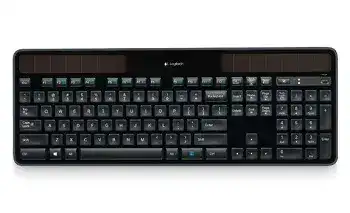
When the charge-check key shows no light or the computer stops receiving keystrokes, the Logitech Wireless Solar Keyboard K750 Driver page provides the software needed to examine the wireless connection. This full-size keyboard uses an internal rechargeable battery, solar cells, and a Logitech Unifying USB receiver rather than Bluetooth. Windows can handle ordinary typing without extra software, while Logitech utilities add receiver pairing, function-key controls, and light-level monitoring.
Logitech Wireless Solar Keyboard K750 Windows Driver Download
| Driver Name | Description | Supported OS | File Size | Download |
|---|---|---|---|---|
| SetPoint 64-bit | Full offline package for configuring keyboard hot-keys, device-specific settings, battery status, Caps Lock, and Num Lock indicators. | Windows 11, Windows 10 64-bit, Windows 8 64-bit, Windows 7 64-bit | 80.45 MB | |
| SetPoint 32-bit | Complete offline installer for adjusting hot-keys, keyboard functions, battery information, and lock-key status notifications. | Windows 11, Windows 10 32-bit, Windows 8 32-bit, Windows 7 32-bit | 78.04 MB | |
| SetPoint Smart Installer | Small universal installer that downloads the required SetPoint components during setup, so an internet connection is required. | Windows 11, Windows 10 32-bit/64-bit, Windows 8 32-bit/64-bit, Windows 7 32-bit/64-bit | 4.61 MB | |
| Logitech Solar App | Displays the keyboard battery level and available light so users can check whether the solar cells receive enough illumination. | Windows 10 32-bit, Windows 8 32-bit, Windows 7 32-bit | 3.32 MB | |
| Logitech Unifying Software | Pairs the keyboard and other compatible Logitech devices with a single Unifying USB receiver. | Windows 11, Windows 10 32-bit/64-bit | 3.96 MB |
Logitech Wireless Solar Keyboard K750 Driver When Typing Suddenly Stops
A K750 may appear completely dead even though it worked earlier that day. Start by pressing the light-check key near the numeric keypad. A green indicator points to adequate light and stored power. A red indicator means the keyboard needs brighter surroundings. No indicator at all can mean that the stored charge has fallen too low or the power switch is off.
Give the solar cells enough usable light
The two panels above the keys charge from indoor lighting as well as sunlight, but a dim room may not replace the energy used during long work sessions. Place the keyboard under strong room lighting or indirect daylight for several hours. Keep the power switch on while it charges, and wipe dust from the solar panels with a soft, dry cloth so light can reach them evenly.
Do not judge the charge from room brightness alone. Light that seems comfortable to your eyes may still be weak at desk level. The original Solar App can show whether the panels receive enough light and display the stored battery level on supported Windows systems. This utility monitors power conditions; it does not pair the keyboard or repair a broken wireless link.
Power returns, but the keys remain inactive
After charging, slide the switch off for several seconds and turn it on again. This restarts the keyboard electronics without changing the receiver pairing. Then press the light-check key once more. When the indicator responds but typing still fails, move to the Unifying connection rather than leaving the keyboard under a lamp for another day.
A deeply discharged K750 may need sustained light before it responds. Brief exposure to a desk lamp often produces little change. If strong lighting never activates the charge indicator, yet the USB receiver works with another paired Logitech device, the fault may involve the keyboard’s internal power system rather than the computer software.
Recover the Unifying Receiver Connection
The K750 communicates through its supplied Unifying receiver on a 2.4 GHz wireless link. It does not enter a Bluetooth pairing menu, and it will not appear as a Bluetooth keyboard in Windows or macOS. The Logitech Wireless Solar Keyboard K750 Driver setup should therefore focus on the USB receiver, its pairing record, and the software that manages compatible Unifying devices.
The receiver works, but not with this keyboard
A Unifying receiver can remain active while losing its pairing with one device. This explains why a Logitech mouse may work through the same receiver while the K750 does nothing. Open the Unifying pairing utility, choose the option to add a device, and follow its request to switch the keyboard off and on. Type in a text field after the software confirms the connection.
Do not assume that every small Logitech dongle can pair with the K750. The receiver needs the Unifying logo and must support Unifying devices. A receiver supplied with a non-Unifying product may look nearly identical but cannot accept this keyboard. When replacing a lost dongle, obtain a compatible Unifying receiver and pair it through the matching utility.
USB hubs and computer changes can break the link
Plug the receiver directly into the computer during testing. Some hubs, docking stations, display USB ports, and KVM switches fail to maintain the connection correctly. A pairing may also disappear after moving the receiver to another computer or changing its usual USB location. Reconnect it directly, restart the computer, and run the pairing process again if the keyboard remains silent.
Try another USB port when the receiver does not appear in the operating system. Wait a few seconds after each move so the computer can detect it. If possible, avoid placing the dongle beside busy USB 3 devices, external drives, or several wireless adapters. A short USB extension can place the receiver in a clearer position without moving the keyboard itself.
Choose the K750 Software for the Job
The older Logitech package divides its work among several utilities. SetPoint manages supported keyboard preferences in Windows, the Unifying component handles pairing, and the Solar App reads light and charge information. Installing every Logitech program will not strengthen the radio signal. Choose the component that matches the missing function and avoid running several generations of control software for the same keyboard.
SetPoint and function-key behavior
SetPoint can expose keyboard controls that the operating system does not show on its own. Open its keyboard tab when media commands, application shortcuts, or special function-key actions behave differently after a Windows reinstall. Confirm that SetPoint detects the K750 before changing assignments. If the utility opens without a keyboard tab, repair the installation or reconnect the device through the Unifying section first.
The keyboard can still type through the standard operating-system HID service when SetPoint is absent. This distinction matters during diagnosis. If letters, numbers, and navigation keys work but an enhanced shortcut does not, investigate SetPoint. If no keys work at all, check charge, receiver detection, and pairing before repeatedly reinstalling the Logitech Wireless Solar Keyboard K750 Driver package.
Remove conflicting installations carefully
An upgrade from an older computer can leave duplicate SetPoint components, partial Unifying installations, or a Solar App that no longer launches. Remove only the failed Logitech package, restart Windows, and install the required version again. Keep the receiver attached directly during the final detection stage. Re-pair the K750 afterward only when the utility no longer recognizes the existing link.
Older software may not behave identically on every current operating system. Basic keystrokes can continue through built-in HID support even when a legacy control panel cannot open. In that situation, do not mistake a missing configuration window for a failed keyboard. Test typing first, then decide whether the absent shortcut controls or battery display justify installing the older utility.
Fix Delayed, Repeated, or Missing Keystrokes
Letters arrive late or disappear
A weak wireless path can produce pauses, lost letters, or a burst of text after the keyboard seems frozen. Place the receiver where the keyboard has a clearer path to it and disconnect nearby USB devices temporarily. Also confirm the stored charge with the light-check key. Low power and radio disruption can create similar symptoms, so checking both prevents an unnecessary software reset.
Open a plain typing window and enter several lines at a steady pace. If the fault appears in every program, examine the receiver and power conditions. If it occurs only in a remote desktop session, game, browser form, or office application, close that program and test again locally. Application delays can resemble keyboard lag even while the K750 sends each keystroke normally.
One key repeats or does not return
A single repeating character usually points to the key mechanism rather than the wireless package. Shut the keyboard down and remove loose debris around the affected key with gentle air and a soft brush. Do not pour cleaner beneath the keycap. Turn the keyboard on and test again. When several unrelated keys repeat together, return to charge and receiver checks because connection loss can affect a larger group of inputs.
Windows keyboard repeat controls can also make a held key produce characters too quickly. Open the operating-system keyboard properties and reduce the repeat rate or increase the repeat delay. This adjustment will not repair a physically sticking key, but it can correct an overly sensitive repeat response that began after system settings changed.
Function keys perform the wrong action
The top row can act as standard F-keys or trigger media and shortcut commands, depending on the active configuration. Check SetPoint before treating this as a hardware failure. Restore the preferred function-key mode, apply the change, and test the command in more than one program. Some applications reserve their own shortcuts and may ignore an assignment that works elsewhere.
Confirm the Keyboard Before Replacing Hardware
Use the Logitech Wireless Solar Keyboard K750 Driver tools to separate three different failures: inadequate stored power, a lost Unifying pairing, and missing Windows controls. Press the charge-check key, connect the receiver directly, and test ordinary typing before opening configuration software. This order gives each symptom a clear meaning and avoids changing several parts of the setup at once.
Testing the keyboard with another compatible Unifying receiver or another computer can narrow the fault further, but the K750 must be paired to that receiver first. A successful test points back to the original computer, USB path, or software installation. Failure on a second system after a long charge suggests a problem inside the keyboard.
Finish by returning the receiver to the USB port where it will remain. Confirm that normal keys, the numeric keypad, and the top-row commands respond as expected. Then check the Solar App reading under the lighting normally used at the desk. A stable receiver position and enough daily light matter more to this model than frequent driver reinstalls.