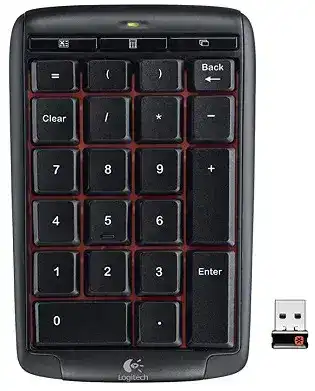
A number pad that types nothing, loses its custom keys, or vanishes after changing USB ports usually needs more than a Windows restart. The Logitech Wireless Number Pad N305 Driver works through SetPoint and Logitech Unifying Software, giving this wireless keypad access to receiver reconnection, programmable key controls, and battery information that ordinary keyboard support does not provide.
Logitech Wireless Number Pad N305 Windows Driver Download
| Driver Name | Description | Supported OS | File Size | Download |
|---|---|---|---|---|
| SetPoint 64-bit | Full offline package for configuring Num Lock status, hot-keys, battery information, and device-specific settings on 64-bit Windows systems. | Windows 11, Windows 10 64-bit, Windows 8 64-bit, Windows 7 64-bit | 80.45 MB | |
| SetPoint 32-bit | Complete offline installer for managing hot-keys, Num Lock indicators, battery status, and supported keypad preferences on 32-bit Windows systems. | Windows 11, Windows 10 32-bit, Windows 8 32-bit, Windows 7 32-bit | 78.04 MB | |
| SetPoint Smart Installer | Small universal installer that downloads the required SetPoint components during setup, so an active internet connection is required. | Windows 11, Windows 10 32-bit/64-bit, Windows 8 32-bit/64-bit, Windows 7 32-bit/64-bit | 4.61 MB | |
| Logitech Unifying Software | Pairs or removes compatible Logitech Unifying devices through a single USB receiver. | Windows 11, Windows 10 32-bit/64-bit | 3.96 MB |
Logitech Wireless Number Pad N305 Driver After the Connection Is Lost
The N305 communicates through a Logitech Unifying USB receiver rather than Bluetooth. Windows may recognize the receiver while receiving no input from the keypad itself. This often happens after the receiver moves to another port, gets transferred to another computer, or remains attached through hardware that does not pass the wireless connection correctly.
The receiver appears but the number pad stays silent
Put two working AAA alkaline batteries in the keypad and switch it on before attempting another connection. Insert the Unifying receiver firmly into a USB port on the computer itself. Avoid a monitor socket, USB hub, docking accessory, or KVM switch during recovery because the receiver may receive power without maintaining a dependable link to the N305.
Open Logitech Unifying Software from the Logitech program folder, start the connection process, and follow its request to switch the number pad off and back on. When the utility detects the N305, enter several digits in the test field. Confirm the test only after every key press appears correctly. This procedure pairs the keypad again without changing its physical receiver.
Changing the USB port breaks the connection
Moving a Unifying receiver should not normally erase pairing, but the N305 may fail to resume after Windows builds a new USB entry for it. Return the receiver to the earlier port first. If the keypad begins working, shut down the computer before moving it again. When the original socket is unavailable, reconnect the device through the Unifying utility while using the new port.
Do not place the receiver beside a crowded group of wireless adapters. External drives, wireless speakers, mobile phones, monitors, and computer power equipment can disturb the 2.4 GHz path. A short USB extension may help when a desktop tower sits under a metal desk, provided the receiver still connects through a standard computer USB port rather than an unsupported hub.
A replacement receiver will not find the N305
The keypad needs a compatible Logitech Unifying receiver marked with the orange Unifying symbol. A receiver from an unrelated Logitech wireless product may look similar but use a different connection system. Install Logitech Unifying Software, attach the compatible receiver, and run the pairing process. The N305 does not connect through Bluetooth and cannot pair with a Logi Bolt receiver.
A single compatible Unifying receiver can manage several supported Logitech devices. Pair each product separately and test the number pad before adding another device. If the utility never detects the N305, remove other nearby Logitech receivers temporarily. This prevents the pairing screen from communicating with a different receiver while you troubleshoot the keypad.
Battery Symptoms That Look Like a Software Failure
The N305 runs on two AAA alkaline batteries and enters standby when left unused. Weak voltage may cause missed digits, delayed wake-up, repeated disconnections, or complete silence even when the battery indicator briefly lights. Battery checks should come before removing the Logitech Wireless Number Pad N305 Driver or altering Windows keyboard entries.
The green battery light turns off after a few seconds
The brief green light is normal. It comes on momentarily to show battery condition and then goes dark to conserve power. It is not intended to remain illuminated while the keypad operates. When the light appears green and the keys work, no repair is needed. A light that never appears after switching on points instead to the batteries, their orientation, or the contacts.
New batteries do not restore input
Use two new AAA alkaline cells from the same package. Match the positive and negative ends to the markings inside the compartment, then close the cover fully. Rechargeable NiMH or NiCd cells operate at a lower nominal voltage and may shorten operating time or produce unreliable behavior in this older keypad, even when a charger reports that they are full.
Inspect the metal contacts for dust or old battery residue. Remove the batteries before wiping the compartment with a dry, lint-free cloth. Do not scrape the contacts with a knife or add foil to increase pressure. If corrosion has damaged a terminal, software cannot compensate for the interrupted electrical connection.
The keypad works briefly and disconnects again
Repeated short connections often indicate that the cells can power the status light but cannot hold enough voltage during radio activity. Replace both batteries rather than mixing an older cell with a newer one. Switch the N305 off, wait several seconds, install the new pair, and switch it on near the receiver. Run the Unifying connection process again only if it remains unresponsive.
Long storage can also drain batteries slowly. Turn the power switch off when packing the keypad for travel or leaving it unused for an extended period. Logitech rates battery life for normal use with alkaline cells, but wireless conditions, key activity, storage temperature, and battery quality can change the actual replacement interval.
SetPoint Controls for the N305 Programmable Keys
The standard numeric keys usually work through the operating system without extra customization software. SetPoint becomes relevant when the programmable top-row buttons keep their original actions, perform the wrong command, or cannot be reassigned. The Logitech Wireless Number Pad N305 Driver package traditionally includes the Logitech components used to manage those additional controls.
The top buttons cannot be reassigned
Open SetPoint and select the number pad key section rather than the tabs for a separate mouse or keyboard. Choose one of the programmable buttons, select the desired task, and apply the change. Test the assignment in an ordinary desktop program before opening accounting or spreadsheet software. This separates a failed SetPoint assignment from an application shortcut conflict.
SetPoint is legacy software, and Logitech no longer maintains it as an active product. A modern Windows release may still accept an older compatible installer, but support varies by operating-system version. Do not assume that Logi Options+ will expose the N305 merely because it handles newer Logitech products. The keypad was documented with SetPoint and Unifying Software.
Assignments disappear after restarting Windows
Allow SetPoint to start with Windows, then wait until its background process has loaded before testing the custom buttons. If an assignment works only while the SetPoint window is open, repair or reinstall the compatible package. Export or record custom actions first because removing the program may clear them.
Conflicting Logitech utilities can also leave the N305 visible in one program while its programmable controls remain inactive. Keep the software required for the devices you actually use, but avoid installing several legacy keyboard managers for the same keypad. Restart Windows after removing an unwanted utility so its services no longer remain in memory.
One programmable key opens the wrong program
A saved program shortcut can fail after that program receives an update or moves to another folder. Open the assignment in SetPoint and browse to the application’s current executable file. Do not keep editing the key name while it still points to an obsolete path. Create a basic keystroke assignment first when you need to confirm that the physical button still responds.
When Digits Become Navigation Commands
A connected N305 can appear faulty when Windows interprets its numeric block as cursor navigation. In that state, pressing 8 may move upward, 4 may move left, and other keys may act as Home, End, Page Up, Page Down, Insert, or Delete. This behavior usually concerns Num Lock or an accessibility option rather than receiver pairing.
Numbers turn into arrow and editing keys
Press Num Lock once and test the keypad in a plain text field. The host computer controls the Num Lock state, so another attached keyboard, a remote session, or startup preference may change it without any fault in the N305. Watch the on-screen response rather than expecting the keypad’s battery light to indicate Num Lock status.
If the state changes again after every restart, inspect the computer’s keyboard and sign-in behavior. Some systems start with Num Lock disabled, while remote-desktop tools may copy the state from another keyboard. Confirm the result in more than one program before reinstalling Logitech software, since spreadsheets can assign special actions to number keys.
Mouse Keys takes control of the keypad
Windows Mouse Keys can use the numeric block to move the pointer instead of entering digits. Open the accessibility mouse controls and turn that feature off when it was enabled unintentionally. Pressing certain keyboard shortcuts can activate it, so the problem may begin suddenly even though the N305 remains paired and all keys are physically working.
Test digit entry again after closing the accessibility panel. When only one application continues to treat the keys differently, check that program’s shortcut or data-entry mode. A calculator, spreadsheet, financial package, or remote session may process numeric input in its own way while other programs accept the same keys normally.
Some digits repeat, miss, or require extra pressure
Compare the affected key in several programs. If the same digit fails everywhere while nearby keys respond instantly, the problem may sit beneath the keycap rather than in SetPoint. Turn the keypad off, remove the batteries, and clear loose debris with gentle compressed air. Avoid pouring cleaning liquid between the keys or pulling keycaps without a suitable repair plan.
Repeated characters can also come from the Windows keyboard repeat controls. Reduce the repeat rate temporarily and check the key again. A setting problem usually affects several keys when held down, whereas one troublesome digit that duplicates after a single press suggests wear or contamination around that particular switch mechanism.
A Practical Recovery Order for This Unifying Keypad
Begin with the parts that determine whether the N305 can transmit anything: two matched AAA alkaline batteries, the power switch, and a directly attached Unifying receiver. Reconnect it with Logitech Unifying Software if the wireless link has been lost. Only after normal digits return should you install SetPoint or rebuild assignments for the programmable buttons.
Keep the receiver away from strong radio and electrical sources, especially when the computer sits against metal furniture. Confirm Num Lock and Windows Mouse Keys when the keypad connects but produces navigation commands. Near the end of troubleshooting, test the N305 on another computer with its paired receiver. That comparison separates a Windows configuration problem from aging keypad hardware.
The Logitech Wireless Number Pad N305 Driver cannot repair damaged contacts or worn keys, yet it remains useful for restoring the original Unifying connection and SetPoint functions on compatible systems. Once the receiver, batteries, numeric mode, and programmable controls have been checked in that order, most remaining symptoms become much easier to identify without repeatedly removing every keyboard component.