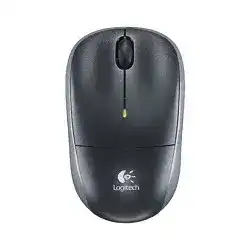
The Logitech Wireless M217 Mouse is a 2.4 GHz wireless optical mouse that works through a USB Unifying receiver. It is not a Bluetooth model, so the receiver must stay connected to the computer before Windows, macOS, or Linux can detect the device.
For basic use, the operating system can load normal mouse support after the receiver starts working. Logitech SetPoint adds extra control for supported Windows systems, especially when you want to adjust pointer behavior, button actions, scrolling response, or other mouse preferences.
This model uses one AA battery, an on and off switch, a USB wireless receiver, optical tracking, and a compact travel-friendly body. Keep the receiver safe, because the mouse needs a compatible Logitech receiver to communicate with the computer.
Logitech Wireless Mouse M217 Windows Driver Download
| Driver Name | Description | Supported OS | File Size | Download |
|---|---|---|---|---|
| Logitech Unifying Software | Utility for pairing and managing compatible Logitech wireless devices through one Unifying receiver. | Windows 11 32-bit/64-bit, Windows 10 32-bit/64-bit | 3.96 MB | |
| SetPoint Software 32-bit | Full 32-bit SetPoint package for offline setup with mouse button settings, tracking speed, and device controls. | Windows 11 32-bit, Windows 10 32-bit, Windows 8 32-bit, Windows 7 32-bit | 78.04 MB | |
| SetPoint Software 64-bit | Complete 64-bit SetPoint installer for offline installation with hot-key options, battery status, and mouse-specific settings. | Windows 11 64-bit, Windows 10 64-bit, Windows 8 64-bit, Windows 7 64-bit | 80.45 MB | |
| SetPoint Smart Installer | Small SetPoint web installer for mouse customization, Caps Lock alerts, and Num Lock status; internet is required during installation. | Windows 11 32-bit/64-bit, Windows 10 32-bit/64-bit, Windows 8 32-bit/64-bit, Windows 7 32-bit/64-bit | 4.61 MB | |
| Unifying Software | Windows Unifying utility for adding, removing, and reconnecting supported Logitech receiver-based devices. | Windows 11 32-bit/64-bit, Windows 10 32-bit/64-bit, Windows 8 32-bit/64-bit, Windows 7 32-bit/64-bit | 3.95 MB |
Logitech Wireless Mouse M217 Chrome OS Driver Download
| Driver Name | Description | Supported OS | File Size | Download |
|---|---|---|---|---|
| Unifying Software for Chrome OS | Chrome OS Unifying tool for connecting compatible Logitech wireless devices with a supported Unifying receiver. | Chrome OS | 52.58 KiB |
Prepare the M217 Receiver, Battery, and SetPoint Package
Start with the physical setup before installing software. Open the battery compartment, check the AA battery direction, close the cover firmly, and turn the mouse on. Then plug the Unifying receiver directly into a working USB port.
Let the receiver load first
Windows normally detects the USB receiver without a separate driver package. Wait a short time after plugging it in, then move the mouse on a flat surface. If the pointer starts moving, the receiver and basic driver already work.
On Mac systems, a keyboard setup window may appear after plugging in the receiver. Close that window, because it does not belong to the mouse. After that, test movement, clicking, and scrolling before changing any other settings.
Use SetPoint only for extra controls
Install Logitech SetPoint when you need more control than the basic operating system settings provide. The mouse can still work without it, so do not treat SetPoint as the first fix for every connection problem.
If an older Logitech utility already exists on the computer, remove duplicate versions before installing the matching package. Restart the computer after the installation, then open the utility and check whether the M217 responds normally.
Keep the wireless path clean
The M217 uses a small 2.4 GHz receiver, so signal quality matters. Keep the receiver close to the mouse, avoid blocked rear USB ports when possible, and move it away from metal cases, USB hubs, routers, and other wireless devices.
A weak AA battery can look like a driver fault. Replace the battery before deeper testing, especially when the pointer freezes, clicks miss, or the mouse works for a few seconds and then stops again.
Logitech M217 Receiver, Scroll Wheel, Pointer, and Battery Symptoms
The fixes below focus on the parts that usually affect this mouse: the Unifying receiver, USB detection, battery contact, scroll wheel movement, optical tracking, and SetPoint control. Match the symptom first, then apply the fix that fits it.
The M217 does not move after plugging in the receiver
Remove the receiver, wait a few seconds, and plug it into another USB port. Use a direct computer port instead of a hub for the first test. Then turn the mouse off and on again so the receiver can catch the signal.
If the pointer still does not move, replace the AA battery and check the polarity marks inside the compartment. A battery that works in another small device may still be too weak for stable wireless mouse use.
The receiver appears lost or mixed with another Logitech receiver
The M217 needs a compatible Logitech receiver. If the original receiver is missing, do not expect a random USB dongle to work. Use a compatible Unifying receiver and pair the mouse through the Logitech Unifying software when the receiver supports it.
During pairing, keep only the needed receiver plugged in. Turn the mouse off and on when the pairing tool asks for it. If the tool does not detect the mouse, move the receiver closer and try another USB port.
Windows detects the receiver but the cursor stays still
Open Device Manager and check whether the USB receiver appears without an error. If Windows shows a failed USB device, unplug the receiver, restart the computer, and plug it into a different port after Windows loads fully.
Also test the mouse on another computer. If it works there, the first computer likely has a USB driver, power, or port issue. If it fails everywhere with a new battery, the receiver or mouse hardware may no longer communicate.
The pointer freezes, skips, or reacts late
Move the receiver to a front USB port or use a short USB extension cable to bring it closer to the mouse. A desktop tower can block the wireless signal when the receiver sits behind the metal case.
Keep the mouse away from crowded wireless equipment. Routers, Bluetooth speakers, USB 3.0 devices, and metal laptop stands can disturb short-range 2.4 GHz reception. After moving the receiver, test the pointer on a plain mouse pad.
The M217 works only on some surfaces
Optical tracking can behave badly on glass, shiny tables, deep texture, or uneven fabric. Test the mouse on white paper or a simple mouse pad. If movement becomes smooth there, the surface caused the jumping, not the driver.
Check the sensor opening on the bottom of the mouse. Dust, hair, or lint near the optical window can make the cursor shake or stop. Clean it gently with a dry soft cloth and avoid liquid cleaner inside the opening.
Scrolling moves the page the wrong way or jumps
A dirty scroll wheel area can create reverse scrolling, missed scrolls, or sudden page jumps. Blow dry air around the wheel and rotate it several times. Do not force sharp tools into the wheel gap, because the encoder can get damaged.
If scrolling fails only in one browser or app, test another program before changing drivers. Browser extensions, document zoom tools, or app-specific settings can change wheel behavior even when the mouse itself works normally.
Middle click or wheel click does not respond
First test middle click in a browser tab or a simple document window. Some programs do not use middle click in an obvious way, so one failed app does not prove the wheel button has stopped working.
Install or reopen SetPoint if you need to change the wheel button action. If SetPoint already runs, reset the button assignment to default and test again. Dust around the wheel can also block a firm middle click, so clean the area carefully.
Clicks repeat, double-click, or miss the first press
Replace the battery first, then clean around the left and right buttons with dry air. Dirt under the button edge can stop a clean press, while low power can make clicks feel random during wireless transmission.
Adjust the double-click speed in the operating system before assuming the switch has failed. If one button still double-clicks on another computer after cleaning and a new battery, the internal switch may have wear from long use.
The mouse stops after the computer wakes from sleep
Unplug and reconnect the receiver once to wake the USB link. If the problem returns often, check the USB power saving settings in Windows and stop the system from turning off the USB receiver to save power.
After changing power settings, restart the computer and test sleep again. For laptops, also try a different USB port, because some ports receive less power during standby and recover more slowly after wake.
SetPoint opens but does not change anything
Make sure the mouse works normally before opening SetPoint. The utility cannot fix a dead receiver connection. If pointer movement already works, close SetPoint, remove older Logitech mouse utilities, restart, and install one clean version.
If settings still do not apply, run the utility after Windows finishes loading and keep the receiver connected during startup. Avoid changing several button and pointer options at once. Set one option, test it, then adjust the next one.
The battery drains faster than expected
Turn the mouse off when storing it in a bag or laptop sleeve. Movement during travel can keep the mouse awake, and a pressed button inside a pocket can drain the AA battery faster than normal use.
Use a fresh alkaline AA battery and clean the battery contacts with a dry cloth if power cuts in and out. If the cover sits loose, reseat it so the battery stays firm while the mouse moves across the desk.