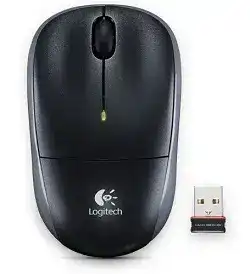
A small USB nano receiver can make the whole repair feel too simple, especially when the pointer stays still after the receiver is already plugged in. The Logitech wireless M195 Mouse Driver page should focus on the real connection path for this model: a 2.4 GHz USB receiver, one AA battery, optical tracking, a scroll wheel, and a power switch.
The M195 is not a Bluetooth mouse. It does not need Bluetooth discovery, multi-device switching, Logi Bolt pairing, charging checks, gaming profiles, or lighting tools. The computer must recognize the USB receiver first, then the mouse must have battery power and a clear wireless path before any software download can make a difference.
Most modern systems can load normal left click, right click, pointer movement, and wheel scrolling through built-in HID support. Extra Logitech software becomes useful mainly when Windows has a detection problem, the receiver needs a supported connection utility, or the operating system has kept a damaged mouse entry after repeated plugging and unplugging.
Logitech Wireless Mouse M195 Windows Driver Download
| Driver Name | Description | Supported OS | File Size | Download |
|---|---|---|---|---|
| Logitech Connection Utility | Restores the wireless receiver connection when the mouse is not responding or needs to be paired again. | Windows | 2.08 MB |
Start With Power Before Changing Software
Many M195 faults begin with the battery compartment, not the download page. The mouse uses one AA battery, and a weak cell can still look acceptable when tested in another low-power device. In a wireless mouse, small voltage drops can cause dropouts, delayed wake, or a receiver that seems disconnected.
The mouse has no light or wakes only sometimes
Turn the M195 off, remove the AA battery, and check the metal contacts before inserting another cell. If the contacts look dull or slightly pressed down, the battery may not touch firmly when the mouse moves. Clean the contact area gently and avoid bending the metal too far.
After the battery is seated, switch the mouse on and wait a moment before moving it. Some users keep unplugging the receiver because the pointer does not react instantly, but the first test should be power, switch position, and battery contact. Software cannot fix an interrupted battery connection.
Pointer returns after tapping the mouse
A pointer that comes back after a light tap often points to loose battery contact or an aging AA cell. Test with another known working battery, then move the mouse in normal use instead of only shaking it. If the fault follows movement, the compartment deserves more attention than the driver.
The Logitech wireless M195 Mouse Driver should be installed only after the mouse powers consistently. If the power state changes while you hold it, Windows may keep adding and removing the input device, which makes any driver repair look unstable.
Nano Receiver Checks for a Mouse That Does Not Move
The M195 uses a compact 2.4 GHz receiver that plugs into a USB port. Because it is small, it can stay in a laptop for months and still get knocked, bent, or loosened. A receiver that appears inserted may not be making a clean USB connection.
Receiver appears inserted but Windows does nothing
Remove the nano receiver and plug it into a different direct USB port. Avoid testing through a loose hub while diagnosing the fault. If Windows reacts in one port but not another, the mouse software was not the cause; the USB connection was failing before the M195 could communicate.
Open Device Manager only after the port test. If the receiver appears as an input device and disappears when unplugged, the computer sees the receiver. If it never appears, test the receiver on another computer before reinstalling Logitech software several times.
Mouse works on one laptop but not another
When the same M195 works on another computer, focus on the first computer’s USB profile. Restart it with the receiver removed, then plug the receiver in after the desktop loads. This forces the system to rebuild the input entry instead of reusing a broken detection state.
If Windows still refuses to detect it, remove old inactive mouse entries only where they clearly relate to previous USB mouse attempts. Then reconnect the receiver and let Windows load the device again. The goal is not to change advanced settings; it is to clear the confused USB input record.
Lost receiver or wrong receiver confusion
The M195 was sold with its own USB nano receiver. Another receiver from a different Logitech mouse may look similar but may not communicate with this model. Do not assume that every small Logitech dongle can replace the original receiver.
If the receiver is lost, confirm compatibility before buying a replacement. Some Logitech mice support receiver re-pairing through a connection utility, while others depend on the receiver shipped with the product. Matching the receiver type matters more than downloading a larger software package.
Logitech wireless M195 Mouse Software for Scroll and Click Trouble
The M195 has a standard scroll wheel with middle-click behavior. It does not have a verified tilt wheel, side buttons, fast-scroll mode, or app-specific thumb controls. That means scroll and click problems should be handled as basic wheel, button, surface, and operating-system issues.
Wheel scrolls unevenly or misses lines
Start by checking the wheel area. Dust around the wheel can make scrolling skip, reverse briefly, or miss small movements. Turn the mouse off, clear loose dust around the wheel opening, and test again in a plain document and a browser page.
If the wheel moves cleanly but scrolling still feels strange, adjust the operating-system wheel setting. A very high lines-per-notch value can make a basic wheel feel jumpy. Lower it, test again, and only then consider reinstalling the Logitech wireless M195 Mouse Driver package.
Middle click does not open browser tabs
The wheel button can fail separately from wheel rotation. Test it by middle-clicking a link in a browser. If the wheel scrolls but the link does not open in a new tab, check the mouse button assignment in the system or Logitech control software available for the model and operating system.
A stiff middle button usually signals wear or dirt near the switch. Software can restore an assignment, but it cannot repair a worn wheel switch. If the same behavior appears on two computers, treat it as a mechanical fault rather than a missing driver.
Single click turns into double click
Double-click trouble can come from two different places. First, reduce the double-click speed in the operating-system mouse settings and test the left button again. If files still open from one light click, the switch may be bouncing electrically.
For an older M195, repeated unwanted double clicks often point to switch wear. Do not use risky registry edits or unofficial patches for this. Adjust the click-speed setting, clean around the button gap safely, and compare the behavior on another computer before blaming software.
Pointer Skips, Freezes, or Moves Poorly on Some Surfaces
The M195 uses optical tracking, so the surface under the sensor matters. Glass, glossy tables, reflective plastic, deep fabric, and dirty mouse pads can all cause uneven movement. A driver page should not hide that simple fact behind a download button.
Test the mouse on a matte sheet of paper or a clean pad before changing any settings. If the pointer becomes steady there, the sensor and receiver are probably fine. Change the surface first, then adjust pointer speed only after tracking becomes predictable.
Movement freezes near a monitor, hub, or crowded desk
The 2.4 GHz receiver can suffer when it sits beside metal cases, dense cable clusters, or several wireless devices. Move the receiver to a clearer USB port and keep it away from a busy hub. The change is small, but it often matters more than reinstalling the driver.
For desktop computers, a front USB port can give the receiver a clearer path than a hidden port behind the case. For laptops, remove the receiver and reconnect it firmly after moving other USB devices away. Then test slow pointer movement, not only fast swipes.
Pointer speed feels wrong after Windows update
Updates can reset pointer speed, acceleration, or wheel lines. Open the mouse settings and correct speed before downloading anything else. A basic wireless mouse can feel broken when acceleration changes, even though the receiver and sensor still work normally.
If the pointer speed keeps resetting, reinstall the matching mouse software or remove duplicate mouse control utilities. Keep only the software that actually recognizes the M195. Two control panels fighting over the same input device can make simple movement feel inconsistent.
When Downloading the Driver Actually Makes Sense
Download the Logitech wireless M195 Mouse Driver after the receiver, battery, USB port, and surface checks are finished. The driver package should not be treated as the first fix for every symptom, because the M195 depends heavily on physical receiver detection and battery contact.
Use the download when the computer sees the receiver but the mouse still needs a connection utility, when the operating system has corrupted the mouse entry, or when basic scroll and click controls need a matching Logitech control panel. Do not install Bluetooth or Bolt software for this receiver-only model.
After installation, restart the computer with the receiver unplugged. Once the system is ready, insert the receiver, turn the M195 on, and test movement on a plain surface. This sequence avoids mixing old detection attempts with the newly installed software.
Keep the repair path narrow for this model
The final check for the M195 should be practical: one AA battery that holds contact, the power switch on, the nano receiver seated firmly, a usable tracking surface, and normal click and wheel behavior. If those points pass, the mouse should not need complex software work.
If the receiver never appears on any computer, the download will not revive it. If the pointer works but clicks fail on every system, suspect switch wear. The Logitech wireless M195 Mouse Driver belongs in the middle of the repair path, not at the beginning or the very end.