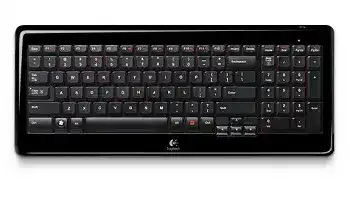
A dead typing response, delayed letters, or missing media functions can make the Logitech Wireless Keyboard K340 Driver package worth checking before replacing the keyboard. This compact model communicates through a Logitech Unifying USB receiver rather than Bluetooth. Windows can provide ordinary keyboard input on its own, while Logitech utilities handle receiver pairing and the enhanced F-key behavior.
The K340 uses a 2.4 GHz wireless link, an On/Off slider, two AA alkaline batteries, and a battery indicator on the top case. It also has a storage space for the Unifying receiver inside the battery compartment. These details matter because power, receiver compatibility, radio conditions, and software configuration create most connection problems with this model.
Logitech Wireless Keyboard K340 Windows Driver Download
| Driver Name | Description | Supported OS | File Size | Download |
|---|---|---|---|---|
| SetPoint 64-bit | Full offline package for configuring keyboard hot-keys, device-specific settings, battery status, Caps Lock, and Num Lock indicators. | Windows 11, Windows 10 64-bit, Windows 8 64-bit, Windows 7 64-bit | 80.45 MB | |
| SetPoint 32-bit | Complete offline installer for assigning hot-keys and managing compatible keyboard controls, lock-key alerts, and battery information. | Windows 11, Windows 10 32-bit, Windows 8 32-bit, Windows 7 32-bit | 78.04 MB | |
| SetPoint Smart Installer | Small universal installer that downloads the required SetPoint components during setup, so an internet connection is required. | Windows 11, Windows 10 32-bit/64-bit, Windows 8 32-bit/64-bit, Windows 7 32-bit/64-bit | 4.61 MB | |
| Logitech Unifying Software | Utility for pairing, adding, or removing compatible Logitech devices connected through a Unifying USB receiver. | Windows 11, Windows 10 32-bit/64-bit | 3.96 MB |
No keys respond after the computer starts
Begin with the power slider on the keyboard’s top edge. Switch it off, wait several seconds, and turn it on again. A green battery light for about ten seconds indicates usable power. No light usually points to depleted batteries, poor contact inside the compartment, or batteries inserted in the wrong direction.
Remove both batteries and inspect the terminals for dust or light residue. Wipe the contacts with a dry cloth, install two alkaline AA batteries according to the markings, and close the cover firmly. Avoid mixing an old cell with a new one. Uneven voltage may let the indicator flash while the keyboard still fails during typing.
The Unifying receiver no longer appears
Unplug the receiver and connect it directly to another USB port. A port on a monitor, docking station, or unpowered hub can lose contact after sleep or a Windows update. A direct computer port gives the receiver a clearer test. Wait for Windows to finish identifying the USB device before pressing any keys.
Open Device Manager when the receiver remains absent. Check the keyboard and human-interface sections for an unknown device or warning mark. Remove only the affected receiver entry, disconnect the dongle, restart Windows, and insert it again. This forces Windows to rebuild its normal USB input record without changing unrelated keyboard devices.
Recovering the K340 Unifying Connection
The Logitech Wireless Keyboard K340 Driver download should be matched with the Unifying pairing utility when the receiver works but does not recognize the keyboard. The K340 carries the orange Unifying symbol and can pair with a compatible Unifying receiver. A plain Logitech nano receiver without that mark may look similar but cannot necessarily communicate with this keyboard.
Pairing was lost after changing the receiver
A replacement Unifying receiver does not automatically know the keyboard. Open the Unifying utility, choose the option to add a device, and follow its power-cycle request. Turn the K340 off and back on only when the utility asks. Type in the confirmation field so the program can verify that the correct keyboard answered.
Keep only the receiver being paired connected during this process. Two Unifying receivers attached at once can make it difficult to tell which one received the new association. After pairing succeeds, close the utility and test several letters, the arrow keys, Backspace, and Enter before reconnecting other USB input equipment.
The pairing program cannot find the keyboard
Bring the K340 and receiver onto the same desk for the pairing attempt. Remove metal containers, external hard drives, and other large objects from the direct path between them. The supplied receiver extender can also place the dongle above or in front of a desktop tower instead of leaving it shielded behind the case.
Close other Logitech configuration programs before reopening the pairing utility. Older SetPoint and Unifying components may stay active in the notification area after their windows close. Exit them completely, reconnect the receiver, and run one pairing application at a time. Restarting the computer often clears a background process that has kept control of the receiver.
A lost receiver was replaced with the wrong type
Check the symbol printed on the replacement dongle. The K340 requires a Logitech Unifying receiver for re-pairing. A Bolt receiver, a receiver from certain gaming products, or an unmarked device-specific dongle follows a different wireless system. Software cannot convert one receiver family into another, even when the plugs and casing look almost identical.
Logitech Wireless Keyboard K340 Software for F-Keys and Media Commands
Normal letters and navigation keys may work without extra configuration, but the Logitech Wireless Keyboard K340 Driver software becomes relevant when the top-row commands behave differently than expected. The keyboard uses the FN key with F1 through F12 for browser, email, search, calculator, media, volume, and computer sleep actions. SetPoint provides the original control for changing that behavior.
Volume and media keys do nothing
Hold FN while pressing the marked F-key. On the standard layout, FN with F9 mutes audio, FN with F10 lowers volume, and FN with F11 raises it. Media launch, previous track, play or pause, and next track occupy other enhanced F-key positions. Pressing an F-key alone sends its ordinary F1-to-F12 command unless the mode has been inverted in SetPoint.
Test media commands while an active audio application has focus. Some web players intercept keys differently, while certain desktop programs respond only after playback has begun. Also check the Windows output device and volume mixer. A working keyboard command cannot raise sound from an application that Windows has muted separately.
F1 to F12 launch the wrong actions
SetPoint can reverse the top-row priority so enhanced commands work without holding FN. That preference may confuse anyone expecting ordinary F-keys in spreadsheets, browsers, or business programs. Open the keyboard section in SetPoint and change the F-key mode. Sign out or restart the affected program afterward because some applications read function-key behavior only when they launch.
When SetPoint no longer detects the K340, remove duplicate or incomplete SetPoint installations before reinstalling the matching edition. Restart between removal and installation. Do not install several generations of Logitech control software merely to test them; the K340 is an older model, and newer control applications may not expose its original F-key options.
The sleep shortcut works but will not wake the computer
The FN and F12 command can place the computer into sleep mode, but wake behavior depends on the computer’s USB power policy. Open the receiver’s power-management properties in Device Manager and check whether Windows permits that device to wake the computer. Some desktops cut power to selected USB ports during sleep, so another direct port may produce better results.
If Windows wakes immediately after going to sleep, disconnect other USB devices temporarily rather than blaming the K340 first. A mouse, network adapter, controller, or unstable hub can send the wake signal. Restore devices one at a time until the unwanted wake returns.
Delayed Letters, Missed Keystrokes, and Battery Warnings
Typing arrives in bursts
Wireless delay often appears as several missing characters followed by a sudden group of letters. Change the receiver position before reinstalling anything. Place it away from the computer’s metal chassis, crowded USB hubs, wireless speakers, and other transmitters. The extender cable included with the K340 was intended for situations where the computer blocks or weakens reception.
Compare different USB ports as well. A nearby high-traffic USB device can create electrical noise or occupy the same hub controller. Disconnect external storage briefly, type for a few minutes, and then reconnect it elsewhere. This test separates radio trouble from Windows keyboard repeat or application performance.
One key repeats or seems stuck
First test the key in another program. A single application may repeat a command because of its shortcut configuration, while repeated letters in every program point back to the keyboard or Windows repeat settings. Open the keyboard control panel and reduce the repeat rate temporarily. If the symptom remains, turn the K340 off before cleaning around the affected key with dry compressed air.
Do not pour cleaner into the key mechanism or pry off wide keys without a repair guide. Spacebar, Enter, and Shift use stabilizing parts that can detach or bend. When only one key remains unreliable after careful surface cleaning, the fault is probably mechanical rather than a receiver or software problem.
The indicator flashes red or changes between red and green
A normal low-power warning appears red when the batteries approach the end of their usable period. Power-cycle the keyboard and watch the indicator. Green for roughly ten seconds means the batteries still have charge, while a red warning calls for replacement soon. Rapid alternating colors that continue with known-good batteries can indicate an internal fault rather than an ordinary low-battery alert.
Before treating the keyboard as failed, remove the batteries for a few minutes, hold several keys briefly to discharge residual power, and reinstall a matched alkaline pair. Reconnect through the Unifying utility afterward if the wireless association disappeared. Persistent abnormal flashing with no typing response usually needs hardware service or replacement.
The keyboard does not wake after sitting idle
The K340 enters its own sleep state after several minutes to reduce battery use. It should resume as soon as you press a key. When it does not, tap a letter once and wait rather than holding several keys, which may create a burst when communication returns. Then power-cycle the keyboard and reseat the receiver.
Repeated wake failures often trace to low battery voltage, an unstable USB hub, or aggressive USB power saving. Test two new AA alkaline batteries and a direct USB connection. In Windows power settings, prevent the relevant USB hub from being suspended during troubleshooting, then restore the setting later if it makes no difference.
A Practical K340 Recovery Before Retiring the Keyboard
Use the Logitech Wireless Keyboard K340 Driver and pairing software only after confirming the physical link. Start with the power light and battery contacts, verify the orange Unifying receiver, change its USB location, and then rebuild the pairing. This order avoids lengthy software changes when the keyboard simply lacks power or the computer cannot see the dongle.
Once typing returns, check the enhanced F-keys separately. SetPoint affects the top-row mode but does not repair worn keys, incompatible receivers, or severe radio obstruction. Test plain typing first, then navigation, volume, media playback, and sleep. That separation makes the remaining fault easier to identify and keeps an otherwise durable K340 in service.