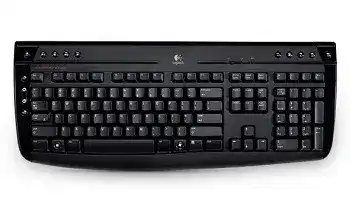
A missing keystroke, a row of repeated letters, or a keyboard that suddenly goes silent often points to the wireless link rather than Windows itself. The Logitech Wireless Keyboard K320 Driver works with Logitech software for this full-size 2.4 GHz keyboard, its Unifying USB receiver, and its programmable hot keys. The K320 does not use Bluetooth, Logi Bolt, a charging cable, or an internal rechargeable battery.
Windows can handle normal typing through its standard keyboard support, so the keyboard may work before any Logitech package is installed. SetPoint adds access to supported hot-key assignments, while Unifying software handles pairing with a compatible receiver. Connection faults, weak batteries, receiver placement, and damaged key mechanisms need separate checks because reinstalling software will not solve every symptom.
Logitech Wireless Keyboard K320 Windows Driver Download
| Driver Name | Description | Supported OS | File Size | Download |
|---|---|---|---|---|
| SetPoint Software 64-bit | Full offline package for configuring keyboard hot-keys, device-specific settings, battery status, Caps Lock, and Num Lock indicators. | Windows 11, Windows 10 64-bit, Windows 8 64-bit, Windows 7 64-bit | 80.45 MB | |
| SetPoint Software 32-bit | Complete offline installer for adjusting keyboard shortcuts, hot-key actions, lock-key notifications, and compatible device controls. | Windows 11, Windows 10 32-bit, Windows 8 32-bit, Windows 7 32-bit | 78.04 MB | |
| SetPoint Smart Installer | Small universal installer for SetPoint keyboard settings that requires an internet connection to download the necessary components. | Windows 11, Windows 10 32-bit/64-bit, Windows 8 32-bit/64-bit, Windows 7 32-bit/64-bit | 4.61 MB |
Separate a wireless fault from a bad key
Open a local document and type across several rows. When many unrelated keys pause, repeat, or arrive together, inspect the wireless connection first. When only one physical key fails in every program, turn the keyboard off and remove loose debris around that key with gentle air and a soft brush. Avoid liquid beneath the keycap.
Test the K320 on another computer with its paired Unifying receiver. A fault that follows the keyboard points toward batteries, pairing, radio conditions, or hardware. If it behaves normally elsewhere, return to the original computer and check its USB ports, background updates, accessibility features, and keyboard layout.
Fix the Receiver Position Before Reinstalling Software
Typing lags beside a desktop computer
The K320 communicates through a small USB Unifying receiver at 2.4 GHz. A metal computer case, monitor base, power supply, wireless speaker, or nearby phone can weaken that path. Plug the receiver into the included desktop stand and place it in open space above the desk rather than leaving it hidden behind the computer.
Keep electrical equipment at least about 20 centimetres from the receiver during testing. Rotate the stand or raise it on a non-metallic object when the signal improves only at certain angles. The keyboard has an operating range of up to roughly 10 metres, but walls, metal furniture, and radio traffic can reduce that distance considerably.
The keyboard fails through a dock or KVM switch
Connect the Unifying receiver directly to the computer. USB hubs, monitor ports, docking stations, extension chains, and KVM switches may supply an unstable connection or place the receiver beside noisy electronics. A direct port also makes it easier to determine whether Windows is detecting the receiver itself.
Try another built-in USB port when the first one produces intermittent typing. Wait for Windows to finish recognising the receiver before testing. Moving the receiver can occasionally break the existing connection, so run the pairing utility if the keyboard remains silent even though the USB device appears normally.
Letters repeat while a wireless mouse is moving
When a keyboard and mouse share one Unifying receiver, interference may affect both devices at once. Delayed keystrokes can then arrive as a burst, making a letter look stuck. Place the receiver stand nearer the keyboard, disconnect unnecessary wireless USB devices, and test without a busy external hub.
Do not assume the key switch is defective until the repeating behaviour has been checked with a different receiver position. Hardware trouble usually follows the same key. Radio delay tends to affect changing letters, spaces, or commands depending on what was pressed when the connection paused.
Logitech Wireless Keyboard K320 Software for Pairing and Hot Keys
The replacement receiver does not respond
The K320 is compatible with Logitech Unifying receivers identified by the orange Unifying symbol. A generic nano receiver, Logi Bolt receiver, or receiver from a non-Unifying Logitech product will not pair with it. Match the symbol on the replacement receiver and keyboard before spending time on software changes.
Open the Unifying pairing utility, plug in the compatible receiver, and follow the request to switch the keyboard off and back on. Type in the test field when the utility detects it, then confirm that the entered text appears correctly. One Unifying receiver can hold several compatible Logitech keyboards and mice, up to its supported device limit.
Pairing works until the receiver moves
A receiver may remain paired after moving between ports, but Windows can create a new USB instance and take time to load it. Give the system a moment, then power-cycle the keyboard. If nothing changes, repeat the pairing process while the receiver is connected to the port that will be used permanently.
The Logitech Wireless Keyboard K320 Driver package should not be confused with a Bluetooth pairing tool. This model communicates only through its Unifying USB receiver. Searching the Windows Bluetooth menu will never reveal the keyboard, even when the keyboard power switch and batteries are working normally.
SetPoint cannot find the K320
Close SetPoint, remove the receiver, restart Windows, and reconnect the receiver directly to the computer. Confirm that ordinary typing works before opening the program again. SetPoint cannot customise a keyboard that has not established its basic Unifying connection.
The original software support for the K320 came from an older Windows period, including Windows XP, Vista, and Windows 7. Newer Windows releases may still provide normal keyboard operation through built-in HID support, while the historical SetPoint control panel may show limited compatibility. Use the package intended for the installed Windows version and avoid stacking several Logitech control applications.
A hot key opens the wrong program
SetPoint can assign tasks to supported K320 hot keys. Open the keyboard section, choose the hot-key screen, select the affected key, and review its assigned action. Save the change before closing the program. Keys that do not appear in the SetPoint selection are not programmable through that panel.
A media or application key may also trigger an unexpected result after its original target program has been removed. Assign it to an existing application or restore its default action. Test the key outside a browser first because browser extensions and web shortcuts can intercept media, Home, search, or mail commands.
Power, Lock Keys, and Windows Behaviour
The low-battery light appears
The K320 uses two replaceable AA alkaline batteries and shows a battery warning when their level falls. Turn the keyboard off, open the battery compartment, and install both cells in the marked direction. Use a matched pair rather than combining an older battery with a new one.
Inspect the contacts while the compartment is open. Dust or light residue can interrupt power, especially when the keyboard works only after being moved. Wipe accessible contacts gently with a dry cloth. Do not bend them, scrape them with metal, or apply liquid inside the compartment.
New batteries do not restore typing
After replacement, move the power switch off for several seconds and then switch it on. Reconnect the receiver directly to the computer and run the Unifying pairing utility if needed. Batteries restore power, but they do not automatically repair a lost receiver assignment.
Check both cells even when one seems recent. A weak battery in a mixed pair can lower the available voltage enough to produce short connections, missed input, or repeated attempts to reconnect. The advertised battery life depends heavily on use, battery quality, storage conditions, and whether the keyboard remains powered in a noisy wireless environment.
The numeric keypad types arrows instead of numbers
Press Num Lock once and retest the keypad. Windows accessibility options, remote sessions, or startup preferences can alter the initial Num Lock state. Use the Windows on-screen keyboard to see whether the operating system considers Num Lock active when the physical indicator or keypad behaviour seems unclear.
When Num Lock changes by itself, test outside remote-desktop software and virtual machines. Those programs may keep a separate lock-key state from the local computer. Restarting SetPoint is unnecessary unless a programmable command has been assigned to a related special key.
Caps Lock or Scroll Lock behaves inconsistently
The K320 includes Caps Lock, Num Lock, and Scroll Lock keys, but application behaviour still depends on Windows. Scroll Lock may appear inactive because many current programs ignore it. Test it in software that uses the command rather than expecting every application to show a visible response.
For Caps Lock faults, compare the key in a plain document and check Windows keyboard accessibility features. Filter Keys can ignore brief presses, while Sticky Keys changes modifier behaviour. Disable those features temporarily if input feels delayed or ordinary shortcuts no longer react in the expected way.
Function keys perform application commands
Some function-key problems come from software assignments rather than the wireless link. Review SetPoint for programmed actions, then test F1 through F12 after closing applications that reserve those keys. Windows, office software, browsers, games, and remote-control tools may each capture a function key for a different command.
The K320 does not need gaming profiles or onboard-memory software. Installing G HUB, Onboard Memory Manager, Logi Bolt software, or Bluetooth utilities will not add support. Keep the software choice tied to the keyboard’s confirmed functions: Unifying pairing and SetPoint hot-key control.
When Windows Detects the Receiver but No Keys Arrive
Restart the USB keyboard entry
Open Device Manager and inspect the keyboard and Human Interface Device sections after connecting the receiver. When Windows shows an error on a USB input entry, remove that faulty entry and restart the computer so Windows can rebuild its standard keyboard support. Do not remove unrelated laptop keyboards or accessibility devices without identifying them first.
Windows updates sometimes continue configuring USB components after the desktop appears. Allow pending installation work to finish, restart once, and test the K320 before adding Logitech software again. This separates a Windows USB problem from a SetPoint configuration fault.
The keyboard works at login but fails later
Software that remaps keys, controls macros, manages remote sessions, or captures media commands can interrupt input after Windows starts. Close those applications one at a time. When the keyboard immediately returns, revise or remove the conflicting program rather than repeatedly pairing the receiver.
A power-management setting may also suspend a USB hub after inactivity. Test a different direct port and disable selective suspension for the affected hub only when the failure consistently follows sleep. First confirm that the batteries remain strong and that the receiver has not been placed behind metal equipment.
One receiver controls the mouse but not the keyboard
A working mouse proves that Windows sees the Unifying receiver, but it does not prove that the K320 remains paired. Open the Unifying utility and add the keyboard again. Switching the K320 off and on during the prompted stage gives the utility a clear chance to identify it.
If pairing repeatedly fails, inspect the Unifying marks, replace both AA batteries, and bring the keyboard close to the receiver stand. Test another compatible Unifying receiver when one is available. Failure with several computers and compatible receivers suggests a fault inside the keyboard rather than a missing Windows package.
Leave the Receiver Where the Keyboard Performs Best
After the Logitech Wireless Keyboard K320 Driver and pairing software are in place, keep the Unifying receiver in the USB position that produced the strongest result. Repeatedly moving it between a dock, KVM switch, monitor, and computer can recreate detection or pairing trouble. The included desktop stand is especially useful when a tower sits below the desk or behind a metal panel.
Finish by testing ordinary typing, the numeric keypad, lock keys, media controls, and any SetPoint assignments separately. Replace the two AA batteries as a pair when the warning light appears. If one key alone fails across several computers while every wireless check passes, focus on the physical key mechanism instead of downloading another utility.