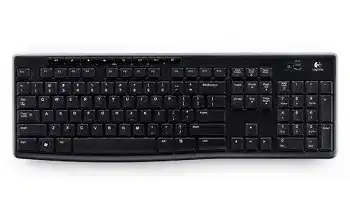
Letters that arrive late, appear twice, or stop for several seconds usually point to the wireless path rather than a missing Windows keyboard file. The Logitech Wireless Keyboard K270 Driver provides access to the legacy pairing software used with compatible K270 versions, while Windows handles ordinary typing through its built-in keyboard support. Start by checking the receiver type, USB position, and battery condition before changing system files.
The standalone K270 is a full-size 2.4 GHz wireless keyboard with a number pad, eight shortcut keys, an on-and-off switch, and two AAA alkaline batteries. Many retail versions include a Logitech Unifying receiver. However, some K270-labelled keyboards supplied inside an MK270 combo use a dedicated receiver instead, so the logo beneath the keyboard matters when pairing or replacing the dongle.
Logitech Wireless Keyboard K270 Windows Driver Download
| Driver Name | Description | Supported OS | File Size | Download |
|---|---|---|---|---|
| SetPoint Software 64-bit | Full offline package for adjusting keyboard hot-keys, device-specific settings, battery status, and Caps Lock or Num Lock indicators. | Windows 11, Windows 10 64-bit, Windows 8 64-bit, Windows 7 64-bit | 80.45 MB | |
| SetPoint Software 32-bit | Complete offline installer for configuring hot-keys, checking battery information, and managing keyboard-specific controls. | Windows 11, Windows 10 32-bit, Windows 8 32-bit, Windows 7 32-bit | 78.04 MB | |
| SetPoint Smart Installer | Small universal installer that downloads the required SetPoint components during setup, so an internet connection is required. | Windows 11, Windows 10 32-bit/64-bit, Windows 8 32-bit/64-bit, Windows 7 32-bit/64-bit | 4.61 MB | |
| Logitech Unifying Software | Pairs compatible Logitech devices with a Unifying receiver and helps add or remove connected keyboards and mice. | Windows 11, Windows 10 32-bit/64-bit | 3.96 MB |
Delayed letters near USB 3.0 equipment
External drives, flash storage, docks, and some USB 3.0 cables can create radio noise near a 2.4 GHz receiver. The result may look like slow typing, missing spaces, repeated letters, or a keyboard that freezes briefly and then releases several characters together. Reinstalling software rarely fixes that pattern because the receiver still sits beside the interference source.
Separate the keyboard receiver from active USB 3.0 hardware. A front USB 2.0 port often gives a better result than a tightly packed group of ports beside an external drive. A short USB extension cable can also place the receiver above the desk and away from the computer case. Test normal typing again before changing keyboard repeat controls.
Input stops until the receiver is reinserted
When unplugging and reconnecting the dongle restores the keyboard immediately, Windows may have suspended the USB port or failed to wake the receiver after sleep. Try another direct USB connection and restart the computer with the receiver already attached. Avoid a passive hub while testing because the hub adds another power and communication point.
Open the USB controller properties in Device Manager when the failure returns after every sleep cycle. Windows power management may turn off a hub to save energy. Disable that option only for the affected USB hub, restart, and check several sleep-and-wake cycles. Do not remove every USB power feature when one controller change solves the problem.
Match the K270 With Its Actual USB Receiver
Unifying Software does not detect the keyboard
Look for the orange Unifying symbol on the underside label and on the receiver. A matching logo confirms that the keyboard can use Logitech Unifying pairing. Open the Unifying Software, begin the connection process, and turn the keyboard off and back on when prompted. Type into the test field before completing the pairing.
The Logitech Wireless Keyboard K270 Driver download may include legacy utilities, but installing every Logitech program will not make incompatible hardware pair. Current support pages mark Unifying Software as an older, unmaintained application. It can still serve an eligible K270 on supported Windows installations, although modern Logitech software may not list this keyboard.
A K270 from an MK270 set rejects another dongle
Some keyboards carrying the K270 name came as part of a keyboard-and-mouse package and use a receiver tied to that set. These units may lack the Unifying mark even though a standalone K270 often includes it. Pairing software cannot convert a dedicated model into a Unifying product.
Check the product label before buying a replacement receiver. If the keyboard has no Unifying symbol, keep the original combo dongle with it and test that receiver on another computer. A random Logitech receiver can appear normally in Windows while remaining unable to communicate with this keyboard. Receiver shape alone does not prove compatibility.
The original Unifying receiver was lost
A confirmed Unifying K270 can connect to another genuine Unifying receiver. Install the pairing utility, attach the replacement receiver directly, and follow the power-cycle prompt. Remove an old K270 entry from the receiver first when the utility shows a stale device and no free connection attempt succeeds.
A Logi Bolt receiver is not a substitute. Bolt and Unifying use different technologies even though both are small Logitech USB devices. The K270 does not gain Bolt support through a driver update. Match the symbol on the keyboard to the symbol on the replacement receiver before attempting another pairing.
Restore Power Without Chasing Software Errors
The power switch is on but no keys respond
Slide the switch off, wait a few seconds, and move it firmly back to the on position. Then replace both AAA batteries as a pair. Follow the polarity marks inside the compartment, since one reversed cell leaves the keyboard completely inactive. Remove any shipping tab that remains between a battery and its contact.
Long advertised battery life does not guarantee that stored batteries still hold useful voltage. Heat, age, uneven cells, and frequent use of shortcut keys can shorten service. Use two matching alkaline batteries during diagnosis. Mixing an old cell with a new one can produce intermittent operation that resembles receiver trouble.
The keyboard reconnects only after pressing several keys
The K270 conserves power while idle, so a tiny wake delay can be normal. A long pause, multiple missed characters, or repeated disconnections are not. Clean the battery contacts with a dry cloth, reseat the batteries, and operate the power switch several times. Corrosion, liquid residue, or a loose contact needs hardware attention rather than another Windows package.
Place the keyboard closer to the receiver for one test session. If wake behaviour improves only at close range, return to receiver placement and interference checks. If the delay remains on another computer with new batteries, the keyboard’s power or radio hardware may be deteriorating.
Battery life falls far below the expected period
Turn the keyboard off during long storage periods and make sure no key remains pressed beneath an object. A book, drawer edge, or tight keyboard cover can hold a key down continuously. That prevents normal idle behaviour and drains the cells faster than ordinary office typing.
Inspect the compartment for moisture or white residue around the contacts. Do not immerse the keyboard while cleaning it. Although the design tolerates a limited accidental spill, liquid can still reach switches or battery areas. Remove the batteries immediately after a spill and allow the unit to dry fully before another test.
Shortcut Keys, Number Pad, and Unwanted Characters
Volume and playback keys work in one app only
The eight shortcut buttons send commands that the active operating system and application must accept. Test volume, mute, play or pause, home, email, and calculator functions separately. If volume changes but playback fails only in a browser tab, check that browser or media application before reinstalling the keyboard package.
Another media program may hold exclusive control of play and pause commands. Close background music players, communication apps, and browser media pages, then test one application at a time. The shortcut hardware is probably working when Windows receives some of the hotkeys but a particular program ignores one command.
The number pad types navigation commands
Press Num Lock and watch the Windows response. With Num Lock disabled, several keypad keys act as arrows, Home, End, Page Up, Page Down, Insert, or Delete. This behaviour comes from the standard full-size layout and does not indicate a wireless failure.
If Num Lock changes itself after sign-in, check accessibility options, startup software, or remote-desktop tools that can alter keyboard state. Test the keypad at the Windows sign-in screen and again inside a plain text field. A single non-working number key points more strongly to dirt or switch wear.
One key repeats or fails while every other key works
Receiver trouble usually affects multiple keystrokes, not the same physical key every time. Turn the keyboard off and clear loose debris around the affected key with gentle air. Press it several times from different edges. Avoid pouring cleaner beneath the keycap or prying the cap off without the correct removal method.
Next, test the K270 on another computer with its matching receiver. The same failure on both systems confirms a local key mechanism problem. When the key works elsewhere, examine the first computer’s language layout, accessibility features, macro tools, or application shortcuts.
Characters repeat after a Windows update
Open Windows keyboard controls and reduce the repeat rate temporarily. A very short repeat delay can exaggerate a key that is held slightly too long. However, do not hide wireless pauses with a slow repeat setting. Type continuously in a local text field and watch whether the pauses affect many different letters.
Remove the keyboard entry from Device Manager only when Windows shows an error or corrupted HID device. Restart with the receiver connected so Windows rebuilds its standard keyboard entry. Install the Logitech Wireless Keyboard K270 Driver utility afterward only when you need receiver pairing or the existing Logitech component fails to recognise eligible hardware.
Separate a Windows Problem From a Worn Keyboard
Use a second computer as the dividing test. Connect the matching receiver, wait for the standard keyboard device to load, and type for several minutes. Check the number pad, shortcut row, Shift combinations, Backspace, and long sentences. Stable behaviour there directs attention back to the original computer’s USB controller, radio environment, or software.
If the fault follows the keyboard, repeat the test with two new AAA alkaline batteries and a different receiver position. A Unifying version may also benefit from a fresh pairing to its confirmed receiver. Persistent failure across computers then points to the keyboard, receiver, or battery contacts rather than Windows.
Linux and other operating systems may accept ordinary K270 input through generic USB keyboard support, while Logitech’s old Windows utilities remain unavailable. That difference does not mean the keyboard needs a separate typing driver. Pair it on a compatible system when necessary, then test the standard keys on the intended computer.
For the most dependable K270 connection, keep its identified receiver with the keyboard and mark dedicated combo dongles so they are not mixed with Unifying hardware. Give the receiver some distance from USB 3.0 storage, replace both batteries together, and investigate a single bad key as a mechanical symptom. Use the Logitech Wireless Keyboard K270 Driver package for confirmed pairing needs, not as a substitute for receiver compatibility or sound hardware.