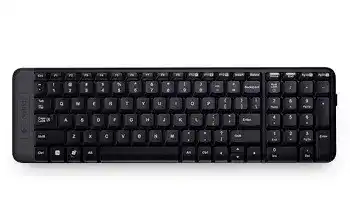
A plugged-in receiver does not always mean the keyboard has an active wireless link. The Logitech Wireless Keyboard K230 Driver is most useful when Windows recognizes the USB hardware, yet no letters reach the screen. This compact keyboard communicates through a Logitech Unifying receiver rather than Bluetooth, so recovery depends on receiver detection, device pairing, battery power, and the Windows keyboard service.
The K230 often begins working as soon as its paired receiver enters a direct USB port. Problems usually appear after moving the receiver to another computer, replacing a lost dongle, changing batteries, adding a USB hub, or placing high-speed USB equipment beside it. Start with the wireless path before changing language, shortcut, or accessibility options.
Logitech Wireless Keyboard K230 Windows Driver Download
| Driver Name | Description | Supported OS | File Size | Download |
|---|---|---|---|---|
| SetPoint 64-bit Software | Full offline package for configuring hot-keys, device-specific settings, battery status, Caps Lock, and Num Lock indicators. | Windows 11, Windows 10 64-bit, Windows 8 64-bit, Windows 7 64-bit | 80.45 MB | |
| SetPoint 32-bit Software | Complete offline installer for adjusting keyboard hot-keys, checking battery information, and viewing lock-key status. | Windows 11, Windows 10 32-bit, Windows 8 32-bit, Windows 7 32-bit | 78.04 MB | |
| SetPoint Smart Installer | Small universal installer that downloads the required SetPoint components during setup and requires an internet connection. | Windows 11, Windows 10 32-bit/64-bit, Windows 8 32-bit/64-bit, Windows 7 32-bit/64-bit | 4.61 MB | |
| Logitech Unifying Software | Utility for pairing the keyboard and other compatible Logitech devices with a Unifying receiver. | Windows 11, Windows 10 32-bit/64-bit | 3.96 MB |
The receiver appears, but the keyboard remains silent
Turn the K230 off, unplug the Unifying receiver, and restart the computer. Insert the receiver directly into a working USB port after Windows reaches the desktop, then switch the keyboard on. A direct connection removes hubs, monitor ports, docking stations, and USB switches from the test. Those intermediate devices can supply power while failing to carry the receiver’s data consistently.
Open a local document and press several letter keys. When the keyboard still gives no response, run Logitech Unifying Software and pair the K230 again. Follow the utility until it asks for a power cycle, turn the keyboard off and back on, and confirm the connection by typing in the test field.
A replacement receiver does not connect automatically
A newly purchased Unifying receiver will not necessarily know the keyboard already sitting on the desk. Check for the orange Unifying symbol on both products, then add the K230 through the pairing utility. A receiver from another Logitech family may fit the USB port but use a different protocol, so physical similarity alone does not prove compatibility.
The Logitech Wireless Keyboard K230 Driver package should be used with the matching Unifying software rather than a Bluetooth wizard or Logi Bolt application. The K230 has no Bluetooth pairing mode. Searching for it in the Windows Bluetooth panel will therefore produce no result, even when the keyboard and batteries are healthy.
Power Clues That Look Like a Broken Wireless Link
New batteries still give no response
Open the compartment and confirm that both AAA alkaline batteries follow the polarity marks moulded into the case. One reversed cell can leave the keyboard completely inactive. Remove any packaging tab left beneath the contacts, then inspect the metal ends for dust or residue. Wipe dry contamination with a clean cloth rather than scraping the contacts with a sharp object.
Battery packs kept in a drawer can also arrive weak or unevenly charged. Test with another matched pair from a recently opened package. Avoid mixing an old cell with a new one. After fitting them, move the power switch off for several seconds, turn it on again, and allow the receiver a moment to restore the radio link.
The keyboard works briefly after every power cycle
Short sessions followed by another dropout often point to low battery voltage or poor contact pressure. Gently rotate each battery in its holder and check that the springs touch the cell ends firmly. If pressing the battery cover changes the keyboard’s behaviour, the problem lies closer to the power compartment than to Windows software.
Wireless conditions can produce the same symptom. Place the keyboard nearer the receiver for one test and remove large metal objects from the path between them. A metal computer case, desk frame, external drive enclosure, or bundle of cables beside the receiver may weaken reception without stopping the USB device from appearing in Windows.
The on-screen lock message never appears
The K230 does not rely on prominent lock-state lamps for normal feedback. Windows can display a brief notification when Caps Lock or Num Lock changes, depending on the installed Logitech software and system configuration. The absence of that message does not by itself prove that the key failed. Type lowercase and uppercase text to verify Caps Lock directly.
For Num Lock, open a plain document and test the number pad. If its keys move the pointer instead of entering digits, enable Num Lock and inspect the Windows Mouse Keys feature. Turning off “Control the mouse with the keyboard” restores normal number entry when accessibility settings have reassigned the keypad.
Delayed Letters, Repeats, and Missed Keystrokes
Characters arrive in groups after a pause
Move the Unifying receiver away from USB 3 storage devices, docking-station cables, and busy high-speed ports. Equipment using USB 3 can create radio noise near the 2.4 GHz band used by the receiver. A nearby port may therefore cause delayed bursts even though every device works normally when tested alone.
Try a USB 2 port when the computer provides one. On a desktop hidden beneath a table, a short USB extension cable can bring the receiver into a clearer position without moving the entire computer. Keep the extension away from external-drive cables and place its end where the keyboard has an open wireless path.
A single press produces several copies of a letter
First check whether the repeated character follows one physical key or appears across the whole keyboard. Repetition from many keys may come from a weak link, a stalled application, or an aggressive repeat-rate setting. Open Windows keyboard properties and return the repeat delay and repeat rate to moderate values before testing again.
When only one key repeats, turn off the keyboard and clear loose debris around that key with gentle air or a soft brush. Do not pour cleaner beneath the cap. Test the same key on another computer using the paired receiver. Repetition that follows the keyboard across systems suggests a worn or contaminated key mechanism rather than a Logitech Wireless Keyboard K230 Driver fault.
Some keystrokes disappear during fast typing
Close remote-desktop sessions, browser-based workspaces, and heavily loaded applications while testing. Type into a local editor so network delay and application freezes do not become part of the diagnosis. If local text appears correctly, investigate the affected program instead of repeatedly reconnecting the keyboard.
Missed input across every program calls for a receiver-position test. Remove unnecessary wireless devices from the immediate area, change the USB port, and restart the K230. Also check Windows Update or another background installation, since a busy system can delay input while the keyboard itself continues transmitting normally.
Compact-Layout Keys That Seem to Have Changed Function
The number pad moves the cursor
Press Num Lock once and retest the keypad. With Num Lock off, several number-pad keys perform the arrow commands printed on them. Windows Mouse Keys can add further pointer movement, making the keypad seem defective. Open the accessibility keyboard controls and disable Mouse Keys unless keyboard-based pointer control is intentionally required.
Do not reinstall the wireless package solely because the number pad enters navigation commands. This behaviour comes from the active lock state or an operating-system option. Once normal digits return, leave the receiver pairing unchanged.
Scroll Lock is difficult to find
The Scroll Lock function sits above the numeric keypad on the K230 layout. Its effect depends on the active program; many modern applications ignore it. Spreadsheet software may use it to move the worksheet while leaving the selected cell in place, which can make the arrow keys appear to behave incorrectly.
Toggle Scroll Lock and retest inside the application where the problem occurs. When only one program responds oddly, inspect that program’s status bar or keyboard commands. Receiver replacement and battery changes cannot alter an application-specific Scroll Lock mode.
Function-row shortcuts trigger unexpected commands
The K230 combines standard function keys with alternate actions. Hold the Fn key when the required command shares a key position, and test whether the application expects the ordinary F-key signal or the printed shortcut. Software, games, browser extensions, and remote sessions can intercept these commands before the intended program receives them.
SetPoint may expose keyboard behaviour for supported Windows versions, but it cannot force every application to accept a shortcut. Restore custom program shortcuts when one key fails only inside a particular application. If the same function works elsewhere, the wireless connection and physical switch are already passing input.
Windows Recovery Without Disturbing a Working Pairing
The Unifying receiver disappears from Device Manager
Test the receiver in another direct USB port before removing any software. In Device Manager, inspect Human Interface Devices and Universal Serial Bus controllers for an unknown item or warning symbol. Unplug the receiver, remove only the failed USB entry when necessary, restart Windows, and reconnect it so the operating system can rebuild the standard HID components.
A receiver that fails on several computers may have a hardware fault. A receiver that works elsewhere points back to the first computer’s port, dock, USB controller, security policy, or power management. This comparison gives a clearer answer than reinstalling several Logitech applications at once.
The keyboard stops responding after sleep
Wake the computer with its power button or another input device, then switch the K230 off and on. If Windows restores the keyboard only after the receiver is reinserted, inspect the USB power-management setting for the relevant hub. Preventing Windows from suspending that hub can help when the receiver repeatedly vanishes during long idle periods.
Change this option only for a confirmed sleep-related fault. Keeping every USB hub permanently active can increase power use on a laptop. A different port may solve the issue without altering the computer’s wider power plan.
More than one Logitech utility is installed
The K230 belongs to the Unifying generation and was documented with SetPoint support. Remove unrelated receiver applications when they were installed only during unsuccessful troubleshooting. Logi Bolt software cannot pair this keyboard, while gaming utilities and Bluetooth controls add no useful connection path.
Retain the ordinary Windows HID components, the Unifying pairing utility when receiver recovery is needed, and SetPoint only when its supported keyboard functions are required. Restart the computer after removing conflicting software, then test typing before making another change. This keeps the diagnosis tied to one action rather than several simultaneous replacements.
Leave the K230 With a Proven Wireless Path
Once typing returns, note which receiver belongs to the keyboard and keep it away from unshielded high-speed USB equipment. Store a spare Unifying receiver only after confirming its logo and pairing capability. A random Logitech nano receiver may not communicate with the K230, even though its casing looks almost identical.
Use the Logitech Wireless Keyboard K230 Driver resources for pairing recovery, supported keyboard controls, and Windows detection problems. For future dropouts, check power, the direct USB connection, nearby radio noise, and the active lock keys in that order. When one physical key fails on every computer but the remaining keys work, further software changes are unlikely to repair the underlying switch.