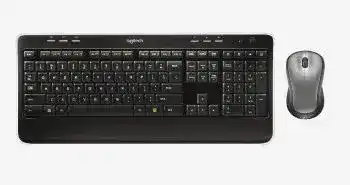
A dead hotkey, delayed typing, or a mouse that drops out while the keyboard keeps working can leave this two-device set only half usable. The Logitech Wireless Combo MK520 Driver adds SetPoint controls for the K520 keyboard and M310 mouse, while the Unifying software handles pairing with the shared USB receiver. The combo does not use Bluetooth, and both devices need the compatible Unifying connection before software adjustments can make any difference.
Logitech Wireless Combo MK520 Windows Driver Download
| Driver Name | Description | Supported OS | File Size | Download |
|---|---|---|---|---|
| SetPoint 64-bit | Full 64-bit package for offline setup of keyboard hot-keys, mouse controls, tracking speed, battery status, and device-specific settings. | Windows 11, Windows 10 64-bit, Windows 8 64-bit, Windows 7 64-bit | 80.45 MB | |
| SetPoint 32-bit | Complete 32-bit installer for offline access to hot-key assignments, pointer adjustments, Caps Lock alerts, and Num Lock status. | Windows 11, Windows 10 32-bit, Windows 8 32-bit, Windows 7 32-bit | 78.04 MB | |
| SetPoint Smart Installer | Compact setup tool that downloads the required SetPoint components during installation, so an internet connection is required. | Windows 11, Windows 10 32-bit/64-bit, Windows 8 32-bit/64-bit, Windows 7 32-bit/64-bit | 4.61 MB | |
| Logitech Unifying Software | Utility for pairing compatible Logitech keyboards and mice with a Unifying USB receiver or replacing an existing receiver connection. | Windows 11, Windows 10 32-bit/64-bit | 3.96 MB |
Logitech Wireless Combo MK520 Driver When Only One Device Responds
The keyboard and mouse share one receiver, but each has its own pairing record, power switch, and battery supply. That means one device can keep working while the other goes silent. Before changing Windows settings, check the power switch on the failed unit and watch its battery light. The keyboard uses two AA batteries, while the M310 mouse uses one AA battery.
The mouse works but the keyboard does not
Turn the K520 off, wait several seconds, and switch it back on while it sits near the receiver. Press Fn and F12 to check the keyboard battery status. A red or missing response can point to weak batteries, dirty contacts, or incorrect battery placement. Remove both cells, wipe the metal contacts with a dry cloth, and install a matched pair rather than mixing an old cell with a new one.
If the battery check looks normal, run the Unifying pairing utility and add the keyboard again. Follow the prompt that asks you to cycle its power. A keyboard that still works in the BIOS or startup screen but stops after Windows loads may need the receiver entry refreshed in Device Manager rather than another battery change.
The keyboard types but the M310 pointer is absent
Check the mouse power switch and replace its single AA battery. Clean around the battery terminals if the power light does not appear. Turn the mouse off before opening the Unifying utility, begin the pairing process, and switch it on only when the software requests that action. Cycling the power too early can make the utility miss the pairing signal.
Look at the optical opening underneath the mouse and remove loose dust with dry air. Test it on a plain mouse pad or sheet of matte paper. Glass, polished stone, and highly reflective desks can make the pointer look disconnected even though the receiver still sees the device.
Both devices stop at the same time
A simultaneous failure usually points to the receiver, USB port, or operating system. Unplug the Unifying receiver, restart the computer, and reconnect it to a different direct USB port. Allow Windows a moment to rebuild its standard keyboard and mouse entries. Avoid diagnosing both devices separately until the receiver appears again under USB or Human Interface Devices.
When a dock or monitor hub sits between the receiver and the computer, remove it during testing. Some hubs provide enough power for storage and displays yet behave poorly with a small wireless receiver. The included USB extender can place the receiver on the desk, away from the metal computer case and other connected equipment.
Restore the Unifying Receiver Before Reinstalling SetPoint
SetPoint changes keys, mouse behavior, and notifications, but it cannot repair a receiver that has lost its pairing records. Use the Unifying utility first when the Logitech Wireless Combo MK520 Driver package opens normally but shows only one part of the combo. Pair the keyboard and mouse separately, confirming each device before moving to the next one.
A replacement receiver will not connect
The MK520 requires a Logitech Unifying receiver marked with the orange star-like symbol. A Bolt receiver, a basic nano receiver from another combo, or an unmarked Logitech dongle will not pair with the K520 and M310 simply because it fits the USB port. Use a genuine replacement Unifying receiver and add both devices through the Unifying software.
Disconnect other Logitech receivers during this process. With several receivers attached, the utility may select a different one from the unit you intend to configure. After the keyboard and mouse both pass the pairing test, reconnect any additional receivers and check that the MK520 still responds through the newly prepared one.
The receiver appears as an unknown USB device
Open Device Manager, locate the failed USB or HID entry, and remove that device entry. Unplug the receiver, restart Windows, and insert it into another port so the operating system loads its built-in USB input support again. SetPoint is not the first layer of this connection; the receiver must register as a USB input device before Logitech software can communicate with it.
Do not install Bluetooth tools for this combo. The MK520 communicates through its Unifying receiver only. Searching the Bluetooth device list, holding keys for Bluetooth discovery, or installing the Bolt app will not create a connection and can distract from the actual USB problem.
The keyboard and mouse lag together
Place the receiver where it has a clearer path to the desk. A receiver hidden behind a tower, next to an external hard drive, or beside several USB 3 cables may produce delayed letters, lost clicks, and jerky movement. The USB extender supplied with many MK520 packages is useful here because it brings the receiver out from behind the computer without moving the entire system.
Test a USB 2 port when a nearby USB 3 device seems to trigger the problem. Also move wireless routers, charging cables, and other active radio equipment away from the receiver area. Lag that disappears when the keyboard and mouse sit close to the dongle usually points to placement or interference rather than defective keys and switches.
SetPoint Controls, Function Keys, and Lock Indicators
The K520 can type with ordinary operating-system support, but its shortcut assignments and on-screen notices rely on SetPoint. Install the Logitech Wireless Combo MK520 Driver software when the letter keys work but the media row, programmable functions, or lock-state messages do not behave as expected. Restart Windows after installation so the SetPoint background service loads with the user session.
Function keys open the wrong action
The upper row combines F1 through F12 with shortcuts for applications, media, sleep, lock, and battery checks. Hold Fn when you need the alternate action. SetPoint can change selected function-key assignments, so open its keyboard section and inspect the task attached to the affected key. Reset that key to its default action when an old custom command opens the wrong program.
Some shortcuts depend on Windows rather than the keyboard itself. A mail or browser key may do nothing when no default application has been chosen for that task. Set the preferred browser, email app, or media player in Windows, then test the shortcut again without changing the receiver pairing.
Caps Lock or Num Lock status is unclear
The K520 has a Caps Lock indicator, but Num Lock feedback may rely on an on-screen notification depending on the software and system configuration. Open SetPoint and enable keyboard status messages when you need a visible notice. If the Caps Lock light never changes, test the key in a document before assuming the LED failure means the key itself has stopped working.
An on-screen lock notice that appears too often comes from the Logitech software rather than Windows typing support. Review the notification options in SetPoint and disable the lock-state display while leaving the keyboard customizations active. Removing all Logitech software merely to hide that message can also remove useful function-key controls.
SetPoint opens without showing the keyboard or mouse
Close SetPoint, confirm that both devices already work through the Unifying receiver, and reopen the software with a normal Windows user session. If only one device appears, re-pair the missing unit before reinstalling the application. A partial device list often follows a lost pairing record, not a damaged SetPoint installation.
When a reinstall becomes necessary, remove the existing SetPoint version, restart Windows, and install the current package supported for the operating system. Avoid running several generations of Logitech keyboard software together. Duplicate background components can produce missing tabs, failed notifications, or settings that revert after each restart.
Typing, Clicking, and Scrolling Faults That Software Cannot Hide
Letters repeat or arrive in groups
Wireless delay can store several keystrokes and release them together, so first compare the keyboard close to the receiver. If the grouped input disappears, change receiver placement. When one specific key repeats at every distance, turn the keyboard off and clear crumbs or dust around that key with short bursts of dry air.
Check the Windows keyboard repeat-delay and repeat-rate controls as well. A very short delay can make a slightly long press create several characters. Return those controls to a moderate position and test in a plain document. Repeated input from one key on another computer usually points to the key mechanism rather than the Logitech package.
The mouse produces an unwanted double-click
Open Windows mouse properties and move the double-click speed toward a slower setting, then test the sample folder icon. Review the M310 button assignment in SetPoint and make sure the primary button still uses a normal click action. A software assignment that treats one press as a double-click can imitate a failing switch.
Test the mouse on another computer with SetPoint closed. If a single physical press still opens files twice, the switch may be worn. Cleaning around the button edge can remove surface debris, but persistent double input across different systems usually needs hardware replacement rather than repeated driver installation.
The wheel turns but the page does not move correctly
Check the vertical scrolling value in Windows and SetPoint. An extremely low value can make the wheel seem unresponsive, while a large value can cause sudden jumps. Restore a normal number of lines per notch and compare several programs, since spreadsheets, remote desktops, and some browsers may apply their own scrolling behavior.
Turn the mouse off and blow dry air around the wheel opening when scrolling skips in every program. Do not pour cleaner into the wheel assembly. If the middle click works but rotation fails on several computers, the wheel encoder may have worn out, and changing software will not rebuild that component.
The computer wakes as soon as the mouse moves
Windows may permit the Unifying receiver to wake the system because it carries both keyboard and mouse input. Open Device Manager, inspect the receiver-related HID entries, and adjust the power-management option where Windows exposes it. Changing only the mouse entry may not work because both devices pass through the same USB receiver.
Sleep trouble can also come from a loose mouse that moves slightly on the desk. Switch the M310 off before leaving the computer asleep for a long period, or place it where vibration cannot move the sensor. Keep the keyboard available for wake-up if that suits the workstation better.
Finish With a Two-Device Test, Not a Mouse-Only Check
After pairing and software changes, type continuously, use the function row, test Caps Lock, move the pointer, click several files, and scroll through a long page. The Logitech Wireless Combo MK520 Driver setup is complete only when the K520 and M310 both remain attached to the same Unifying receiver without delayed input or missing controls.
Keep the receiver extender available if desk placement affects performance, and mark a replacement receiver so it does not get mixed with Bolt or non-Unifying dongles. When one device fails later, check its battery and pairing record before disturbing the working half of the combo. That approach preserves the good connection and makes the actual fault easier to isolate.