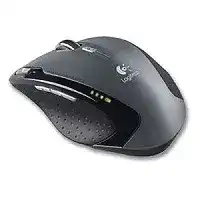
Windows may detect the USB dongle while the pointer remains completely still. In that situation, the Logitech VX Revolution Mouse Driver package matters because this older notebook mouse sometimes needs its receiver link restored through Logitech software. The VX Revolution uses a dedicated 2.4 GHz micro receiver rather than Bluetooth, Unifying, or Logi Bolt technology.
Insert one AA battery, eject the stored receiver from the mouse, and connect it directly to a USB port. Removing the receiver from its storage bay also switches the mouse on. Storing it inside the body turns the mouse off for travel, so a partly seated receiver can leave the power mechanism in the wrong position.
Logitech VX Revolution Windows Driver Download
| Driver Name | Description | Supported OS | File Size | Download |
|---|---|---|---|---|
| SetPoint Software (64-bit) | Full offline package for configuring mouse buttons, tracking speed, hot-keys, battery status, and device-specific settings. | Windows 11, Windows 10 64-bit, Windows 8 64-bit, Windows 7 64-bit | 80.45 MB | |
| SetPoint Software (32-bit) | Complete offline installer for adjusting pointer movement, mouse controls, assigned shortcuts, and supported lock-key notifications. | Windows 11, Windows 10 32-bit, Windows 8 32-bit, Windows 7 32-bit | 78.04 MB | |
| SetPoint Smart Installer | Compact setup tool that requires an internet connection to download the necessary SetPoint components during installation. | Windows 11, Windows 10 32-bit/64-bit, Windows 8 32-bit/64-bit, Windows 7 32-bit/64-bit | 4.61 MB | |
| Logitech Connection Utility | Reconnects the mouse with a compatible Logitech receiver when the existing wireless pairing no longer works correctly. | Windows 11, Windows 10 32-bit/64-bit, Windows 8 32-bit/64-bit, Windows 7 32-bit/64-bit | 1.04 MB |
Logitech VX Revolution Mac OS Driver Download
| Driver Name | Description | Supported OS | File Size | Download |
|---|---|---|---|---|
| Logitech Control Center | Manages mouse button assignments, scrolling behavior, pointer controls, and other supported device preferences on newer Mac systems. | macOS 11, macOS 10.15, macOS 10.14, macOS 10.13 | 17.76 MB | |
| Logitech Control Center | Enables configurable mouse functions, wheel settings, cursor response, and application-specific controls across supported Mac OS X releases. | Mac OS X 10.13, Mac OS X 10.12, Mac OS X 10.11 | 17.15 MB | |
| Logitech Control Center | Provides access to button mapping, movement preferences, scrolling adjustments, and compatible mouse controls on earlier Mac installations. | Mac OS X 10.11, Mac OS X 10.10, Mac OS X 10.9, Mac OS X 10.8 | 17.06 MB |
The computer detects the dongle but nothing moves
This symptom often means the mouse and receiver no longer share the same cordless link. The VX Revolution has no ordinary reset button underneath. Logitech supplied Connect.exe for connection recovery, and the utility guides the user through a specific button sequence that resynchronizes the mouse with its original receiver.
Close other mouse utilities before running the connection tool. Keep the receiver attached, confirm that the battery indicator responds, and follow the sequence exactly. Restart the computer afterward if the pointer still does not appear. Reconnecting the dongle repeatedly will not repair a pairing mismatch by itself.
A different Logitech receiver will not pair
Similar shape does not mean radio compatibility. The VX Revolution predates Unifying and Bolt products, and their receivers do not become compatible after installing newer Logitech applications. A replacement must match the older 2.4 GHz QUAD cordless system and still needs to work with the connection utility.
Test the original micro receiver before searching for another one. Try it on a second computer and check whether the operating system notices new USB hardware. No response on either machine points toward receiver failure. Detection without mouse movement instead suggests lost synchronization, exhausted power, or a fault inside the mouse.
The receiver cuts out beside other USB devices
A laptop dock, crowded hub, or metal-sided desktop can weaken the wireless path even at short range. Connect the micro receiver to an exposed USB socket and separate it from external drives, wireless adapters, and thick cable bundles. A basic USB extension lead can move the dongle into a clearer position without changing its electrical connection.
Intermittent movement may also come from a loose USB port. Gently compare another socket rather than holding the receiver at an angle. When the problem follows one particular port, leave the mouse on the connection that remains firm. When it follows the receiver to every computer, software changes are unlikely to solve it.
SetPoint Controls Missing from the VX Revolution
Ordinary clicks and pointer movement can work through the operating system while the special controls remain inactive. Install the Logitech VX Revolution Mouse Driver when you need SetPoint access for button assignments, wheel tilting, One-Touch Search, Document Flip, zoom functions, or battery information. Modern Logitech Options applications were not created for this model.
SetPoint opens but shows no VX Revolution
Attach the receiver before starting SetPoint. If the program was installed first, exit it completely, reconnect the dongle, and restart Windows. SetPoint may keep an incomplete hardware list until its background service reloads. Running the installer again while those components remain active can create another broken installation rather than refresh detection.
Remove conflicting SetPoint releases when the control panel stays empty. Uninstall the existing copy, restart, and install one compatible package instead of stacking versions. The official technical information lists SetPoint 4.80 among the software supplied for the VX Revolution, although newer operating systems may offer only partial compatibility with this legacy release.
Special buttons return to unwanted actions
The two thumb buttons, search control, zoom slider, and wheel functions depend on SetPoint assignments. Open the button page and choose a separate action for each control. Test one change before editing the next. Assigning several application commands at once makes it difficult to identify which command Windows or a particular program ignores.
Some programs take over familiar shortcuts. A thumb button may navigate correctly in a browser but do nothing in another application that has no back or forward command. Choose a keystroke that the target program already understands, or retain the standard assignment when the control behaves properly elsewhere.
One-Touch Search launches the wrong service
The search button was built around software and browser behavior from an earlier period. SetPoint may open an outdated search destination, use the wrong browser, or fail after a modern browser update. Reassign that button to a normal keystroke, application launch, or another action that does not depend on an obsolete search integration.
Check the Windows default browser when the button opens an unexpected program. The mouse cannot independently choose a current web service; SetPoint passes the request to software already configured on the computer. A custom button assignment usually gives a more predictable result than trying to restore the original search feature exactly.
MicroGear Scrolling That Feels Wrong
The VX Revolution uses a mechanical switch underneath to change its MicroGear wheel between free-spin and click-to-click movement. That distinction matters during troubleshooting. SetPoint can adjust scrolling actions, but it does not physically change the wheel mode on this model. Check the underside switch before treating a loose or heavily notched wheel as a software fault.
The wheel spins freely when precise scrolling is needed
Move the mechanical wheel-mode switch to the ratcheted position. The wheel should then turn through distinct steps for lists, menus, and shorter pages. When the switch moves but the wheel remains frictionless, cycle it several times with the mouse switched off. Dust or wear in the mechanism may prevent the internal selector from engaging fully.
Do not confuse free-spin operation with a broken wheel. That mode intentionally removes most resistance so one flick can travel through a long document. Stop the wheel gently with a fingertip when the page continues moving. Change to ratcheted mode for spreadsheets or other work where individual increments matter.
Ratcheted scrolling remains unusually slow
Open the operating system’s mouse controls and increase the number of lines moved per notch. Then compare the result with SetPoint running and closed. The Logitech software may apply its own scrolling choice after Windows loads, which explains why a system adjustment sometimes appears to work briefly and then changes again.
Application behavior can also limit the result. Test a long local document and a browser page before altering the software again. When only one program scrolls slowly, inspect that program’s navigation preferences. Reinstalling SetPoint will not usually correct an application that processes wheel input at its own fixed rate.
Wheel tilt or middle click does not perform the expected command
The MicroGear wheel supports left and right tilting, while pressing it can receive a separate SetPoint assignment. Open the wheel configuration and make sure the press action uses Middle Button when software requires a conventional middle click. A zoom, search, or universal-scroll assignment can stop panning and tab controls from recognizing the press.
Test horizontal movement inside a wide spreadsheet because an ordinary web page may contain nothing beyond its visible width. For middle-click testing, use a program with a known middle-button command. Working results in those locations indicate that the hardware is responding and the original application is interpreting the input differently.
Scrolling jumps or reverses direction
Loose debris near the wheel encoder can produce uneven steps. Switch the mouse off, remove the battery, and rotate the wheel while using dry air around its openings. Avoid liquids and do not force tools down the sides. Refit the battery and compare both wheel modes after cleaning.
When the wheel still reverses during slow movement on another computer, its internal encoder may be worn. SetPoint can change speed and assignments but cannot correct failing mechanical readings. Free-spin mode may hide some roughness, yet it will not restore accurate notch-by-notch navigation.
Power, Tracking, and Click Behaviour on an Older VX Revolution
The mouse will not wake after receiver storage
The built-in receiver bay acts as part of the travel power system. Press the eject control and remove the micro receiver completely before expecting the mouse to start. If the indicator remains dark, take out the AA battery, check its orientation, and inspect both contacts for dirt or leakage.
Use a known-good alkaline AA cell during diagnosis. A battery can run another low-demand device while dropping too much voltage during wireless operation. Clean dry contacts gently and make sure the compartment closes without moving the cell. Do not add foil or bend the metal pieces sharply to increase pressure.
Battery status in SetPoint looks inaccurate
The reading is an estimate based on voltage and usage rather than a precise fuel gauge. Rechargeable AA cells have different voltage behaviour from alkaline batteries, so the displayed time may fall quickly or remain unchanged for long periods. Judge the battery by connection stability and the indicator as well as the software estimate.
Receiver storage prevents unnecessary drain during travel because inserting the dongle powers the device down. Use that bay whenever the mouse goes into a notebook bag. If the mechanism no longer switches the mouse off, remove the battery during extended storage rather than allowing a slow discharge.
The laser pointer becomes erratic on a particular surface
Move the VX Revolution to a plain matte desk or conventional mouse pad. Its laser engine handles many materials, but highly reflective glass, mirrored finishes, and repeating glossy patterns can still confuse tracking. Clean the sensor opening with dry air and make sure no hair crosses the small lens area.
Reduce pointer speed temporarily when tiny movements seem exaggerated. Also compare Windows pointer acceleration with it enabled and disabled. A surface fault usually changes when the mouse moves to another material, while a receiver problem tends to cause pauses, missing movement, or delayed responses regardless of the desk.
Left click begins registering twice
Lower the Windows double-click speed slightly and use the built-in test area. A very fast setting can make deliberate double clicks fail, but it rarely causes one physical press to create two separate selections. Compare the same button on another computer without custom SetPoint assignments.
Repeated duplicate clicks across multiple systems usually indicate switch wear rather than a Logitech VX Revolution Mouse Driver problem. Closing SetPoint provides a useful final comparison. If the behaviour remains with standard operating-system input, software replacement will not repair the worn contact.
The mouse feels active but the pointer stays frozen
Working buttons with no movement narrow the fault to tracking rather than the receiver link. Clean the laser opening, change the surface, and restart the mouse by storing and ejecting the receiver. If clicks also stop, return to the connection utility and battery checks instead of concentrating on the sensor.
Test the Logitech VX Revolution Mouse Driver features only after basic movement returns. SetPoint adds the model’s extended controls, while Connect.exe restores synchronization with compatible cordless hardware. A responsive indicator, an original working receiver, one sound AA battery, and a suitable tracking surface provide the clearest base for deciding whether the remaining fault belongs to software or ageing hardware.