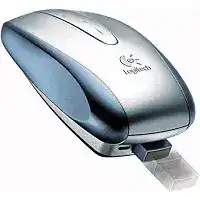
The solid scrolling surface is usually the first feature people notice when this compact model starts acting strangely. The Logitech V500 Cordless Notebook Mouse Driver supplies the older SetPoint controls needed for its four-way touch panel, while Windows handles ordinary pointer movement and clicks. This is a receiver-based 2.4 GHz mouse, not a Bluetooth, Unifying, or Logi Bolt device.
Unlike a conventional wheel, the V500 uses a touch-sensitive solid-state panel between its two main buttons. Sliding a finger forward or backward controls vertical movement, while sideways motion handles horizontal content in compatible programs. The unusual design makes software configuration more important because a working pointer does not always mean that every scrolling direction has loaded correctly.
Logitech V500 Cordless Mouse Windows Driver Download
| Driver Name | Description | Supported OS | File Size | Download |
|---|---|---|---|---|
| SetPoint 64-bit Full Installer | Full offline package for configuring mouse buttons, tracking speed, device settings, and battery status on 64-bit Windows. | Windows 64-bit | 77.85 MB | |
| SetPoint 32-bit Full Installer | Complete offline installation package for adjusting button functions, pointer speed, hot-keys, and device-specific controls on 32-bit Windows. | Windows 32-bit | 75.81 MB | |
| SetPoint Smart Installer | Compact setup tool for downloading SetPoint components and managing mouse controls; an internet connection is required during installation. | Windows | 3.5 MB | |
| Flow Scroll Full Installer | Full installation package for adding smoother scrolling behavior to compatible applications without downloading additional setup files. | Windows | 17.38 MB | |
| Flow Scroll Smart Installer | Small web installer that retrieves the required Flow Scroll components during setup. | Windows | 3.91 MB | |
| Connection Utility | Restores communication between the cordless mouse and its receiver when the existing pairing no longer works. | Windows XP | 44 KiB |
Logitech V500 Cordless Mouse Mac OS Driver Download
| Driver Name | Description | Supported OS | File Size | Download |
|---|---|---|---|---|
| Logitech Control Center | Manages mouse buttons, scrolling behavior, pointer controls, and application-specific assignments on supported Mac systems. | Mac OS X 10.13.x | 16.63 MB | |
| Logitech Control Center | Adds Mac control-panel settings for changing button actions, movement response, and other connected mouse preferences. | Mac OS X 10.11.x | 17.06 MB | |
| Logitech Control Center | Enables custom button commands and pointer adjustments through the Logitech preference pane on compatible Mac computers. | Mac OS X 10.7.x | 17.73 MB | |
| Logitech Control Center | Supplies device controls for assigning mouse functions and refining cursor movement under this earlier Mac OS X release. | Mac OS X 10.5.x | 18.7 MB | |
| Connect Utility | Reconnects the V500 cordless mouse with its receiver when Mac OS X no longer recognizes the existing wireless link. | Mac OS X 10.4.x | 160.36 KiB |
The pointer works but the touch panel does nothing
Begin with the SetPoint mouse controls rather than changing the receiver connection. Confirm that scrolling remains enabled and that the panel has not received an unsuitable assignment. Close SetPoint after saving the change, reopen the program, and test a long document. Restart Windows when the new value appears in the panel but has no effect in applications.
Windows may recognize the V500 through its standard input service while leaving its special scrolling surface without full Logitech control. That split explains why both buttons and pointer movement can operate normally during a scrolling failure. Install one compatible SetPoint package, restart the computer, and reconnect the USB micro-receiver before opening the control panel again.
Scrolling moves in short jumps or feels delayed
Use a light, continuous finger movement across the centre of the panel. Repeated taps and very short swipes can produce uneven movement because the surface interprets both position and direction. Dry the panel with a soft cloth if moisture or skin oil has collected there. Abrasive cleaners may damage the finish and will not repair an electronic sensing fault.
Also compare the Windows scrolling value with the SetPoint value. A high line count can turn a small gesture into a large page jump, while a very low value makes the panel appear slow. Change one control at a time. Testing several values together makes it difficult to tell whether Windows or SetPoint caused the improvement.
Horizontal movement works in only a few programs
Open a wide spreadsheet, image workspace, or document with a visible horizontal bar. Many web pages fit within the window and have nowhere to move sideways, so a left or right gesture produces no visible result. The panel may therefore work correctly even though a narrow page makes the feature appear unavailable.
Some modern applications interpret four-way input differently from the programs available when the V500 was released. Check vertical and horizontal actions separately. When sideways motion works in one older desktop program but not in a newer app, changing the Logitech V500 Cordless Notebook Mouse Driver repeatedly is unlikely to alter that application’s input handling.
A faint clicking sound follows each scroll gesture
The V500 can produce a quiet feedback sound while a finger travels over the solid-state panel. That sound does not come from a mechanical wheel because this model has no normal scroll wheel. If pages move correctly and the sound remains soft and consistent, it does not indicate that something inside the mouse has broken.
A new grinding, rattling, or loose-body noise is different. Close the expandable shell, remove the stored receiver, and open the body again to check whether it locks firmly into its working position. Do not pry apart the housing merely to silence normal scrolling feedback. The panel and folding chassis contain parts that are easy to damage.
Opening the V500 Body Changes Its Power and Working Position
The V500 folds into a thin travelling shape and expands when prepared for use. Open the chassis fully before troubleshooting a blank pointer or inactive panel. The compact position is intended for carrying and receiver storage, not normal operation. A body that has not locked open may leave the mouse off even when the batteries still hold a good charge.
The mouse remains dead after removal from a notebook bag
Remove the micro-receiver from its storage slot and extend the body until it reaches its operating shape. Then connect the receiver directly to the notebook. This sequence matters because storing the receiver and closing the chassis form part of the V500 travel design. Simply inserting the dongle while the mouse remains folded may leave the device without power.
If no indicator appears, open and close the chassis once more rather than forcing it beyond its normal range. Check for dirt around the folding joint and receiver compartment. A trapped cable fibre, paper fragment, or damaged latch can prevent the body from reaching the position that activates the mouse.
The receiver fits inside but falls out during travel
Place the USB connector into the internal slot in the direction shown by the compartment shape. It should sit inside the body without pressure against the folding mechanism. Do not carry loose batteries or another USB plug in the same cavity. Foreign objects can obstruct the latch or press against the original receiver while the V500 remains closed.
Use a separate protective pouch when the storage slot no longer grips the dongle firmly. Tape placed inside the compartment can leave adhesive on the contacts or interfere with the opening action. The original micro-receiver is difficult to replace with certainty, so protecting it matters more than preserving the convenience of internal storage.
A different Logitech receiver is recognized but cannot move the pointer
The V500 uses an early proprietary 2.4 GHz micro-receiver from long before Logitech introduced Unifying and Bolt systems. Similar size, shape, or branding does not establish radio compatibility. Windows may identify another dongle as Logitech USB hardware, yet the mouse will remain inactive because the receiver speaks a different cordless protocol.
Keep the matching receiver with the V500. When the original has been misplaced, verify the precise part relationship before purchasing a replacement. Do not install Unifying Software or the Bolt app to pair this model. Neither utility converts a newer receiver into the dedicated cordless hardware expected by the V500.
Restoring the Cordless Link Without Reinstalling Everything
The receiver appears in Windows but the V500 will not reconnect
Unplug the receiver, close the mouse, and wait several seconds. Insert the receiver into a direct USB port, open the chassis completely, and press the reset control on the mouse. The original installation instructions use that reset action to restore communication when the receiver remains installed but the pointer does not respond.
Try the reset only after checking power. Repeating it with exhausted batteries creates the same unsuccessful result and can make the receiver seem faulty. The Logitech V500 Cordless Notebook Mouse Driver does not create the radio link by itself; the receiver, mouse power, and reset sequence must all work before SetPoint can display meaningful device information.
The connection disappears beside other notebook equipment
Remove the receiver from a crowded hub and place it in a USB port with a clearer path to the mouse. External drives, docking stations, tightly bundled cables, and metal notebook stands can create a poor location even when every USB device still receives power. A short extension lead can bring the micro-receiver above or around an obstructing surface.
Test at close range before deciding that the radio hardware has failed. The original 2.4 GHz system was built for notebook mobility, but age, nearby wireless traffic, damaged USB contacts, and weak batteries can reduce practical performance. A stable result within a short distance usually points toward placement rather than missing software.
Windows detects nothing when the receiver is inserted
Try another USB port and watch for the operating system’s connection response. Clean visible dust from the receiver plug with a dry, soft brush, then inspect it for bending or looseness. Avoid liquid cleaners and do not force a damaged connector. A receiver that fails on several computers has a hardware problem that SetPoint cannot solve.
When another computer sees the dongle immediately, return to the original notebook and review Device Manager for an unknown or disabled USB input item. Remove only the failed entry associated with the current test, restart Windows, and reconnect the receiver. Do not delete unrelated keyboard, touchpad, or USB controller entries merely because their names look generic.
SetPoint installs but does not list the mouse
Older and newer Logitech programs may compete for device access without supporting the same hardware generation. Remove unused Options, Options Plus, Unifying, or Bolt installations if they were added solely for the V500. Restart, connect the original receiver, and install SetPoint by itself. Open its mouse tab only after Windows has finished recognizing the USB input hardware.
On recent Windows versions, basic buttons and movement may remain available even when the legacy SetPoint interface cannot identify every V500 function. Logitech listed the model for standard mouse compatibility with Windows 8 and Windows 10, but that does not guarantee that every historical SetPoint feature behaves exactly as it did on the original operating systems.
Battery, Sensor, and Click Faults During Portable Use
The red battery light begins flashing
The V500 takes two AAA batteries, and its instructions identify a blinking red indicator as the replacement warning. Change both cells as a pair and follow the polarity marks inside the compartment. Mixing an old battery with a new one can produce enough voltage for a brief light while failing as soon as the mouse begins transmitting.
After replacement, close the battery compartment, open the chassis into its working form, and press reset if the cordless link does not return. Reinstalling the Logitech V500 Cordless Notebook Mouse Driver after every battery change serves no purpose. Power restoration and receiver synchronization come before any software check.
New batteries work only when the mouse is held still
Remove both cells and inspect the metal contacts for dust, discoloration, or loss of spring pressure. Wipe dry residue gently and reinstall the batteries without bending the terminals. A loose contact can interrupt power when the small notebook mouse is lifted or opened, creating a fault that resembles unstable wireless reception.
Do not pack the compartment with foil or another conductive material. Such a shortcut can shift, short the batteries, or damage the housing. If pressure on the cover changes the power state, the safer conclusion is a worn contact, cover, or internal connection rather than a driver problem.
The cursor behaves badly on a hotel table or glass desk
The V500 uses an optical sensor. Move it to a plain, opaque, matte surface when the pointer shakes, stalls, or travels in the wrong direction. Glass, mirrors, glossy laminates, and strong repeating patterns can confuse older optical tracking. A sheet of plain paper can provide a quick comparison when no mouse pad is available.
Check the sensor opening for lint after carrying the mouse in a bag. Use dry air or a soft brush and avoid touching the lens with a hard object. Then return Windows pointer speed to a moderate value. Very high acceleration can magnify small sensor errors until they look like large jumps across the screen.
One click becomes two clicks
Lower the double-click speed in Windows and use the built-in test area. If a slower value stops folders from opening unexpectedly, the timing preference was too demanding. When one physical button still produces duplicate clicks in several programs and on another computer, the switch inside the mouse has probably worn with age.
SetPoint can confirm whether an unusual assignment has been attached to a button, but it cannot repair a failing switch. Restore the standard left and right actions before testing again. Avoid unsafe switch modifications or sprays inside the case. An intermittent primary button makes the device unsuitable for precise work even when pointer movement remains accurate.
The best way to keep this folding design usable
Treat the V500 as a matched travelling set rather than a modern receiver platform. Store its original dongle inside the body, remove it before opening the mouse, keep two matched AAA cells installed, and protect the touch panel from sharp objects. Those habits address the model’s unusual folding shell and solid-state scrolling surface more directly than repeated software changes.
When the Logitech V500 Cordless Notebook Mouse Driver loads but the device still fails, separate the symptoms. Working clicks with missing four-way scrolling point toward SetPoint or application compatibility. A red indicator points toward battery replacement. No receiver detection suggests USB hardware trouble, while complete failure across multiple computers usually means the ageing mouse, folding power mechanism, or dedicated receiver has reached the end of service.