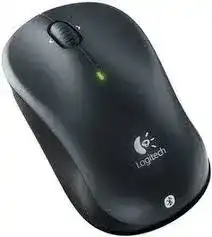
A notebook can show Bluetooth as working and still refuse to keep this mouse connected. The Logitech V470 Bluetooth Laser Notebook Mouse Driver becomes useful when pairing finishes once, then the pointer disappears after sleep, battery replacement, or a restart. This model is a Bluetooth wireless laser notebook mouse, so the repair path starts in the Bluetooth list, not with USB receiver checks.
The V470 was built for laptop use without a dongle. It uses Bluetooth, two AA batteries, a bottom connect button, a power switch, a laser sensor, and wheel functions that can include horizontal scrolling or zoom when the Logitech software layer recognizes them. That mix creates a different kind of driver page from many Logitech wireless mice because there is no receiver to re-pair or move to another port.
Most computers can move the pointer through standard Bluetooth mouse support, but basic movement does not always mean the full setup is finished. The Logitech software matters when wheel behavior, wake behavior, or older control features do not match the hardware. It also gives older Windows and Mac systems a cleaner way to finish the mouse profile after pairing.
Logitech V470 Bluetooth Laser Notebook Mouse Windows Driver Download
| Driver Name | Description | Supported OS | File Size | Download |
|---|---|---|---|---|
| SetPoint Software 64-bit | Full offline SetPoint package for mouse button settings, tracking speed, device controls, and status indicators. | Windows 11, Windows 10 64-bit, Windows 8 64-bit, Windows 7 64-bit | 80.45 MB | |
| SetPoint Software 32-bit | Complete 32-bit SetPoint installer for hot-keys, battery status, pointer speed, and device-specific mouse options. | Windows 11, Windows 10 32-bit, Windows 8 32-bit, Windows 7 32-bit | 78.04 MB | |
| SetPoint Smart Installer | Small SetPoint web installer for button customization, tracking adjustments, and keyboard status features during setup. | Windows 11, Windows 10 32-bit/64-bit, Windows 8 32-bit/64-bit, Windows 7 32-bit/64-bit | 4.61 MB |
Logitech V470 Bluetooth Laser Notebook Mouse Mac OS Driver Download
| Driver Name | Description | Supported OS | File Size | Download |
|---|---|---|---|---|
| Logitech Control Center Software | Mac customization software for configuring mouse controls, scrolling behavior, and device-specific settings. | macOS 11, macOS 10.15, macOS 10.14, macOS 10.13 | 17.76 MB | |
| Logitech Control Center Software | Control Center release for managing supported Logitech mouse functions and Mac device preferences. | Mac OS X 10.13, Mac OS X 10.12, Mac OS X 10.11 | 17.15 MB | |
| Logitech Control Center Software | Older Mac package for adjusting Logitech mouse button actions and notebook mouse behavior. | Mac OS X 10.11, Mac OS X 10.10, Mac OS X 10.9, Mac OS X 10.8 | 17.06 MB |
Clear the Bluetooth Pairing Before Installing Again
The first useful fix is often removal, not installation. If the V470 appears more than once in the Bluetooth device list, remove every old entry, switch the mouse off, wait a short moment, and start again from a single pairing attempt. A stale Bluetooth profile can keep the computer trying to reconnect to a previous hardware address.
Use the bottom connect button correctly
Turn the mouse on, then press the connect button on the underside until the discovery light shows that the device is ready to pair. Open the Bluetooth setup screen on the computer and add the mouse from there. Do not search for a Logitech receiver or pairing dongle because this model does not use one.
For the Logitech V470 Bluetooth Laser Notebook Mouse Driver setup, finish Bluetooth pairing first and install the matching Logitech software only after the computer can at least see the mouse. That order avoids a confusing failure where software waits for a device that the operating system has not accepted yet.
Remove the old entry after a battery change
A battery change can make this mouse look dead when the real problem is a broken reconnect attempt. Install two good AA batteries, confirm the contacts sit firmly, and pair the mouse again only after deleting the previous Bluetooth entry. If the computer immediately says the device already exists, the old profile still controls the session.
When the pointer returns for a few seconds and then stops, repeat pairing with the mouse close to the laptop. Bluetooth discovery works best when the computer is not also trying to reconnect headphones, keyboards, or another mouse at the same time. Finish one device at a time.
Check the laptop Bluetooth adapter before blaming the mouse
Some V470 failures come from the notebook’s Bluetooth radio rather than the mouse. If the computer cannot discover any Bluetooth input device, update the computer’s Bluetooth adapter driver or restart Bluetooth from the system settings. The Logitech software cannot repair a disabled or unstable built-in Bluetooth adapter.
On older laptops, vendor Bluetooth stacks sometimes behave differently from the standard Windows Bluetooth screen. Use the Bluetooth setup tool that actually controls the laptop’s radio. If one setup screen never finds the mouse, close it and use the other Bluetooth manager instead of repeatedly pressing the mouse button.
When Logitech Software Finds the Mouse but the Wheel Feels Incomplete
The V470 can move the cursor with plain Bluetooth HID support, but the wheel and extra wheel behavior may need Logitech’s control software on supported older systems. If vertical scrolling works but side-to-side scroll or zoom behavior does not respond, the computer may have loaded only a minimal mouse profile.
Install only the software that matches the older mouse
This is not a modern gaming device, and it does not need profile software for lighting, onboard memory, or high polling rates. Use the older Logitech mouse software intended for this generation when your operating system still supports it. Mixing several Logitech control apps can make the V470 appear in one place and remain unconfigurable in another.
The Logitech V470 Bluetooth Laser Notebook Mouse Driver should not be treated as a universal fix for every new Logitech application. If a newer control app does not list the V470, remove it from the troubleshooting path and return to Bluetooth pairing, operating system mouse settings, and older Logitech control software where available.
Wheel tilting works only after the control layer responds
Side-to-side wheel movement can feel broken when the mouse is physically fine. Test normal vertical scrolling first in a long document, then test horizontal movement in a page or sheet that actually has left and right content. Many apps ignore horizontal wheel input, so the wrong test window can create a false failure.
If zoom behavior changed after software installation, open the Logitech control panel and check the wheel assignment. Older Logitech software often lets the wheel action serve a different function, so a setting change can look like a driver fault. Restore the default wheel action before reinstalling anything.
Scroll lag after wake needs a different fix
A short pause after sleep is normal for many older Bluetooth mice, but a long pause points to pairing or power management trouble. Wake the laptop first, then move the V470 after the desktop appears. If the wheel wakes later than the pointer, clear the Bluetooth entry and pair again with fresh batteries installed.
Do not solve wake lag by installing several driver packages over each other. That usually creates more background services without improving the Bluetooth link. Keep the software side simple and focus on the radio profile, battery strength, and the laptop’s Bluetooth adapter.
Pointer Movement Problems on a Small Laser Notebook Mouse
Laser tracking gives the V470 better surface tolerance than many older optical travel mice, but it still has limits. Glass, glossy plastic, mirrored desks, and uneven fabric can make the pointer jump. Try a matte surface before changing software because the sensor can misread a shiny desk even when Bluetooth remains connected.
Fast pointer movement after pairing
If the pointer races across the screen after a new pairing, open the operating system’s mouse settings and reduce pointer speed. Some computers apply default sensitivity after every Bluetooth re-add. The Logitech utility may also expose pointer options on systems that still support the older V470 software package.
Keep acceleration changes modest. A very high speed setting can make a compact notebook mouse feel unstable, especially on a small travel surface. Make one change, test it for a minute, then adjust again instead of moving several sliders at once.
Cursor stalls when the laptop wakes
The V470 may reconnect slowly when both the laptop and mouse wake from an idle state. Flip the power switch off and on once, then wait for Bluetooth to reconnect before pressing the connect button. Pressing the connect button too soon can put the mouse into discovery mode instead of letting it resume the existing link.
If this happens every day, check the computer’s Bluetooth power settings. Some laptops save power by turning off the Bluetooth radio during sleep. That setting may save battery, but it also forces the mouse to negotiate a new connection after every wake cycle.
Pointer jumps only after installing Logitech software
If tracking became worse right after software installation, uninstall the Logitech mouse software, restart, pair the V470 again, and test basic movement first. Then reinstall only the needed control package. This separates a Bluetooth pairing problem from a software profile problem and prevents the old profile from loading again silently.
The Logitech V470 Bluetooth Laser Notebook Mouse Driver should improve control access, not make the pointer harder to place. When the pointer works better without the extra software, keep the operating system’s basic Bluetooth mouse profile and use system-level speed and scroll settings.
Battery, Power Switch, and Travel Bag Problems
This mouse uses two AA batteries, and weak cells can create symptoms that look exactly like a driver failure. The pointer may stop, the mouse may disappear from Bluetooth, or the wheel may wake late. Replace both batteries together and avoid mixing an old cell with a new one.
Battery contacts after storage
A travel mouse spends time in bags, drawers, and laptop sleeves. If the V470 has been stored for months, open the battery cover and inspect the contacts. Dust or light residue can interrupt power when the mouse moves. Wipe the contacts gently with a dry cloth and reinstall the batteries firmly.
The battery indicator can warn before total failure, but it cannot fix weak contact pressure. If the mouse works only when squeezed or tapped, the battery bay needs attention before any software download will matter. Power must stay steady for Bluetooth pairing to complete.
The power switch saves batteries but can confuse testing
The underside power switch is useful during travel, yet it also causes simple mistakes. Confirm the switch position before pairing, especially if the mouse has been inside its pouch. After turning it on, wait briefly before pressing the connect button so the device has time to power up.
When testing after battery replacement, keep the mouse on a desk and avoid closing the laptop lid between attempts. A lid close can sleep the Bluetooth adapter and make the second test look worse than the first.
Keep the V470 as a Bluetooth Mouse, Not a Receiver Mouse
The cleanest setup for this model keeps the connection path narrow: Bluetooth discovery, bottom connect button, two AA batteries, and the older Logitech control layer when the operating system supports it. Searching for Unifying, Bolt, or nano receiver fixes wastes time because those receiver systems do not belong to this Bluetooth-only mouse.
Use the Logitech V470 Bluetooth Laser Notebook Mouse Driver when the operating system sees basic Bluetooth input but wheel behavior, reconnecting, or old software controls still need correction. If the computer cannot discover the device at all, repair Bluetooth first, then return to Logitech software only after pairing succeeds.
A stable V470 setup usually comes from one careful reset rather than repeated downloads. Remove old Bluetooth entries, install good AA batteries, pair from the computer’s Bluetooth screen, and then test pointer movement, scrolling, and wake behavior in that order. That sequence matches the way this notebook mouse actually connects.