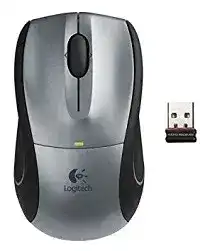
A laptop may detect the tiny USB receiver while the pointer still refuses to move. The Logitech V450 Nano Cordless Laser Mouse Driver matters most when this notebook mouse loses its 2.4 GHz wireless link, scroll settings disappear, or the computer treats it like a plain three-button mouse. This model uses a plug-and-forget nano receiver, not Bluetooth.
The V450 Nano is a portable laser mouse with a small receiver that can stay in the notebook, a storage slot inside the mouse, two AA batteries, a bottom power switch, a battery indicator, and a scroll wheel with tilt support. Those details shape the repair path. Most failures start with receiver contact, battery strength, surface tracking, or older Logitech mouse software.
Do not troubleshoot this model like a Bluetooth mouse. There is no pairing screen, no Bluetooth device list, and no Easy-Switch channel to choose. The receiver creates the wireless path. When that path breaks, the mouse can look dead even though the driver package and the hardware still work.
Logitech V450 Nano Cordless Laser Mouse Windows Driver Download
| Driver Name | Description | Supported OS | File Size | Download |
|---|---|---|---|---|
| SetPoint Full Installer 64-bit | Full offline SetPoint package for mouse button settings, tracking speed, device-specific options, and lock-key status alerts. | Windows 64-bit | 77.85 MB | |
| SetPoint Full Installer 32-bit | Complete offline SetPoint installer for configuring mouse controls, pointer behavior, hot-keys, and battery status features. | Windows 32-bit | 75.81 MB | |
| SetPoint Smart Installer | Small SetPoint web installer for mouse settings and device options; internet access is required during installation. | Windows | 3.5 MB | |
| Flow Scroll Full Installer | Offline Flow Scroll package for improving scrolling behavior with supported Logitech mouse software components. | Windows | 17.38 MB | |
| Flow Scroll Smart Installer | Compact Flow Scroll installer for adding smoother scrolling support through a smaller online setup package. | Windows | 3.91 MB | |
| Connection Utility | Utility for reconnecting the mouse receiver when the cordless link fails or the device is not detected correctly. | Windows 10 32-bit/64-bit, Windows 7 32-bit/64-bit, Windows 8 32-bit/64-bit | 1.06 MB | |
| Connection Utility | Older Windows connection tool for restoring receiver pairing on XP and Vista systems. | Windows XP, Windows Vista | 2.08 MB |
Logitech V450 Nano Cordless Laser Mouse Mac OS Driver Download
| Driver Name | Description | Supported OS | File Size | Download |
|---|---|---|---|---|
| Logitech Control Center | Mac software for managing Logitech mouse controls, button behavior, scrolling preferences, and device settings. | Mac OS X 10.13.x | 16.63 MB | |
| Logitech Control Center | Control Center package for customizing supported Logitech mouse functions on Mac OS X 10.11.x systems. | Mac OS X 10.11.x | 17.06 MB | |
| Logitech Control Center | Mac driver software for setting mouse buttons and device preferences on Mac OS X 10.7.x installations. | Mac OS X 10.7.x | 17.73 MB | |
| Logitech Control Center | Legacy Mac package for basic Logitech mouse configuration and control support on Mac OS X 10.5.x. | Mac OS X 10.5.x | 18.7 MB |
Receiver storage can hide the first problem
The receiver is small enough to remain in a notebook USB port, but many owners store it inside the mouse for travel. If the pointer does nothing, check the battery bay and receiver slot before changing software. A missing receiver will not trigger a normal pairing screen because the V450 Nano depends on its own USB radio link.
After plugging in the receiver, wait until the operating system finishes loading the USB input device. Then switch the mouse off and on once. That simple reset often starts the wireless handshake without reinstalling the Logitech V450 Nano Cordless Laser Mouse Driver again.
Fix the USB Link Before Reinstalling SetPoint
SetPoint can handle older Logitech mouse controls, but it cannot repair a receiver that the computer barely reads. Start with the USB connection. Plug the nano receiver directly into the notebook, avoid loose hubs during testing, and check whether the operating system reacts when you remove and reconnect the receiver.
Receiver detected, pointer still frozen
When the computer makes a USB sound but the pointer stays still, treat it as a wireless link issue first. Move the mouse within a short range of the notebook, switch it off, remove the batteries for a moment, reinstall them, and turn the mouse back on. This clears a stuck low-power state.
If the receiver sits beside a crowded USB device, change the port. A notebook with external drives, adapters, or a dock can create radio noise around small 2.4 GHz receivers. The V450 Nano receiver is convenient because it stays almost flush, but that also means it has little physical separation from other electronics.
USB hubs and docking stations make testing harder
A dock may work for daily use after the mouse behaves, but it adds another layer while diagnosing. Test the receiver in a built-in USB port first. If the pointer returns there, the mouse does not need a new driver. The dock, hub, or adapter path needs attention.
For the Logitech V450 Nano Cordless Laser Mouse Driver installation, keep the first test simple. One notebook, one receiver, one mouse, and fresh batteries give you a clear result. After movement returns, reconnect the hub or dock and check whether the failure comes back.
Lost receiver or wrong receiver
The V450 Nano’s receiver looks similar to other small Logitech receivers, but that does not mean any receiver will work. If you found a loose dongle in a drawer, confirm that it belongs with this mouse. A receiver from another Logitech model may install as a USB input device and still never talk to the V450 Nano.
Do not search for Unifying receiver fixes unless the product label and receiver markings clearly show that system. The V450 Nano page should stay focused on its nano receiver design. Wrong-receiver testing wastes time and can make a good mouse look faulty.
Scroll Wheel and Tilt Actions Need the Right Control Layer
The V450 Nano can work as a basic pointing device through standard USB mouse support, but the scroll wheel may not expose every control without Logitech’s older mouse software. If vertical scrolling works while tilt movement or wheel click behavior feels wrong, install the matching SetPoint package for the supported Windows version.
Vertical scroll works but side movement does not
First test tilt scrolling in a window that actually has horizontal content. A wide spreadsheet or oversized image gives a better test than a normal web page. Some programs ignore horizontal wheel input, so the mouse may be sending the command while the application does nothing with it.
If tilt still fails in a suitable window, open the Logitech control software and check the wheel assignment. The Logitech V450 Nano Cordless Laser Mouse Driver can expose wheel behavior that the standard USB profile may leave hidden. Restore default wheel actions before assuming the switch inside the wheel has failed.
Wheel click opens the wrong action
Wheel-click behavior can change after software updates, browser changes, or old SetPoint profiles. If pressing the wheel no longer opens links in a new tab or no longer acts like middle click, check the assigned wheel button inside the mouse control panel. A setting change can imitate a hardware fault.
After adjusting the setting, test wheel click in one simple place. A browser tab bar or a document viewer gives a direct result. Avoid testing inside a game, remote desktop window, or custom app first because those programs may capture mouse buttons differently.
Scrolling jumps or reverses suddenly
Erratic scroll movement often comes from dust around the wheel, not from the receiver. Blow gently around the wheel gap or use a soft brush to remove debris. Turn the mouse off before cleaning, and do not drip liquid into the shell.
If cleaning changes nothing, remove the batteries for a short power reset and restart the computer. Then check scroll speed in system mouse settings. Older Logitech software and Windows mouse settings can both influence scroll distance, so make one change at a time.
Pointer Drift, Surface Trouble, and Laser Sensor Behavior
The laser sensor gives this notebook mouse good tracking on many desks, but “many” does not mean every surface. Glass, mirror-like finishes, patterned fabric, and glossy laptop trays can confuse the sensor. When the pointer shakes, jumps, or slows down, move to a plain matte surface before reinstalling anything.
Pointer skips only on one desk
A surface-specific skip points away from the driver. Try a notebook sleeve, plain sheet of paper, or matte mouse pad. If the pointer steadies immediately, keep the software unchanged and replace the work surface. Laser tracking can still misread reflections, dust, and repeating patterns.
Also check the sensor window underneath the mouse. A small hair or dust line can create repeated jumps. Wipe the sensor area carefully with a dry lint-free cloth, then test slow diagonal movement across the screen.
Pointer speed feels too high after setup
After the Logitech software loads, pointer speed can feel different from the default operating system profile. Reduce pointer speed slightly in the system settings or Logitech control panel. Avoid extreme acceleration changes because a compact travel mouse can feel twitchy on small notebook desks.
The best test is slow placement, not fast sweeping movement. Move the pointer to small buttons, window corners, and text insertion points. If those actions feel controlled, the speed setting is closer to the right level.
Movement pauses after the notebook sleeps
The mouse may need a moment to wake after the laptop resumes. Move it once, wait briefly, and click only after the pointer returns. Rapid clicking during wake can make the problem seem worse because the receiver and operating system are still rebuilding the input session.
If wake delay becomes constant, check the USB power management setting for the receiver port. Some systems save power by turning off USB devices during sleep. That setting can extend battery life on the laptop, but it may also force the receiver to reconnect every time.
Battery Problems That Look Like Driver Failure
The V450 Nano uses two AA batteries and includes a battery indicator, but weak cells can still create confusing symptoms. The mouse may move in short bursts, drop after scrolling, or stop when lifted. Replace both batteries together instead of mixing one old cell with one new cell.
Battery contacts after travel
A notebook mouse often rides in a bag, so the battery bay deserves a check. Open the cover, confirm the batteries sit in the right direction, and look for dust or light residue on the contacts. Clean dry contacts help the mouse keep enough power for the wireless link.
If the mouse works only when tapped or squeezed, focus on the battery compartment before software. A loose battery connection can disconnect the device for a split second, and the receiver will then appear unreliable even when it is fine.
Power switch position during testing
The bottom switch saves battery life during travel, but it also creates a simple false failure. Turn the switch fully on before every test. If the mouse has just come out of a bag, switch it off and on once rather than assuming the previous position stayed unchanged.
When the battery indicator shows low power, do not continue troubleshooting driver settings. Install two good AA batteries first. The Logitech V450 Nano Cordless Laser Mouse Driver cannot keep the pointer stable if the mouse loses power during each wireless handshake.
Keep the V450 Nano Setup Narrow and Practical
A stable V450 Nano setup depends on the correct receiver, a clean USB connection, strong AA batteries, and SetPoint only where older control features need it. Skip Bluetooth menus, gaming software, Bolt tools, and unrelated receiver utilities. They do not match this notebook mouse.
Use one repair sequence when the mouse fails again: confirm the receiver belongs to the V450 Nano, plug it directly into the notebook, refresh the batteries, clean the sensor and wheel area, then install or repair the Logitech software if wheel assignments still act wrong. That order follows the hardware path instead of guessing.
The Logitech V450 Nano Cordless Laser Mouse Driver is most useful after the wireless link already responds. If the receiver is missing, the batteries are weak, or the sensor cannot read the desk, software will not solve the first failure. Fix the physical link first, then use the driver package for control and wheel behavior.