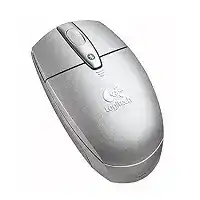
When the computer sees the device but cannot finish pairing, the Logitech V270 Cordless Optical Mouse Driver is only one part of the connection. This compact optical model communicates directly through Bluetooth and does not use a separate USB receiver. The computer’s Bluetooth hardware, operating-system service, and saved pairing record must all work before pointer movement begins.
Logitech originally supplied SetPoint for first-time connection on compatible Windows systems. The company’s current support page no longer provides a downloadable package for this discontinued model. Newer Windows and macOS versions normally treat it as a standard Bluetooth pointing device, so the operating system may provide the only software needed for basic clicks, scrolling, and movement.
The V270 uses a reset button on its base to enter discovery mode. Press that button before opening the computer’s Bluetooth device search. A mouse that remains paired with an old notebook may not appear immediately on another computer. Remove its previous listing, switch the device off briefly, turn it back on, and start discovery again.
Logitech V270 Cordless Windows Driver Download
| Driver Name | Description | Supported OS | File Size | Download |
|---|---|---|---|---|
| SetPoint Software (64-bit) | Full 64-bit package for offline setup, mouse button settings, tracking speed, battery status, and device-specific controls. | Windows 11, Windows 10 64-bit, Windows 8 64-bit, Windows 7 64-bit | 80.45 MB | |
| SetPoint Software (32-bit) | Complete 32-bit installer for offline configuration of mouse buttons, pointer tracking, hot-keys, and battery information. | Windows 11, Windows 10 32-bit, Windows 8 32-bit, Windows 7 32-bit | 78.04 MB | |
| SetPoint Smart Installer | Small online installer that downloads the required SetPoint components during setup, so an internet connection is required. | Windows 11, Windows 10 32-bit/64-bit, Windows 8 32-bit/64-bit, Windows 7 32-bit/64-bit | 4.61 MB |
The mouse does not appear in the Bluetooth list
Begin with the computer rather than repeatedly pressing the reset button. Confirm that Bluetooth is enabled and that the notebook is not in airplane mode. Some older laptops also have a physical wireless switch or a function-key control. When that switch disables the radio, Windows may still show Bluetooth menus even though the adapter cannot discover nearby equipment.
Place the V270 close to the notebook during the first connection. Press the reset button once and search for new Bluetooth devices immediately. Discovery mode does not stay active forever. If no Logitech entry appears, turn Bluetooth off at the computer, wait several seconds, enable it again, and repeat the search.
Pairing starts but never completes
A damaged saved record can stop a new connection at the final stage. Delete the existing V270 entry from Bluetooth settings instead of trying to connect through it again. Restart the computer, return the mouse to discovery mode, and add it as a new device. This rebuilds the security keys exchanged during pairing.
Do not search for a Unifying receiver, Bolt receiver, or replacement dongle. The V270 was made to connect directly to a Bluetooth-equipped computer. Receiver utilities cannot pair this model, and purchasing an unrelated Logitech receiver will not restore its connection.
Choose Software That Matches This Older Bluetooth Model
The original Logitech V270 Cordless Optical Mouse Driver package belonged to the Windows 2000 and Windows XP period. Its SetPoint wizard assisted with discovery and exposed mouse preferences supported at that time. Installing that legacy package on a current 64-bit system may fail, produce compatibility warnings, or add services that no longer communicate correctly with the modern Bluetooth stack.
Try the operating system’s built-in Bluetooth support first on a newer computer. After pairing, move the pointer, click both main buttons, and turn the wheel. Those basic functions use standard mouse protocols and often work without an extra Logitech application. A missing vendor utility does not automatically mean that the hardware has failed.
SetPoint cannot detect the V270
SetPoint may open normally yet show no connected mouse because the Bluetooth pairing has not completed at the operating-system level. Close the program and establish the connection from Windows Bluetooth settings first. Once the pointer responds, reopen the utility. An unsupported SetPoint release may still fail to identify the model even though normal mouse functions continue working.
Avoid installing several SetPoint generations together. Mixed services, old startup entries, and duplicate control panels can confuse device detection. Remove unused Logitech packages, restart Windows, and keep only the release that genuinely supports the operating system. On a current machine, leaving SetPoint uninstalled may produce the cleaner result.
Windows shows a driver or Bluetooth error
Open Device Manager and inspect the Bluetooth adapter rather than looking only under Mice. A warning icon beside the radio usually points to the notebook manufacturer’s Bluetooth package, a disabled service, or a failed system update. Install the appropriate adapter software from the computer manufacturer, restart, and then pair the V270 again.
Windows may also retain hidden copies of equipment that was paired through an older Bluetooth adapter. Removing the visible mouse entry is usually enough, but changing adapters can leave stale associations. Restarting after deletion gives the active radio a chance to rebuild its device list before another pairing attempt.
Wake Delays, Disconnects, and Uneven Pointer Movement
A brief pause after inactivity does not always indicate a missing Logitech V270 Cordless Optical Mouse Driver. The mouse and notebook conserve power when idle, and an older Bluetooth link can take a moment to resume. Move the device once, wait briefly, and avoid clicking repeatedly while the connection wakes. Constant clicking can make a normal delay look like a larger fault.
The pointer does not return after sleep
Turn the V270 off and back on before removing its pairing. This simple power cycle often restores a link that did not resume when the notebook woke. If that works only temporarily, update the computer’s Bluetooth adapter software and review its power-management options. The radio may be entering a low-power state from which it cannot recover cleanly.
On Windows, the Bluetooth adapter’s properties may include permission for the computer to turn it off to save power. Clearing that option can help when every sleep cycle breaks the connection, although it may slightly increase notebook power use. Change one setting at a time so the result remains clear.
The mouse disconnects during ordinary work
Nearby 2.4 GHz equipment can still affect an older Bluetooth connection despite the V270’s interference-reduction technology. Test away from crowded wireless equipment, active hubs, or several radios placed beside the notebook. A stable connection at close range suggests that radio conditions, rather than the optical sensor or buttons, caused the interruptions.
Repeated drops can also come from tired batteries or dirty contacts. Switch the device off, remove the batteries, and inspect the metal terminals. Wipe dry dust away without bending the contacts. Install a matched pair with the polarity shown inside the compartment, then reconnect through Bluetooth if the saved association does not return automatically.
Movement looks slow, jumpy, or delayed
First test the optical sensor on a plain, non-reflective surface. Glass, glossy finishes, strong patterns, and polished desks can produce broken tracking. A sheet of ordinary paper offers a quick comparison. If movement becomes consistent there, the wireless connection and software are probably functioning, while the original surface is confusing the sensor.
Next inspect the operating system’s pointer speed and acceleration controls. A system update or another pointing device can change these values. Set a moderate speed, test again, and avoid extreme acceleration while diagnosing lag. Software adjustments cannot fix a failing sensor, but they can correct movement that only feels unusually fast or heavy.
Wheel, Click, and Battery Symptoms That Look Like Driver Faults
The Logitech V270 Cordless Optical Mouse Driver cannot repair worn switches, contamination around the wheel, or interrupted battery contact. Separate physical symptoms from software symptoms before replacing files. A problem that follows the mouse to another compatible Bluetooth computer usually points toward the hardware. A problem limited to one operating system more often belongs to pairing, Bluetooth services, or local preferences.
The wheel stops scrolling after the computer wakes
Switch the mouse off, wait a few seconds, and power it on again. When pointer movement returns but scrolling does not, remove the Bluetooth entry and pair the device again. This refreshes the complete mouse profile rather than preserving a partially resumed connection. Restart the affected application as well, since some programs lose wheel input after sleep.
Test scrolling in more than one window. A browser extension, remote desktop session, spreadsheet, or application-specific preference can change wheel behavior while the rest of the system remains normal. When every program shows the same fault, inspect the wheel opening for lint and check the Bluetooth connection before considering software replacement.
Single clicks sometimes become double clicks
Open the operating system’s mouse control panel and move the double-click speed toward the middle. An extreme setting can make ordinary hand movement register incorrectly. Test folder opening and text selection afterward. If one press still produces two actions on another computer, the button switch may have mechanical wear that no driver installation can reverse.
A weak power connection can also create irregular input. Watch for pointer pauses or brief disconnects at the same time as the false clicks. When several symptoms occur together, check the batteries and contacts before blaming the button. A worn switch usually affects one click control while movement and Bluetooth remain steady.
The low-battery light appears too soon
The V270 includes a low-battery indicator and an underside power switch. Turn the device off during long periods of storage rather than relying only on its automatic power management. Replace both batteries together, and avoid mixing different ages or types. A mismatched pair can reach the warning threshold sooner than expected.
If new batteries trigger the light immediately, inspect their seating and the compartment terminals. Slight oxidation or reduced spring pressure can interrupt current when the mouse moves. Clean only accessible dry surfaces and do not pour liquid into the compartment. Persistent warnings with secure contacts may indicate aging internal electronics.
Rebuild the Bluetooth Link Before Retiring the Mouse
A useful final test combines the fixes that matter most for this receiver-free design. Remove the old Bluetooth listing, restart the computer’s radio, install a sound pair of batteries, press the base reset button, and pair from a short distance. Then test movement, wheel input, sleep recovery, and both main clicks before adding legacy Logitech software.
For modern systems, the most dependable Logitech V270 Cordless Optical Mouse Driver may simply be the standard Bluetooth mouse support already included with the operating system. SetPoint remains relevant mainly to compatible older Windows installations. When the V270 fails on several Bluetooth computers after a fresh pairing and battery check, hardware age becomes more likely than a missing download.