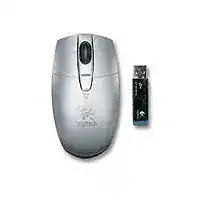
A cursor that vanishes after sleep does not always point to a failed USB port. The Logitech V200 Cordless Notebook Mouse Driver restores access to the original SetPoint controls, while the mouse itself communicates through its dedicated radio receiver. This portable optical model uses replaceable AA batteries and does not connect through Bluetooth, Unifying, or Logi Bolt technology.
Power deserves attention first because the V200 can appear partly alive with weak batteries. The indicator may react, yet the radio link can still fail under load. Switch the mouse off, remove both AA cells, and inspect the compartment before changing Windows software. Refit the batteries according to the polarity marks and turn the device back on.
Logitech V200 Cordless Mouse Windows Driver Download
| Driver Name | Description | Supported OS | File Size | Download |
|---|---|---|---|---|
| SetPoint Full Installer (64-bit) | Full offline package for configuring mouse buttons, tracking speed, hot-keys, device settings, and battery status. | Windows 64-bit | 77.85 MB | |
| SetPoint Full Installer (32-bit) | Complete offline setup for adjusting button assignments, pointer tracking, device-specific controls, and status indicators. | Windows 32-bit | 75.81 MB | |
| SetPoint Smart Installer | Compact installer for mouse customization and battery monitoring; an internet connection is required during installation. | Windows | 3.5 MB | |
| Flow Scroll Full Installer | Full installation package that enables smoother scrolling behavior in supported applications without downloading setup components. | Windows | 17.38 MB | |
| Flow Scroll Smart Installer | Small web-based setup utility for adding smooth scrolling support while retrieving required components during installation. | Windows | 3.91 MB |
Logitech V200 Cordless Mouse Mac OS Driver Download
| Driver Name | Description | Supported OS | File Size | Download |
|---|---|---|---|---|
| Logitech Control Center | Provides Mac controls for configuring supported mouse buttons, scrolling behavior, and device-specific preferences. | Mac OS X 10.13.x | 16.63 MB | |
| Logitech Control Center | Enables button assignment, pointer adjustments, scrolling controls, and hardware settings on compatible Mac systems. | Mac OS X 10.11.x | 17.06 MB | |
| Logitech Control Center | Adds preference-pane controls for managing mouse functions, button actions, and scrolling options on Mac. | Mac OS X 10.7.x | 17.73 MB | |
| Logitech Control Center | Supports device-specific mouse configuration, programmable controls, and navigation settings for older Mac installations. | Mac OS X 10.5.x | 18.7 MB | |
| Logitech Connect Utility | Helper utility for establishing or restoring the connection between the cordless mouse and its receiver. | Mac OS X 10.4.x | 160.36 KiB |
The pointer does not return after the computer wakes
Disconnect the USB receiver for several seconds, reconnect it, and then move the mouse. Older cordless hardware can miss the resume sequence even though Windows still lists a USB input device. A different direct port often restores the link more quickly than restarting the entire computer.
If wake failures happen regularly, disable USB power saving for the affected hub through Device Manager. Open the hub properties, locate its power-management option, and stop Windows from turning that hub off to conserve energy. Change only the hub connected to the receiver rather than altering every USB controller without a reason.
Battery life drops much sooner than expected
The V200 was built around aggressive power management and can operate from two AA batteries for an extended period. It can also continue with one AA cell when the second is unavailable. That emergency arrangement is useful, but two matched alkaline batteries give more predictable voltage and longer service.
Turn the underside switch off before placing the mouse in a laptop bag. Sleep mode reduces consumption, but the physical switch prevents repeated wake events while the bag moves. Remove old batteries if the mouse will remain unused for months, since leakage can damage the contacts and create intermittent power later.
The battery light reacts but the mouse remains inactive
A brief light only confirms that some power reaches the electronics. It does not prove that the receiver and mouse have a working radio connection. Clean dry battery contacts with a lint-free cloth, refit the cells firmly, and continue with receiver testing. Corroded or flattened contacts may break the circuit whenever the mouse shifts on the desk.
Recover a V200 Receiver That Windows Cannot Use
The V200 relies on its original USB receiver. It predates the Unifying receiver platform, so a newer Logitech dongle cannot automatically replace the missing or damaged unit. Similar-looking receivers may register as USB hardware while remaining unable to communicate with this mouse.
The receiver is present but no input appears
Connect the dongle directly to the notebook instead of using a passive hub or docking station. Wait for Windows to finish identifying it, then switch the mouse off and on. Watch Device Manager while reconnecting the receiver. An entry that repeatedly appears and disappears usually indicates a loose port, damaged receiver plug, or unstable hub connection.
Try another computer before removing software. If the receiver fails to appear there as well, the fault sits with the dongle rather than the Logitech V200 Cordless Notebook Mouse Driver. When the receiver appears normally on another system, return to the original computer and repair its USB detection or software installation.
The receiver works only from certain USB ports
Notebook ports do not always provide equal results, especially on aging hardware. A worn socket may hold a flash drive yet lose contact with a small receiver when the laptop moves. Test each port without an extension, then gently check whether the dongle feels loose. Avoid applying sideways pressure because that can damage both connectors.
Wireless performance also changes with placement. Keep the receiver away from external hard drives, densely packed cables, Wi-Fi adapters, and large metal objects. A short USB extension can place the dongle in a clearer position when the computer sits under a desk or inside a docking arrangement.
The original receiver was lost
Do not buy a replacement merely because it carries the Logitech name. The V200 uses a dedicated pre-Unifying receiver system, and compatibility depends on the exact hardware family. A modern Unifying receiver, Bolt receiver, or generic wireless dongle will not create a link with this model.
When an exact compatible receiver cannot be confirmed, replacing the complete mouse-and-receiver set is usually more practical. Pairing software cannot convert incompatible radio hardware. This limitation matters more than the operating system version or any SetPoint setting.
SetPoint Controls for Tilt Scrolling and Wheel Zoom
The Logitech V200 Cordless Notebook Mouse Driver package matters most when standard movement works but the wheel’s added functions do not. The mouse has a tilt wheel that can scroll vertically and horizontally, and the wheel click can provide zoom behaviour after Logitech software activates those assignments.
Sideways scrolling does nothing
Open SetPoint and inspect the left and right wheel-tilt assignments. Choose horizontal scrolling, apply the change, and test inside a spreadsheet or another window wider than the visible area. Testing on a page without horizontal content gives no useful result because there is nowhere for the view to move.
Some programs ignore horizontal wheel commands or replace them with their own shortcuts. Compare the action in two or three applications. When sideways movement succeeds elsewhere, the mouse and software are working; the remaining problem belongs to the application’s navigation behaviour.
Clicking the wheel no longer zooms
SetPoint must assign the zoom command before the wheel click performs that job. Open the wheel-button settings, restore the intended function, and save it. A Windows update or a second mouse utility may replace the assignment with middle-click, autoscroll, or another standard action.
Zoom support also depends on the program. Browsers, document editors, image viewers, and design tools interpret wheel clicks differently. Confirm the assignment in Logitech software, then compare it in an application known to accept zoom input before reinstalling anything.
SetPoint opens without showing the V200
Remove unnecessary Logitech control packages created for newer products, restart Windows, and reinstall the SetPoint release intended for this older model. Multiple generations of mouse software can compete for the same device. Keep software required by another connected Logitech product unless testing proves it causes the detection failure.
Run the installer with the receiver connected directly to the computer. After installation, restart once and open SetPoint again. The Logitech V200 Cordless Notebook Mouse Driver should expose the model-specific wheel controls even though ordinary clicking may already work through Windows input support.
Fix Tracking, Scrolling, and Click Behaviour Without Guesswork
Software cannot correct every symptom. The optical sensor, wheel encoder, button switches, desk surface, and wireless environment each create different failures. Separate them with quick comparison tests rather than changing several settings together.
The cursor stalls on a glossy desk
Move the mouse to a plain, opaque pad with visible texture. Optical tracking often becomes inconsistent on glass, mirrors, shiny laminates, or strongly repeating patterns. Wipe the sensor opening with a dry soft material and remove hair crossing the lens. Do not press a tool into the optical cavity.
When movement improves on the alternate surface, leave pointer speed unchanged. Raising sensitivity can hide slow tracking briefly but may produce larger jumps later. Surface correction gives a cleaner result than compensating through software.
Movement becomes erratic near other wireless equipment
Temporarily move the receiver and mouse away from Wi-Fi adapters, cordless-phone bases, USB hard drives, and crowded cable bundles. Reconnect the dongle in a clearer position and test again. A radio problem usually changes with distance or placement, while a worn sensor or switch tends to fail in the same way everywhere.
Use a short extension cable when the notebook’s only free port sits beside several active adapters. The extension does not strengthen the signal; it simply gives the receiver a less obstructed location. Keep the cable short enough that it does not create another loose connection.
The wheel scrolls in both directions
Debris around the wheel encoder can produce reverse movement, missed steps, or sudden jumps. Switch the mouse off, remove the batteries, and clear loose dirt around the wheel with a soft brush or controlled air. Avoid dripping liquid through the opening because moisture can reach the switch and encoder assembly.
Test scrolling on another computer after cleaning. If the same reverse movement continues, internal wear is more likely than a driver fault. Changing Windows scroll speed cannot repair an encoder that sends the wrong direction signal.
A single click sometimes becomes two clicks
Start by checking the operating system’s double-click speed. A very slow threshold can interpret two close presses as a double-click, while an excessively fast setting makes folders difficult to open. Adjust the slider moderately and test with the built-in sample area.
When one physical press repeatedly opens two items on several computers, the button switch may be worn. SetPoint cannot repair that mechanical condition. Temporary software workarounds can mask occasional repeats, but replacement becomes the sensible choice once double-clicking interferes with selecting, dragging, or closing windows.
Dragging releases before the button is lifted
Try dragging an icon in more than one program and on a second computer. A release that occurs without lifting the finger points toward an unstable button switch. Clean around the button edge with the mouse powered off, but do not force liquid beneath the shell.
If dragging works elsewhere, inspect touchpad software, accessibility click-lock options, or another mouse utility on the original notebook. Disable click lock temporarily and repeat the test. This distinguishes an operating-system option from physical switch wear.
Match the Repair to the Symptom
Use the Logitech V200 Cordless Notebook Mouse Driver when the receiver works and Windows needs the original SetPoint functions for tilt scrolling or zoom. Treat missing USB detection as a receiver, port, or hub problem first. Handle short battery life through the power switch, matched AA cells, and clean contacts rather than repeated installation attempts.
For unstable movement, change the surface and receiver position before adjusting pointer speed. For reverse scrolling or repeated clicks, test another computer to separate mechanical wear from software behaviour. The V200 remains straightforward once power, radio communication, SetPoint functions, and physical controls are checked as four different parts instead of one vague driver problem.