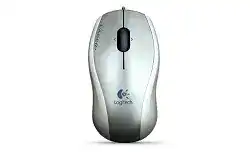
A USB connection that produces no pointer movement, erratic tracking, or missing wheel functions can make this compact wired model seem worn out before the real cause is known. The Logitech V150 Laser Mouse for Notebooks Driver works through standard USB mouse support, while compatible SetPoint software can expose wheel, zoom, and pointer preferences on supported Windows systems. The V150 uses a laser sensor, three main controls, and a tilt wheel for vertical and horizontal movement.
Logitech V150 Laser Mouse for Notebooks Windows Driver Download
| Driver Name | Description | Supported OS | File Size | Download |
|---|---|---|---|---|
| SetPoint 64-bit Software | Full 64-bit package for offline setup, with controls for mouse buttons, tracking speed, and device-specific settings. | Windows 11, Windows 10 64-bit, Windows 8 64-bit, Windows 7 64-bit | 80.45 MB | |
| SetPoint 32-bit Software | Complete 32-bit offline installer for adjusting mouse button functions, pointer tracking, and supported device options. | Windows 11, Windows 10 32-bit, Windows 8 32-bit, Windows 7 32-bit | 78.04 MB | |
| SetPoint Smart Installer | Small universal installer that requires an internet connection to download the appropriate SetPoint components during installation. | Windows 11, Windows 10 32-bit/64-bit, Windows 8 32-bit/64-bit, Windows 7 32-bit/64-bit | 4.61 MB |
Logitech V150 Laser Mouse for Notebooks Mac OS Driver Download
| Driver Name | Description | Supported OS | File Size | Download |
|---|---|---|---|---|
| Logitech Control Center | Mac software for configuring supported mouse buttons, pointer behavior, scrolling, and device preferences. | Mac OS X 10.14, Mac OS X 10.13, Mac OS X 10.12, Mac OS X 10.11 | 16.89 MB | |
| Logitech Control Center | Legacy Mac configuration package for managing mouse controls and model-specific operating preferences. | Mac OS X 10.11, Mac OS X 10.10, Mac OS X 10.9, Mac OS X 10.8 | 17.06 MB |
Logitech V150 Laser Mouse for Notebooks Driver When USB Detection Fails
The V150 does not use Bluetooth, a wireless receiver, or batteries. Its cable plugs straight into a USB port, so begin with the physical connection whenever the pointer stays still. Remove the plug, wait several seconds, and insert it into another direct port. Give the operating system time to create a standard HID mouse entry before opening any Logitech control software.
The mouse works only in certain USB ports
A worn socket, unpowered hub, docking station, or loose adapter can interrupt the V150 even though another low-power device works there. Connect it directly to the notebook during diagnosis. If the computer has only USB-C ports, use a known working USB-A adapter and avoid stacking several adapters together. A connection that drops when the plug moves usually points to the port, adapter, or cable rather than a missing software package.
Check whether the mouse appears in Device Manager under mice or human interface devices. A warning symbol can indicate a damaged USB entry. Remove that failed entry, unplug the V150, restart Windows, and reconnect it after the desktop loads. Windows should rebuild its basic mouse support automatically. Installing unrelated wireless utilities will not repair a wired USB detection problem.
The pointer disappears after sleep or startup
Some notebooks restore their touchpad after sleep but fail to wake an older external USB device. Unplugging and reconnecting the V150 usually confirms this condition. Try another USB port, then restart with the mouse already attached. When the problem returns after every sleep cycle, inspect the USB power-management options for the hub that controls that port and prevent Windows from switching it off to save power.
Fast Startup can also preserve a faulty USB state across shutdowns. Perform a full restart rather than shutting down and immediately powering on again. If a restart restores the mouse but a normal boot does not, disable Fast Startup temporarily and test several cold starts. This separates an operating-system resume fault from a damaged cable or internal mouse circuit.
The cable works only at one angle
Place the mouse on the desk and gently move the cable near the USB plug and where it enters the shell. Do not bend it sharply. Pointer loss, repeated connection sounds, or USB notifications during this test indicate an intermittent wire. Software cannot compensate for a broken conductor, and continued twisting usually makes the failure more frequent.
Laser Tracking That Feels Uneven or Too Fast
The cursor jumps on glossy or patterned surfaces
The laser sensor can track on many desk materials, but reflective glass, mirrored coatings, deep grooves, and strong repeating patterns may still produce sudden jumps. Test the mouse on a plain, matte pad or an unprinted sheet of paper. If movement becomes steady, keep using a less reflective surface instead of changing several Windows controls to hide a surface problem.
Inspect the opening around the sensor without staring into the laser area. Hair, lint, and compacted dust can disturb tracking. Disconnect the mouse and clear loose debris with gentle air or a soft, dry brush. Do not scrape the lens or push liquid into the opening. Reconnect it only after the underside is completely dry.
Movement is slow on one computer and fast on another
Pointer speed comes partly from the operating system, so the same V150 can feel different after moving between notebooks. Open the mouse settings and place the speed slider near the middle before making smaller adjustments. Check pointer acceleration as well. Turning enhanced precision on or off changes the relationship between hand speed and cursor distance, which can feel like a sensor fault.
The Logitech V150 Laser Mouse for Notebooks Driver does not add adjustable hardware DPI levels. SetPoint and Windows alter cursor response through software. If a speed change affects the desktop but not a particular game or design program, inspect that application’s own sensitivity setting. Many programs override the global pointer value while they remain active.
The cursor freezes while clicks still register
When the buttons respond but movement stops, clean the sensor opening and change the working surface first. Then reconnect the USB plug. If the pointer remains frozen on several computers while clicks continue, the sensor section may have failed even though the USB controller still communicates. That pattern differs from a completely dead mouse, where neither movement nor buttons reach the computer.
Restore Wheel, Tilt, and Zoom Behaviour
The V150 wheel handles ordinary up-and-down scrolling and can tilt left or right for horizontal movement. Logitech also promoted wheel-based zoom for this model. Modern applications do not all interpret these actions in the same way, so missing sideways scrolling may come from the program, Windows configuration, or absent legacy SetPoint support rather than the wheel itself.
Vertical scrolling stops or moves in the wrong direction
Test the wheel in a long document and in a web page. A fault limited to one program usually belongs to that program’s scrolling preferences. When every program ignores the wheel, disconnect the V150 and clean around both sides of the wheel with short bursts of air. Turn the wheel slowly while cleaning so debris trapped around the encoder can work free.
Scroll reversal can come from operating-system or application preferences. Restore the normal scrolling direction before reinstalling anything. Also reduce the number of lines moved per wheel notch if pages leap too far. A very high wheel value may look like erratic hardware even though the encoder sends each step normally.
Side-to-side scrolling does nothing
Horizontal scrolling requires both a working tilt switch and software that understands the command. Open a wide spreadsheet or image window with a visible horizontal bar, then press the wheel gently to each side. Do not test only on a page that has no horizontal content. If neither direction responds, open SetPoint on a supported Windows installation and confirm that the tilt actions have not been reassigned.
Some newer software does not include the V150, and the current Logitech support page lists no active downloads specifically for this product. The mouse can still provide ordinary pointing, clicking, and vertical scrolling through built-in USB support. Legacy tilt and zoom controls may depend on an older compatible SetPoint release and the operating system version for which it was written.
Wheel zoom activates unexpectedly
A middle-click assignment or modifier key can turn wheel movement into zoom inside browsers, document viewers, and image programs. Release the Ctrl key, test another application, and press the wheel once to check whether it is sticking. In SetPoint, review the wheel-button action and return it to middle click or the preferred zoom command. Save the change, close the control panel, and test again.
Clicks, Dragging, and Older SetPoint Controls
A single press opens files twice
Begin with the Windows double-click speed. Move it toward a slower setting and use the built-in test area. If a single physical press still produces two clicks on another computer, dust or wear inside the left switch is more likely. Disconnect the mouse, clean around the button gap without adding liquid, and test again after reconnecting.
Persistent double-clicking across several computers usually indicates a worn microswitch. Increasing the software delay may reduce accidental openings for a while, but it does not rebuild the switch contacts. Avoid unofficial internal repairs unless you have the tools and experience to work safely with small soldered components. Replacement becomes the practical answer when the fault affects normal selection and dragging.
Dragging releases before the button is lifted
Open a folder window and drag an item slowly without dropping it. Early release during the same hand movement often comes from unstable switch contact. Repeat the test with the right button where the application permits it, then try the V150 on another computer. A fault that follows the mouse rules out touchpad gestures and most Windows settings.
Also check ClickLock in the operating-system mouse options. When enabled unintentionally, dragging may continue after release or behave differently from a normal held click. Turn it off during testing. This setting changes click handling for every mouse attached to that user account, so it can make a healthy V150 appear inconsistent.
SetPoint opens without showing the mouse
The Logitech V150 Laser Mouse for Notebooks Driver package may still allow basic operation even when SetPoint lacks a My Mouse tab. Confirm the exact model printed underneath the shell and remove any control utility intended for gaming, Bluetooth, Unifying, or Bolt products. Those programs serve different device families and will not convert this wired model into a supported device.
Restart Windows after removing a failed SetPoint installation, reconnect the V150 directly, and install only a version that explicitly includes the model and operating system. If the mouse works through HID support but SetPoint still cannot identify it, keep the standard functions rather than layering several Logitech applications on top of one another.
Right click or middle click performs the wrong command
Open the Windows mouse panel first and confirm that the primary button has not been swapped. Then inspect SetPoint assignments for the wheel button and any tilt action. Restore the default command before creating a custom one. Test right click on the desktop, middle click in a browser tab, and tilt inside a wide window so each control has a suitable test area.
Separate Software Trouble from Worn Hardware
The quickest diagnosis uses three comparisons: another USB port, another surface, and another computer. A fault that disappears after changing ports points to USB detection or power. A fault that changes with the desk surface belongs to tracking. Repeated clicking, interrupted dragging, or failed wheel steps that follow the mouse to a second computer usually indicate mechanical wear.
Use the Logitech V150 Laser Mouse for Notebooks Driver only for functions that the operating system does not already provide, such as supported legacy wheel assignments or pointer preferences. Ordinary movement and clicking should begin through the standard USB mouse class. When those basics fail, investigate the cable, plug, sensor, buttons, and wheel before blaming missing Logitech software.
Finish with a plain working surface, a direct USB connection, and default Windows mouse values. Add SetPoint only when the V150 appears in its supported-device list and an enhanced wheel function is actually needed. That leaves fewer variables in the system and makes future cable, sensor, or switch faults much easier to recognize.