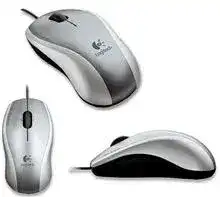
Vertical scrolling may work immediately while sideways movement and zoom remain unavailable. The Logitech V150 Laser Mouse Driver adds the SetPoint functions created for this wired notebook mouse, including tilt-wheel assignments and supported zoom controls. Since the V150 connects directly through USB, it needs no Bluetooth pairing, wireless receiver utility, battery check, or reconnection procedure.
Windows and macOS can recognise the V150 as a standard USB pointing device without extra software. That built-in support normally covers pointer movement, left-clicking, right-clicking, and basic wheel scrolling. Install the Logitech package when you need its extended wheel functions, adjusted button behaviour, or access to the older configuration interface.
This compact model uses laser tracking and a corded connection. Those details change the troubleshooting process considerably. A missing cursor usually points toward the USB port, cable, operating-system detection, or sensor surface rather than wireless interference. Begin with those areas before removing software that may already work correctly.
Logitech V150 Laser Windows Driver Download
| Driver Name | Description | Supported OS | File Size | Download |
|---|---|---|---|---|
| SetPoint Software 64-bit | Full offline package for configuring mouse buttons, tracking speed, device settings, and battery status. | Windows 11, Windows 10 64-bit, Windows 8 64-bit, Windows 7 64-bit | 80.45 MB | |
| SetPoint Software 32-bit | Complete offline installer for adjusting mouse controls, hot-keys, tracking behavior, and device-specific options. | Windows 11, Windows 10 32-bit, Windows 8 32-bit, Windows 7 32-bit | 78.04 MB | |
| SetPoint Smart Installer | Compact installer for mouse button settings and tracking controls that requires internet access during installation. | Windows 11, Windows 10 32-bit/64-bit, Windows 8 32-bit/64-bit, Windows 7 32-bit/64-bit | 4.61 MB |
Logitech V150 Laser Mac OS Driver Download
| Driver Name | Description | Supported OS | File Size | Download |
|---|---|---|---|---|
| Logitech Control Center | Provides Mac-based mouse configuration for button assignments, pointer behavior, scrolling, and device controls. | Mac OS X 10.14, Mac OS X 10.13, Mac OS X 10.12, Mac OS X 10.11 | 16.89 MB | |
| Logitech Control Center 3.9.4 | Enables compatible Logitech mouse settings, button customization, cursor response adjustments, and scrolling preferences. | Mac OS X 10.11, Mac OS X 10.10, Mac OS X 10.9, Mac OS X 10.8 | 17.06 MB |
The computer does not react after connection
Disconnect the V150 and plug it into another USB port on the computer itself. Skip docking stations, monitor ports, keyboard ports, and passive hubs during the first test. A direct connection removes extra hardware from the path and shows whether the computer can identify the mouse through its own USB controller.
Leave the mouse attached for a short period after changing ports. An older Windows installation may need time to create its standard human-interface entry. When no pointer appears, restart the computer with the V150 connected. Check whether the laser sensor receives power and whether another USB device works in the same port.
The mouse works only through certain USB ports
A port-specific failure often comes from the computer rather than the V150. Test one port from a different physical group, such as a side connection on a laptop instead of a dock. Open the operating system’s hardware manager and look for USB warnings when several devices fail through the affected ports.
Power-saving controls can also suspend a USB hub after inactivity. Disable USB selective power saving temporarily and compare the result after sleep or restart. Restore the setting when it makes no difference. There is little value in altering every power option when one damaged or overloaded port explains the symptom.
SetPoint Functions for the V150 Tilt Wheel
The Logitech V150 Laser Mouse Driver becomes more relevant when the pointer and ordinary wheel already work. The V150 includes a tilt wheel for side-to-side scrolling, while Logitech software can provide zoom behaviour in compatible applications. A computer using only its standard mouse profile may leave those extra actions inactive or assign them differently.
Sideways scrolling never starts
Open SetPoint and inspect the wheel assignments. Set the left and right tilt movements to horizontal scrolling, apply the change, and test a document wider than its visible window. A page without horizontal content gives the wheel nowhere to move, so use a spreadsheet, enlarged image, or wide editing workspace for a meaningful test.
Application behaviour matters as well. Some programs ignore horizontal wheel messages, while others reserve them for navigation or tab changes. Compare several applications before reinstalling SetPoint. When the feature works in one program but not another, the affected program needs attention rather than the mouse configuration.
Zoom activates instead of horizontal movement
An unexpected zoom response usually means SetPoint has assigned a wheel action that differs from the one you intended. Return to the wheel configuration and change the tilt or wheel-click command. Apply the new assignment before testing again because closing the control panel without saving may leave the earlier command active.
Keyboard modifiers can make the result confusing. Some programs zoom whenever the Control key remains pressed while the wheel moves. Tap both Control keys, release any stuck key, and test plain scrolling again. This quick check separates a keyboard modifier problem from a Logitech wheel assignment.
The middle click has stopped opening links
First test the wheel click outside the original program. A browser may assign middle-click to opening links, while another application uses it for panning or gives it no function. Check the SetPoint assignment and return the wheel button to its standard middle-button action when a custom command has replaced it.
Click the wheel near its centre without pushing it sideways. The tilt mechanism can register a lateral movement when pressure lands near an edge. If the wheel click fails on another computer with no Logitech software installed, the internal switch may have worn rather than lost its assignment.
Tracking Problems on Desks, Fabric, and Reflective Surfaces
Laser tracking gives the V150 accurate movement across many everyday surfaces, but it cannot overcome every reflection or texture. Pointer trouble may begin only on polished glass, mirrors, glossy coatings, deeply patterned fabric, or a surface with dirt near the tracking area. Software changes rarely solve a surface that prevents the sensor from reading movement consistently.
The pointer freezes on one part of the desk
Move the V150 onto plain paper or a conventional mouse pad. If movement returns immediately, keep the current software and change the working surface. Repeating the stall at the same desk location strongly suggests a reflection, transparent patch, or pattern rather than a USB failure.
Inspect the sensor opening under good light. Remove hair and loose dust with a soft brush or a gentle burst of air. Avoid touching the lens and never pour cleaning liquid into the opening. A small fibre crossing the sensor can cause abrupt jumps even when the rest of the mouse looks clean.
Movement feels too fast after changing computers
Pointer speed belongs partly to the operating system, so the same V150 can feel different on another computer. Reduce the pointer-speed slider gradually and test normal movement between changes. Turn enhanced pointer precision on or off only after checking the basic speed, because changing both controls together makes the result harder to judge.
SetPoint may also expose movement preferences that overlap with Windows controls. Keep one main speed adjustment near its default while tuning the other. Extreme settings can make small hand movements appear unstable, especially on a compact mouse used with a high-resolution display.
The cursor jumps while the cable moves
Place the cable loosely on the desk and keep it away from heavy objects or sharp edges. A tight loop can pull the lightweight V150 sideways, producing movement that resembles sensor drift. Laptop users often see this when the cord hangs over a desk edge and its own weight keeps tugging the mouse.
Watch for disconnection sounds while bending the cable gently near the USB plug and near the mouse body. Do not twist it forcefully. If Windows repeatedly removes and redetects the device as the cord changes position, the cable or internal strain relief may have developed a fault that software cannot repair.
Clicks, Dragging, and Scroll Direction
Click problems do not all share one cause. Operating-system timing can affect double-click recognition, application behaviour can alter dragging, and worn switches can create repeated clicks. Treat each symptom separately instead of reinstalling the Logitech V150 Laser Mouse Driver after every missed selection.
A single press sometimes becomes a double-click
Open the operating system’s mouse controls and reduce the double-click speed slightly. Test the sample icon several times using normal pressure. An overly fast threshold can make deliberate double-clicking fail, although it does not usually explain two actions from one physical press.
When one press opens files twice, selects and immediately deselects text, or creates duplicate clicks across several computers, the button switch may be bouncing electrically. SetPoint cannot correct worn switch contacts. Confirm the behaviour on another USB port and another computer before deciding that the hardware has reached the end of its useful life.
Dragging releases before the button is lifted
Try dragging a file slowly across the desktop while keeping steady pressure on the left button. Repeat the test in another program. If the held item drops at unpredictable points, clean around the button gap with a dry soft brush and confirm that the mouse shell does not catch against nearby objects.
ClickLock can also change how dragging feels in Windows. Review that option in the mouse settings and disable it during testing unless you intentionally use it. Continued release failures on another computer usually indicate button wear, especially when ordinary single clicks also become inconsistent.
The wheel moves in the opposite direction
Check the application first because some document viewers and remote-control tools reverse scrolling independently. Test a regular browser or system window, then review the application’s own scrolling preference. Avoid installing third-party reversal utilities until you know which program introduced the change.
When scrolling alternates direction during one continuous wheel movement, debris or encoder wear becomes more likely. Clean around the wheel without opening the case. If erratic direction continues in several programs and on another computer, replacing the mouse is safer than attempting an unsupported internal repair.
Older Logitech Software on a Newer Computer
The V150 comes from an earlier SetPoint generation, while current Logitech applications focus mainly on newer product families. Modern software may install successfully without recognising this model or exposing its tilt and zoom assignments. Use a SetPoint release that explicitly includes the required operating-system support rather than assuming every Logitech control application handles every mouse.
SetPoint installs but shows no V150 controls
Confirm that Windows still detects the mouse and that basic pointer movement works. Then remove only the conflicting Logitech mouse utility, restart the computer, and install the appropriate SetPoint package. Avoid deleting unrelated keyboard software when a Logitech keyboard depends on it. Recheck the control panel after the restart instead of launching several installers together.
The Logitech V150 Laser Mouse Driver should provide extended controls, not create the underlying USB connection. When even standard movement is absent, return to the port, cable, and hardware-detection checks. Repeated SetPoint installation cannot fix a mouse that never reaches the operating system as a USB device.
Settings disappear after an update
A major Windows update may replace a vendor profile with standard mouse behaviour. Open SetPoint and apply the tilt-wheel assignments again. If the program no longer starts, reinstall the compatible package after confirming that Windows has not placed it in a blocked or incomplete startup state.
Security software may also prevent an older control component from loading. Check its event history before creating an exception. Permit only a verified Logitech package obtained for the model and operating system. Do not disable protection permanently merely to recover a wheel assignment.
The V150 works without installing anything
That result is normal for basic use. The mouse follows the USB human-interface standard, so the operating system can supply ordinary pointer, click, and wheel functions. SetPoint remains optional when you do not need the tilt-wheel configuration, zoom behaviour, or additional Logitech preferences.
For dependable use, keep the USB plug direct, leave enough slack in the cable, choose a non-reflective surface, and clean around the sensor and wheel occasionally. These details matter more than repeated software changes. Once pointer movement and the required wheel assignments behave consistently, preserve those settings and avoid adding unrelated mouse utilities.