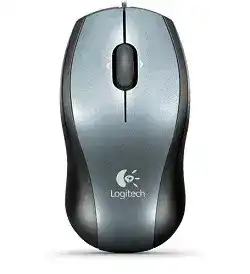
A silent USB port, frozen pointer, or missing wheel function can make this compact wired mouse appear unusable. The Logitech V100 Optical Mouse for Notebooks Driver gives Windows access to its SetPoint controls while the operating system handles its standard USB input. The V100 uses a direct cable, an optical sensor, a scroll wheel with tilt functions, and no wireless receiver or battery.
Start by connecting the V100 straight to the notebook rather than through a dock or passive hub. Windows should detect basic movement and clicking without extra pairing work. Install SetPoint when you need the model’s additional wheel and button functions, or when Windows recognises only a generic mouse and leaves those controls unavailable.
Logitech V100 Optical Mouse for Notebooks Windows Driver Download
| Driver Name | Description | Supported OS | File Size | Download |
|---|---|---|---|---|
| SetPoint 64-bit | Full offline package for configuring mouse buttons, tracking speed, hot-keys, and device-specific settings on 64-bit systems. | Windows 10 64-bit, Windows 8 64-bit, Windows 7 64-bit | 82.88 MB | |
| SetPoint 32-bit | Complete offline installer for adjusting mouse controls, pointer tracking, keyboard hot-keys, and lock-key status on 32-bit systems. | Windows 10 32-bit, Windows 8 32-bit, Windows 7 32-bit | 80.4 MB | |
| SetPoint Smart Installer | Small universal installer that downloads the required SetPoint components during setup, so an internet connection is required. | Windows 10 32-bit/64-bit, Windows 8 32-bit/64-bit, Windows 7 32-bit/64-bit | 4.62 MB |
Logitech V100 Optical Mouse for Notebooks Mac OS Driver Download
| Driver Name | Description | Supported OS | File Size | Download |
|---|---|---|---|---|
| Logitech Control Center | Provides Mac controls for mouse button assignments, pointer behavior, scrolling preferences, and compatible device settings. | macOS 11.0, macOS 10.15, macOS 10.14, macOS 10.13 | 17.8 MB | |
| Logitech Control Center | Enables button customization, cursor tracking adjustments, scrolling controls, and mouse-specific preferences on older Mac systems. | Mac OS X 10.11, Mac OS X 10.10, Mac OS X 10.9, Mac OS X 10.8 | 17.78 MB |
No pointer movement after plugging in the cable
Remove the plug, restart the notebook, and try another built-in USB socket. Watch for the Windows connection sound. No sound usually means the port never detected the device, while a sound followed by no movement points toward a failed device entry, restricted USB controller, or cable problem.
Disconnect other nonessential USB equipment during the test. A crowded hub or underpowered notebook port may behave inconsistently, especially when several portable drives draw power at once. The V100 needs no external power supply, but it still relies on a steady USB connection for the sensor and wheel electronics.
The mouse works only through one USB port
A single failing socket does not usually call for another mouse package. Test a flash drive in the suspect port and check the USB controller section in Device Manager. When several devices fail there, repair the notebook’s USB configuration or use a different physical socket instead of repeatedly reinstalling SetPoint.
Power management may also switch off an idle USB controller. Open the controller properties in Device Manager and review its power-saving option. Disable automatic shutdown temporarily, restart, and check whether the V100 returns after sleep. Restore the option if it makes no difference.
Windows shows an unknown USB device
Unplug the V100 before removing the failed entry from Device Manager. Restart Windows, wait for the desktop to finish loading, and reconnect it through a direct port. This forces a new hardware scan without retaining the incomplete record that produced the unknown-device warning.
Use another computer as a comparison when the warning returns immediately. The same identification failure on two systems strongly suggests trouble in the plug, cable, or internal USB electronics. A software package cannot repair a connection that never reports valid hardware information.
SetPoint Controls for the V100 Wheel and Extra Inputs
The Logitech V100 Optical Mouse for Notebooks Driver is most useful after ordinary pointing already works. SetPoint can expose the wheel click and tilt actions supported by this notebook model. It does not add Bluetooth, wireless pairing, sensitivity buttons, gaming profiles, or rechargeable functions because the V100 has none of those features.
SetPoint opens but does not display the V100
Close SetPoint, disconnect the cable, and remove the incomplete software installation through Windows. Restart before installing the full package that matches the system architecture. Reconnect the V100 after installation finishes. Plugging it in midway through the process can leave the utility looking at an older generic HID record.
Do not install Logitech Options, Options Plus, Unifying Software, or a receiver utility for this model. Those applications target different product generations or connection methods. The V100 belongs to the SetPoint range, and unrelated Logitech programs may add background services without revealing any useful controls.
The SetPoint window has no mouse tab
A missing mouse page often follows a damaged installation or a package that does not match the Windows edition. Remove SetPoint, restart, and install the correct 32-bit or 64-bit build. Use the full installer rather than relying on a small web installer that may no longer retrieve older components correctly.
Security software can interrupt installation of legacy control panels. Run the installer with administrator permission and allow its signed Logitech components to finish. Re-enable any protection you temporarily paused. If the mouse page remains absent while the V100 works normally, Windows may be loading only standard HID support.
The wheel tilt performs an unexpected command
Open SetPoint and return the left and right tilt directions to horizontal scrolling. Apply the change, then test a wide spreadsheet or another window with a visible horizontal scrollbar. A normal webpage may not move sideways because it contains nothing beyond the width of the screen.
Old assignments can survive an upgrade and turn wheel tilt into Back, Forward, or a keystroke. Reset those actions before building new custom commands. Testing the standard function first reveals whether SetPoint receives the input at all.
Scroll and Click Problems That Software Cannot Always Hide
The compact wheel sees frequent use because the V100 was built for notebooks and travel. Dust, fabric fibres, worn switches, and pressure inside a tightly packed laptop bag can affect its controls. Software checks should come first, but repeated faults across different computers usually indicate mechanical wear.
The page scrolls in both directions
Set the Windows wheel value to three lines or another moderate amount. An extreme value can exaggerate each notch and make irregular movement harder to judge. Test a long document slowly. When one upward turn also sends downward movement, clear loose debris from the wheel opening with a dry brush or short bursts of compressed air.
Avoid spraying cleaner into the shell. Liquid can carry grime onto the encoder and switches. If the direction still reverses with SetPoint closed and on another notebook, the wheel encoder has probably worn rather than lost a software preference.
The wheel turns but nothing scrolls
Try several programs before changing the configuration. Some windows do not accept wheel input until the pointer rests over their content. When scrolling fails everywhere, restore the wheel to its standard function in SetPoint and inspect the Windows mouse page for an unusually low scroll value.
Connect directly to another USB socket as well. Brief USB interruptions may preserve pointer movement yet lose individual wheel reports. If middle click and tilt also stop at the same moment, concentrate on the USB connection rather than treating each control as a separate failure.
One click opens files twice
Check the Windows folder option that opens items with a single click. Disable it when you prefer normal double-click operation. Then adjust double-click speed in Mouse Properties and use the test area. A speed set too slowly can make two deliberate clicks appear as one unintended action.
Persistent duplicate clicks after those checks usually come from a worn switch. Clear dust around the button edge and compare the V100 on another computer. When one press still produces two inputs or a drag releases halfway across the screen, the fault sits in the hardware rather than the Logitech V100 software.
Middle click does not work in every program
Assign the wheel press to Middle Button in SetPoint. Test it in a browser tab and then in another program that supports middle clicking. Applications use that input differently, so success in one program confirms the physical switch even when another program ignores it.
If the click feels stiff, intermittent, or silent, inspect the gap around the wheel for debris. Do not force it downward. The compact mechanism can wear after years of travel, and a harder press only increases stress on the switch.
Optical Tracking, Cable Strain, and Notebook Surfaces
The V100 uses an 800 dpi optical sensor suited to ordinary desks and mouse pads. Its small body makes it convenient beside a notebook, but glossy tables, glass, patterned fabric, and moving cables can create symptoms that look like a failed Logitech V100 Optical Mouse for Notebooks Driver.
The pointer jumps on a glossy table
Place the mouse on a plain, matte surface before changing Windows speed. Optical tracking needs visible texture, and polished or transparent material may not provide consistent detail. A sheet of uncoated paper offers a quick comparison, though a proper cloth pad gives better control for regular use.
Clean the sensor window with a dry, lint-free swab. A single fibre can interrupt tracking as the mouse changes direction. Do not press into the opening or apply liquid directly to the lens area.
The pointer feels too slow on a modern display
The fixed 800 dpi sensor may feel slower across a large or high-resolution desktop than a newer mouse. Increase Windows pointer speed gradually and test normal navigation. Leave Enhance Pointer Precision off during the first test so acceleration does not conceal the relationship between hand movement and cursor distance.
SetPoint may offer additional pointer behaviour, but it cannot raise the physical sensor beyond its design. Excessive software speed can make small movements difficult to control. A moderate Windows value usually suits the V100 better than pushing the slider to its highest position.
Movement stops when the cable shifts
Keep the pointer moving while gently changing the cable position near the USB plug. Repeat near the point where the lead enters the mouse. A Windows disconnect sound, sensor light interruption, or immediate freeze during this test reveals a physical break more clearly than another installation attempt.
Notebook cables often suffer where they wrap tightly around adapters or remain pressed inside a travel bag. Straighten sharp bends and keep the lead away from the laptop hinge. Stop using it when exposed wire, a loose plug, or repeated disconnection appears.
The mouse drags instead of gliding
Turn the V100 over and clean the glide surfaces around its base. Dirt can lift one edge and alter the sensor’s distance from the desk. Remove residue with a slightly damp cloth while keeping moisture away from the optical opening, buttons, and cable entry.
A warped or badly worn foot may create uneven movement even though the cursor remains accurate. Compare the feel on a clean cloth pad. Physical drag needs attention at the base; changing pointer speed only makes the on-screen response faster.
Restore the Small Wired Mouse Before Treating It as Obsolete
The Logitech V100 Optical Mouse for Notebooks Driver should follow a successful USB test, not replace one. Confirm that Windows detects the cable, that the optical sensor responds on a matte surface, and that normal clicks work. Then use SetPoint for wheel tilt and other supported assignments.
Keep the troubleshooting matched to this device. It has no batteries to replace, no receiver to pair, and no Bluetooth list to clear. Direct USB testing, the proper SetPoint build, restrained Windows pointer values, wheel cleaning, and cable inspection address the failures that fit its actual wired design.
When the same missed clicks, reversed scrolling, or cable-related freezes appear on another notebook, further software changes add little value. When the fault stays with one computer, rebuild the USB entry or SetPoint installation. That distinction keeps a simple V100 problem from turning into hours of unrelated wireless or modern-app troubleshooting.