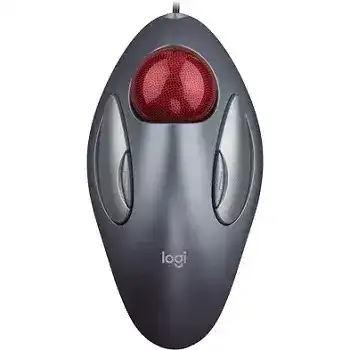
The large ball moves the pointer well, but the missing scroll wheel often becomes the first obstacle. The Logitech Trackman Marble Mouse Driver adds SetPoint controls for its two small buttons, including Universal Scroll, middle click, browser navigation, and other assignments. Windows can provide basic movement and clicking through standard USB support, although the additional controls need compatible Logitech software.
This four-button trackball uses a corded USB connection. It does not pair through Bluetooth and does not need a wireless receiver. Plug it into a direct computer port, let Windows finish detecting the USB input device, and test the large left and right buttons before changing the smaller controls.
Logitech Trackman Marble Mouse Windows Driver Download
| Driver Name | Description | Supported OS | File Size | Download |
|---|---|---|---|---|
| SetPoint 64-bit Full Installer | Full offline package for configuring mouse buttons, tracking speed, hot-keys, and device-specific settings on 64-bit Windows systems. | Windows 11, Windows 10 64-bit, Windows 8 64-bit, Windows 7 64-bit | 80.45 MB | |
| SetPoint 32-bit Full Installer | Complete offline installer for adjusting button assignments, pointer tracking, and keyboard status notifications on 32-bit Windows systems. | Windows 11, Windows 10 32-bit, Windows 8 32-bit, Windows 7 32-bit | 78.04 MB | |
| SetPoint Smart Installer | Small universal installer for mouse customization and device settings that requires an internet connection during setup. | Windows 11, Windows 10 32-bit/64-bit, Windows 8 32-bit/64-bit, Windows 7 32-bit/64-bit | 4.61 MB |
Logitech Trackman Marble Mouse Mac OS Driver Download
| Driver Name | Description | Supported OS | File Size | Download |
|---|---|---|---|---|
| Logitech Options | Customizes mouse buttons, pointer behavior, scrolling, shortcuts, gestures, and device settings on supported macOS releases. | macOS 15, macOS 14, macOS 13, macOS 12, macOS 11 | 238.52 MB | |
| Logitech Control Center Full Installer | Full control package for managing compatible Logitech mouse buttons and device behavior across newer Mac systems. | macOS 11.0, macOS 10.15, macOS 10.14, macOS 10.13 | 17.76 MB | |
| Logitech Control Center | Provides local mouse configuration controls for button functions and model-specific behavior on supported Mac OS X versions. | Mac OS X 10.13, Mac OS X 10.12, Mac OS X 10.11 | 17.15 MB | |
| Logitech Control Center Legacy Installer | Installs legacy mouse controls for assigning buttons and maintaining compatible device settings on older Mac OS X releases. | Mac OS X 10.11, Mac OS X 10.10, Mac OS X 10.9, Mac OS X 10.8 | 17.06 MB |
Turn the trackball into a scrolling control
Open SetPoint and assign Universal Scroll to either small button. Hold that button while rolling the ball up or down. The page should follow the ball instead of moving the pointer. This approach suits long documents because the stationary body remains in place while one finger handles both direction and speed.
Try the opposite small button when the chosen side feels awkward. The Trackman Marble has an ambidextrous shape, but hand position changes which small control feels natural. Save the assignment, close the configuration window, and check scrolling in a browser, document, and settings page.
Universal Scroll works in one program only
Some applications handle simulated scrolling differently. A browser may respond while a music editor, older utility, remote desktop window, or specialised workspace ignores the command. Test ordinary vertical scrolling first. When the problem affects only one program, inspect its input preferences and shortcuts rather than changing every SetPoint assignment.
Running the affected application with elevated privileges can also separate it from a normally launched control utility. Close both programs, then reopen them with the same permission level. Windows may block the Logitech command when one process runs as administrator and the other does not.
Scrolling continues after releasing the button
Release the small control fully before lifting your finger from the ball. Dirt around the narrow button gap can delay its return and leave the scrolling command active. Disconnect the USB cable, use a soft dry brush around the button edge, and press it several times. Avoid liquid because it can enter the switch area.
Restore the button to its default browser action and test repeated clicks. A control that occasionally stays pressed under its default function may have mechanical wear. Reassigning it can reduce inconvenience, but software cannot correct a switch that no longer releases consistently.
Small Button Assignments That Keep Changing
The outer buttons normally provide browser Back and Forward functions, yet many owners replace one of them with scrolling or middle click. The Logitech Trackman Marble Mouse Driver stores these choices through SetPoint. Conflicts appear when Windows loads another mouse utility, an application captures the command, or the configuration process does not remain active after sign-in.
Back and Forward do nothing in the browser
Return both small buttons to their default navigation actions and apply the change. Open a page, follow one link, and press the Back control. Use another browser if nothing happens. This comparison shows whether the failure belongs to the physical button, the Logitech assignment, or one browser profile.
Browser extensions and custom shortcut tools may capture the same commands. Temporarily disable any utility that remaps mouse buttons or keyboard shortcuts. Restart the browser after making the change. Two programs trying to control the same button can produce missed actions, duplicate navigation, or an unexpected command.
The selected function resets after Windows starts
Confirm that SetPoint launches with Windows and remains visible in the background. A saved assignment cannot load when the control process never starts. Open the utility after signing in, verify the Trackman Marble appears, and select the function again. Restart once more to see whether the choice now remains.
Remove duplicate Logitech control packages when each one opens a different configuration panel. This older wired model belongs to the SetPoint generation. Newer software may not list it, even though Windows still recognises the basic USB trackball. Keep the package that actually displays the four controls and remove the unused alternative.
Middle click is missing
The hardware does not include a conventional clickable wheel. Assign Middle Button to one of the small controls when applications need tab opening, automatic scrolling, camera rotation, or a third-button command. Apply the selection and test it in a program that clearly responds to a middle click.
Do not judge the result only from the desktop because many desktop areas assign no visible action to the middle button. Open a browser link with the new control or use an application that lists middle-click navigation. A successful test confirms the assignment even when other programs ignore it.
When the Ball Feels Heavy, Rough, or Unresponsive
The Trackman Marble keeps its body still while the exposed ball rotates over internal support points. Dust, skin residue, and fibres collect around those supports. Pointer speed changes cannot solve physical drag, so remove the ball and clean the contact area before raising acceleration or replacing software.
The ball stops after a short roll
Lift the ball from the housing and wipe it with a clean, dry, lint-free cloth. Inspect the small support points inside the cup. Remove the compacted debris around them with a cotton swab or soft brush, then return the dry ball. Do not add oil or grease; lubricant attracts particles and can make future movement worse.
A newly cleaned ball may still feel different for a few minutes if residue remains on your fingertips. Wash and dry your hands, then rotate it across the full range. The movement should become more even without requiring downward pressure.
The cursor moves slowly across a large screen
Increase pointer speed gradually in Windows Mouse Properties or SetPoint. This trackball relies on ball rotation rather than wide arm movement, so a low speed setting can require several turns to cross a high-resolution display. Raise the value one stage at a time and keep acceleration moderate until short and long movements both feel controllable.
Games that use raw input may ignore the Windows speed value. Check the game’s own pointer or camera sensitivity before adding another remapping program. Desktop movement can feel normal while one game remains slow because the game reads the device differently.
Fine selection becomes difficult after increasing speed
A high pointer multiplier reduces the amount of ball movement needed, but it can make small targets harder to select. Lower acceleration before reducing the overall speed. This often keeps long travel manageable while restoring control near text cursors, resize handles, and narrow interface buttons.
Use the fingertips rather than the whole hand for small corrections. The large central ball permits broad movement and fine adjustment without moving the trackball body. A relaxed finger position also reduces accidental pressure on the main buttons.
The pointer jumps even after cleaning
Inspect the optical window beneath the ball for loose fibres or dust. Use brief air from a hand blower or a soft brush rather than touching the window with a wet cloth. Refit the ball and connect the trackball to another USB port. A steady jump on two computers points toward ageing hardware rather than one Windows profile.
USB Detection and SetPoint Recognition
A failed SetPoint listing does not always mean that Windows has lost the trackball. Standard HID support can keep the main pointer and clicks working while the smaller controls remain unavailable. The Logitech Trackman Marble Mouse Driver becomes relevant when the computer detects a generic input device but cannot display the complete button panel.
Nothing happens after connecting the cable
Move the plug from a hub, monitor socket, docking station, or keyboard port to a USB port on the computer. Wait for Windows to complete detection. Try another port before reinstalling anything. An ageing hub or loose connector may interrupt power even though another low-demand device still works through it.
Check Device Manager for a warning under Mice and other pointing devices or Human Interface Devices. Remove only the failed USB input entry, disconnect the Trackman Marble, and restart Windows. Reconnect it after the desktop appears so Windows can rebuild the standard device record.
SetPoint opens but shows no supported device
Close the program, disconnect the cable, and uninstall the incomplete SetPoint package. Restart the computer and install the edition that matches the Windows architecture. Connect the trackball after installation finishes. This order gives the software a chance to register its components before Windows presents the hardware again.
Do not install receiver-pairing utilities for this model. It uses a permanent USB cable and has no pairing procedure. A receiver application may run successfully but will never find the Trackman Marble because there is no wireless link to create.
The device disconnects when the cable moves
Keep the ball rotating slowly while moving the cable near the USB plug and then near the trackball housing. A pointer that repeatedly stops at one bend suggests cable damage. Test another direct port and another computer. The same interruption on both systems confirms a physical connection problem more clearly than another software installation.
A tightly wrapped or sharply folded lead can break internally while the outer cover looks normal. Route the cable with a loose curve and keep it away from desk edges that pinch it. Continued USB disconnect sounds call for hardware repair or replacement.
Click Problems Around the Large Ball
The two main buttons sit on either side of the central ball, with smaller controls farther outward. This layout works for either hand, but dust and years of repeated pressure can affect individual switches. Diagnose each control separately instead of treating every click symptom as a software failure.
A single press produces two clicks
Open the Windows double-click test and adjust the speed away from its fastest setting. Try several deliberate single presses. If files or links still open twice, test the same button on another computer without loading a custom profile. Repeated duplicate clicks usually indicate switch wear.
Clean around the button seam with dry air and a soft brush. Do not drip cleaner into the housing. A worn switch may work briefly after cleaning, but recurring double clicks, broken drag operations, or missed presses need physical service.
Dragging releases before the ball stops moving
Hold the main button down while drawing a long selection box or moving a window. When the drag ends although your finger remains pressed, the button switch is losing contact. Increase your pressure slightly only for testing; pressing harder every day will not repair the mechanism.
Swap left and right button functions temporarily in Windows. If the drag works through the opposite physical control, the original switch is the problem. Restore the normal arrangement after the test unless the alternate mapping provides a comfortable temporary workaround.
One small button feels harder to reach
The symmetrical shell accommodates both left-handed and right-handed use, but the outer controls sit beyond the main buttons. Assign the most frequent extra function to the side your finger reaches comfortably. Place a less common browser command on the farther control.
This is especially useful when one small button handles scrolling. A comfortable hold matters because the finger must remain pressed while the ball turns. Changing the assignment may improve control more than changing pointer speed or installing another utility.
Build the Controls Around the Missing Wheel
The Logitech Trackman Marble Mouse Driver works best when each of the four buttons has a clear purpose. Keep the large pair for normal clicking, assign one small control to Universal Scroll or middle click, and reserve the other for navigation. Test the arrangement across the programs you use most rather than expecting every application to interpret simulated scrolling identically.
Clean the ball supports whenever movement becomes rough, but leave them dry. For disappearing assignments, confirm that SetPoint starts with Windows. For USB interruptions, examine the cable and use a direct port. These checks address the defining traits of this corded, wheel-free trackball without adding wireless tools or unsupported modern features.