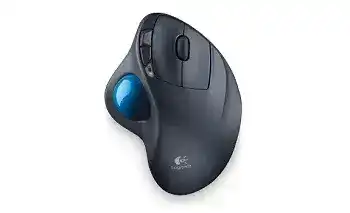
A cursor that drags, stalls, or refuses to cross the screen does not always point to a wireless fault. On this thumb-operated model, dust around the ball supports can create the same symptoms as a weak connection. The Logitech Wireless Trackball M570 Mouse Driver adds access to button assignments, pointer controls, battery status, and the Unifying connection tools needed to separate a software problem from a dirty trackball or worn control.
Logitech Wireless Trackball M570 Mouse Windows Driver Download
| Driver Name | Description | Supported OS | File Size | Download |
|---|---|---|---|---|
| SetPoint 64-bit | Full 64-bit package for offline setup of mouse buttons, tracking speed, device settings, and battery status. | Windows 11, Windows 10 64-bit, Windows 8 64-bit, Windows 7 64-bit | 80.45 MB | |
| SetPoint 32-bit | Complete 32-bit offline installer for configuring mouse controls, pointer speed, hot-keys, and device-specific options. | Windows 11, Windows 10 32-bit, Windows 8 32-bit, Windows 7 32-bit | 78.04 MB | |
| SetPoint Smart Installer | Small universal installer that requires an internet connection to download the necessary SetPoint components during setup. | Windows 11, Windows 10 32-bit/64-bit, Windows 8 32-bit/64-bit, Windows 7 32-bit/64-bit | 4.61 MB | |
| Logitech Unifying Software | Utility for pairing and managing compatible Logitech devices through a Unifying USB receiver. | Windows 11, Windows 10 32-bit/64-bit | 3.96 MB |
Logitech Wireless Trackball M570 Mouse Mac OS Driver Download
| Driver Name | Description | Supported OS | File Size | Download |
|---|---|---|---|---|
| Logitech Options | Customizes mouse buttons, pointer behavior, scrolling, shortcuts, gestures, and other device settings. | macOS 15, macOS 14, macOS 13, macOS 12, macOS 11 | 238.52 MB | |
| Logitech Control Center | Provides Mac controls for adjusting trackball buttons, scrolling behavior, pointer movement, and device preferences. | macOS 11.0, macOS 10.15, macOS 10.14, macOS 10.13 | 17.76 MB | |
| Logitech Unifying Software | Pairs supported Logitech peripherals with a Unifying receiver and helps add or remove connected devices. | Mac OS X 10.13, Mac OS X 10.12, Mac OS X 10.11 | 3.54 MB |
Logitech Wireless Trackball M570 Mouse Driver for a Ball That Feels Slow or Rough
The M570 stays in one place while the thumb moves its removable blue ball. That design makes the small support points inside the ball socket especially important. Skin oil, lint, and dust collect on those points and gradually make movement feel heavy. The cursor may hesitate in one direction, require extra thumb pressure, or stop before reaching the edge of the display.
Remove the ball instead of changing pointer speed first
Turn the trackball off and use the round opening underneath the body to push the ball outward. A fingertip or the blunt end of a soft object can release it without opening the casing. Wipe the ball with a dry, lint-free cloth, then clear the visible buildup from the support points inside the socket. Avoid sharp tools because scratches can make movement worse.
Place the ball back in the socket and rotate it several times before switching the device on. Test slow diagonal movement as well as long sweeps across the screen. If the cursor now travels freely, leave the pointer-speed control near its previous value. Raising speed to hide dirty supports often produces an oversensitive cursor after cleaning.
The pointer jumps even though the ball turns freely
Look through the empty ball opening and remove loose debris near the optical tracking area with clean, dry air. Do not spray liquid cleaner into the cavity. The ball itself must also remain free from greasy residue. A polished but oily surface can collect new dust quickly and bring the uneven movement back within a short period.
When cleaning makes no difference, test the trackball on another computer with its original Unifying receiver. A fault that follows the M570 points toward the sensor, ball supports, or internal hardware. A fault that remains with only one computer is more likely connected to the USB port, software configuration, or nearby wireless equipment.
Recover the Unifying Connection Without Using the Wrong Receiver
The M570 communicates through a Logitech Unifying receiver and does not offer Bluetooth pairing. A plain nano receiver, Logi Bolt receiver, or dongle from a non-Unifying Logitech product cannot replace it. Check for the orange Unifying symbol before attempting to reconnect the trackball. Similar receiver shapes do not guarantee compatible wireless protocols.
The receiver appears in USB but the trackball does nothing
Move the receiver to another direct USB port and switch the M570 off. Open the Logitech Unifying pairing software, begin the connection process, and turn the trackball on when requested. The utility normally confirms movement after it detects the device. Keep the receiver close during this process and remove other unused Logitech receivers temporarily if their presence makes identification unclear.
The Logitech Wireless Trackball M570 Mouse Driver and its pairing utility cannot overcome an incompatible dongle. If the original receiver has been lost, obtain a genuine Unifying replacement and pair the trackball to it. The replacement does not arrive automatically linked to the device, even when Windows detects the receiver immediately.
Movement pauses near a dock, drive, or USB hub
Brief freezes can come from the receiver’s position rather than the trackball. A port beside external storage, a crowded docking station, or several wireless adapters may give the signal a poor path. Try a front or side port, or place the Unifying receiver on a short USB extension away from the cable cluster. Then compare movement without changing any software values.
Do not judge the result from one fast sweep. Move the pointer slowly, hold a click while dragging a window, and scroll through a long page. Interference often appears as short interruptions during sustained movement rather than a total disconnection. If the pauses disappear after relocating the receiver, keep the new position instead of repeatedly pairing the device.
The trackball stops responding after sleep
Switch the M570 off for several seconds, wake the computer fully, and turn the trackball on again. If this happens often on Windows, inspect the USB power-management options for the receiver or its USB hub. Preventing the computer from turning off that USB device may stop the receiver from remaining asleep after the rest of the system resumes.
Also test a different USB port before reinstalling anything. A sleeping hub can delay the receiver while another port wakes normally. Re-pair only when Windows recognizes the Unifying receiver but the trackball still cannot communicate with it after a full power cycle.
Logitech Wireless Trackball M570 Software for Buttons and Middle Click
The M570 includes left and right click controls, a clickable scroll wheel, and forward and back buttons. SetPoint provides the traditional customization interface for this model. Basic movement and clicking may work through the operating system alone, while the side controls or wheel click behave differently because the Logitech configuration component is absent, damaged, or no longer loading at startup.
Forward and back buttons do nothing
Open SetPoint and select the M570 before checking the assignments for its two small buttons. Restore their standard forward and back actions, apply the change, and try them in a web browser or file-navigation window. If they work in one program but not another, the second program may not respond to those commands or may use its own shortcut configuration.
When SetPoint does not list the device, confirm that the M570 still works through its Unifying receiver and restart the Logitech background process by rebooting Windows. Remove duplicate or incomplete installations only when the program continues to open without detecting the trackball. Keep one supported SetPoint installation rather than layering several older releases over each other.
The wheel scrolls but pressing it does not pan or orbit
Set the wheel button to the normal middle-button action inside the Logitech control panel. Some applications need a true middle click for panning, closing tabs, rotating a view, or activating an application-specific tool. Assigning the wheel press to another command can leave vertical scrolling intact while those middle-button actions disappear.
After restoring the assignment, test the wheel press in more than one program. If the middle click works elsewhere, review the affected application’s navigation preferences. If every program ignores it, press the wheel several times with the device turned off and clear dry debris around its edges. A wheel that feels loose, sticks down, or misses clicks may have a worn switch.
One click becomes two clicks or dragging releases early
First adjust the operating system’s double-click speed and compare both main buttons. A setting that is too slow can interpret two deliberate clicks incorrectly, but it will not usually explain a dragged item that releases while the button remains held. Test by drawing a continuous line or moving a window while maintaining steady pressure.
If the selection repeatedly drops on another computer as well, the internal button switch has probably worn. Do not pour contact cleaner through the button gap or strike the casing. Those methods may give a brief change while damaging nearby parts. Hardware service or replacement is safer when repeated clicks and failed dragging continue across systems.
Battery Symptoms That Look Like Receiver Failure
The M570 uses one AA battery. Low power may appear as delayed movement, repeated reconnection, or a device that works only after its switch has been moved several times. Open the battery compartment, remove the cell, and inspect the contacts for dust or visible residue. Fit a known-good AA battery with the polarity matching the compartment markings.
The power light appears briefly and then goes dark
A brief light does not always mean the trackball has switched off. The indicator does not need to remain continuously illuminated during normal operation. Judge the battery through SetPoint when the device connects, or replace the cell when the connection becomes unreliable and the battery age is uncertain.
Clean accessible contacts with a dry cloth and make sure the battery sits firmly under the retaining points. Do not bend the metal contacts aggressively. If slight movement of the battery causes the trackball to restart, the contact pressure or compartment fit may need professional attention rather than another software installation.
A new battery still gives no response
Check the underside power switch, then verify that the Unifying receiver appears on the computer. A new battery cannot restore a lost pairing or repair an incompatible receiver. Likewise, pairing software cannot wake a unit with dirty contacts, reversed polarity, or a failed power switch. Testing these two paths separately prevents the wrong repair.
The Logitech Wireless Trackball M570 Mouse Driver should display the device once power and receiver communication are both present. When the utility sees the receiver but not the trackball, perform one deliberate re-pairing attempt. When the receiver itself never appears, focus on the USB port or dongle before changing trackball settings.
Separate Trackball Wear from Windows Configuration
Pointer acceleration can make a thumb trackball feel difficult to control even when the hardware works normally. Compare movement with Windows Enhance pointer precision enabled and disabled, then adjust speed in small increments. Large changes make diagnosis harder because they can hide friction at low speed or exaggerate minor ball movement at high speed.
The cursor moves in the wrong direction or selects the wrong button
Open the operating system’s mouse settings and confirm that the primary button has not been switched. Left-handed button settings can make ordinary clicks appear reversed. Direction problems usually come from software remapping, remote-access tools, or unusual accessibility settings rather than the physical ball, which reports movement rather than a fixed screen direction.
Close utilities that remap buttons or pointer behavior and test again with SetPoint at its defaults. Add custom assignments back one at a time. This approach reveals which program changes the input instead of leaving several control utilities active and trying to determine which one currently has priority.
The strongest final test uses three separate checks
Clean the ball supports, fit a dependable AA battery, and connect the genuine Unifying receiver directly to another computer. Those checks isolate the three areas that create most M570 complaints: mechanical drag, unstable power, and receiver communication. Keep SetPoint at default values during this comparison so custom actions do not cloud the result.
Near the end, use the Logitech Wireless Trackball M570 Mouse Driver to restore the side buttons, middle click, speed, and battery display. If movement becomes normal after cleaning but clicking still fails on both computers, the button hardware deserves attention. If every function works elsewhere, return to the original computer and examine its USB power, SetPoint installation, and pointer configuration.