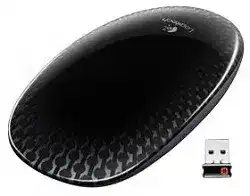
Touch scrolling can fail while normal clicking still works, and that is where the Logitech TOUCH T620 MOUSE Driver matters most. This model is a wireless touch mouse made for Windows 7 and Windows 8 style navigation, with a full touch surface for vertical scrolling, horizontal scrolling, app switching, back and forward gestures, and normal left and right clicks.
The T620 does not behave like a regular wheel mouse because much of the top shell acts as the control area. A finger swipe, a two-finger tap, or an edge gesture can depend on SetPoint, the Windows version, and the way the mouse has been selected inside Logitech software. When only pointer movement works, the missing part is often the gesture layer rather than the whole device.
Use the Logitech software after the receiver and batteries pass the simple checks. The mouse uses Logitech Advanced 2.4 GHz wireless with a Unifying receiver, so it should not be treated as a Bluetooth device. Pairing, USB placement, and SetPoint recognition are the main repair areas before you decide the touch surface has failed.
Logitech Touch Mouse T620 Windows Driver Download
| Driver Name | Description | Supported OS | File Size | Download |
|---|---|---|---|---|
| Logitech Unifying Software Smart Installer | Small Unifying setup package for pairing compatible Logitech wireless devices, with internet required during installation. | Windows 11, Windows 10 32-bit/64-bit | 3.96 MB | |
| SetPoint Software 32-bit | Full offline SetPoint package for mouse button settings, tracking speed, hot-keys, and device-specific controls. | Windows 11, Windows 10 32-bit, Windows 8 32-bit, Windows 7 32-bit | 78.04 MB | |
| SetPoint Software 64-bit | Complete 64-bit SetPoint installer for offline setup, battery status checks, and Logitech mouse configuration tools. | Windows 11, Windows 10 64-bit, Windows 8 64-bit, Windows 7 64-bit | 80.45 MB | |
| SetPoint Smart Installer | Compact SetPoint web installer for button customization, Num Lock alerts, and device setup with internet access. | Windows 11, Windows 10 32-bit/64-bit, Windows 8 32-bit/64-bit, Windows 7 32-bit/64-bit | 4.61 MB |
Gestures work in Windows but not inside SetPoint
SetPoint can show more than one Logitech device, especially on computers that already used a Logitech keyboard or another mouse. Open the mouse and keyboard settings, choose the My Mouse tab, and select the Touch Mouse T620 from the product drop-down area. If another device stays selected, the gesture page may appear empty or controls may change the wrong product.
After selecting the T620, check the Point and Click, Navigate Windows, and Scroll areas. Some gestures are built into Windows, while others need SetPoint before they become available. That difference explains why basic scrolling can work while app switching, back and forward, desktop view, or Start screen actions stay missing.
Touch Surface Fixes Before You Blame the Receiver
The touch shell can make a small mistake look like a software fault. A right click needs the correct side of the mouse, a middle click uses two fingers on the lower part of the surface, and a one-finger swipe handles normal scrolling. If a gesture fails, repeat it slowly before changing drivers, because the T620 reads placement as much as movement.
A clean dry surface matters too. Oil from fingers, dust near the front edge, or moisture on the shell can interrupt swipes without stopping pointer movement. Turn the mouse off, wipe the top gently with a dry microfiber cloth, and test vertical and horizontal scrolling again after the surface feels clean.
Middle click does not happen with one finger
The T620 middle-click action is not the same as pressing a physical wheel. Use two fingers on the lower part of the touch surface. If you press near the left or right click zones, the mouse may read the action as a normal click instead. Test the middle click in a browser tab or another program that clearly reacts to middle-click input.
Horizontal scrolling feels missing
Horizontal scrolling depends on a left or right swipe across the touch surface. It may not show any result in a page or window that has no sideways content. Test it in a wide spreadsheet, a large image window, or another screen where horizontal movement clearly exists. If the pointer moves but the page does not scroll sideways, check SetPoint’s scroll section.
Back and forward gestures open the wrong action
Back and forward use a two-finger left or right swipe. In some programs, that motion may do nothing because the app has no history command to follow. In browsers, file windows, and some document viewers, it should be easier to test. When the action stays wrong everywhere, return to SetPoint and review the navigation gesture assignment for the T620.
Logitech TOUCH T620 MOUSE Software and Windows Gesture Limits
The Logitech TOUCH T620 MOUSE Driver should match the job you want from the mouse. Windows can handle left click, right click, scrolling, and pointer movement, but SetPoint adds gesture demonstrations and extra navigation choices for this older touch model. Installing a modern-looking Logitech app will not automatically mean it supports every old T620 gesture.
Windows 7 and Windows 8 do not expose the same gestures. The Windows 8 charms gesture belongs to Windows 8 navigation, while Windows 7 uses other actions such as Start menu or Alt Tab style behavior. If one gesture name does not appear on your computer, the operating system may be the limit, not a broken mouse.
SetPoint opens but the My Mouse tab is hard to find
SetPoint usually opens from the Start menu or the system tray. Once it opens, look along the top of the settings window for the mouse section. If the window only shows keyboard controls, reconnect the Unifying receiver, restart SetPoint, and confirm that the T620 appears in the device selector before changing any gesture option.
When SetPoint still refuses to show the mouse, remove duplicate Logitech entries only after saving your current settings. Then install the package again, plug the receiver directly into the computer, and turn the T620 off and on during detection. A clean detection pass often matters more than repeated installs over an old broken profile.
Windows update changed gesture behavior
A Windows update can reset mouse speed, touch behavior, or SetPoint startup items. If gestures worked before the update, open SetPoint first and check whether it still starts with Windows. Then test native actions such as left click, right click, and one-finger scrolling. If native actions work and SetPoint-only actions fail, repair the Logitech software rather than pairing the receiver again.
Unifying Receiver Problems on the T620
The T620 uses a Logitech Unifying receiver, so receiver compatibility is a real issue. A spare Logitech receiver must be a Unifying receiver before it can replace the original one. If the dongle does not carry the Unifying mark, it may plug in normally but never accept the mouse during pairing.
Pairing should be done with the Unifying utility or Logitech software that can add Unifying devices. Keep the receiver in a direct USB port while pairing. When the software asks you to restart the device, slide the mouse off and back on instead of repeatedly removing the receiver. That power cycle gives the utility the best chance to catch the T620.
Receiver works only in some USB ports
A USB hub, monitor port, docking station, or crowded adapter can make the receiver unreliable. The mouse may move for a few seconds, stop, then return after the receiver is unplugged. Put the receiver in a direct computer port and keep it away from thick metal surfaces or other busy USB wireless devices.
If the T620 works on one computer but not another, the receiver and mouse are probably still paired. Check the second computer’s USB input behavior, power saving, and Logitech software detection. A receiver that fails everywhere after pairing attempts may need replacement, but test it in more than one direct port first.
Pairing starts but never completes
Battery contact can stop pairing at the exact moment the utility is listening. Open the battery compartment and check the AA batteries for orientation, weak contact, or old leakage marks. Replace both batteries together if the mouse has been stored for a long time. Then pair again with the receiver already plugged in.
Pointer Tracking, Clicking, and Touch Swipes on Real Desks
The T620 has a laser-grade optical sensor for tracking on many surfaces, but not every desk gives the same result. Glass, glossy coating, uneven fabric, and dark reflective patterns can make the pointer drift or pause. Place the mouse on a plain matte mouse pad before changing SetPoint or reinstalling the Logitech TOUCH T620 MOUSE Driver.
Click problems can also come from hand position. The full touch shell encourages relaxed finger placement, but resting fingers across both click areas can confuse left and right clicks. Lift the unused finger slightly while testing. If the click becomes consistent, the hardware is probably fine and the issue is how the touch surface reads your hand.
Pointer moves but scrolling stops after sleep
After sleep, give the mouse a moment to wake before opening settings. Move it once, wait briefly, and then try a one-finger scroll. If scrolling stays dead but the pointer moves, restart SetPoint or sign out and back in. A wake issue that affects only gestures usually points to the touch software layer, not the receiver.
Right click keeps turning into left click
Right click needs a clear press on the right side of the touch surface. If your index finger rests across the center, the mouse can read the press as left click or ignore the split. Clean the top surface, dry your fingers, and test with a deliberate right-side press. Then check the click settings in SetPoint only if the physical press is consistent.
For this model, the best repair path is narrow: prove the Unifying receiver works, confirm the batteries and USB port, then handle SetPoint and gesture settings. The Logitech TOUCH T620 MOUSE Driver is most useful when the mouse still points but touch navigation, middle click, app switching, or horizontal scrolling no longer behaves like the T620 should.