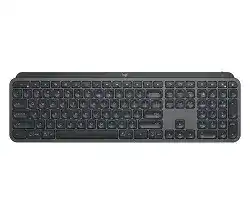
Here you will get the latest Logitech Stub MX Keys Wireless Illuminated Keyboard driver and software that support Windows and Mac OS.
Logitech Stub MX Keys Wireless Illuminated Keyboard Windows Driver Download
Logi Options
Lets you toggle between standard and enhanced key functions on your Mac, displays battery status, and more.
Starting with macOS 11.0, macOS requires user permissions for our Options software
Main features
- Change function key shortcuts
- Customize mouse buttons
- Adjust point and scroll behavior
- Enable and disable touchpad gestures
- Get on-screen notifications when your device’s battery runs low or when you press a lock key
Supported Windows OS: Windows 10 (32-bit ,64-bit) Windows 8 (32-bit ,64-bit) Windows 7 (32-bit ,64-bit)
Logitech Stub MX Keys Wireless Illuminated Keyboard Options for Windows (203.51 MB)
Logitech Firmware Update
This Logitech software upgrades the firmware for the Logitech Stub MX Keys Wireless Illuminated Keyboard.
Supported Windows OS: Windows 10 (32-bit ,64-bit) Windows 8 (32-bit ,64-bit) Windows 7 (32-bit ,64-bit)
Logitech Stub MX Keys Wireless Illuminated Keyboard Firmware Update tool for Windows 64-bit (11.27 MB)
Logi Stub MX Keys Wireless Illuminated Keyboard Firmware Update tool for Windows 32-bit (9.88 MB)
Logitech Stub MX Keys Wireless Illuminated Keyboard Mac OS Driver Download
Logi Options
Supported Mac OS: macOS x 11.0, macOS x 10.15, macOS x 10.14, macOS x 10.13.
Logitech Stub MX Keys Wireless Illuminated Keyboard Options for macOS 11.0,macOS 10.15,macOS 10.14 (142.84 MB)
Logitech Firmware Update
Supported Mac OS: macOS 10.15, macOS 10.14, macOS 10.13, macOS 10.12, Mac OS X 10.11, macOS 10.10, Mac OS X 10.9.x, Mac OS X 10.8.x
Logitech Logitech Stub MX Keys Wireless Illuminated Keyboard Firmware Update tool for Mac (18.68 MB)
The Logitech Stub MX Keys Wireless Illuminated Keyboard is engineered for those who require efficiency and responsiveness in their daily tasks. This advanced keyboard features a unique design that offers a comfortable typing experience with its low-profile keys and strategically placed backlighting for optimal visibility in various lighting conditions. With Bluetooth and USB receiver connectivity, it seamlessly integrates with a wide range of devices, including Windows 10, 8, 7, and macOS versions ranging from 10.10 to 11.0. The driver and accompanying software enhances the capabilities of the Logitech Stub MX Keys, delivering customizable lighting options and the ability to switch between multiple connected devices effortlessly. The software ensures compatibility while optimizing the keyboard’s functionality with your operating system.
Download Logitech Stub MX Keys Driver and Software Download Software
The Logitech Stub MX Keys driver file has been saved on your computer, ready for installation. This software is essential for configuring the keyboard settings and ensuring its full feature set is properly utilized. In conjunction with the keyboard’s hardware, the driver enables advanced functionalities such as precise key mapping, customizable shortcuts, and effortless device switching. It is important to ensure that the software version aligns with your operating system specifications to prevent compatibility issues and ensure optimal performance.
How to install Logitech Stub MX Keys Driver and Software Download Keyboard Software on Windows and Mac OS?
Installing the Logitech Stub MX Keys software is straightforward. Start by locating the downloaded installer file, which is typically found in your computer’s Downloads folder or the specific directory where you saved it. Once located, open the installer file to begin the installation process. Follow the on-screen prompts, including accepting the license agreement. The setup wizard will guide you through the configuration steps necessary for successful installation. After completing the installation, you may need to restart your system to ensure all changes take effect.
Installing Logitech Stub MX Keys Driver and Software Download Software on Windows 11, 10…
For Windows users, the following steps will help install the Logitech Stub MX Keys software effectively:
- Locate the downloaded installer file. Typically, this will be in the Downloads folder.
- Open the installer by double-clicking on the file.
- Proceed with the installation wizard by clicking through the prompts until you reach the final step.
- Restart your computer to finalize the installation process.
After the system restarts, your Logitech Stub MX Keys keyboard should be fully operational, allowing you to explore the features available through the installed software.
Installing Logitech Stub MX Keys Driver and Software Download Software on Mac OS
For Mac users, installing the Logitech Stub MX Keys software is a similar process:
- Open the downloaded installer file from your Downloads folder.
- Follow the on-screen instructions provided by the installation wizard.
- Accept the necessary agreements when prompted.
- Upon completion, restart your Mac to ensure the software is properly configured.
Once your Mac restarts, the software will enable enhanced keyboard functionalities such as configurable backlighting and multiple device control.
Why choose our website for Logitech Stub MX Keys Driver and Software Download Drivers Downloads?
Our website provides a dedicated resource for users of the Logitech Stub MX Keys, emphasizing user support and ease of access to essential files. We focus on providing comprehensive, up-to-date information and easy navigation for downloading drivers. Our goal is to ensure a seamless experience, allowing users to find critical resources efficiently without unnecessary complications. This commitment to user satisfaction aims to enable a streamlined setup and foster a productive user experience with their Logitech devices.
Uninstalling the Logitech Stub MX Keys Driver and Software Download Software
If you need to uninstall the Logitech Stub MX Keys software, the process is simple and can be done through your system preferences. For Windows users:
- Open the Control Panel.
- Select Programs and Features.
- Find Logitech software in the list and select it.
- Click on Uninstall and follow the prompts.
For Mac users:
- Open the Applications folder.
- Drag the Logitech Stub MX Keys software to the Trash.
- Empty the Trash to complete the uninstallation.
This ensures that any remnants of the software are removed, allowing for a clean slate if you decide to reinstall in the future.
Conclusion about Logitech Stub MX Keys Driver and Software Download Driver
Many users may encounter challenges with keyboard responsiveness or connectivity issues that can hinder productivity. Common hurdles could include lagging keystrokes or difficulty in switching between paired devices. To address these, consider the following:
- Consulting the User Manual: This resource provides essential information on setup and troubleshooting procedures.
- Reviewing Compatibility Documentation: Ensure that your devices meet the system requirements for seamless operation.
- Exploring Configuration Guides: These can offer valuable insights into customizing your keyboard settings to match your workflow.
Optimizing your keyboard experience with Logitech Stub MX Keys hinges on maintaining regular software updates and addressing any performance issues promptly. By actively managing your configuration settings, you can guarantee that features, such as the keyboard’s customizable backlighting, remain functional and effective.