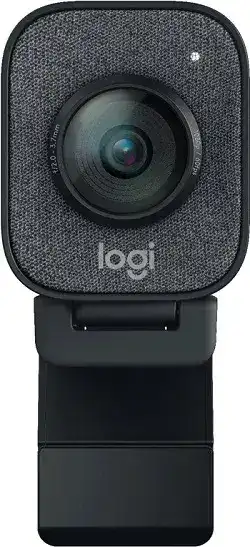
A black preview, unstable frame rate, or missing microphone can make the camera look faulty even when Windows still detects it. The Logitech StreamCam Driver provides access to the software and device components used for video, autofocus, framing, exposure, and audio control. StreamCam connects through USB-C and can record Full HD video at up to 1080p and 60 frames per second when the port and computer provide enough bandwidth.
Logitech StreamCam Windows Driver Download
| Driver Name | Description | Supported OS | File Size | Download |
|---|---|---|---|---|
| Logi Options+ Software | Customizes supported device settings, shortcuts, gestures, scrolling, and pointer behavior. | Windows 11, Windows 10 32-bit/64-bit | 43.21 MB | |
| Logi Tune Software | Manages StreamCam framing, zoom, image adjustments, firmware features, and video-call settings. | Windows 11, Windows 10 32-bit/64-bit | 195.9 MB | |
| Logitech G HUB Software | Provides compatible Logitech device configuration, profiles, assignments, and performance controls. | Windows 11, Windows 10 32-bit/64-bit | 67.08 MB |
Logitech StreamCam Mac OS Driver Download
| Driver Name | Description | Supported OS | File Size | Download |
|---|---|---|---|---|
| Logi Options+ Software | Adjusts supported device controls, scrolling preferences, gestures, shortcuts, and other personalized settings. | macOS 26, macOS 15, macOS 14 | 19.56 MB | |
| Logi Tune Software | Controls StreamCam picture settings, field of view, zoom, framing, and supported camera updates. | macOS 26, macOS 15, macOS 14, macOS 13, macOS 12, macOS 11, macOS 10.15 | 315.89 MB | |
| Logitech G HUB Software | Configures compatible Logitech hardware profiles, commands, assignments, and device performance options. | macOS 26, macOS 15, macOS 14 | 11.36 MB | |
| Logi Options+ Software | Sets supported button actions, pointer preferences, application shortcuts, gestures, and device behavior. | macOS 13 | 19 MB | |
| Logitech G HUB Software | Handles compatible Logitech device profiles and configurable controls on macOS 13 systems. | macOS 13 | 10.43 MB | |
| Logitech G HUB Software | Installs G HUB support for managing compatible Logitech equipment on macOS 11. | macOS 11 | 5.02 MB |
Logitech StreamCam Driver When Full HD 60 FPS Is Unavailable
One of the most frequent StreamCam problems appears before recording begins: the camera works, but the application limits it to 30 fps or a lower resolution. A USB-C connector does not automatically mean that the port carries USB 3 data. Some ports, adapters, extension leads, and docking stations provide charging or slower USB transfer while using the same connector shape.
The software says the camera needs USB 3
Connect StreamCam directly to a USB-C 3.1 Gen 1 port on the computer. Remove hubs and extensions during this test. Open the camera application again and select 1920 by 1080 at 60 fps. When that option returns after bypassing an adapter, the adapter or intermediate connection does not carry the bandwidth required for the highest mode.
A USB-C-to-USB-A adapter may work, but it must handle USB 3 data rather than power alone. Plug it into a verified high-speed USB port. Colour-coded sockets are not conclusive, especially on cases and expansion cards, so check the motherboard or computer specifications when the program continues to identify the connection as USB 2.
Video falls to a few frames per second
A stream may begin normally and then become extremely slow after several minutes. First lower the camera to 1080p at 30 fps or 720p at 60 fps. If the feed immediately recovers, the computer or USB controller is struggling with the selected load. Close other camera tools, recording programs, virtual cameras, and applications using hardware encoding before testing 1080p at 60 fps again.
Full HD at 60 fps also demands more from the processor and graphics hardware than an ordinary video call. Record a short local clip without game capture, browser sources, noise removal, or background effects. Add those elements back one at a time. This exposes whether the slowdown begins with the webcam connection or with the wider streaming workload.
Remove Black Screens and Frozen Camera Previews
The activity light turns on but no picture appears
A lit camera with a black preview often means another program already owns the video feed. Close meeting software, browser tabs with camera access, Logitech utilities, and any background virtual-camera process. Reopen only the application where StreamCam will be used. In OBS, deactivate and reactivate the video-capture source rather than creating several copies of the same camera.
Check the selected source name as well. Choose StreamCam directly when a program lists both the physical camera and a virtual Logitech output. A virtual source depends on its host application remaining open. Selecting it after that application closes can leave the activity light on while the preview remains empty.
OBS shows the camera only after a restart
Open the source properties and use Deactivate followed by Activate. This forces OBS to release and reopen the camera without rebuilding the scene. If the image still does not return, close OBS completely, unplug StreamCam, reconnect it to the direct USB-C port, and launch OBS again. Make sure no conferencing program starts automatically and claims the camera first.
A saved source can also request a format that the current USB path cannot deliver. Change the resolution and frame-rate type from the stored custom value to the device default, confirm that video appears, and then select the desired format again. Start with 30 fps when diagnosing a blank or frozen source.
Windows detects StreamCam, but every application stays black
Open Windows camera privacy controls and permit camera access for desktop applications. Then test the feed in the built-in Camera app. A working image there points to an application conflict rather than failed hardware. When the Camera app is also blank, disconnect the webcam, restart Windows fully, and reconnect it after the desktop has loaded.
Correct Flicker, Artifacts, and Unstable USB-C Video
Rapid flickering, coloured blocks, broken frames, or repeated disconnect sounds usually concern the USB path before they concern the Logitech StreamCam Driver installation. The camera has an attached cable, so diagnosis should concentrate on the computer port, adapter, extension, hub, and USB controller rather than searching for a replacement camera lead.
The picture flickers through one USB-C port
Test another direct high-speed port. A port may work with storage or charging devices yet behave poorly with a continuous webcam stream. Disconnect other high-bandwidth USB equipment from the same side of the computer, including capture cards and external drives. If flicker disappears through a different controller or a verified USB 3 adapter, continue using that route.
Laptop power changes can also expose an unstable connection. Compare the camera while the laptop runs on battery and while its charger is attached. When flicker appears in only one state, move StreamCam away from the charging cable and try another grounded power outlet or computer port. Avoid routing the fixed camera cable tightly beside power bricks.
Frames contain brief blocks or horizontal corruption
Lower the frame rate before changing exposure or focus controls. Compression artifacts that vanish at 30 fps often indicate transfer trouble rather than a damaged image sensor. Remove USB extensions and docks, then restore the higher mode. Long extensions can reduce the maximum practical video setting even when they are advertised for USB 3 operation.
Do not force several programs to read StreamCam at different formats simultaneously. For example, one application may request 60 fps while another opens a virtual feed at 30 fps. Close both, reconnect the camera, and start the main recording program first. Add a virtual-camera stage only after the physical feed remains stable.
Logitech StreamCam Software for Focus, Exposure, and Orientation
Autofocus keeps searching during a stream
StreamCam uses autofocus from close range to infinity, but changing light or objects moving near the lens can make it hunt. Improve the light falling on the face and keep bright windows out of the background. Remove reflective objects close to the camera. When the framing will not change, disable autofocus in compatible software and set focus manually after taking the final seat position.
Do not place the camera only a few centimetres from a document and expect the same result as a normal head-and-shoulders shot. Its autofocus begins at about 10 cm, and fine text may require more distance. Move the camera back, let it settle on the subject, and crop the scene in the recording program if necessary.
The face looks washed out or the room looks too dark
Automatic exposure reacts to the entire frame. A bright monitor, lamp, or window behind the subject can push the face into shadow, while a dark background can make skin look overexposed. Move the main light in front of the subject and reduce strong backlighting. After the lighting is balanced, adjust exposure or gain in the camera software rather than compensating with extreme application filters.
Image noise becomes more visible when the camera raises gain in a dim room. Adding soft front lighting usually produces a cleaner picture than increasing software brightness. Keep exposure changes modest, because a long exposure can blur hand movement even when the selected stream still reports a high frame rate.
Portrait mode activates unexpectedly
StreamCam can change between landscape and portrait orientation when rotated in its mount. If the picture turns unexpectedly, place the camera firmly in one orientation before opening the video program. Remove and re-add the source when the application keeps an earlier orientation. For overhead work, avoid leaving the camera at an angle that the software may interpret as a rotation.
Some streaming applications offer their own rotate and transform controls. Use one rotation method rather than rotating the camera output in both Logitech software and the recording scene. Two active transformations can produce a sideways preview, incorrect crop, or a scene that changes orientation when the camera source restarts.
Restore the Built-In StreamCam Microphones
Video works while the microphone is missing
StreamCam includes dual omnidirectional microphones, but video and audio appear as separate devices inside many programs. Open the application’s audio input menu and select the StreamCam microphone explicitly. Choosing the camera under video does not always choose its microphones. Check the operating-system input meter before changing settings inside OBS, Zoom, Teams, or another recording tool.
On Windows, allow microphone access for desktop applications and confirm that the input is not muted. On macOS, grant microphone permission to the exact application recording the sound. Close and reopen that application after changing permission because an active session may not detect the new access immediately.
The microphone is detected but records silence
Set StreamCam as the input inside the program rather than relying on the default audio device. Another headset or monitor microphone may become the default whenever it reconnects. Raise the input level, remove any application mute, and watch the input meter while speaking. If the system meter moves but the recording program does not, recreate only that program’s audio source.
When neither meter responds, shut the computer down completely instead of using sleep. Disconnect StreamCam, start the system, and reconnect the camera through a different direct USB port. Test the physical StreamCam device rather than a Logitech virtual-camera source. Reinstall software only after the microphone also fails in the operating system’s own audio test.
Audio sounds distant or changes between left and right
The two microphones sit inside the camera body, so mount position affects the result. Keep the front of the webcam unobstructed and avoid placing it behind a monitor edge. Select the appropriate mono or stereo input offered by the recording application. For speech, a separate microphone will usually give more control over distance, room echo, and keyboard noise.
Finish With a Stable Recording Profile
Once the Logitech StreamCam Driver and camera software can detect the device, save one video format that the computer can sustain. Begin with a direct USB-C connection, choose a resolution and frame rate, balance the room lighting, and confirm the microphone separately. Record for several minutes rather than judging the camera from a brief preview.
If the test remains steady, restore background removal, virtual-camera output, game capture, and other processing gradually. A failure that begins after one feature returns identifies the workload or software conflict. A failure that continues in the basic Camera app through several high-speed ports points more strongly toward the webcam or its fixed cable.
Leave StreamCam attached to the port that delivered the best result and avoid unnecessary hubs or extensions. Keep one application in control of exposure, focus, and rotation while the streaming program handles the scene. That arrangement reduces black previews, orientation changes, repeated USB negotiation, and settings that overwrite each other when recording begins.