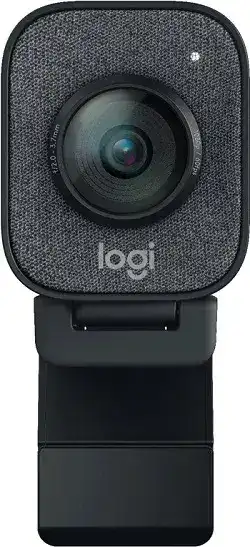
Here you will get the latest Logitech StreamCam driver and software that support Windows and Macintosh Operating Systems.
Logitech StreamCam Windows Driver Download
Logitech G HUB
G HUB Software, helps you to personalize your Logitech G gaming mice, keyboards, headsets, speakers, and various other devices according to your preferences.
Supported Windows OS: Windows 11, Windows 10
Logitech StreamCam Logi Tune Windows 10 ver: 2.06.12 (39.65 MB)
Logitech Tune
Streamlines control of headsets and webcams.
Supported Windows OS: Windows 11, Windows 10
Logitech StreamCam Logi Tune Windows 10 ver: 2.06.12 (183.14 MB)
Logitech StreamCam Capture
Install Logitech Capture to personalize your video recordings with features like transition effects, filters, text overlays, colored borders, and ChromaKey settings. Additionally, make use of the Capture app to fine-tune your webcam settings, including aspect ratio, recording resolution, and more. All settings are conveniently saved within your user profile for easy access and consistency.
New Updates
- Performance improvements
- Bug fixes
Supported Windows OS: Windows 10
Logitech StreamCam Logi Tune Windows 10 ver: 2.08.11 (113.99 MB)
Windows 10
Logitech StreamCam Logi Tune Windows 10 ver: 2.06.12 (114 MB)
Windows 10
Logitech StreamCam Logi Tune Windows 10 ver: 2.04.13 (113.99 MB)
Logitech StreamCam Mac OS Driver Download
Supported Macintosh OS: MacOS 11, MacOS 10.13, MacOS 10.12
Logitech StreamCam Camera Settings for macOS (5.03 MB)
Logitech Tune
Supported Macintosh OS: MacOS 10.15, MacOS 11, MacOS 10.13, MacOS 10.12
Logitech StreamCam Camera Settings for macOS (233.88 MB)
Logitech StreamCam Capture
Supported Macintosh OS: MacOS 10.15, MacOS 10.14, MacOS 11
Logitech StreamCam Camera Settings for macOS 2.08.12 (139.46 MB)
MacOS 10.15, MacOS 10.14, MacOS 11
Logitech StreamCam Camera Settings for macOS 2.06.34 (139.46 MB)
MacOS 10.15, MacOS 10.14
Logitech StreamCam Camera Settings for macOS 2.0.200 (86.89 MB)
The Logitech StreamCam driver is essential for enhancing the performance of your StreamCam device, ensuring compatibility across various operating systems such as Windows 11, Windows 10, MacOS 11, and earlier MacOS versions like 10.12 through 10.15. This driver supports high-definition video streaming, offering capabilities for 1080p at 60 frames per second, making it suitable for content creators and professionals alike. Notable features include background replacement, auto-focus, and versatile mounting options for optimal camera positioning during streaming sessions. The driver also integrates seamlessly with popular streaming platforms, enhancing user experience through smooth functionality and reliable connectivity.
Download Logitech StreamCam Driver and Software Download Software
In order to utilize your Logitech StreamCam with all its features, make sure the appropriate driver is installed. The software is designed to unify your camera experience across platforms, providing an enhanced interface and additional functionalities like image stabilization and customizable settings. It is crucial to ensure that the software version aligns with your operating system for maximum reliability and performance.
How to install Logitech StreamCam Driver and Software Download Software on Windows and Mac OS?
Installing the Logitech StreamCam driver is a straightforward process, regardless of whether you are using Windows or macOS. First, locate the downloaded installer file from your computer, typically found in the Downloads folder. Upon opening the file, follow the on-screen prompts to complete the installation. During this process, you may need to accept terms and conditions and adjust certain settings based on your preferences. Post-installation, always ensure your system is restarted if prompted, allowing the driver to integrate properly with your operating system.
Installing Logitech StreamCam Driver and Software Download Software on Windows 11, 10…
To set up the Logitech StreamCam driver on Windows 11 or Windows 10, follow these steps:
- Locate the downloaded installer file in the directory where it was saved.
- Run the installer executable by double-clicking the file.
- When the setup wizard opens, carefully follow the instructions provided on-screen.
- Accept the license agreement and choose any additional installation options as prompted.
- After installation, restart your PC to finalize the setup and ensure the driver functions properly.
Installing Logitech StreamCam Driver and Software Download Software on Mac OS
For users operating on Mac OS, the installation of the Logitech StreamCam driver involves several simple steps:
- Open the downloaded file from your Downloads folder.
- Launch the installer by double-clicking the icon.
- Follow the installation wizard, agreeing to terms and conditions as necessary.
- If applicable, modify system preferences to ensure the camera is recognized by the system.
- After you’ve completed the steps, restart your Mac to confirm the installation and optimize performance.
Why choose our website for Logitech StreamCam Driver and Software Download Drivers Downloads?
Our platform provides users with a reliable resource for the Logitech StreamCam driver and related software. We focus on ensuring that all installations are straightforward and accessible. By delivering the latest software versions compatible with various operating systems, we make it easy to achieve consistent performance with your device. Additionally, our website offers support resources that help troubleshoot common issues, enhancing the overall user experience.
Uninstalling the Logitech StreamCam Driver and Software Download Software
Should you need to uninstall the Logitech StreamCam driver, you can do so via the following methods, depending on your operating system: For Windows users, access the Control Panel, select ‘Programs and Features,’ locate the Logitech StreamCam in the list, and choose ‘Uninstall.’ Mac users can open the Applications folder, find the Logitech application, and move it to the Trash. Both methods ensure a clean removal of the software from your system, which can often resolve any persistent issues related to installation or performance.
Conclusion about Logitech StreamCam Driver and Software Download Driver
Using a driver can sometimes present challenges, such as compatibility issues or failure to recognize the camera correctly. However, there are effective resources available to address these concerns:
- User Manual: Reference it for setup and troubleshooting guidance.
- Configuration Guide: Ensure settings are applied correctly for optimal usage.
- Compatibility Documentation: Verify your operating system aligns with the driver version.
Regularly checking settings and system compatibility ensures smooth operation, especially when utilizing features like background replacement that require robust processing. Commit to routine checks and keep your system resources aligned to promote a seamless streaming experience.