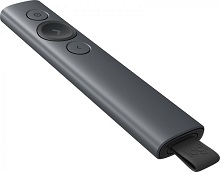
When slide changes still work but Highlight, Magnify, or the on-screen pointer disappears, the Logitech Spotlight Presentation Remote Driver software becomes more important than the wireless link itself. Spotlight can connect through its included USB receiver or Bluetooth Low Energy, while its advanced pointing effects depend on Logitech software running on the computer. That split explains why the remote can appear connected yet lose some of the features that make it different from an ordinary presentation clicker.
Logitech Spotlight Presentation Remote Windows Driver Download
| Driver Name | Description | Supported OS | File Size | Download |
|---|---|---|---|---|
| Logi Options+ Software | Customizes Spotlight device settings, shortcuts, button actions, and other supported controls through Logi Options+. | Windows 11, Windows 10 32-bit/64-bit | 43.1 MB | |
| Spotlight Calibration Software | Recalibrates the Logitech Spotlight Presentation Remote when pointer movement or motion tracking requires correction. | Windows 10 32-bit/64-bit, Windows 8 32-bit/64-bit, Windows 7 32-bit/64-bit | 672.04 KiB |
Logitech Spotlight Presentation Remote Mac OS Driver Download
| Driver Name | Description | Supported OS | File Size | Download |
|---|---|---|---|---|
| Logi Options+ Software | Provides Spotlight customization for supported device controls, shortcuts, gestures, and application-specific settings. | macOS 26, macOS 15, macOS 14 | 19.54 MB | |
| Logi Options+ Software | Manages compatible Spotlight functions and configurable controls through the Logi Options+ application on macOS. | macOS 13 | 19 MB | |
| Logi Options+ Software | Lets users adjust supported Spotlight behavior and assign available shortcuts and device preferences. | macOS 12.0 | 18.65 MB | |
| Spotlight Calibration Software | Provides a calibration utility for restoring accurate motion and pointing response on the Spotlight remote. | Mac OS X 10.13, Mac OS X 10.12, Mac OS X 10.11, Mac OS X 10.10 | 923.63 KiB |
Logitech Spotlight Presentation Remote Driver When Pointer Effects Disappear
Spotlight does not project a traditional laser dot onto the wall. Its Highlight, Magnify, and Digital Laser effects appear on the computer display through software. If the forward and back buttons change slides but holding the top button produces no visible effect, check Logi Options+ before investigating Bluetooth or the USB receiver. Logitech now supports its presentation remotes through Logi Options+ rather than relying on the older Logitech Presentation application.
The remote advances slides but Highlight does nothing
Open Logi Options+ and confirm that Spotlight appears in the application. Then hold the top pointer button instead of tapping it briefly. The selected pointer effect should appear while the button remains pressed. If basic slide navigation works but the digital effect does not, that usually means the presentation controls are reaching the computer while the software-based pointer function is not active.
Also check the selected pointer mode. Spotlight software can assign Highlight, Magnify, or Digital Laser behavior, so a different effect may be active from the one you expect. Pointer speed and automatic pointer centering can also be adjusted. Changing these controls makes more sense than re-pairing a remote that already changes slides normally.
Pointer movement feels delayed on the projected screen
A lagging highlight is not always a fault in the remote. Wireless screen-sharing systems and some meeting applications can add display latency after the laptop has already processed Spotlight movement. Compare the pointer on the computer’s own display with the projected or shared image. If movement responds promptly on the laptop but arrives late on the room display, investigate the presentation or screen-sharing path rather than repeatedly reconnecting Spotlight.
macOS Permissions Can Break Only Part of Spotlight
Mac problems often produce an unusual symptom: Bluetooth connects, the remote vibrates, and some controls respond, yet pointer effects or slide navigation stop working. Logitech software needs macOS privacy permissions for certain Spotlight functions. An operating-system update or a changed application entry can leave those permissions in a state where the hardware remains connected but Logi Options+ cannot process every button action.
Next and previous stop working after a macOS change
Check Privacy & Security in macOS and review the permissions granted to the Logitech presentation software. Input Monitoring and Accessibility access have been relevant to Spotlight control on macOS. If an old Logitech presentation entry remains while the current executable has no permission, removing the stale entry and granting access to the active Logitech application can restore controls that reinstalling alone did not fix.
After changing a privacy permission, quit the Logitech application and reopen it. If the computer still reacts inconsistently, restart macOS before testing again. Use a normal local presentation first. That separates an operating-system permission fault from restrictions or unusual keyboard handling inside a conferencing application.
Logi Options+ sees other Logitech devices but not Spotlight
Update Logi Options+ before falling back to old software. Spotlight support was added to the current Logitech customization application, while the older Logitech Presentation software is no longer the preferred package. A computer carrying several generations of Logitech utilities can make troubleshooting confusing, especially when an older background process retains permissions that the newer application needs.
The Logitech Spotlight Presentation Remote Driver configuration should therefore use the current supported Logitech package where possible. Once Spotlight appears there, test the top pointer control, forward button, back button, and one digital pointer effect. That short test gives more useful information than reinstalling several discontinued Logitech utilities at the same time.
Bluetooth Pairing Fails Even Though Spotlight Vibrates
Spotlight supports Bluetooth Low Energy as well as its dedicated USB receiver. To enter Bluetooth pairing, hold the top pointer button and the bottom back button together for about three seconds. The remote vibrates and becomes discoverable for a limited period. Pressing another button soon after starting pairing can cancel that mode, which can make the device vanish from the Bluetooth list before pairing finishes.
Spotlight appears briefly and then disappears from the Bluetooth list
Start pairing again and leave the other controls untouched while the computer searches. If an older Spotlight entry already exists in the operating system, remove that saved Bluetooth record and create a new pairing. This is particularly useful after moving the remote between computers or after an operating-system upgrade leaves an old connection record that no longer reconnects properly.
If Bluetooth still fails, try the supplied USB receiver. Spotlight was designed for both connection methods, so the receiver provides a useful comparison. Successful operation through the receiver points toward the computer’s Bluetooth configuration rather than the presentation remote itself. A failure through both paths makes power, software, or hardware checks more relevant.
Connected status appears but button presses reconnect repeatedly
A Bluetooth connection that wakes or reconnects whenever a button is pressed but never advances the slide may involve more than pairing. Confirm the behavior in a local PowerPoint, Keynote, or similar presentation instead of testing only inside an online meeting. If basic navigation remains broken, remove the Bluetooth pairing, restart the computer, pair again, and then verify Logitech software permissions before changing presentation-specific options.
USB Receiver and Charging Problems Need Different Tests
The USB receiver stores inside the bottom of the Spotlight body. Removing that receiver also exposes the USB-C charging port. The supplied USB-A to USB-C cable charges the remote; it is not the wireless receiver itself. Confusing those two functions can lead to the impression that Spotlight should operate as a wired presentation controller simply because a charging cable is attached.
The receiver is inserted but nothing responds
Make sure Spotlight has power first, then unplug the receiver and try another direct USB port. A hub, adapter, or docking station adds another possible failure point, so bypass it during diagnosis when the computer has a suitable port. If the remote works on a second computer with the receiver, return to the original system and concentrate on USB recognition or software rather than the remote hardware.
For computers that have only USB-C ports, the required adapter or dock must pass the receiver’s USB data correctly. Charging Spotlight through a USB-C cable does not substitute for that receiver connection. Bluetooth is the other supported wireless path when the computer provides compatible Bluetooth Low Energy.
Spotlight refuses to charge after sitting unused
A pulsing white LED indicates charging, steady white indicates a full charge, and red indicates a low battery. Remove the receiver to reach the charging port and inspect the recessed slot for lint or debris before inserting the cable. Try a known working USB power source and cable connection if no charging indicator appears. Do not open the remote or attempt direct battery charging as a routine fix.
Very deeply discharged or aged batteries can create reports where Spotlight remains completely dark after storage. If ordinary charging through the built-in USB-C port produces no LED, vibration, or later response, treat that as a battery or hardware problem rather than a missing Logitech package. Internal battery modification carries unnecessary risk and is not a software troubleshooting step.
Slide Controls Work Differently Inside Meeting and Presentation Apps
Spotlight can behave perfectly in a local slide deck yet fail in a webinar, remote desktop session, or unusual presentation mode. That difference matters. Forward and back actions may reach one application while the shared audience view remains unchanged, and digital highlighting can be rendered locally rather than in the portion of the screen being transmitted to attendees.
The presenter sees the highlight but the audience does not
Check what the conferencing application actually shares. If it captures only a presentation window while Spotlight draws its visual effect through another software layer, remote viewers may not receive the same image shown on the presenter’s display. As a diagnostic test, share the whole display and compare the result. This identifies a screen-capture limitation without changing the Logitech connection.
Forward and back fail only during a webinar
Leave the meeting temporarily and test the same slide file locally. If the remote changes pages there, its receiver or Bluetooth connection is already doing its job. Review the webinar’s presentation mode, keyboard-control handling, and which window currently has focus. Some presentation arrangements intercept navigation differently, so replacing the Logitech software will not necessarily change an application-specific failure.
Timer vibration never occurs
Spotlight software includes presentation timing and haptic alerts. When the remote vibrates during other actions but ignores a configured timer, first confirm that the Logitech application remains open and that the timer was started for the current presentation session. Test a short alert interval before an important presentation. This separates a timer configuration problem from a failed vibration motor.
Prepare Spotlight Before the Presentation Computer Changes
The Logitech Spotlight Presentation Remote Driver package matters most for the advanced visual functions, while basic navigation can still behave differently depending on the host computer and application. A conference computer that lacks the Logitech software may accept forward and back commands yet provide none of Spotlight’s Highlight, Magnify, Digital Laser, pointer-speed, or timer features. That difference is expected from a software-driven presentation remote.
Before presenting on an unfamiliar machine, decide whether you need only slide navigation or the full Spotlight feature set. Test the USB receiver when Bluetooth pairing would consume setup time, confirm that the battery has charge, and open the actual presentation software you plan to use. If digital pointing is essential, verify the effect on the projected or shared image rather than checking only the laptop screen.
Once the Logitech Spotlight Presentation Remote Driver and Logi Options+ recognize the device, keep troubleshooting tied to the symptom you can reproduce. Missing digital effects point toward software or permissions, a disappearing Bluetooth connection calls for a new pairing, failure through the USB receiver calls for port and power checks, and delayed visuals on a shared display point toward the presentation path. Those distinctions make Spotlight problems much easier to isolate before the first slide goes on screen.