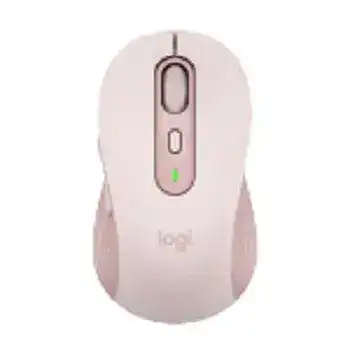
When the pointer works but the extra controls remain unavailable, the Logitech Signature M750 Mouse Driver gives Logi Options+ access to the SmartWheel, DPI control, side buttons, and device channels. The mouse can connect through its Logi Bolt USB receiver or Bluetooth, so connection faults do not always have the same cause. A useful repair starts by checking which channel and wireless method the mouse currently uses.
Logitech Signature M750 Mouse Windows Driver Download
| Driver Name | Description | Supported OS | File Size | Download |
|---|---|---|---|---|
| Logi Options+ Software | Customize mouse buttons, scrolling, pointer behavior, shortcuts, gestures, and device settings. | Windows 11, Windows 10 32-bit/64-bit | 43.21 MB |
Logitech Signature M750 Mouse Mac OS Driver Download
| Driver Name | Description | Supported OS | File Size | Download |
|---|---|---|---|---|
| Logi Options+ Software | Configure advanced pointer controls, button assignments, and productivity features for supported devices. | macOS 26, macOS 15, macOS 14 | 19.56 MB | |
| Logi Options+ Software | Manage scrolling preferences, gestures, and personalized controls for your Logitech mouse. | macOS 13 | 19 MB | |
| Logi Options+ Software | Adjust button functions, cursor behavior, and workflow shortcuts with the latest customization tools. | macOS 12.0 | 18.65 MB | |
| Logi Options+ Software | Enable device-specific settings, smart actions, and enhanced navigation features on compatible Macs. | macOS 11 | 17.51 MB |
Logitech Signature M750 Mouse Driver When Logi Options+ Cannot Find It
The operating system may accept ordinary clicks and pointer movement even when Logi Options+ shows no connected device. This happens because standard mouse functions can run without the customization app. The missing software link becomes obvious when the DPI button, back and forward controls, battery information, or application assignments cannot be changed.
Match the software to the active connection
Open Logi Options+ only after the mouse responds through the intended channel. Channel 1 normally belongs to the included Logi Bolt receiver, while the other channels can hold Bluetooth pairings. Press the connect button briefly to view or change the channel. Holding it for about three seconds starts pairing on the selected channel instead of merely switching to it.
Install the current Logitech Signature M750 Mouse Driver package for Windows or macOS, restart the computer, and then open Logi Options+. Disconnecting and reconnecting the mouse before the application finishes loading can interrupt detection. Leave the device on one working channel while the app completes its first scan.
Remove a stalled software record
A failed update or an interrupted first launch may leave Logi Options+ running without displaying the mouse. Close the application fully, including its background process, and reopen it. When that changes nothing, uninstall the app, restart the system, and install a newly downloaded copy. The restart matters because it clears services that may remain active after the visible window closes.
Do not install several generations of Logitech control software for this model. The M750 uses Logi Options+ for customization. Older utilities may continue running in the background, yet they do not provide the intended controls for this mouse. Removing an unused Logitech application can also prevent two programs from trying to read the device at once.
Allow control access on macOS
macOS may let the pointer move while withholding the permissions needed for customized buttons, gestures, and Flow. Check the Privacy and Security area after installing Logi Options+. Grant the requested Accessibility and Input Monitoring access, then quit and reopen the application. A permission change often takes effect only after the Logitech processes restart.
After a major macOS update, review those entries again. The system can retain the application while requiring renewed approval for one of its components. When the mouse appears in Logi Options+ but an assigned action does nothing, permissions deserve attention before another installation attempt.
Recover the Logi Bolt or Bluetooth Connection
The included receiver stops responding
Remove the Logi Bolt receiver, turn the mouse off, and wait several seconds. Insert the receiver directly into another USB port before switching the mouse on again. A dock, monitor hub, or crowded adapter can complicate detection, so test a computer port first. Keep Channel 1 selected because changing to a Bluetooth channel makes the working receiver appear inactive.
The Logitech Signature M750 Mouse Driver and Logi Options+ can guide receiver pairing, but the receiver type must match. A Unifying receiver and a basic non-Bolt dongle cannot replace the supplied Logi Bolt receiver simply because they carry the Logitech name. Use a genuine compatible Bolt receiver when the original has been lost or damaged.
Bluetooth pairing repeats without completing
Start by deleting the previous M750 listing from the computer’s Bluetooth menu. Select Channel 2 or 3 on the underside, then hold the connect button until its indicator blinks rapidly. Search for the mouse again from the operating system. Removing the earlier record prevents the computer from repeatedly trying an expired pairing key.
Do not hold the button when you only want to return to an existing device. A brief press changes channels; a long press replaces that channel’s stored pairing. Accidentally starting pairing mode can make a previously working laptop seem forgotten. Move back to its channel and reconnect it from the Bluetooth list if the stored link has already been overwritten.
Switching among computers feels inconsistent
The M750 can retain connections on three channels, but switching remains manual unless a configured software feature handles movement between computers. Give each computer its own channel and note which indicator belongs to it. Reusing the same Bluetooth channel for another machine removes the earlier pairing from that position.
Logitech Flow needs Logi Options+ on the participating Windows or macOS computers and requires them to communicate across the same local network. Pair the mouse with each computer first. Then enable Flow inside the app. Network isolation, a restrictive firewall, or missing macOS permissions can stop the pointer at the screen edge even though both individual connections work.
Logitech Signature M750 Mouse Software for Wheel and Button Problems
SmartWheel changes speed unexpectedly
The SmartWheel responds differently to a light movement and a stronger flick. Slow turns produce controlled line-by-line scrolling, while a quick spin travels through a long page much faster. That change is part of the wheel design. Use a gentler finger movement when a document moves farther than expected rather than treating every fast scroll as a connection fault.
When scrolling reverses, jumps, or misses turns, compare its behavior in several applications. One program may apply its own scrolling rules or animation. Check the scrolling choices in Logi Options+ and the operating system, then remove dust around the wheel with dry air. Avoid liquids around the opening and do not force the wheel sideways.
Back and forward buttons do nothing
The two thumb buttons normally handle navigation, but Logi Options+ can assign different actions globally or for individual applications. Open the mouse page in the app and inspect both controls. An application-specific assignment can explain why a button works in one program and appears dead in another.
Return the buttons to their default actions before diagnosing a hardware failure. Try them on a web page with navigation history, since a new tab has nowhere to move back. When default navigation works but a custom command does not, recreate that assignment and confirm that the target application still uses the same shortcut.
The DPI button seems ineffective
The button behind the wheel changes pointer sensitivity through the supported Logitech controls. A small adjustment may be difficult to notice on a short desktop movement. Open Logi Options+, view the pointer-speed range, and choose values far enough apart for a clear comparison. This also reveals whether the button has been reassigned to another task.
Windows or macOS pointer speed can amplify or reduce the result. Set a comfortable operating-system speed first, then use the Logitech adjustment for finer control. Changing both at the same time makes it harder to identify why the pointer suddenly feels slow or overly lively.
Fix Lag, Wake Failures, and Short Battery Life
The pointer pauses or moves unevenly
Test the mouse on a plain, non-reflective surface before changing software. Glass, glossy finishes, and strongly patterned material can disturb optical tracking. Clean the sensor window gently with a dry, lint-free cloth. Hair or dust near the opening may produce erratic movement that looks much like a wireless problem.
For a Logi Bolt connection, place the receiver where metal furniture, a computer case, or a busy cluster of USB devices does not block the wireless path. Trying another port can separate the receiver from noisy peripherals. With Bluetooth, remove and restore the pairing only after checking the surface and battery, since repairing cannot correct poor sensor contact with the desk.
The mouse does not wake after sitting idle
Switch the mouse off and on, then press the channel button briefly to confirm that it remains on the expected connection. A computer may also suspend its USB or Bluetooth hardware to save power. Test another port for the Bolt receiver and install pending operating-system updates when wake failures affect other wireless accessories as well.
If the pointer returns only after opening the battery compartment, inspect the AA battery contacts. Remove the battery, wipe the ends and contacts with a clean dry cloth, and insert it according to the marked polarity. A loose or contaminated contact can interrupt power when the mouse moves, even when the battery still measures as usable elsewhere.
Battery warnings arrive too soon
Logi Options+ can show battery status, but a low reading should be checked with a known good AA cell before deeper troubleshooting. Frequent channel changes and repeated pairing attempts can also create the impression of poor runtime during initial testing. After fitting another battery, leave the mouse on one connection and watch whether the level remains steady.
Turn the underside switch off when storing the mouse for a long period or carrying it where buttons may be pressed continuously. Remove the battery before extended storage. If a new cell drains rapidly while the mouse remains unused, test the device on another computer to separate a hardware power fault from repeated wake activity on the original system.
Keep Each Channel Assigned to One Purpose
A predictable arrangement makes later faults easier to trace. Keep the Logi Bolt receiver on Channel 1, place regular Bluetooth computers on Channels 2 and 3, and avoid overwriting a working channel during routine switching. The Logitech Signature M750 Mouse Driver should then see the same device path whenever Logi Options+ opens.
Finish by checking the SmartWheel with slow and fast turns, confirming both thumb buttons, and comparing two clearly different pointer-speed values. Test each saved computer separately before enabling Flow. This order separates pairing, software permissions, and customized actions, so one failed feature does not send the entire connection process back to the beginning.