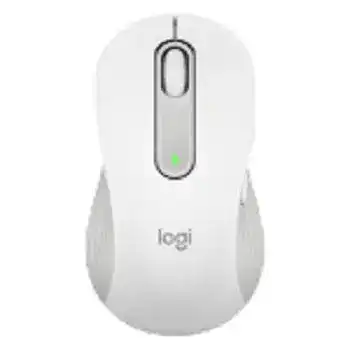
Here you will get the latest Logitech Signature M650L LEFT Mouse Driver and software that support Windows and Mac OS.
Logitech Signature M650L LEFT Mouse Windows Driver Download
Logi Options+
Logi Options+ is a next gen app lets you customize your supported mouse and keyboard, and other devices settings in Windows.
- Bug fixes and improvements
Supported Windows OS: Windows 10 (32-bit ,64-bit) Windows 11
Logitech Signature M650L LEFT Mouse Options+ for Windows (23.65 MB)
Logitech Signature M650L LEFT Mouse Mac OS Driver Download
Supported Mac OS: macOS 10.15, , macOS 11, macOS 12,
Logitech Signature M650L LEFT Mouse Options+ for Mac (12.86 MB)
The Logitech M650L Driver is essential for ensuring optimal performance and functionality of your Logitech Signature M650L LEFT Mouse. This software package allows you to customize settings, fine-tune performance, and ensure seamless connectivity across supported operating systems. Whether you’re using Windows 10, Windows 11, or macOS (versions 10.15, 11, and 12), having the proper driver installed will enhance your user experience significantly. With enhancements tailored specifically for the LEFT variant, you can optimize the way you interact with your computer.
Logitech Signature M650L LEFT Mouse Driver and Software Download Software Specifications
- Model: Logitech Signature M650L LEFT Mouse
- Compatibility: Windows 10, Windows 11, macOS 10.15, macOS 11, macOS 12
- Driver Version: Latest available version (check for specific version during installation)
- Features: Customizable buttons, improved tracking precision, ergonomic design for left-handed users, and enhanced connectivity options.
- Package Size: Varies by OS platform
Installing Logitech Signature M650L LEFT Mouse Driver and Software Download Software on Windows and Mac OS
To get started with your Logitech Signature M650L LEFT Mouse, follow these straightforward steps for installation. Adhere to the steps below that correspond to your operating system.
- Locate the downloaded installer file in your computer’s storage, typically in the Downloads folder.
- Double-click the installer executable to initiate the installation process.
- Follow the on-screen prompts which may include agreeing to the license terms and selecting installation preferences.
- Allow the installation to complete; a restart may be necessary for Windows users.
- Once installed, verify that your mouse is recognized by navigating to system settings.
How to update Logitech Signature M650L LEFT Mouse Driver and Software Download driver
Keeping your Logitech M650L Driver up to date is crucial for maintaining compatibility and accessing the latest features. Follow these instructions to check for updates:
- Access the device settings: Navigate to Control Panel on Windows or System Preferences on macOS.
- Locate the device: Find the Logitech Signature M650L LEFT Mouse in the list of connected devices.
- Check for updates: Look for an option that allows you to view driver details and check for updates.
- Follow prompts: If an update is available, follow the prompts to install the latest version.
Uninstall and reinstall the Logitech Signature M650L LEFT Mouse Driver and Software Download driver
In case of any issues or malfunctions, uninstalling and reinstalling the driver can be an effective troubleshooting step. Here’s how to do so:
- Open Settings: For Windows, access Device Manager; for macOS, go to System Preferences.
- Find the mouse device: Locate the Logitech Signature M650L LEFT Mouse under the appropriate category.
- Uninstall: Right-click (Windows) or select the device to find the option to remove or uninstall.
- Reboot your computer: A restart may be necessary to complete the uninstallation.
- Run the installer again: Repeat the installation steps to set up the mouse afresh.
Solving Common Setup and Performance Issues
Encountering problems with your Logitech Signature M650L LEFT Mouse can be frustrating, whether it’s connectivity issues or malfunctioning buttons. Thankfully, there are several approaches to troubleshoot these common challenges.
- Check Battery Level: Ensure the mouse has adequate battery power to function optimally.
- Reset Mouse Settings: If performance issues persist, reset the mouse settings through the software.
- Compatibility Confirmation: Verify that your operating system supports the driver version you are using.
- Consult Troubleshooting Guide: Refer to the user manual for specific troubleshooting steps tailored to the Logitech M650L Driver.
Regularly inspecting the mouse’s USB receiver and maintaining cleanliness will improve its longevity and performance. Taking measures such as replacing batteries proactively can ensure you have uninterrupted functionality from your device.