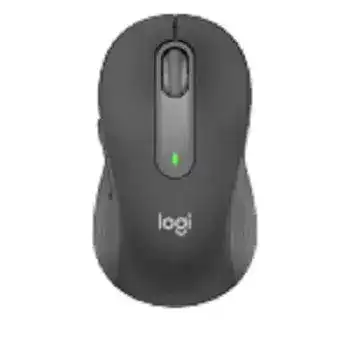
A mouse may still point and click while its custom controls vanish from the computer. The Logitech Signature M650 Mouse Driver connects this model with Logi Options+ for pointer speed, SmartWheel behavior, battery status, and three customizable controls. Since the M650 works through either Bluetooth Low Energy or the included Logi Bolt receiver, the first repair is to identify which connection currently owns its single wireless channel.
Logitech Signature M650 Mouse Windows Driver Download
| Driver Name | Description | Supported OS | File Size | Download |
|---|---|---|---|---|
| Logi Options+ Software | Customize mouse buttons, pointer behavior, scrolling, shortcuts, gestures, and device settings. | Windows 11, Windows 10 32-bit/64-bit | 43.21 MB |
Logitech Signature M650 Mouse Mac OS Driver Download
| Driver Name | Description | Supported OS | File Size | Download |
|---|---|---|---|---|
| Logi Options+ Software | Adjust mouse controls, scrolling preferences, pointer response, gestures, and application shortcuts. | macOS 26, macOS 15, macOS 14 | 19.56 MB | |
| Logi Options+ Software | Manage button assignments, navigation behavior, scrolling options, and supported device features. | macOS 13 | 19 MB | |
| Logi Options+ Software | Set pointer preferences, mouse shortcuts, scrolling functions, and gesture-based commands. | macOS 12 | 18.65 MB | |
| Logi Options+ Software | Configure mouse buttons, pointer movement, scroll actions, shortcuts, and individual device options. | macOS 11 | 17.51 MB |
Logitech Signature M650 Mouse Driver When Options+ Shows No Device
Windows or macOS can load standard mouse functions without recognizing the M650 inside Logitech software. In that state, left-click, right-click, and ordinary scrolling may continue, but the side buttons and middle button remain unavailable for customization. Install the current Logi Options+ release rather than the older Logitech Options application, then leave the mouse connected while the app completes its device scan.
The pointer works but customization stays locked
Close Logi Options+ completely and reopen it after the operating system has finished starting. When its window remains empty, turn the M650 off for several seconds, switch it on, and reconnect through the method already in use. Opening several Logitech utilities at once can confuse detection, so remove outdated control applications that no longer serve another device.
If detection failed immediately after an Options+ update, restart the computer before reinstalling anything. The visible application may close while its background service remains stuck. A restart reloads that service and often restores the device without deleting button assignments. Reinstall only when the app still cannot communicate after the restart and a power cycle.
Options+ hangs at its loading screen
An endless loading screen usually points to the application backend rather than the mouse connection. End the Logi Options+ processes through the operating system, launch the app again, and check whether a recent update completed in the background. If the same loop returns, use the official installer to repair or replace the current installation instead of adding an older version beside it.
On macOS, a damaged or expired application component can also stop customized functions while normal pointer movement continues. Apply the current official software patch or installer before removing the app, because uninstalling may discard saved profiles. Restart the Mac after the repair and confirm that Options+ opens before changing any assignments.
Choose Bluetooth or Logi Bolt Without Losing the Pairing
The connect button seems to switch devices
The Signature M650 has one connection channel, not the three-device switching system found on some other Logitech mice. Pressing or holding the connect button does not move among several saved computers. A long press places the current channel into pairing mode, which can replace the earlier Bluetooth or receiver association and make the previous computer stop responding.
Decide whether the mouse will use Bluetooth or Logi Bolt, then complete that connection without repeatedly holding the button. When changing from one method to the other, expect to pair again. The M650 cannot preserve separate active slots for a receiver computer and a Bluetooth computer at the same time.
Bluetooth appears in the list but will not reconnect
Remove the existing M650 entry from the computer’s Bluetooth menu before creating another pairing. Turn the mouse off and back on, then hold the connect button until the underside indicator flashes rapidly. Start a fresh Bluetooth search and select the new entry. Keeping the failed record often sends the computer back to an expired pairing key.
When Bluetooth connects but drops after sleep, disable and re-enable Bluetooth on the computer before resetting the mouse again. Operating-system updates and power-saving changes sometimes leave the wireless adapter in a stalled state. Test the M650 after the computer wakes fully, since repeated pairing attempts during startup can overwrite a connection that was still recoverable.
The Logi Bolt receiver is present but nothing moves
Insert the receiver directly into a computer USB port and wait for the operating system to finish identifying it. Hubs, display ports, and multi-function adapters add another layer that can fail or wake slowly. If one direct port does not respond, try another, then restart the mouse with its underside switch.
The Logitech Signature M650 Mouse Driver does not make a Unifying receiver compatible with this model. The M650 uses Logi Bolt, so a receiver from an older Unifying product will not pair even though both carry Logitech branding. Use the included Bolt receiver or another genuine compatible Bolt unit and complete pairing through the supported Logitech connection tool.
Repair SmartWheel Scrolling Before Changing Pointer Settings
Slow wheel turns miss individual steps
Some M650 owners notice that very slow wheel movement skips a line or responds only after the wheel travels slightly farther. First compare the behavior in a browser, a document, and the operating-system settings window. If every program misses the same physical wheel positions, software changes are unlikely to cure it.
Blow dry air around the wheel opening and rotate the wheel through several full turns without pressing hard. Dust can interfere with consistent movement, but liquids and forceful cleaning may create a larger fault. When the same positions continue to miss after testing on another computer, the wheel mechanism may need warranty service rather than another driver installation.
SmartWheel races through a page
The SmartWheel changes from precise scrolling to fast movement when the user gives it a stronger flick. This automatic response can feel like uncontrolled acceleration until the motion becomes familiar. Use shorter, lighter turns for line-by-line reading. A deliberate fast spin is better suited to long pages and large documents.
Open Logi Options+ and compare smooth scrolling with the normal setting. Smooth scrolling may behave differently across browsers and desktop applications, and some programs apply their own animation or line count. If one program scrolls too quickly while others behave normally, adjust that program first rather than lowering every system-wide scroll value.
The wheel moves vertically but horizontal scrolling interferes
The M650 does not use a physical four-way tilt wheel. Logi Options+ can create horizontal movement by combining a side button with wheel rotation. That feature may delay or alter side-button input because the software waits to see whether the user will scroll while holding the button.
Turn off horizontal scrolling for the affected side button when a program detects the action only after release or fails to recognize a held press. Save the change, close the settings panel, and test again. This correction is especially useful in applications that expect a plain fourth or fifth mouse-button signal rather than a Logitech command.
Restore Side Buttons, Middle Click, and Pointer Speed
Back and forward work in one app only
Logi Options+ can maintain global actions and separate application profiles. A side button may navigate correctly in a browser while doing nothing elsewhere because the selected program has its own assignment. Open the application-specific section, remove an unwanted override, or recreate the action while that program is installed in its normal location.
Profiles linked to software on an encrypted, removable, or temporarily unavailable drive may disappear when Options+ starts before that drive becomes accessible. Unlock or mount the drive before launching Logitech software. Keeping the target program at a permanent path also prevents the control app from treating its profile as obsolete.
Custom shortcuts produce the wrong command
Keyboard remapping utilities can intercept a shortcut before the Logitech action reaches the application. Temporarily disable system-wide remapping software and test the M650 assignment again. If the command begins working, create a non-conflicting shortcut or exclude the target program from the other utility instead of repeatedly rebuilding the mouse profile.
Use a simple command for the first test, such as copy, paste, or a standard keystroke already recognized by the application. Complex multi-key actions make it harder to tell whether Options+, the operating system, or the destination program changed the input.
Pointer speed returns to its earlier value
When a speed adjustment snaps back after leaving the page, the Options+ backend may not have saved the change. Keep the mouse connected, restart the application, and alter the value again after the device page fully loads. Avoid switching from Bluetooth to Bolt during the edit because the app may briefly lose the hardware record.
Also check the operating system’s pointer-speed control. Windows and macOS apply their own movement scale in addition to the 200 to 4,000 DPI range available through Logitech software. Set the system value near a comfortable middle point, then fine-tune the M650 in Options+ rather than pushing both controls to opposite extremes.
Middle click stops opening links or closing tabs
The wheel button is one of the three controls that Options+ can customize. Restore it to Middle Button when pressing the wheel no longer performs the expected browser action. A global reassignment or application profile may have changed it to another command without affecting normal wheel rotation.
If the assignment is already correct, test the wheel press in another program and on another computer. A click that fails everywhere while scrolling remains normal points toward the physical switch. Do not spray cleaner into the wheel assembly or dismantle a mouse that remains under warranty.
Wake, Battery, and Pointer Faults That Look Like Software Errors
The pointer shakes or drifts on the desk
Move the mouse to a plain, matte surface and clean the sensor window with a dry lint-free cloth. Reflective desks, glass, strong patterns, hair, and dust can disturb optical tracking even when the Logitech Signature M650 Mouse Driver is current. A mouse pad provides a useful comparison because it changes the tracking surface without altering software.
If the movement becomes choppy only while Logi Options+ runs, close the application and compare again. Update or repair the software when the problem follows its background process. When the pointer remains unstable through both Bluetooth and Bolt on several surfaces, test another computer to check for a hardware sensor fault.
The mouse will not wake after inactivity
Turn the underside switch off, wait briefly, and switch it on again. For Bolt use, reconnect the receiver through another direct USB port. For Bluetooth, wait until the computer’s wireless service has resumed before clicking or starting a new pairing. A sleeping adapter can make the M650 appear dead even though its saved connection remains intact.
Remove the AA battery when power cycling has no effect. Check its orientation and wipe the battery ends and contacts with a clean dry cloth before reinstalling it. Replace the cell when the indicator remains weak or the mouse repeatedly disconnects during movement.
Battery status falls faster than expected
Logi Options+ can display the battery level, while the top indicator gives a basic warning. Confirm a low reading with a known good AA battery rather than assuming the software has failed. Continuous reconnection attempts, a poor contact, or a button held down inside a bag can consume power faster than ordinary office use.
Switch the mouse off during long storage and remove the battery when it will remain unused for an extended period. If two new cells drain unusually quickly on different computers, stop reinstalling software and pursue hardware support. The final diagnosis should separate a power fault from pairing activity, surface tracking, and an Options+ process that keeps waking the device.