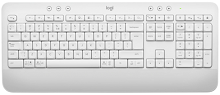
Shortcut keys that suddenly behave like F1 through F12, a microphone key that does nothing, or a keyboard that appears in Bluetooth but will not type are better clues than a general connection error. The Logitech Signature K650 Driver package centers on Logi Options+ for supported customization, while the keyboard itself can connect through Bluetooth Low Energy or its Logi Bolt USB receiver.
Logitech Signature K650 Windows Driver Download
| Driver Name | Description | Supported OS | File Size | Download |
|---|---|---|---|---|
| Logi Options+ Software | Customizes supported keyboard settings, shortcuts, and device-specific controls through Logi Options+. | Windows 11, Windows 10 32-bit/64-bit | 43.1 MB |
Logitech Signature K650 Mac OS Driver Download
| Driver Name | Description | Supported OS | File Size | Download |
|---|---|---|---|---|
| Logi Options+ Software | Provides keyboard customization and shortcut controls for supported systems running macOS 26, macOS 15, or macOS 14. | macOS 26, macOS 15, macOS 14 | 19.54 MB | |
| Logi Options+ Software | Manages compatible keyboard functions, application shortcuts, and other device settings on macOS 13. | macOS 13 | 19 MB | |
| Logi Options+ Software | Adjusts supported keyboard controls and personalized shortcuts for installations using macOS 12. | macOS 12 | 18.65 MB | |
| Logi Options+ Software | Handles compatible keyboard customization and device-specific settings for computers running macOS 11. | macOS 11 | 17.51 MB |
Logitech Signature K650 Driver When Shortcut Keys Do the Wrong Thing
The Signature K650 gives direct access to productivity and media commands across its top row. Out of the box, these keys favor their special functions rather than traditional F1 through F12 behavior. That can look like a keyboard fault when an application expects a normal function key but pressing it changes brightness, opens Task View, starts dictation, or triggers another shortcut instead.
F1 to F12 changed into media and productivity commands
Press Fn and Esc together when you want to swap the top row between its special commands and standard F-keys. Logi Options+ can show an on-screen message when the mode changes. If F5, F8, or another F-key suddenly produces an unexpected action, check this mode before changing Windows keyboard drivers or removing the wireless connection.
Logi Options+ also lets you change supported function-key assignments. Open the keyboard in the app and select the Keys area, then inspect the key that behaves incorrectly. A customized action can explain why one key does something different while the rest of the keyboard remains normal.
Microphone mute key presses but nothing happens
The dedicated microphone mute command needs Logi Options+ on Windows and macOS. Ordinary typing can therefore work perfectly while this one key appears dead. Install or open the control app and confirm that the K650 appears there before treating the key as a hardware problem. ChromeOS handles this function without the same software requirement.
Other shortcuts have operating-system differences too. On macOS, the close-browser-tab, Settings, and Calculator keys use Logi Options+ for their intended commands. A shortcut working on one computer but not another can therefore come from the selected platform and software environment rather than a failed key switch.
Wrong Symbols, Modifier Keys, and Operating-System Layout
Windows and Mac keys seem swapped
The K650 has a multi-OS layout, and it needs the appropriate platform mode. Hold Fn and P for three seconds for Windows, Fn and O for three seconds for macOS, or Fn and C for ChromeOS. Windows is the default mode, so a keyboard moved from a Windows PC to a Mac may need this change before its modifier keys and printed legends make sense.
This check is especially useful after reconnecting the keyboard to a different type of computer. Reinstalling the Logitech Signature K650 Driver software will not correct a keyboard that has simply been left in another operating-system layout. Set the platform mode first, then check the language and keyboard layout selected by the operating system itself.
Insert or language switching is not behaving as expected
One key serves as an input-language switch for its main action and Insert as its secondary function. That arrangement differs from older full-size keyboards where Insert always has a dedicated position. If a program expects Insert, use the indicated secondary function instead of assuming Windows has lost the key.
Bluetooth Pairing That Stops at the Passcode
Bluetooth pairing on the Signature K650 has an extra confirmation stage that is easy to miss. Put the keyboard into connection mode until the white Connect-key LED blinks, select K650 in the computer’s Bluetooth list, and watch for a number shown on screen. Type that number on the K650 itself and press Enter. The pairing does not finish merely because the keyboard name appears in the device list.
K650 appears in Bluetooth but will not type
If the computer shows an old K650 entry yet keystrokes never arrive, remove that Bluetooth pairing and start again. Re-enter connection mode, select the keyboard as a new peripheral, and complete the numeric confirmation. Waiting for the white LED to stop blinking provides a better indication that pairing finished than relying only on an operating-system message saying that the device was found.
For ChromeOS, Bluetooth Low Energy is the preferred connection method for this keyboard. After pairing, set the Chrome layout with Fn and C held for three seconds. This keeps the wireless method and key layout aligned instead of mixing a Windows layout with a ChromeOS connection.
Bluetooth keyboard disappears before Windows login
A different problem can appear on PCs using BitLocker. A K650 connected by Bluetooth may not reconnect at a pre-login or BitLocker screen even though it works normally after Windows loads. In that situation, use the included Logi Bolt USB receiver when you need keyboard access before the Bluetooth services available after sign-in can take over.
Logitech Signature K650 Software and Logi Bolt Detection
The Logitech Signature K650 Driver download should not be confused with Unifying software or older SetPoint packages. This keyboard belongs to the Logi Bolt generation and works with Logi Options+ for customization. A Unifying receiver is not a substitute for a Logi Bolt receiver, even though both are small Logitech USB devices and may look similar at a glance.
A replacement receiver does not connect
Use a Logi Bolt receiver when replacing or re-pairing the USB connection. Logi Bolt devices do not pair with Logitech Unifying receivers. If the keyboard works over Bluetooth but cannot be found through a receiver you already owned, check the receiver family before spending time reinstalling software.
A compatible Logi Bolt receiver can be paired through Logitech’s current software. Put the keyboard into its connection mode when the pairing process asks for it and follow the confirmation shown on screen. The white LED around the Connect key changes from blinking once the wireless link has completed.
Logi Options+ does not show the keyboard
Separate software detection from basic typing. If the keyboard writes normally but Logi Options+ does not display it, restart the application and reconnect the K650 through its existing Bluetooth or Bolt path before changing the pairing. On macOS, also make sure Logi Options+ has the operating-system permissions it requests, because customization and special commands depend on the app running correctly.
Once the keyboard appears, open its Keys controls rather than searching for mouse-style menus or legacy Logitech utilities. The K650 supports function-key customization and on-screen notifications through Options+, including notices for Fn-key mode, Caps Lock, and low battery status.
When the Logi Bolt Connection Feels Delayed or Drops
Keystrokes arrive late through the USB receiver
Plug the Bolt receiver directly into the computer while diagnosing delay. A dock, KVM switch, extender, or USB hub adds another point where detection or wireless behavior can go wrong. If direct connection removes the delay, leave the receiver on the computer or investigate the intermediate hardware rather than repeatedly pairing the keyboard.
Desk position matters as well. Metal surfaces and nearby wireless equipment can interfere with a Bolt connection. Try another direct USB position and keep the receiver away from phones, wireless access points, or other equipment producing radio traffic. This is more useful for intermittent missed keystrokes than reinstalling Options+ when the app already sees the K650.
Keyboard does not respond after sleep
First check whether the problem occurs with Bluetooth, Logi Bolt, or both. With the Bolt receiver, reconnect it directly to the computer and test again after wake. Windows USB power behavior can also affect attached receivers, so a different direct port can reveal whether the trouble follows the keyboard or only one USB connection.
If only Bluetooth has the wake problem, remove and pair the keyboard again before altering unrelated USB components. Keeping the two connection methods separate during testing makes the cause much clearer. The Signature K650 can use either Bluetooth Low Energy or Bolt, but a failure on one path does not prove the other path is faulty.
Battery Warnings Before the Keyboard Stops Typing
The Signature K650 runs from two AA batteries and is rated for up to 36 months of battery life under suitable use conditions. Its battery-status LED stays green while the reported level is above the low-battery threshold. At 5 percent or below, the indicator turns red, giving notice before the keyboard finally loses power.
Red battery light appears although the keyboard still works
A red light is an early battery warning, not necessarily an immediate shutdown. The keyboard may continue working for some time after the warning appears. If connection problems begin at the same time, deal with the battery condition before rebuilding Bluetooth pairing or blaming the Logi Bolt receiver. Power instability can imitate a wireless fault.
Logi Options+ can also display a low-battery notification on supported desktop systems. If the software reports very little power and missed keystrokes have started, replacing the two AA cells is a more meaningful first action than reinstalling the control app.
Match the Connection Method to the Symptom
The Logitech Signature K650 Driver and Logi Options+ are most useful when special keys, customization, notifications, or supported shortcut actions need attention. They are not the answer to every lost keystroke. Bluetooth pairing failures need a completed passcode exchange, while Bolt problems are better traced through the correct receiver family, direct USB connection, battery condition, and the surrounding wireless environment.
When basic typing works but shortcuts do not, check Fn mode, operating-system layout, and Options+ assignments. When nothing types, work on the active Bluetooth or Bolt connection instead. Keeping those two cases apart avoids unnecessary software changes and fits the way the K650 actually divides ordinary keyboard input from its added productivity controls.