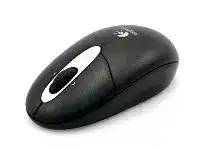
A wheel that scrolls sideways in one program but not another, or a pointer that wakes only after you shake the mouse, can make the Logitech RX650 Cordless Optical Mouse Driver the next thing to check. This model is a cordless optical USB receiver mouse with a tilt wheel, 1000 dpi tracking, and an older Logitech software generation.
The RX650 does not use Bluetooth, Logi Bolt, or a Unifying receiver. That single detail removes a lot of wrong fixes. Pairing from the Bluetooth menu will not help, and a modern receiver from another Logitech mouse should not be treated as a direct replacement for the RX650 receiver.
Most RX650 repair work starts with three areas: the receiver link, the battery and power behavior, and SetPoint support for wheel functions. The mouse may still move with a generic Windows profile, but the extra scroll behavior and Logitech-specific controls need the older control layer to behave properly.
Logitech RX650 Cordless Optical Mouse Windows Driver Download
| Driver Name | Description | Supported OS | File Size | Download |
|---|---|---|---|---|
| SetPoint 64-bit Software | Full SetPoint package for offline setup with mouse button settings, tracking speed, and device-specific controls. | Windows 11, Windows 10 64-bit, Windows 8 64-bit, Windows 7 64-bit | 80.45 MB | |
| SetPoint 32-bit Software | Full SetPoint package for offline installation with hot-key support, battery status, and Num Lock notifications. | Windows 11, Windows 10 32-bit, Windows 8 32-bit, Windows 7 32-bit | 78.04 MB | |
| SetPoint Smart Installer | Small SetPoint installer for mouse customization, Caps Lock status, and setup files downloaded during installation. | Windows 11, Windows 10 32-bit/64-bit, Windows 8 32-bit/64-bit, Windows 7 32-bit/64-bit | 4.61 MB | |
| Logitech Connection Utility | Utility for reconnecting the mouse with its receiver when Windows detects the device but input does not respond. | Windows 11, Windows 10 32-bit/64-bit, Windows 8 32-bit/64-bit, Windows 7 32-bit/64-bit | 1.04 MB |
Why this older receiver mouse needs a different repair path
The RX650 came from the plug-and-play cordless receiver period, so Windows can often load basic movement without much help. That does not prove the whole setup is healthy. A weak receiver path, low battery power, or missing SetPoint profile can still leave scrolling, tilt movement, and wake behavior unreliable.
Receiver Problems Before the Software Even Opens
When the mouse does not respond at all, avoid starting with repeated software installs. The receiver and mouse must talk first. If that link fails, the Logitech RX650 Cordless Optical Mouse Driver cannot restore pointer movement on its own, because the computer never receives steady input from the device.
The USB receiver is detected but the mouse stays dead
Plug the receiver into a direct USB port, then remove the mouse batteries for a short reset. Refit the batteries, wait for Windows to settle, and test movement on a plain surface. This refreshes both sides of the connection without changing every system setting at once.
If the receiver sits behind a desktop case or inside a crowded hub, move it to a clearer position for the first test. Older cordless receivers often work better when they have a less blocked path to the mouse. The fix may be placement, not a broken driver.
A replacement receiver does not work
The RX650 should be treated as a receiver-matched cordless mouse, not as a modern multi-device model. A USB receiver from a newer Logitech product may fit the port and still fail to communicate with this mouse. The similar shape of receivers causes many wrong assumptions.
Check the receiver that came with the RX650 before buying software or changing Windows settings. If the original receiver is lost, driver installation alone will not turn an unrelated dongle into the correct receiver. The receiver family matters more than the USB plug.
The mouse cuts out only at one desk
A desk position can create a problem that looks like a failing mouse. Metal surfaces, a tower under the table, large monitors, and other USB devices can reduce the useful wireless path. Test the RX650 with the receiver closer to the working area before you judge the hardware.
Do not make the first test through a docking station. Use a normal computer USB port, then compare other ports after the mouse behaves steadily. If movement improves, keep the receiver in the better position and leave the software alone.
SetPoint and Tilt Wheel Behavior on the RX650
The Logitech RX650 Cordless Optical Mouse Driver matters most when basic pointing works but the wheel controls feel incomplete. The RX650 has a tilt wheel, so vertical scrolling, side-to-side scrolling, and wheel assignments can depend on Logitech’s older SetPoint software rather than the generic Windows mouse panel.
Sideways scrolling does nothing
Test the tilt wheel in a spreadsheet or a wide document before assuming the feature is broken. Many web pages have nothing useful to move sideways, and some apps ignore horizontal scroll commands. A poor test window can make a working wheel look inactive.
If the app can scroll sideways and the tilt still fails, open SetPoint and check the wheel assignment. The left and right tilt actions may need their default scroll command restored. Apply one change at a time so you know which assignment actually affected the wheel.
Vertical scrolling jumps or changes speed suddenly
Wheel skipping often begins with dust rather than software. Turn the mouse off, remove the batteries, and clean around the wheel opening with gentle air or a dry cloth. Roll the wheel several times while the mouse has no power, then test scrolling in a simple local window.
After cleaning, adjust scroll speed in Windows or SetPoint only if the wheel still moves too many lines. Changing software settings before cleaning can hide the real issue and leave scrolling too slow later.
SetPoint sees the mouse but offers limited choices
Older Logitech devices can show fewer controls when the wrong software version or a mismatched profile loads. Remove overlapping Logitech mouse utilities if they compete for the same device, then reinstall the SetPoint package that supports the RX650 generation. Restart before checking the control panel again.
Newer Logitech apps focus on newer devices, so they may not give this model the same wheel and button options. Use the utility that understands the RX650 instead of forcing a modern control app onto an older cordless optical mouse.
Pointer Movement That Looks Like a Driver Fault
Optical tracking, surface choice, receiver position, and battery strength can all affect pointer behavior. The RX650 has 1000 dpi optical tracking, which works well on normal desk surfaces, but it still needs a surface the sensor can read clearly.
The pointer moves unevenly on glossy surfaces
Move the mouse to a plain matte mouse pad or a sheet of white paper. Glossy desks, glass, reflective patterns, and heavy texture can confuse an older optical sensor. If the pointer becomes steady on the plain surface, the driver was not the first problem.
Clean the sensor window with a dry lint-free cloth. Do not use liquid around the sensor opening. Dust near the optical window can make small movements look inaccurate, especially when the mouse sits idle for long periods between uses.
Movement pauses after the computer wakes
After sleep or hibernation, the USB receiver may wake before the mouse starts sending steady movement. Unplug the receiver after shutdown, restart the computer, then connect the receiver after Windows loads. This gives Windows a fresh USB detection pass without removing the Logitech software.
If the pause happens only after long idle time, check power first. A weak battery can let the mouse appear alive while the radio link struggles when it wakes. Replace the battery set together instead of mixing cells from different packages.
The cursor speed feels wrong after reinstalling software
SetPoint and Windows can both influence pointer speed. After reinstalling the RX650 software, check the Windows pointer slider and the Logitech pointer settings before changing hardware again. A reset setting can make the same mouse feel too fast or too slow.
Test with pointer acceleration both on and off if movement feels unpredictable. Some users prefer acceleration for large screens, while others need more direct movement. Keep the setting that gives controlled small movement first, then adjust speed.
Battery Checks That Save Unnecessary Reinstalls
The RX650 was promoted with smart power management and months of use from included batteries, but age changes how a cordless mouse behaves. Battery contacts can dull, springs can loosen, and cells that look fine in another device may not give steady power to the radio link.
The mouse works for a while, then stops again
Replace the batteries as a pair and check that they sit firmly in the compartment. A brief power break can make the pointer disappear, then return when the mouse is moved again. That kind of intermittent fault often looks like Windows dropped the device.
Clean only light residue from the contacts with a dry cloth. Avoid harsh scraping or liquid inside the battery bay. If the mouse cuts out when you tap or lift it, the battery fit deserves more attention than the driver.
The receiver reconnects after every battery change
If every battery change turns into a receiver problem, slow the process down. Turn the mouse off, remove the old cells, wait a moment, fit the new cells, then turn the mouse on before testing. Rushing the change can leave you unsure whether the issue came from power, receiver detection, or software.
Keep the receiver in the same USB port while testing batteries. Changing the port and batteries together creates two variables, and that makes the fault harder to isolate. Fix power first, then move the receiver only if pointer movement still drops.
Keep the RX650 Matched to Its Own Era
The Logitech RX650 Cordless Optical Mouse Driver works best as part of an older cordless setup, not as a modern Bluetooth or Bolt workflow. The practical order is simple: confirm the original receiver path, verify steady battery power, test the optical sensor on a plain surface, then adjust SetPoint controls for the tilt wheel.
When sideways scrolling fails, test the app and SetPoint assignment before replacing hardware. When movement fails, check receiver placement and battery contact before reinstalling the package. When the mouse wakes slowly, refresh USB detection and power first.
The RX650 remains useful because its tilt wheel and cordless design cover everyday navigation without needing a complex app stack. Treat the receiver as a matched part, keep the wheel area clean, and use software from the SetPoint generation when extra controls need attention.