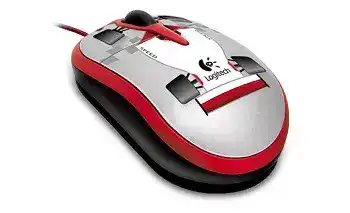
When Windows makes the connection sound but the pointer stays still, the Logitech Racer Mouse Driver is usually not a separate modern application. This three-button optical model connects through a wired USB interface and relies mainly on the Human Interface Device support built into the operating system. Start with the cable, USB port, Windows detection, and tracking surface before looking for extra Logitech software.
The Racer Mouse carries the model number M-UV94. It provides standard left-click, right-click, wheel scrolling, and middle-click functions without Bluetooth, a wireless receiver, batteries, adjustable DPI stages, or programmable gaming profiles. Windows 8 and Windows 10 list the device as compatible without desktop software, so a large control package should not be necessary for normal operation.
Logitech Racer Mouse Windows Driver Download
| Driver Name | Description | Supported OS | File Size | Download |
|---|---|---|---|---|
| SetPoint 64-bit | Full 64-bit package for offline setup of mouse buttons, tracking speed, hot-keys, device settings, and status indicators. | Windows 10 64-bit, Windows 8 64-bit, Windows 7 64-bit | 82.78 MB | |
| SetPoint 32-bit | Complete 32-bit offline installer for adjusting pointer behavior, mouse controls, battery status, Caps Lock, and Num Lock notifications. | Windows 10 32-bit, Windows 8 32-bit, Windows 7 32-bit | 80.35 MB |
Logitech Racer Mouse Mac OS Driver Download
| Driver Name | Description | Supported OS | File Size | Download |
|---|---|---|---|---|
| Logitech Control Center | Mac customization software for configuring mouse buttons, scrolling behavior, pointer response, shortcuts, and device-specific controls. | macOS 11.0, macOS 10.15, macOS 10.14, macOS 10.13 | 17.8 MB | |
| Logitech Control Center | Legacy Mac software for assigning mouse functions and managing tracking, scrolling, button actions, and application shortcuts. | Mac OS X 10.11, Mac OS X 10.10, Mac OS X 10.9, Mac OS X 10.8 | 17.06 MB |
Nothing happens after connecting the USB plug
Remove the mouse and connect it to another USB socket on the computer. Avoid an unpowered hub, monitor socket, keyboard pass-through port, or loose front-panel connection during this test. A direct socket can reveal whether the original port failed to provide steady power or could not complete device detection.
Leave the plug connected for several seconds while Windows identifies the hardware. If the pointer begins working in another port, the mouse itself may be fine. Test a different USB device in the first socket before changing system files or installing unrelated Logitech utilities.
Windows repeatedly connects and disconnects the mouse
Frequent USB sounds often indicate an unstable physical connection. Keep the mouse still and gently change the cable position near the plug. Repeat the check where the lead enters the shell. A disconnect that follows cable movement points to a damaged wire, worn plug, or strained cable entry rather than missing control software.
Check the metal plug for bending, dirt, or looseness. Insert it fully without forcing it. If the same interruption occurs on another computer, continued driver changes will not solve it. The cable or an internal connection needs attention.
Remove a Failed Windows Detection Without Adding Extra Software
The Logitech Racer Mouse Driver entry may appear under Mice and other pointing devices or Human Interface Devices in Device Manager. Windows can sometimes retain an incomplete entry after a power interruption, failed USB connection, system update, or forced shutdown. Removing that failed record lets the operating system identify the wired mouse again.
The mouse appears with a warning symbol
Connect a second mouse or use keyboard navigation before changing Device Manager. Find the warning-marked HID mouse or unknown USB device associated with the Racer Mouse, remove that failed entry, and restart the computer. Reconnect the Logitech device after Windows returns to the desktop so the built-in HID components load again.
Do not remove every USB controller or every HID entry at once. Keyboards, touchpads, drawing tablets, and other accessories may use the same categories. Disconnecting the Racer Mouse first can make its related entry easier to identify.
The device works until the next reboot
A port that loses power during startup may delay or miss detection. Try a different direct socket and shut the computer down fully instead of using only Restart. Disconnect other unnecessary USB accessories for the next startup, then attach the mouse after Windows has loaded.
Also review pending Windows updates and motherboard or computer-manufacturer USB controller updates. The Racer Mouse does not need a wireless pairing tool, but it still depends on the computer’s USB controller. A controller fault can affect several wired devices at once.
Windows reports an unknown USB device
Turn the computer off, remove its power source when practical, and leave it off briefly before starting again. This clears some temporary USB controller states. Connect the mouse without an extension cable and watch whether Windows identifies it as a standard HID-compliant mouse.
An unknown-device message on several computers changes the diagnosis. The operating systems are unlikely to share the same damaged entry, so inspect the plug and cable closely. A failing internal controller inside the mouse can produce the same message.
Pointer Movement Depends on the Sensor and Surface
The Racer uses optical tracking rather than a mechanical ball. Its sensor needs a surface with visible texture and consistent contrast. Clear glass, glossy laminate, mirrors, polished stone, and strongly reflective patterns can produce hesitation even when clicking and scrolling still work.
The pointer stays still but the buttons work
Place the mouse on a plain cloth pad, unprinted paper, or another matte surface. Check the sensor opening underneath for hair, dust, or fibres. Remove loose material with a soft dry brush or a gentle burst of air. Do not push tools into the opening or apply liquid directly to it.
If tracking returns on the new surface, no Logitech Racer Mouse Driver reinstall is required. Continue with a pad that gives the optical sensor enough detail to read. A desk finish that looks uniform to the eye may still reflect light unevenly beneath the sensor.
The cursor shakes while the mouse is stationary
Clean both the sensor area and the section of the desk beneath it. Vibrating speakers, an uneven desk, or a damaged pad can also produce tiny physical movements. Test the device away from those conditions before changing Windows pointer options.
Very high pointer speed can magnify small sensor changes. Open the Windows mouse controls, return the speed slider to a middle position, and temporarily turn off Enhance Pointer Precision. These changes make it easier to distinguish surface noise from acceleration behaviour.
Fast movement causes skips or sudden jumps
Try a larger matte pad and move the mouse without lifting one side of the shell. Dirt under the glide pads can tilt the sensor during a quick sweep. Wipe the feet with a dry cloth and remove material caught around their edges.
Connect the Racer directly to another USB socket as part of the same test. A brief data interruption can look like a tracking skip. If the pointer freezes exactly when the cable moves, focus on the lead rather than the optical surface.
Wheel and Click Faults Need Separate Tests
This Logitech model has three buttons, counting the wheel press as the middle button. It does not provide verified side controls, tilt-wheel commands, hardware sensitivity switches, or app-specific profiles. Keep testing centred on left-click, right-click, vertical scrolling, and the wheel press.
One wheel turn moves too many lines
Open the Windows mouse page and reduce the number of lines assigned to each wheel notch. Test the result in a long document with a visible vertical scrollbar. Some programs also maintain their own scrolling preferences, so compare more than one application before blaming the wheel hardware.
If one program scrolls normally and another moves by large blocks, inspect the second program’s preferences. When every program behaves the same way, the Windows wheel value or the physical encoder becomes the stronger suspect.
The page moves up while scrolling down
Unplug the mouse and clear loose debris from the narrow gap around the wheel with a soft brush. Rotate the wheel during cleaning so different areas become accessible. Avoid sprays and liquid cleaners because they can carry residue into the encoder and middle-click switch.
Reconnect the device and test it on another computer without installing additional software. Reversed movement that appears on both systems usually indicates wear or contamination inside the wheel mechanism. Operating-system changes rarely correct that physical fault.
Middle click does not work
Test the wheel press in several places. A browser may use it to open a link in another tab, while other programs use it for panning or provide no visible response. Choose a function that clearly accepts a middle click before deciding that the switch has failed.
Press straight down without rolling the wheel. If the action works only with heavy pressure or at a particular angle, the switch may be worn. Windows normally recognises this input through its standard mouse support, so no programmable-button utility is expected.
A single press produces two clicks
Adjust the double-click speed in Windows and use the folder test shown in Mouse Properties. A poorly chosen speed can make deliberate double-clicking difficult, but it does not normally create repeated clicks from one physical press. Compare the left and right buttons to see whether only one switch misbehaves.
Drag a desktop item slowly while holding the affected button. If the item releases and reconnects without lifting your finger, the switch contact may be worn. Test the same action on another computer. Identical behaviour there confirms that reinstalling HID support will not repair the click mechanism.
Older Systems, Adapters, and Startup Conflicts
The Racer Mouse originally covered older Windows versions and Mac OS X systems through a standard USB connection. Modern computers can still recognise basic USB mice, but adapters, docking stations, virtual-machine capture, and power-saving behaviour may interrupt an otherwise simple HID device.
The mouse stops after the computer wakes
Disconnect and reconnect the plug once. If that restores control, try another direct port and install pending chipset or USB controller updates from the computer manufacturer. Sleep problems often involve the host controller rather than the mouse’s button or sensor hardware.
Windows power management may turn off a USB hub to conserve energy. Review the hub’s power-management setting in Device Manager when several USB accessories fail after sleep. Change only the hub associated with the affected port and retest the next wake cycle.
A USB adapter or dock does not recognise it
Connect the mouse to the computer without the dock or adapter. This comparison matters more than repeatedly reconnecting the same chain. A simple wired mouse may still fail when an adapter does not pass HID traffic correctly or when a dock has reached its available power limit.
If a direct connection works, update the dock or adapter firmware where its manufacturer provides an official method. Otherwise, reserve a native USB socket for the mouse or use a proven powered hub. The Logitech device has no pairing process that can compensate for an incompatible adapter.
The pointer is trapped inside a virtual machine
Virtual-machine software may capture the USB mouse as a dedicated guest device instead of sharing normal pointer input. Release the captured device through the virtual-machine menu and let the host operating system manage it as a standard mouse. Enable specialised USB capture only when the guest system genuinely needs direct access.
A similar conflict can occur with remote-control tools or accessibility utilities that alter pointer behaviour. Close those programs temporarily and test local movement. Reinstalling Logitech software would not address an application that intercepts input after Windows has already detected the hardware.
Use the Smallest Software Path for This Three-Button Model
The Logitech Racer Mouse Driver should remain the standard HID support supplied by the operating system on later Windows releases. Logitech’s compatibility information marks the M-UV94 as functional on Windows 8 and Windows 10 without desktop software. SetPoint, Logitech Options, Options Plus, G HUB, Unifying Software, and Bolt tools do not add verified controls to this basic wired model.
Confirm the fault in a sensible order: use a direct USB connection, compare another port, inspect the cable, try a matte surface, clean the optical opening, and check the Windows mouse values. Then test the Racer on another computer. Each comparison separates software detection from wheel wear, switch wear, sensor trouble, or cable damage.
Keep the mouse connected through the port that detects it consistently. Use moderate pointer and wheel values, avoid reflective surfaces, and route the cable without sharp bends near either end. Those choices fit the Racer Mouse better than loading several control applications that were made for newer Logitech hardware.