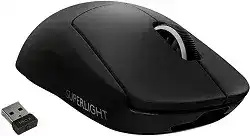
The Logitech PRO X SUPERLIGHT Wireless Gaming Mouse Driver becomes especially useful because this model has no dedicated DPI button on its upper shell. G HUB provides access to HERO 25K sensor sensitivity, report rate, button assignments, battery information, and onboard memory. Windows may operate the pointer immediately, but its standard HID support does not expose these gaming controls.
Install G HUB with the mouse connected through its LIGHTSPEED receiver or charging cable. This model does not offer Bluetooth, so a Bluetooth search will never find it. It uses a dedicated LIGHTSPEED USB receiver for wireless operation and a micro-USB cable for charging or wired use.
Logitech PRO X SUPERLIGHT Wireless Gaming Mouse Windows Driver Download
| Driver Name | Description | Supported OS | File Size | Download |
|---|---|---|---|---|
| Logitech G HUB | Customizes mouse buttons, pointer behavior, sensitivity settings, shortcuts, profiles, and other device controls. | Windows 11, Windows 10 32-bit/64-bit | 67.08 MB | |
| Onboard Memory Manager | Manages profiles and compatible settings stored directly in the mouse onboard memory. | Windows 11, Windows 10 32-bit/64-bit | 12.45 MB |
Logitech PRO X SUPERLIGHT Wireless Gaming Mouse Mac OS Driver Download
| Driver Name | Description | Supported OS | File Size | Download |
|---|---|---|---|---|
| Logitech G HUB | Provides mouse button assignments, pointer adjustments, profile controls, and device-specific settings on newer Mac systems. | macOS 26, macOS 15, macOS 14 | 11.36 MB | |
| Logitech G HUB | Configures sensitivity levels, programmable controls, application profiles, and supported mouse preferences on macOS 13. | macOS 13 | 10.43 MB | |
| Logitech G HUB | Enables button customization, pointer tuning, profile selection, and compatible hardware controls on macOS 11. | macOS 11 | 5.02 MB | |
| Logitech G HUB | Adjusts mouse functions, tracking preferences, shortcuts, and supported device profiles on macOS 10.15. | macOS 10.15 | 5.04 MB |
There is no button for changing DPI
The absent DPI switch is intentional rather than a missing part. Open G HUB, select the mouse, and create the sensitivity levels you need. You may assign DPI cycling or DPI Shift to one of the programmable thumb buttons, although doing so replaces that button’s previous command.
Players who use one fixed sensitivity can remove the extra DPI stages. Keeping a single value prevents an assigned control, profile change, or accidental command from producing a sudden jump in pointer speed. Save the chosen sensitivity to onboard memory when you want it to remain active without G HUB running.
Sensitivity changes when a game launches
G HUB can activate an application profile when it detects a game executable. That profile may contain a different DPI value or report rate from the desktop profile. Check the profile name shown near the top of the device screen while the game runs. Copy the preferred values into that profile or enable persistent profile mode.
Do not adjust Windows pointer speed and G HUB sensitivity at the same time while diagnosing the change. Return the operating-system slider to its usual position, disable pointer acceleration if your game setup requires direct movement, and then tune the HERO sensor value inside the Logitech software.
Onboard values do not match G HUB
Software mode and onboard memory mode store controls in different places. A profile that works while G HUB remains open may disappear after you close the application. Switch to onboard memory mode, select the hardware slot, and write the intended DPI, report rate, and button commands to that slot.
The Logitech PRO X SUPERLIGHT Wireless Gaming Mouse Driver can manage full software profiles, while Onboard Memory Manager offers a smaller tool for hardware-stored values. Avoid alternating between both utilities during the same edit. Finish the changes in one program, close it, and verify the result before opening the other.
Recover a Receiver That Appears Without Moving the Pointer
The PRO X SUPERLIGHT ships with a model-compatible LIGHTSPEED receiver. A normal Unifying receiver, Logi Bolt receiver, or receiver from an unrelated mouse cannot replace it through those products’ pairing programs. Use the Logitech tool intended for this gaming model when repairing its wireless link or pairing a suitable replacement receiver.
The mouse works through the cable but not wirelessly
Connect the receiver and the wired mouse directly to the computer. Open G HUB and allow any offered firmware updates to finish for both parts of the connection. An updated mouse can still fail wirelessly when the receiver remains on an older firmware revision. After both updates complete, open the device-pairing function and reconnect them.
During pairing, follow the requested power cycle exactly. Turn the switch underneath the mouse off, wait briefly, and turn it on when the utility asks. Keep another working pointing device available because the PRO X SUPERLIGHT may stop controlling the cursor for part of the process.
G HUB says the receiver is connected, but the mouse is inactive
An inactive label means the application can see some part of the hardware path but cannot communicate fully with the mouse. Disconnect the charging cable, reseat the receiver, and switch the mouse off and on. Then close G HUB from the system tray and reopen it after Windows finishes its USB connection sound.
If the inactive status remains, test the receiver in another direct port. Do not route it through a KVM switch, monitor, dock, or unpowered hub during diagnosis. Those devices may pass basic USB identification while interrupting the communication needed for firmware checks and pairing.
A replacement receiver refuses to pair
Confirm that the replacement specifically matches the original PRO X SUPERLIGHT rather than another LIGHTSPEED product with a similar-looking dongle. Logitech receivers are not universally interchangeable. Open Onboard Memory Manager when pairing this model to a new or existing compatible receiver, then select the receiver-pairing option and follow the on-screen sequence.
A failed attempt does not always indicate damaged hardware. Restart the computer with the receiver removed, connect the mouse by cable, open the utility, and insert the receiver only when needed. Remove other Logitech gaming receivers temporarily so the program does not present the wrong device.
Track Down Stutter, Dropouts, and Delayed Wake-Up
The supplied receiver extension adapter has a practical purpose. It brings the LIGHTSPEED receiver onto the desk and shortens the radio path. Logitech’s placement guidance keeps the mouse close to its receiver and separates the pair from strong 2.4 GHz sources. Hiding the dongle behind a metal tower can produce erratic movement even when Windows reports no USB error.
The pointer pauses during fast movement
Connect the receiver to the included adapter and place it near the mouse pad. Keep it away from a Wi-Fi router, wireless headset transmitter, and densely packed USB equipment. Compare the result with the receiver plugged directly into another computer port. The test reveals whether the pause follows radio placement or the mouse itself.
Clean the HERO sensor opening with dry air and inspect the surface under the mouse. Glass, reflective finishes, dirt, and heavily worn areas can disturb tracking. Try a plain, consistent mouse pad before changing sensitivity repeatedly. Sensor problems that occur in both wired and wireless modes deserve more attention than radio interference.
Movement becomes rough only at a high report rate
Lower the report rate temporarily in G HUB and retest the affected game. A reduced value can expose a USB controller, system load, or game-engine problem that becomes noticeable at the higher setting. Close overlays and unnecessary monitoring programs during the comparison rather than treating the lower rate as the only solution.
Keep the Logitech PRO X SUPERLIGHT Wireless Gaming Mouse Driver and receiver firmware current before blaming the sensor. Test the same profile in another game as well. Stutter limited to one title often comes from that game’s input mode, frame pacing, or background processing rather than a failing HERO sensor.
The mouse does not respond immediately after sleep
Move the mouse, click once, and allow a moment for the LIGHTSPEED connection to wake. When it repeatedly stays inactive, change the receiver’s USB port and inspect Windows power management for the relevant USB hub. Power-saving rules can suspend the port and delay reconnection after the computer resumes.
Test wake behavior without a dock or KVM switch. Also charge the battery before repeating the test, since an extremely low charge can resemble a sleep fault. A mouse that wakes normally through its cable but not through the receiver needs wireless-link checks rather than another Windows pointer adjustment.
Clicks, Wheel Input, and Charging Symptoms Need Separate Tests
Software problems and worn hardware can create similar results. Begin with a default onboard profile, remove macros from the affected controls, and test the mouse on another computer. Use both wired and LIGHTSPEED modes where relevant. A symptom that survives every profile and connection change probably does not come from G HUB.
One press registers as two clicks
Restore the left and right buttons to their standard functions. Check the operating system’s double-click speed, then test ordinary folder opening and single-selection behavior. If one physical press still produces two actions on another computer, the main switch may have developed a fault that software cannot correct.
Avoid scripts that discard rapid clicks. They can delay intentional input and hide the evidence needed for a warranty claim. Record when the duplicate input occurs, try a default profile, and use Logitech’s service channel when the behavior follows the mouse between systems.
A thumb button stops working in one game
The two left-side buttons may hold different commands in each G HUB profile. Open the profile assigned to the affected game and reapply the intended keystroke or mouse action. If the game runs as administrator, launch G HUB with matching permission so the program can deliver software-controlled commands to it.
Test the buttons with standard back and forward assignments outside the game. When they work elsewhere, review the game’s own bindings and remove duplicate commands. When a thumb control also fails under a default onboard profile on another computer, the problem is more likely physical.
The wheel jumps up while scrolling down
Turn the mouse off and clear loose debris around the wheel with gentle dry air. Rotate the wheel slowly while cleaning, but do not force it sideways or apply liquid. Restore the middle button to its default command and test scrolling on a long webpage with G HUB closed.
Reverse steps or skipped notches that continue on another computer usually point to the wheel encoder. A driver reinstall rarely changes that pattern. Do not open the lightweight shell as an early fix, especially while warranty coverage remains available.
The battery percentage remains stuck
Connect the micro-USB cable to a powered computer port, switch the mouse off and on, and reopen G HUB. The displayed value may refresh only after the device reconnects. Test another data-and-charging cable when the percentage never rises, since a worn cable can provide an unstable connection or no useful charging current.
Bypass keyboard ports, passive hubs, and sleeping laptop ports during this check. Leave a deeply discharged unit connected before expecting immediate wireless use. If it works through the cable but shuts down as soon as you unplug it after a full charging period, the internal battery may need service.
Charging works only when the cable sits at an angle
Inspect the plug and recessed micro-USB socket for dust or damage. A cable that needs sideways pressure can interrupt charging and wired data whenever the mouse moves. Compare it with another compatible cable that fits the opening properly. Stop using a connection that feels loose enough to strain the port.
Finish With a Stored Competition Profile
After the receiver, sensor, clicks, and battery behave normally, build one restrained onboard profile. Save the required DPI, report rate, and essential button commands, then close G HUB and confirm that every stored value remains active. This check matters on tournament computers where background software may be restricted or unavailable.
The Logitech PRO X SUPERLIGHT Wireless Gaming Mouse Driver should show the expected battery level and profile before you make extra application presets. Add those presets gradually and test each game after the change. Keeping the first hardware slot predictable gives you a known working configuration whenever a software profile, update, or executable detection rule behaves unexpectedly.