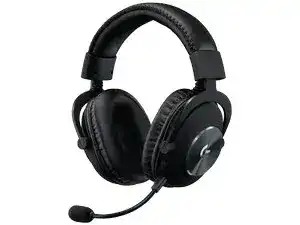
If the microphone sounds thin, the headset disappears from G HUB, or surround processing suddenly changes, the Logitech PRO X Gaming Headset Driver is closely tied to the external USB sound card rather than the headset cable alone. The wired PRO X can also operate through analog connections, but PC features such as BLUE VO!CE filters and DTS Headphone:X 2.0 depend on G HUB and the USB audio path.
Logitech PRO X Gaming Headset Windows Driver Download
| Driver Name | Description | Supported OS | File Size | Download |
|---|---|---|---|---|
| Logitech G HUB Software | Manages compatible headset settings, audio controls, profiles, and other G HUB features for the PRO X Gaming Headset. | Windows 11, Windows 10 32-bit/64-bit | 67.75 MB |
Logitech PRO X Gaming Headset Mac OS Driver Download
| Driver Name | Description | Supported OS | File Size | Download |
|---|---|---|---|---|
| Logitech G HUB Software | Provides G HUB controls for configuring compatible headset audio features and saved device preferences on newer macOS releases. | macOS 26, macOS 15, macOS 14 | 12.43 MB | |
| Logitech G HUB Software | Supports headset configuration through G HUB, including compatible sound controls and profile management on macOS 13. | macOS 13 | 10.43 MB | |
| Logitech G HUB Software | Enables G HUB device setup and adjustment of supported PRO X Gaming Headset settings on macOS 11. | macOS 11 | 5.02 MB | |
| Logitech G HUB Software | Installs G HUB for managing supported headset functions and device preferences on systems running macOS 10.15. | macOS 10.15 | 5.04 MB |
Logitech PRO X Gaming Headset Driver When G HUB Loses the Headset
A PRO X that still produces ordinary Windows audio can nevertheless vanish from G HUB. Before changing microphone presets or EQ, check which connection the computer is using. G HUB features for this model rely on the external USB sound card. Plugging the headset straight into a 3.5 mm audio jack bypasses that USB device, so the software will not have the same control path.
The headset appears inactive or never finishes loading
Reconnect the USB sound card directly to another computer USB port and give Windows time to detect the audio device again. A port change has fixed cases where the headset lost output or behaved incorrectly through the DAC. Keep hubs and unnecessary adapters out of the test because they make it harder to tell whether Windows is having trouble with the Logitech hardware itself.
If Windows recognizes the DAC but G HUB remains stuck, close G HUB fully and restart it. When that changes nothing, removing the PRO X audio entry from Device Manager, disconnecting the USB sound card, restarting Windows, and then reconnecting it can force a fresh base audio-device installation. Reinstall G HUB afterward if its device integration still fails.
Sound stops after installing or updating G HUB
This symptom deserves a different test from a dead headset. Disconnect the DAC, restart the computer, and let Windows establish the device before opening freshly installed Logitech software. If sound existed before G HUB was installed and disappears immediately afterward, rebuilding the Windows audio entry and the G HUB installation is more relevant than replacing cables at random.
Check the selected Windows playback device once the DAC returns. Another monitor, controller, motherboard output, or USB audio product can become the active output during a reinstall. G HUB may display the PRO X correctly while Windows sends the actual game sound somewhere else.
BLUE VO!CE problems need a microphone-path check first
BLUE VO!CE is one of the main differences between an ordinary analog connection and the PRO X USB configuration. Its real-time filters run through G HUB on PC. When a filter sounds correct in the software preview but teammates hear an untreated, faint, or completely silent microphone, first confirm that the voice application is listening to the Logitech microphone associated with the USB sound card.
The microphone has no signal after G HUB installation
Start with the physical microphone connection. The PRO X uses a detachable boom microphone, so remove it and insert it firmly again. Then check the mute control on the PC cable. Headphone playback can continue even when the voice path has been muted or the microphone plug is not making full contact, which makes the failure look more like a software problem than it is.
Next open the Windows recording controls and speak while watching the input meter. No movement there means the problem exists before Discord, a game, or another chat program receives the signal. If Windows does show microphone activity, leave the hardware alone and select that same Logitech input inside the application that cannot hear you.
BLUE VO!CE changes are audible in G HUB but not in chat
A voice program can hold onto another microphone even after G HUB is processing the PRO X correctly. Set the Logitech headset microphone explicitly inside the program rather than depending on an automatic input choice. Also avoid stacking several aggressive noise-removal or voice-processing systems while diagnosing the problem because one program may change the sound after BLUE VO!CE has already processed it.
Turn extra voice effects off temporarily and establish a plain microphone signal first. Once other people can hear the untreated input consistently, enable BLUE VO!CE and compare filters one at a time. This approach makes it much easier to identify whether a strange voice comes from the Logitech processing, Windows, or the communication application.
The microphone is extremely quiet
Do not begin by applying heavy compression or maximum gain. Check that the boom microphone is seated properly, the inline mute control is open, and Windows is receiving the intended PRO X input. Then adjust microphone level inside G HUB and the operating system. A connection that is barely making contact can produce an unusually weak signal that software gain only makes noisier.
PRO X software when EQ or surround sound does not behave as expected
The Logitech PRO X Gaming Headset Driver and G HUB also provide the PC audio-processing path for EQ and DTS Headphone:X 2.0 surround sound. Those functions are not equivalent to connecting the 3.5 mm cable straight to an ordinary sound card. If changing EQ sliders produces no audible difference, confirm that playback is actually passing through the Logitech external USB sound card.
EQ changes make no difference
Play familiar audio while changing one EQ band noticeably. If the sound remains identical, look at the active Windows output and verify that the PRO X USB audio device is in use. Some owners have encountered cases where microphone processing responded but headphone EQ did not, so separate the playback test from the microphone test instead of assuming every G HUB function has failed together.
The DAC itself becomes a useful dividing point. Test normal audio through the analog connection and then through the USB sound card. If the headset sounds normal through analog but G HUB playback controls remain ineffective through USB on more than one computer, the external sound card deserves closer attention rather than another round of headphone-cable changes.
Updating the DAC memory does nothing
G HUB can store an audio EQ profile in the PRO X external sound card for use away from the software. If the command to update its onboard memory never completes, first confirm that the DAC is the connection G HUB currently controls. Restart the application and reconnect the DAC before trying to save the profile again.
If the save operation still fails on another computer while the same DAC shows the same behavior, the fault is less likely to be an isolated Windows configuration. Avoid repeatedly removing unrelated audio drivers at that stage. The repeated failure across computers gives the USB sound card itself much more diagnostic weight.
Surround sound makes games sound distant or strange
DTS Headphone:X 2.0 changes spatial processing, so it will not suit every game or every player’s preference. Compare the same scene with surround processing enabled and disabled instead of trying to correct an unwanted spatial effect only with EQ. Games that already perform their own headphone virtualization can also sound different when another surround layer is active.
Keep the comparison controlled. Use the same Windows output, game volume, and PRO X connection for both tests. If stereo immediately restores clearer positional audio for a particular game, leave DTS processing off for that title rather than treating the change as evidence that the headset driver has failed.
Uneven channels and muffled sound can point away from software
Not every PRO X audio complaint comes from G HUB. Unequal left and right volume, crackling near the inline control, or audio that changes when a plug moves should lead back to the wired signal path. Reinstalling G HUB will not repair a contact problem between the headset, cable, and external sound card.
One ear becomes quieter than the other
Move the inline volume wheel through its range and return it to a comfortable position. Some channel-imbalance cases have cleared after the wheel was exercised from low to high, suggesting that the symptom can sit in the analog control path. Also reseat the headset cable firmly and compare USB-DAC playback with a direct analog test where your computer provides a suitable connection.
If the same ear remains quieter through different compatible outputs and another device, software becomes a much weaker explanation. Check Windows channel balance before drawing that conclusion, but once balance is equal and the symptom follows the headset across devices, focus on the physical headset and cable rather than EQ presets.
The USB sound card sounds muffled while analog audio sounds clearer
Compare both paths at similar listening levels before changing anything else. The USB connection can introduce G HUB EQ and surround processing that are absent from direct analog playback. Disable surround processing and return EQ to a neutral state. If clarity returns, rebuild your audio profile from that baseline instead of compensating for several active effects at once.
If USB playback remains obviously different even with processing reset, try another USB port and another computer. A consistent analog-versus-DAC difference across machines narrows the problem to the USB path. That test is far more informative than repeatedly changing game audio options that affect both sides of the comparison.
Test the PRO X by splitting its audio paths
The wired design makes this headset unusually practical to diagnose because the analog headset and Logitech USB processing can be compared separately. When the Logitech PRO X Gaming Headset Driver or G HUB appears to be the problem, test whether plain analog headphone and microphone operation still works. Then return to the DAC and check Windows detection, G HUB recognition, EQ, BLUE VO!CE, and surround functions separately.
A failure that exists only through USB belongs near the DAC, Windows audio device, or G HUB path. A microphone problem that remains through different compatible connections deserves attention at the detachable boom, cable, and mute control. Uneven sound that follows the headset to another device points somewhere else again. Keeping those paths separate turns a vague PRO X problem into a much smaller set of things worth fixing.