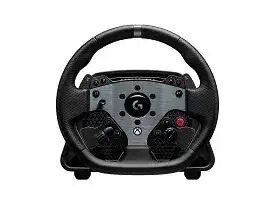
A wheel that appears in Windows but delivers no steering force usually needs more than a USB reconnect. The Logitech PRO Racing Wheel for PS and PC Driver gives G HUB access to firmware, operating mode, torque, steering range, TRUEFORCE, pedal assignments, clutch paddles, and five onboard profiles. This 11 Nm direct-drive model works with PlayStation 5, PlayStation 4, and PC, but each platform and racing title still needs the right mode and control mapping.
Logitech PRO Racing Wheel for PS and PC Windows Driver Download
| Driver Name | Description | Supported OS | File Size | Download |
|---|---|---|---|---|
| Logitech G HUB | Provides wheel configuration, pedal calibration, force feedback adjustments, operating range controls, button assignments, and device settings. | Windows 11, Windows 10 32-bit/64-bit | 67.08 MB |
Logitech PRO Racing Wheel for PS and PC Mac OS Driver Download
| Driver Name | Description | Supported OS | File Size | Download |
|---|---|---|---|---|
| Logitech G HUB Installer | Installs G HUB for configuring racing wheel controls, force feedback behavior, pedal response, profiles, and supported device features. | macOS 26, macOS 15, macOS 14 | 11.36 MB | |
| Logitech G HUB for macOS 13 | Enables racing wheel profile management, control assignments, steering range changes, pedal tuning, and force feedback settings on macOS 13. | macOS 13 | 10.43 MB | |
| Logitech G HUB for macOS 11 | Supports device recognition and adjustment of wheel sensitivity, pedal response, button functions, and game-specific profiles on macOS 11. | macOS 11 | 5.02 MB |
Logitech PRO Racing Wheel for PS and PC Driver When Force Feedback Disappears
Start with the power supply when the wheel has buttons and steering input but little or no resistance. USB carries control data, while the separate power connection runs the direct-drive motor. Push the power cable firmly into the wheelbase, check the connection at the power brick, and use a working wall outlet. A loose power lead can leave the device partly visible without producing normal force.
G HUB sees the wheel but the game has no steering force
Open G HUB before launching the racing title and confirm that the wheel responds on its device screen. Set a moderate torque value for the first test rather than starting at the full 11 Nm. Inside the game, choose the wheel as the steering controller and map steering, throttle, brake, shifting, and force feedback. Several games keep an old controller preset after new hardware appears.
Check whether the title has separate switches for force feedback, vibration, and TRUEFORCE. Standard force feedback can work even when TRUEFORCE remains unavailable because only supported games provide the additional high-frequency effects. A lack of engine texture does not always mean the direct-drive motor has failed.
Feedback vanishes after a G HUB or game update
Power down the wheelbase, close the game, and exit G HUB completely. Reconnect the USB cable directly to the PC, switch the base on, and reopen G HUB before starting the game. This order forces the software and title to build a new control session instead of continuing with a stale device connection left by the update.
If the failure began immediately after a profile change, select the default profile and retest. Also remove conflicting force-feedback tools that still hook into an older wheel. Two control programs trying to manage the motor can produce weak centering, delayed effects, or no output at all.
The wheel feels violent on straights
Strong oscillation often comes from an aggressive combination of wheel torque, low damping, and high in-game gain. Reduce the game’s force-feedback strength first, then add a small amount of wheel dampening or filter through the onboard display. Leave enough force below the maximum so heavy corners do not clip all detail into one constant load.
Do not release the rim when the car is moving. A direct-drive base can accelerate quickly from side to side. Begin with conservative values, especially on a desk mount or light cockpit, and increase strength only after the rig remains secure and the car stays controllable.
PC Detection, Firmware, and Compatibility Modes
G HUB shows an inactive or incomplete wheel
Connect the USB cable to the computer rather than through a monitor, keyboard port, or unpowered hub. Try another direct USB port if the wheel display turns on but G HUB does not finish detection. Then open Windows Game Controllers and check whether steering and buttons respond there. This separates a game configuration fault from a system-level connection problem.
The Logitech PRO Racing Wheel for PS and PC Driver may also remain on a loading screen when G HUB services fail to start. Restart Windows after installing the current G HUB package. If detection still stalls, remove G HUB, reboot, install it again, and connect the wheel only when the application is ready.
Firmware update stops or never begins
Keep the power supply and USB cable connected throughout the update. Avoid USB switches, extension leads, and sleep mode until the process finishes. Open the wheel’s device settings in G HUB and use the firmware option shown there rather than an old standalone updater. The base, wheel drive system, and attached controls may each require compatible firmware.
Do not start a race or change platforms while firmware is being written. When G HUB completes the update, switch the base off for several seconds and restart it. Reopen the device page and confirm that no second update prompt remains before testing steering.
An older PC game does not list the PRO wheel
The wheel includes a G923 compatibility mode for titles that recognize the older Logitech model but not the PRO hardware. Change the operating mode through the wheel’s onboard settings, restart the game, and rebuild its controller assignments. Compatibility mode changes how the wheel identifies itself; it does not add support to a game that has no wheel input or force-feedback system.
Return to the native PRO mode for newer titles that list the device directly. Native mode exposes the expected PRO controls and lets supported software use its full feature set. Keep separate onboard profiles when two games need different modes, steering ranges, or force levels.
Correct Steering, Pedal, and Paddle Inputs
The car turns before the physical wheel reaches the same angle
Match the wheel’s steering range with the value selected inside the game. A 900-degree wheel setting paired with a much smaller in-game range makes the virtual car reach full lock too early. Some simulations apply automatic steering lock by vehicle, while others expect one fixed value. Disable duplicate automatic adjustments when the rim and on-screen wheel disagree.
Test the steering axis in G HUB before changing sensitivity curves. The indicator should travel smoothly from left to right and return near the middle. A nonlinear game setting can make the first part of rotation too sharp even when the wheelbase itself reads correctly.
The physical center does not match the game
Update G HUB and the wheel firmware before resetting center calibration. Open the wheel’s device settings, select the center calibration option, hold the rim at the true physical center, and save that position. The base stores the result in firmware, so the corrected center also applies when the wheel later connects to a PlayStation console.
Use this calibration for a consistent offset that appears in G HUB as well as games. When only one car pulls sideways, inspect that title’s steering dead zone, vehicle damage, alignment, or controller calibration instead of repeatedly changing the wheel’s stored center.
Throttle or brake remains at zero or shows full input
Confirm that the pedal cable is fully seated in the correct accessory port on the base. Open G HUB and press each pedal slowly while watching its axis. If the software reads the pedals normally, clear the game’s old pedal bindings and assign each axis again. Some titles detect an axis in the opposite direction and provide an invert option.
A combined-pedal setting can also confuse games that expect separate throttle and brake axes. Use independent axes for modern simulations unless a particular older title requires another arrangement. Set dead zones only large enough to remove a small resting signal; excessive dead zone shortens usable pedal travel.
Dual clutch paddles do not act as expected
The lower analog paddles can serve as a dual clutch, handbrake, throttle, brake, or other analog controls. Their behavior depends on the selected assignment and whether the game accepts that input type. Configure the paddle function through the wheel settings, then bind the corresponding axes or controls inside the game.
For a dual-clutch launch, both paddles need the intended clutch configuration and bite-point value. A title without dual-clutch support may read them only as separate axes or ignore them. Try a supported control assignment before assuming the magnetic paddle hardware has stopped responding.
Display, Profiles, and Game-Specific Behavior
Onboard adjustments seem to reset
The wheel stores five racing profiles, and each profile can hold different torque, steering angle, filter, dampening, TRUEFORCE, and pedal-related choices. Check the active profile number on the integrated display before changing values. A profile switch can make previous adjustments appear lost even though they remain saved in another slot.
Build profiles around individual games or driving styles instead of changing one slot for every session. For example, a rally title may need a different steering range and damping level from a circuit simulator. Save the profile after editing, then verify that the display returns to the same values after a power cycle.
RPM LEDs or the display do not react in one game
The wheel can show settings and support RPM lighting, but game telemetry controls whether racing data reaches those indicators. First confirm that the display works in the onboard menu. If it does, inspect the game’s telemetry, peripheral, or LED options and choose the PRO wheel preset where one exists.
Some titles supply steering and force feedback without providing every display or LED feature. Test another officially compatible game before treating missing RPM lights as a hardware fault. Game updates can also alter telemetry support while basic buttons and steering continue to work.
PlayStation detects menus but not steering in the race
Use the PlayStation and PC version of the wheelbase, select the PlayStation operating mode, and sign in with the wheel’s controls when the console requests a user. Launch the game after the console recognizes the device. If menus respond but driving does not, open the title’s controller section and choose its steering-wheel preset rather than the standard gamepad layout.
The PlayStation version does not become an Xbox-compatible base by selecting G923 mode. That mode only makes it identify as the PlayStation and PC version of a G923 for older supported games. Console compatibility depends on the licensed wheel hardware, not on a software label.
Build a Profile That Preserves Detail
Once the Logitech PRO Racing Wheel for PS and PC Driver detects the complete system, tune one variable at a time. Begin with moderate wheel torque, a matched steering range, low but useful damping, and a game gain that avoids clipping. Add TRUEFORCE strength afterward, because its engine and road texture can mask changes to the underlying steering load.
Keep a neutral profile for diagnosis and separate profiles for demanding titles. When a problem returns, test the neutral slot, confirm the native or G923 compatibility mode, inspect the game bindings, and check power before rebuilding software. This approach keeps force, steering, pedals, paddles, and display behavior separate enough to locate the actual fault.