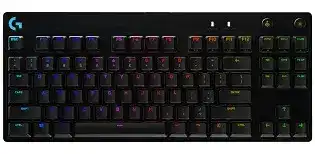
Missing lighting controls, disabled Windows keys, or a keyboard that vanishes from Logitech Gaming Software can make the hardware appear faulty even while ordinary typing still works. The Logitech Pro Mechanical Gaming Keyboard Driver adds access to per-key RGB lighting, Game Mode choices, function-key assignments, profiles, and the onboard lighting memory used by this wired tenkeyless model.
Logitech Pro Mechanical Gaming Keyboard Windows Driver Download
| Driver Name | Description | Supported OS | File Size | Download |
|---|---|---|---|---|
| Logitech G HUB | Configures keyboard lighting, game profiles, programmable keys, and supported device settings through G HUB. | Windows 11, Windows 10 32-bit/64-bit | 39.65 MB | |
| Logitech G HUB Installer | Installs G HUB for managing keyboard assignments, lighting effects, and application-specific gaming profiles. | Windows 10 32-bit/64-bit, Windows 8 32-bit/64-bit, Windows 7 32-bit/64-bit | 39.36 MB | |
| Logitech Gaming Software 64-bit | Full 64-bit package for offline setup of keyboard macros, key assignments, lighting controls, and gaming profiles. | Windows 10 64-bit, Windows 8 64-bit, Windows 7 64-bit | 120.04 MB | |
| Logitech Gaming Software 32-bit | Complete 32-bit installation package for setting keyboard commands, macros, illumination, and game-based profiles offline. | Windows 10 32-bit, Windows 8 32-bit, Windows 7 32-bit | 109.04 MB |
Logitech Pro Mechanical Gaming Keyboard Mac OS Driver Download
| Driver Name | Description | Supported OS | File Size | Download |
|---|---|---|---|---|
| Logitech G HUB | Manages compatible keyboard lighting, programmable commands, onboard profiles, and game-specific configurations on newer macOS releases. | macOS 13, macOS 12.0, macOS 11 | 5.03 MB | |
| Logitech Gaming Software | Controls keyboard backlighting, custom key functions, macros, and saved gaming profiles on supported macOS systems. | macOS 10.15, macOS 10.14, macOS 10.13, macOS 10.12 | 204.99 MB | |
| G HUB Installer | Sets up the G HUB application for assigning keyboard functions, adjusting lighting patterns, and organizing gaming profiles. | macOS 10.15, macOS 10.14, macOS 10.13, macOS 10.12, macOS 10.11, macOS 10.10, macOS 10.9, macOS 10.8 | 5.08 MB | |
| Logitech Gaming Software | Provides legacy Mac controls for keyboard shortcuts, lighting adjustments, command sequences, and individual game profiles. | Mac OS X 10.11, Mac OS X 10.10, Mac OS X 10.9, Mac OS X 10.8 | 180.47 MB |
Logitech Pro Mechanical Gaming Keyboard Driver When Software Shows No Device
The keyboard connects through its detachable USB cable and normally starts typing through the standard Windows keyboard interface. Logitech Gaming Software handles the extra controls. When the program opens to an empty screen, disconnect the cable from both ends, inspect the plugs, and reconnect it firmly. The keyboard-side connector can feel attached before it has seated completely.
Typing works but Logitech Gaming Software stays blank
Plug the USB Type-A end into a direct computer port rather than a hub, monitor, extension, or docking station. Close Logitech Gaming Software before changing the connection, then reopen it after Windows finishes detecting the keyboard. A direct USB 2.0 or USB 3.x port is suitable, but another port may clear a stalled device registration.
Check whether another Logitech control program is trying to manage the same keyboard. This original Pro model launched with Logitech Gaming Software, while newer Logitech products often use G HUB. Running both can create confusing detection results. Exit the unused program and test the keyboard again before removing either package.
The device appears only after every restart
Windows Fast Startup can preserve a failed USB state across shutdowns. Use Restart instead of Shut down for the first test because Restart performs a fuller reload of USB devices and background services. Once the keyboard appears consistently, reconnect other USB accessories one at a time. A crowded hub or unstable dock may be pulling the connection down during startup.
Open Device Manager when the problem continues and look for an unknown USB device or a keyboard entry with a warning mark. Remove only the failed entry, unplug the keyboard, and restart Windows. Reconnect it after reaching the desktop. Windows should rebuild the standard interface before Logitech Gaming Software adds its control layer.
The installer completes but no controls become available
Match the software edition to the operating system and install it from an administrator account. Security software can stop the Logitech background service while allowing the visible program to install. Restart after installation, then open the utility from its normal shortcut. Repeatedly running the installer without restarting can leave an older service active in memory.
The Logitech Pro Mechanical Gaming Keyboard Driver should identify the keyboard as the wired Pro Gaming Keyboard rather than a newer Pro X model. These names refer to different hardware generations. Software meant for a hot-swappable Pro X keyboard does not change the Romer-G switches or firmware found in the original model.
RGB Effects That Freeze, Reset, or Ignore Profiles
Each key has selectable RGB lighting, and the keyboard can retain lighting information in onboard memory. Logitech Gaming Software also provides fixed colors, breathing effects, color cycles, key-press effects, zones, and profile-based layouts. A lighting fault may come from the physical backlight toggle, a profile switch, an outdated firmware revision, or a damaged effect saved in the software.
No keys light after connecting the cable
Press the backlight control near the upper-right corner before changing software. Its indicator may also be disabled by a lighting layout, so the absence of an indicator does not always mean the key failed. Try another effect inside Logitech Gaming Software, raise the brightness, and check whether a simple fixed color reaches every key.
Disconnect the cable for about ten seconds when the keyboard remains dark. Reattach the keyboard-side plug first, then connect the USB end directly to the computer. Testing it on another computer can separate a stored lighting or software problem from a hardware fault. Basic illumination should not depend on a game being open.
A custom effect returns to the default pattern
Confirm whether Logitech Gaming Software is using automatic game detection or onboard memory. These modes do not always display the same effect. Automatic detection can load a different layout whenever a linked executable starts, while onboard memory keeps the lighting stored in the keyboard. Save the intended layout in the mode you actually use.
Profile paths can break after a game update moves its executable. Edit the profile and point it to the current program file. Also check for a persistent profile, which overrides normal switching and can make every application display one lighting scheme. Remove that override when colors should change with individual games.
Animated lighting options do not appear
Animated effects require a compatible Logitech Gaming Software release and suitable keyboard firmware. Open the keyboard settings page and check the firmware revision. The Pro Gaming Keyboard needs firmware version 113.0.9 or later for the Lighting Editor effects documented for this model. Run the available update through Logitech Gaming Software while the keyboard remains connected directly.
Do not unplug the cable or close the utility during a firmware update. If the update prompt never appears, restart the software and confirm that it can identify the keyboard first. Firmware tools cannot update hardware that the control program sees only as a standard USB keyboard.
One key shows the wrong RGB color
Assign the entire board a solid red, green, and blue color in separate tests. A key that fails only within one saved animation probably has a bad effect assignment. Delete that effect and create a new one. A key that cannot display one primary color during a solid-color test may have an LED fault rather than a software problem.
Game Mode, Function Keys, and Profile Confusion
This compact model has no separate macro column. Logitech Gaming Software can assign actions to the F1 through F12 keys, while Game Mode prevents selected keys from interrupting play. Problems often begin when a profile disables more keys than expected or when the keyboard stays in Game Mode after leaving a game.
The Windows key and menu key suddenly stop working
Look at the Game Mode control in the upper-right area. When its indicator is active, the keyboard blocks the Windows and menu keys by design. Press the Game Mode key once to restore normal desktop use. Reinstalling the Logitech Pro Mechanical Gaming Keyboard Driver will not reactivate those keys while the physical mode remains enabled.
Logitech Gaming Software can block additional keys within each profile. Open the Game Mode settings and inspect the keyboard image. Disabled keys appear separately from active ones. Re-enable anything that was turned off accidentally, then save the profile before testing outside the software.
F-keys launch commands instead of working normally
An application profile may contain assignments for F1 through F12. Open the active profile and remove the unwanted command from the affected key. Check both the default profile and the profile linked to the running game because automatic detection can switch layouts without showing a notification.
Test the key after closing the game. Normal behavior on the desktop points to a game-specific assignment rather than switch damage. When the key remains altered everywhere, inspect any persistent profile and restore the function to its default action.
Profile switching follows the wrong game
Several games use launchers, helper programs, or anti-cheat processes before the main executable starts. Linking a profile only to the launcher can cause Logitech Gaming Software to return to the desktop layout as soon as the launcher closes. Add the executable that remains active during play, or associate all relevant executable files with the same profile.
Duplicate profiles can also fight for the same application. Keep one finished profile for the game, export it as a backup, and remove abandoned copies from automatic detection. This prevents old lighting and function-key assignments from returning unexpectedly.
Keys That Repeat, Miss Presses, or Feel Inconsistent
The original Pro keyboard uses soldered Romer-G mechanical switches rather than the removable switch system found on the later Pro X. Software can explain a repeated command across many keys, but a single key that double-types or misses presses may need cleaning or hardware service. Start with non-invasive checks before treating it as a failed switch.
One key types twice from a single press
Close Logitech Gaming Software and test the key in a plain text field. If the duplication stops, inspect the active profile for a macro, repeated keystroke, or command delay. Remove the assignment and return the key to its standard function. Also check the Windows keyboard repeat rate when many keys repeat too quickly.
If only one switch continues to chatter, unplug the keyboard and use short bursts of compressed air around the keycap. Keep the can upright and avoid spraying liquid cleaner into the switch. Reconnect the keyboard and test again. Persistent chatter across another computer usually points to switch wear rather than the Logitech software.
A key responds only when pressed hard
Remove loose debris around the affected keycap with the keyboard disconnected. Compare the feel with adjacent Romer-G switches. A binding keycap can catch on dirt or sit unevenly, while a worn internal contact may register only under extra pressure. Do not force the key repeatedly because that can worsen a damaged switch or stem.
Since the switches are not intended for quick user replacement, avoid pulling the board apart for routine troubleshooting. Test the keyboard on another USB port and another computer first. Hardware service or replacement becomes the safer route when the same physical key misses presses everywhere.
Several keys fail only inside one game
Turn off Game Mode and remove custom F-key assignments for a quick comparison. Then check the game’s own key bindings, text-chat state, overlays, and accessibility options. A conflict inside one title does not usually indicate a USB or switch problem when the same keys work in other programs.
Some games react badly to overlays or profile integrations after an update. Disable the affected game profile temporarily and run the default layout. Rebuild the profile only after normal input returns, adding lighting and function assignments in small groups so the conflicting command becomes easy to identify.
Settle Cable and Firmware Problems Before Rebuilding Profiles
The detachable cable makes transport easier, but it also adds another connection point. A keyboard that disconnects when the cable moves needs attention at both plugs. Reseat the connector, try another direct USB port, and inspect the cable for bends near either end. Avoid holding the keyboard connection under sideways tension from a tightly routed cable.
Once detection remains steady, update the supported firmware, confirm a basic fixed lighting color, test Game Mode, and check every key without imported profiles. Add saved layouts only after the hardware passes those checks. This order keeps a damaged profile from looking like a keyboard defect and prevents a loose USB connection from being mistaken for a failed installation.
The Logitech Pro Mechanical Gaming Keyboard Driver is most useful when the standard keys already respond but RGB controls, Game Mode choices, F-key assignments, or saved lighting are missing. When individual Romer-G switches still repeat or fail on another computer, software changes have reached their limit, and the remaining fault is likely inside the keyboard.