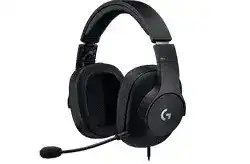
When game audio works but the microphone stays silent, the Logitech PRO Gaming Headset Driver is only part of the path to check. This wired gaming headset uses a USB DAC on PC, while its detachable microphone, PC cable, mute control, and physical plugs can each affect recording. Separating a cable problem from a USB or software problem usually saves more time than repeatedly reinstalling G HUB.
Logitech PRO Gaming Headset Windows Driver Download
| Driver Name | Description | Supported OS | File Size | Download |
|---|---|---|---|---|
| Logitech G HUB | G HUB software for configuring compatible headset settings, audio controls, profiles, and device-specific options. | Windows 11, Windows 10 32-bit/64-bit | 67.75 MB |
Logitech PRO Gaming Headset Mac OS Driver Download
| Driver Name | Description | Supported OS | File Size | Download |
|---|---|---|---|---|
| Logitech G HUB | G HUB package for managing supported headset audio settings, profiles, and connected Logitech gaming devices on newer macOS releases. | macOS 26, macOS 15, macOS 14 | 12.43 MB | |
| Logitech G HUB | G HUB software for adjusting compatible headset functions and maintaining device profiles on macOS 13. | macOS 13 | 10.43 MB | |
| Logitech G HUB | G HUB release for controlling supported gaming headset settings and saved configurations on macOS 11. | macOS 11 | 5.02 MB | |
| Logitech G HUB | G HUB package for compatible Logitech gaming headset configuration and profile management on macOS 10.15. | macOS 10.15 | 5.04 MB |
Logitech PRO Gaming Headset Driver When the USB DAC Is Not Detected
The PC connection runs through the supplied USB DAC, and Logitech lists G HUB as the software for this headset. If G HUB does not show the headset, first disconnect the DAC and connect it directly to another USB port on the computer. Avoid a USB hub while testing because it adds another device between the DAC and Windows.
Audio works but G HUB cannot see the headset
Windows can sometimes provide sound while G HUB still fails to recognize the Logitech device. Check whether the USB DAC appears in Device Manager. If the entry looks stuck or G HUB stopped detecting a previously working headset, remove the headset device from Device Manager, disconnect the DAC, and reconnect it through a different USB port so Windows can enumerate it again.
Run G HUB again after Windows finishes detecting the hardware. The Logitech PRO Gaming Headset Driver should then load through the normal G HUB device process. If the headset still never appears, connect the DAC to another computer. Recognition on the second PC points toward a Windows or G HUB problem on the original machine rather than a failed headset connection.
G HUB opens but its headset page behaves incorrectly
A damaged G HUB configuration can leave the program running while a device page fails to load or changes stop behaving normally. Close G HUB completely and restart it before making deeper changes. If detection remains broken after the USB test, reinstalling G HUB and letting it rebuild the Logitech device connection is more useful than repeatedly reconnecting the headset to the same port.
The headset can use audio EQ profiles through G HUB when connected through its USB DAC. If an EQ change seems to do nothing, confirm that Windows is actually sending playback through the Logitech USB audio device. Changing an EQ profile cannot alter sound that is leaving through another sound card or motherboard audio output.
Microphone silence often starts before Windows
The detachable microphone needs to sit completely inside its headset socket. The PC audio cable also needs a firm connection at the earcup and at the USB DAC. A plug that looks inserted can still stop the microphone circuit while headphone audio continues normally, so reseating both connections is one of the first useful checks when only voice input has disappeared.
Check the cable mute control before changing software
The PC cable carries a microphone mute control and a rotary volume control. If people suddenly cannot hear you, move the mute control through both positions and test the microphone again. This physical control operates independently of the microphone level shown inside an application, so raising recording volume cannot overcome a muted cable.
For this problem, a Logitech PRO Gaming Headset Driver reinstall should come after the physical checks rather than before them. Disconnect the detachable microphone, insert it again firmly, reseat the headset cable, and reconnect the USB DAC. That sequence also helps expose a loose connector because the microphone may return immediately without any change to Windows.
Game sound is present but the microphone has no level
Open the Windows sound controls and confirm that the Logitech headset microphone is the selected input or communication device. Then speak into the microphone while watching its input meter. If Windows shows movement but a game or voice program hears nothing, choose the same microphone inside that program instead of leaving its input on an unrelated automatic or motherboard source.
If Windows itself shows no microphone activity, try another USB port and then test the headset on another computer. A second-machine test is especially useful here because it separates a damaged microphone, cable, or DAC from an application setting. When neither computer receives a signal after the connectors and mute control have been checked, repeated software installation is unlikely to solve the underlying fault.
Sound on one side, buzzing, and unexpected volume changes
One-ear audio can come from a partially seated headset cable before it comes from any software setting. Push the cable fully into the headset and make sure its DAC end is also secure. If moving the plug makes the missing channel return or disappear, concentrate on the cable and socket rather than changing EQ profiles or reinstalling audio software.
Compare the USB path with another supported cable path
The headset package includes a PC cable and a Y splitter, giving you another way to isolate the fault on computers with separate headphone and microphone jacks. If both channels work through the computer audio jacks but one channel disappears through the USB DAC, the USB path deserves attention. If the same channel remains absent, inspect the headset cable connection instead.
Do not leave a plug partly inserted simply because that temporarily restores sound. A partly seated connector can mix channels incorrectly or break microphone contact. Reseat each connector normally, try the supplied connection pieces separately where appropriate, and compare the results. Consistent failure on one side after a cable change can point to a headset socket or internal hardware problem.
Static becomes stronger as the cable volume rises
Some wired-headset noise complaints become more noticeable when the inline volume wheel sits near its highest position. As a practical test, lower the cable wheel to a moderate level and raise the Windows playback level instead. If the hiss or crackle drops sharply, you have identified a gain-related condition rather than a missing USB driver.
For popping or buzzing that does not respond to the volume test, reconnect the USB DAC directly to another computer port and remove unnecessary USB hubs from the path. Also reseat the headset cable at both ends. Noise that remains on several computers with the same physical connections is a stronger reason to investigate the cable, DAC, or headset hardware.
Logitech PRO Gaming Headset software and Windows audio routing
G HUB provides the software layer for the USB-connected headset, including its audio EQ profiles. The Logitech PRO Gaming Headset Driver therefore matters most when Windows has detected the DAC but G HUB cannot communicate with it correctly. It cannot fix an unplugged microphone, an active cable mute switch, or a connector that is not seated far enough into the headset.
Playback changed after connecting another audio device
Windows can move audio to a monitor, controller, motherboard output, or another USB device after hardware changes. If the headset suddenly goes quiet while G HUB still recognizes it, check the active Windows playback output before reinstalling anything. Select the Logitech USB audio path, play a known audio source, and only then return to game-specific sound options.
The same distinction matters for recording. A game may keep an older microphone selection even after Windows uses the Logitech headset as its main input. Check Windows first, then the voice application. When both point to the headset and the Windows input meter reacts to speech, the USB DAC and microphone path are already functioning at the operating-system level.
Use the USB test to decide whether software or hardware deserves attention
A useful diagnosis comes from changing one part of the path at a time. Try another direct USB port, reseat the microphone and audio cable, confirm the cable mute position, and then test another computer. Changing all of these at once may restore the headset, but it leaves no clue about what actually failed and makes the problem harder to diagnose if it returns.
If G HUB alone remains unable to identify a headset that Windows detects through the USB DAC, refresh the Logitech software and device entry. If neither Windows nor another PC detects the DAC, concentrate on the USB hardware path. If playback works everywhere but the microphone never responds, return to the removable mic, its socket, the cable, and the mute control.
Separate a software fault from a headset fault
The fastest route through recurring PRO headset problems is to decide which part has failed before changing software again. USB detection belongs to the DAC and Windows path; EQ control belongs to G HUB; microphone silence can also come from the detachable mic or cable controls; one-channel sound often deserves a connector test first. These symptoms do not all point to the same cause.
Keep the Logitech PRO Gaming Headset Driver and G HUB side of the diagnosis for cases where the USB device or Logitech software is not loading as expected. For audio that changes when a plug moves, a microphone that returns after reseating, or noise tied closely to the inline volume wheel, spend more attention on the headset’s physical signal path. That distinction usually makes the next fix much clearer.