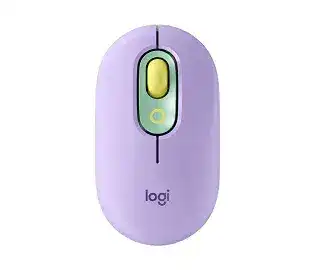
The top button may still open an emoji menu while every other assignment is missing, or the pointer may work even though Logi Options+ cannot find the device. The Logitech POP Mouse Driver mainly adds customization for this compact Bluetooth mouse, including its two configurable controls, SmartWheel behavior, and application shortcuts. Normal pointing can continue through built-in operating-system support, so missing software features do not always mean the mouse itself has failed.
Logitech POP Mouse Windows Driver Download
| Driver Name | Description | Supported OS | File Size | Download |
|---|---|---|---|---|
| Logi Options+ 64-bit | Customizes mouse buttons, pointer behavior, scrolling, shortcuts, gestures, and device settings. | Windows 11, Windows 10 64-bit | 43.21 MB | |
| Logitech Options 64-bit | Adjusts button assignments, scrolling preferences, pointer response, application shortcuts, and other mouse controls. | Windows 11, Windows 10 64-bit | 245.76 MB |
Logitech POP Mouse Mac OS Driver Download
| Driver Name | Description | Supported OS | File Size | Download |
|---|---|---|---|---|
| Logi Options+ | Manages mouse button functions, pointer movement, scrolling behavior, gestures, shortcuts, and device preferences. | macOS 26, macOS 15, macOS 14 | 19.56 MB | |
| Logitech Options | Configures mouse controls, scrolling direction, pointer settings, button shortcuts, and supported application actions. | macOS 15, macOS 14, macOS 13, macOS 12, macOS 11 | 238.52 MB | |
| Logi Options+ for macOS 13 | Provides button remapping, pointer adjustments, scrolling controls, gesture commands, and device-specific customization. | macOS 13 | 19 MB | |
| Logi Options+ for macOS 12 | Sets mouse shortcuts, button actions, scrolling preferences, pointer response, and gesture-based commands. | macOS 12 | 18.65 MB | |
| Logi Options+ for macOS 11 | Controls button assignments, cursor behavior, scrolling options, gestures, shortcuts, and connected-device settings. | macOS 11 | 17.51 MB |
Logitech POP Mouse Driver When Logi Options+ Misses the Device
Logi Options+ should display the POP Mouse after Bluetooth pairing finishes. When the pointer moves but the app keeps showing an empty device screen, close the utility completely and reopen it after the mouse is awake. Click once, move the wheel, and wait briefly. The Bluetooth connection can wake before the customization service completes its own device scan.
The mouse works but its top button cannot be changed
Bluetooth provides ordinary clicks, pointer movement, and scrolling without the full Logitech package. The configurable top control needs Logi Options+ for assignments such as the emoji menu, microphone mute, screen capture, or another supported shortcut. Open the mouse inside the app, select that button, and save a simple action first. Testing one basic shortcut quickly shows whether the assignment service is active.
If the saved action vanishes after a restart, confirm that Logi Options+ launches with the computer and continues running in the background. Do not install G HUB for this model. The POP Mouse belongs in Logi Options+, and adding unrelated Logitech utilities can make diagnosis harder without giving the button any extra functions.
Logi Options+ remains on a loading screen
Restart the computer before removing Bluetooth pairings or resetting every button. A stalled background component can leave the app loading while the mouse remains fully usable. After the restart, open Logi Options+ directly rather than through an old desktop shortcut. Install the current compatible release when the app itself cannot finish loading or update its device information.
On macOS, allow the permissions requested by Logi Options+ under Privacy and Security. Button actions, shortcuts, and application control may fail when accessibility or input access remains denied. Quit and reopen the utility after changing those permissions; leaving it open can preserve the earlier blocked state until its background processes restart.
Bluetooth Channels That Pair but Do Not Stay Selected
The POP Mouse can remember as many as three Bluetooth devices. Its Easy-Switch control sits underneath the mouse, and each numbered position stores a separate pairing. Many apparent connection faults come from selecting an unused channel or trying to repair one channel while the computer still remembers another.
The pairing light never starts flashing
Turn the mouse on, choose the intended Easy-Switch number, and hold the channel button until its indicator begins blinking rapidly. A short press only moves to another saved device; it does not start discovery. Open the computer’s Bluetooth panel after the rapid blink begins, then choose POP Mouse from the available-device list.
When no channel enters pairing mode, switch the mouse off for several seconds and turn it on again. Check the AA battery and its contacts before repeating the long press. A weak battery can light the channel indicator briefly yet drop before Bluetooth discovery completes.
The computer says connected, but the pointer remains still
Check the number selected underneath the mouse. The computer may show a valid POP Mouse entry while the device is currently operating on another Easy-Switch position. Return to the channel originally paired with that computer. The indicator should flash briefly as the mouse changes channels, followed by pointer response after Bluetooth reconnects.
If the correct channel still produces no movement, remove that POP Mouse entry from the computer’s Bluetooth list. Put the same channel back into rapid pairing mode and add it again. Removing the stored record clears a broken authentication or incomplete pairing without affecting pairings saved on the other two channels.
Old Bluetooth entries keep returning
A computer may hold more than one POP Mouse record after several pairing attempts. Delete every inactive duplicate, restart Bluetooth, and pair only one Easy-Switch channel to that computer. Give the process time to finish before pressing another channel button. Switching away during setup can leave another partial entry in the device list.
The Logitech POP Mouse Driver does not replace Bluetooth pairing. It customizes the mouse after the operating system has established the connection. Finish pairing in Windows, macOS, iPadOS, ChromeOS, or Android first, then use Logi Options+ on a supported Windows or Mac computer for button changes.
When the Emoji Button Opens the Wrong Action
The control beneath the wheel may arrive with an emoji-related assignment, but it is not limited to that purpose. Logi Options+ can change it to another available shortcut. Confusion often starts when a profile applies one action in a particular program and a different action elsewhere.
The emoji menu does not appear in a chat
First click inside a text field so the application has an active typing position. The mouse can call an emoji function, but it cannot place a character where no text cursor exists. Some chat services also handle emoji through their own menus, reactions, or custom libraries, which may not respond like the operating system’s standard emoji panel.
Test the button in a basic document or ordinary message box. If it works there, the original chat program is controlling the difference. Reassign the button to a universal action such as screen capture when the desired service does not accept the emoji command consistently.
A shortcut works in one program only
Open the POP Mouse inside Logi Options+ and check whether the button has an application-specific assignment. App profiles can deliberately replace the general action when a selected program is active. Edit that program profile or remove its special assignment when you want the same response everywhere.
After changing the action, bring the target program to the foreground and test it again. Some shortcuts need an active window, microphone permission, or screen-recording access. A failed microphone-mute command, for example, may reflect the conferencing app’s permissions rather than a bad mouse connection.
SmartWheel Scrolling That Feels Too Fast or Uneven
The SmartWheel changes between precise line movement and faster travel through long pages according to how the wheel is turned. A gentle roll should remain controlled, while a stronger flick can cover more distance. This automatic change can feel like a fault when someone expects every wheel movement to produce the same number of lines.
A small flick jumps too far down the page
Roll the wheel more slowly when reading short documents or moving through menus. The quicker motion can trigger speed scrolling, which is intentional. Also review the operating system’s wheel setting because a high lines-per-notch value exaggerates both normal and fast movement. Reduce that value gradually rather than disabling several unrelated pointer options.
Different programs process wheel input differently. Browsers, spreadsheets, document viewers, and remote desktop windows may not travel the same distance from an identical flick. Compare the wheel in two local applications before changing Logi Options+ or reconnecting Bluetooth. A problem limited to one program usually belongs to that program’s scrolling behavior.
The page moves in the opposite direction
Check the operating system’s natural-scrolling or scroll-direction preference. This setting may change after moving the mouse between a Mac, Windows computer, or tablet. The POP Mouse remembers Bluetooth channels, but each connected device keeps its own scrolling preferences. Correct the direction on the affected computer rather than repairing all three channels.
Scrolling pauses after the mouse wakes
A brief wake delay can occur after the mouse has been idle. Move it or click once, then test the wheel again. If scrolling repeatedly takes much longer to return, remove the Bluetooth record from that channel and pair it again. Also check whether aggressive Bluetooth power saving on the computer is suspending input devices too quickly.
Pointer Movement, Power, and Travel Problems
The compact optical design works well on many ordinary desks, but glass, mirrored finishes, deep patterns, or transparent surfaces can confuse tracking. Test the mouse on plain paper or a matte mouse pad when the pointer shakes, stalls, or moves diagonally without matching your hand.
The pointer lags while clicks still register
Clean the small sensor opening underneath with a dry, soft cloth and remove any hair or dust around it. Do not press into the opening or apply liquid directly. Then turn off nearby unused Bluetooth devices for a quick comparison. A crowded wireless environment may affect movement before it causes a complete disconnection.
Keep the mouse within a practical range of the connected computer and remove large metal objects from the immediate path. When a laptop works normally but a desktop connection stutters, repositioning the computer’s Bluetooth adapter can make a larger difference than changing pointer speed.
The mouse will not power on after battery replacement
The POP Mouse uses one AA battery. Match the positive and negative ends to the markings inside the compartment, close the cover, and move the power switch fully to the on position. If there is no channel light, try another known working battery and wipe the contacts gently with a dry cloth.
A battery can test well in a low-power device yet drop under wireless use. Replace it when the mouse disconnects repeatedly, struggles to enter pairing mode, or wakes for only a moment. Rechargeable AA cells may also show a different voltage pattern from disposable batteries, so compare with a standard fresh cell during troubleshooting.
One computer works while another no longer connects
Treat each Easy-Switch number as its own saved relationship. Select the channel assigned to the failing computer before making changes. If that pairing has become damaged, remove only its Bluetooth record and pair that channel again. Avoid resetting channels that still connect to other devices.
Once Bluetooth remains steady, open the Logitech POP Mouse Driver software on the Windows or Mac computer that needs customization. Recheck the top control, wheel behavior, and any application assignments there. Other supported platforms can use the mouse through Bluetooth, but Logi Options+ features depend on the systems where the app is offered.
Leave Each Easy-Switch Channel With One Clear Job
Assign one numbered channel to each computer, tablet, or phone, and note which number belongs to which device until the arrangement becomes familiar. Pairing the same computer on several channels creates unnecessary duplicates and makes later connection faults harder to trace.
Finish by testing a slow wheel roll, a fast flick, the middle click, the customizable top control, sleep recovery, and channel switching. When the Logitech POP Mouse Driver recognizes the device and every Bluetooth channel has a single destination, most remaining differences come from the active application or the individual operating system’s pointer and scrolling preferences.