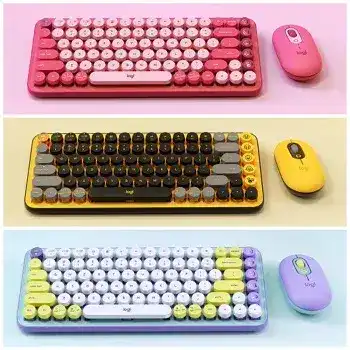
When the keyboard types normally but its emoji keys do nothing, or the mouse connects without its top-button shortcut, the Logitech POP Keys and POP Mouse Driver opens those controls through Logi Options+. Both devices can use Bluetooth Low Energy, switch among three saved devices, and connect through compatible Logi Bolt hardware, although a receiver may not be included. Their faults often begin with the selected channel rather than the keys, wheel, or sensor.
Logitech POP Keys and POP Mouse Windows Driver Download
| Driver Name | Description | Supported OS | File Size | Download |
|---|---|---|---|---|
| Logitech Options | Customizes mouse buttons, pointer behavior, scrolling, shortcuts, gestures, and supported device settings. | Windows 11, Windows 10 32-bit/64-bit | 245.76 MB | |
| Logi Bolt App | Manages compatible Logi Bolt devices and helps pair supported keyboards and mice with a Bolt receiver. | Windows 11, Windows 10 32-bit/64-bit | 33.11 MB |
Logitech POP Keys and POP Mouse Mac OS Driver Download
| Driver Name | Description | Supported OS | File Size | Download |
|---|---|---|---|---|
| Logitech Options | Provides controls for button assignments, scrolling behavior, shortcuts, gestures, and device customization on Mac. | macOS 15, macOS 14, macOS 13, macOS 12, macOS 11 | 238.52 MB | |
| Logi Bolt App | Pairs and manages compatible Logi Bolt keyboards and mice connected through a Bolt USB receiver on Mac. | macOS 12, macOS 11, macOS 10.15 | 54.96 MB |
Logitech POP Keys and POP Mouse Driver When Emoji Controls Stop Responding
The four replaceable emoji keys on POP Keys and the customizable top button on POP Mouse need Logi Options+ for reassignment. Install the current application on Windows or macOS, connect each device, and open its separate control panel. Ordinary typing, clicking, and pointer movement may work before the app detects the hardware, but custom emoji and shortcut actions will remain unavailable.
Emoji keys type nothing in Windows or macOS
Open Logi Options+, select POP Keys, and click the emoji key that needs an action. Assign an emoji or open the emoji panel, then test it in a text field that accepts standard emoji characters. Keep the application running during the first test. Closing its background process may leave the mechanical keys working while their customized actions disappear.
Emoji customization officially applies to Windows and macOS. A phone or tablet may accept normal typing from the keyboard without carrying over assignments created on a computer. On an iPad, use the operating system’s emoji or globe control when the dedicated POP assignments do not operate as they do on macOS.
The mouse top button opens the wrong action
POP Mouse has one programmable button behind the SmartWheel. In Logi Options+, select the mouse, open the top-button assignment, and choose the emoji menu or another supported shortcut. When the button still performs an older task, restore that control to its default action, close the utility, reopen it, and assign the new command again.
Check for application-specific profiles before assuming the assignment failed. A profile attached to one browser, chat program, or office application can override the general button action. Remove the unwanted profile or edit its top-button command so the control behaves consistently where you use it.
macOS sees both devices but blocks custom functions
macOS privacy controls can permit ordinary keyboard and pointer input while withholding the extra functions managed by Logi Options+. Open Privacy & Security and grant the app Accessibility, Input Monitoring, and Bluetooth access. Allow it to run as a login item as well. Quit and reopen the software whenever macOS requests a restart after changing a permission.
When those switches already appear enabled, turn the affected permission off, restart the Mac, and enable it again. This refresh can repair an approval record that survived an operating-system or application update. Use the current Logitech package or the relevant macOS patch when an older installation refuses to open or load device profiles.
Three Channels Can Make a Working Device Look Disconnected
POP Keys uses the first three function-row positions as Easy-Switch controls, while POP Mouse places its channel selector underneath. A short press changes the active device. Holding the selected channel for about three seconds starts pairing mode. Before deleting software or changing batteries, confirm that the keyboard and mouse are both pointing to channels assigned to the computer in front of you.
An Easy-Switch light flashes five times and stops
A brief series of flashes usually means the selected channel is searching for its saved connection but cannot find it. Check whether Bluetooth remains enabled on the intended computer and whether that channel was previously assigned elsewhere. Hold the same Easy-Switch key until it flashes rapidly, remove the stale POP Keys entry from the Bluetooth list, and pair it again.
If every key press wakes only one channel light and the keyboard never types, power it off, remove and refit the two AAA batteries, then repeat pairing on another channel. Testing an unused channel avoids an old record that may have become damaged after a system update.
The keyboard asks for a pairing code
During Bluetooth setup, the computer may display a numeric code. Type that code on POP Keys and press Enter on the keyboard itself. Do not type it with another keyboard or click the digits on screen unless the operating system specifically instructs you to do so. The pairing may appear unfinished when the code was entered from the wrong input device.
If the code prompt closes too quickly, remove the incomplete keyboard record, restart Bluetooth, and begin again with the Easy-Switch light flashing rapidly. Keep the keyboard close to the computer until the pairing finishes. Afterward, test letters, numbers, Enter, and the operating-system modifier keys before opening Logi Options+.
The mouse reconnects to a different computer
Press the button underneath POP Mouse once and watch which channel light appears. Continue until it reaches the channel stored for the current computer. Holding the button instead of tapping it erases the normal switching state and starts a new pairing attempt, so use a brief press when you only want to move between saved devices.
Assign matching channel numbers to the pair when possible. For example, keep the keyboard and mouse on channel one for one computer and channel two for another. That small habit prevents a situation where typing reaches one screen while the pointer remains active on a different machine.
Bluetooth and Logi Bolt Need Separate Connection Checks
The Logitech POP Keys and POP Mouse Driver does not replace the computer’s Bluetooth adapter or pair an incompatible receiver. POP Keys supports Bluetooth Low Energy and Logi Bolt. POP Mouse uses Bluetooth Low Energy and is Logi Bolt ready, but its receiver is not necessarily supplied. A Logitech Unifying receiver cannot substitute for Logi Bolt hardware.
Bluetooth lists the device but it will not reconnect
Remove the existing POP entry from the Bluetooth menu rather than selecting it repeatedly. Restart the computer, place one Easy-Switch channel into rapid flashing mode, and add the device as new. When Windows refuses to remove an abandoned entry, restart the Bluetooth service or update the computer manufacturer’s Bluetooth adapter package before attempting another pairing.
Test the keyboard and mouse separately. Pairing both at once can hide which connection is failing. Once the first device works for several minutes, add the second one. This also shows whether the problem belongs to one POP product or to the computer’s Bluetooth radio.
A Logi Bolt receiver detects one device but not the other
Open the Logi Bolt pairing function and add each product individually. Select the intended channel before starting. Confirm that the receiver carries the Logi Bolt symbol; similar-looking Unifying and proprietary receivers will not pair with these devices. Try a direct USB port during the first connection instead of a hub, monitor, keyboard pass-through, or docking station.
After successful pairing, test the receiver in its normal position. A crowded dock or an external drive beside the dongle can disturb movement or delay keystrokes. Changing to a clearer USB location often fixes intermittent input without rebuilding the pairing.
Input pauses after sleep or computer wake
Tap a normal key or click the mouse once and allow a moment for the Bluetooth link to resume. When wake delays become excessive, update the Bluetooth adapter and inspect its power-management option in Windows Device Manager. Prevent the operating system from turning off the adapter for power savings when both POP devices repeatedly disappear after idle periods.
On macOS, verify that Bluetooth remains permitted for Logi Options+. The app may fail to display an inactive device when that permission is missing, even though direct input returns after a click. Reopening the utility after wake can refresh the battery and assignment panels.
Separate SmartWheel Trouble from Pointer Trouble
The POP Mouse wheel stops after connecting to a Mac
First check whether scrolling fails everywhere or only in one program. Remove any application-specific mouse profile and restore the general SmartWheel configuration in Logi Options+. Recheck Accessibility and Input Monitoring permissions, then quit and reopen the software. When scrolling returns briefly and stops again, disable any second utility that also changes wheel direction or speed.
SmartWheel changes from line-by-line movement to faster scrolling when the wheel receives a stronger flick. Test both a slow turn and a quick spin in a long document. A very high operating-system scroll value can make the two behaviors feel erratic, so return the system control to a moderate setting before judging the wheel.
The pointer stutters while the buttons keep working
Turn POP Mouse off, wipe the sensor window with a dry soft cloth, and test it on a plain, non-reflective surface. Glass, glossy patterns, and uneven material can interrupt tracking even when clicks and Bluetooth remain active. Compare the same movement on a sheet of plain paper to separate a surface problem from a wireless problem.
When using Logi Bolt, move the receiver away from busy docks, high-speed storage, and dense cable bundles. With Bluetooth, test closer to the computer and disconnect another wireless device briefly. If the pointer remains erratic on several surfaces and two computers, the sensor or internal hardware may need service.
The left click repeats or releases during a drag
Adjust the operating system’s double-click speed and try selecting text again. Then test POP Mouse on a second computer without custom profiles. Duplicate clicks, dropped selections, or files opening from one press across both machines point toward a worn or damaged switch rather than an Options+ assignment.
Switch the mouse off and clear loose debris from the button gap with clean compressed air. Do not pour cleaner into the housing or open the shell. A click fault that survives cleaning, software defaults, and another computer requires hardware support.
Battery Symptoms That Resemble Pairing Failures
POP Keys uses two replaceable AAA batteries, while POP Mouse uses one AA battery. Low voltage can produce flashing channel lights, sudden disconnections, missing keystrokes, or a device that appears inactive in Logi Options+. Replace the full battery set with known-good alkaline cells and match the polarity marks inside each compartment.
The keyboard becomes inactive soon after new batteries
Remove both AAA cells and inspect the compartment for dust, residue, or a contact that does not touch the battery end firmly. Clean only with a dry cloth and refit both batteries. Check the level shown in Logi Options+ after reconnecting. A sudden fall from a healthy reading to inactive status suggests a contact or hardware fault rather than normal battery use.
Test with another matched pair of cells before seeking service. Do not mix an old battery with a new one. When the keyboard loses power within a short session on multiple battery sets, stop repeated pairing attempts and have the unit checked.
The mouse light turns on but movement never starts
An active channel light confirms that POP Mouse has power, not that its saved computer is reachable. Fit a known-good AA battery, check the channel underneath, and attempt a new pairing on an unused position. Test Bluetooth first when no Logi Bolt receiver is present. A generic receiver included with another Logitech mouse will not provide a substitute connection.
Finish by opening the Logitech POP Keys and POP Mouse Driver controls and confirming that both products appear under their own names. Test the emoji keys, mouse top button, SmartWheel, ordinary typing, and pointer movement before adding program-specific assignments. When each device works alone but fails after both connect, inspect Bluetooth adapter stability, receiver position, and channel selection rather than replacing every setting at once.