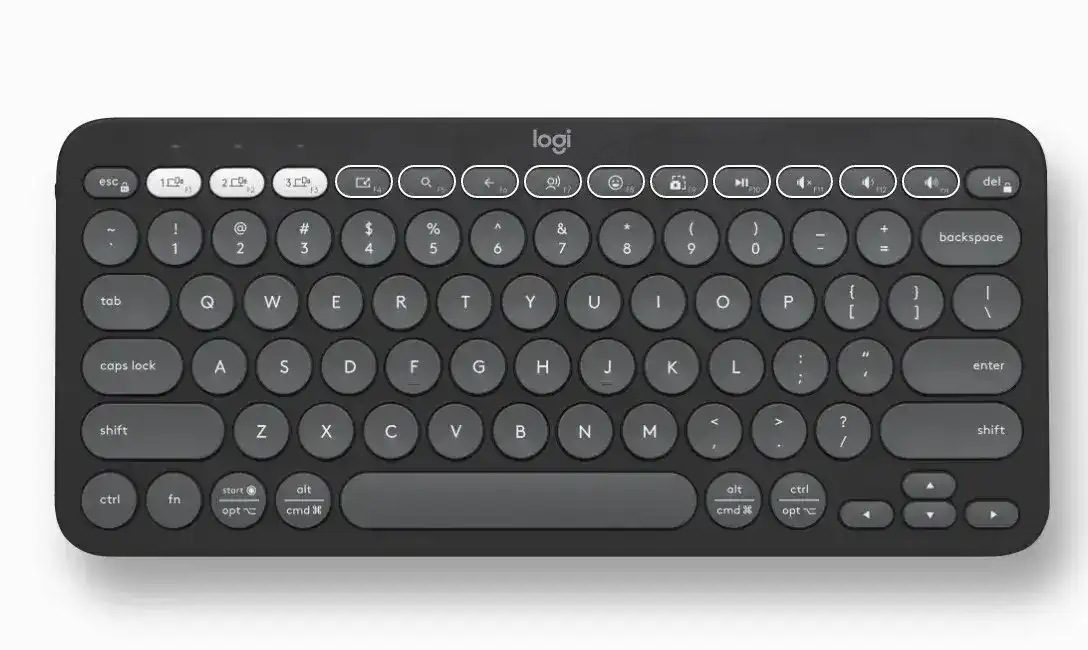
When the Easy-Switch keys stop changing devices, shortcuts trigger the wrong action, or Bluetooth pairing never finishes, the Logitech Pebble Keys 2 K380s Driver setup is worth checking before treating the keyboard as faulty. This compact model can pair with as many as three devices through Bluetooth Low Energy, also supports an optional Logi Bolt receiver, and works with Logi Options+ for key customization, battery information, and app-specific controls.
Logitech Pebble Keys 2 K380s Windows Driver Download
| Driver Name | Description | Supported OS | File Size | Download |
|---|---|---|---|---|
| Logi Options+ Software | Customization software for configuring keyboard shortcuts, function keys, and device-specific settings. | Windows 11, Windows 10 32-bit/64-bit | 43.21 MB |
Logitech Pebble Keys 2 K380s Mac OS Driver Download
| Driver Name | Description | Supported OS | File Size | Download |
|---|---|---|---|---|
| Logi Options+ Software | Provides keyboard customization, shortcut assignments, and device settings for current macOS releases. | macOS 26, macOS 15, macOS 14 | 19.56 MB | |
| Logi Options+ Software | Manages supported keyboard controls, customizable shortcuts, and application-specific device behavior. | macOS 13 | 19 MB | |
| Logi Options+ Software | Lets users adjust keyboard functions, assign shortcuts, and manage compatible device preferences. | macOS 12 | 18.65 MB | |
| Logi Options+ Software | Supports customization of keyboard actions, key assignments, and other available device-specific controls. | macOS 11 | 17.51 MB |
Logitech Pebble Keys 2 K380s Driver When Easy-Switch Stops Switching
The three Easy-Switch positions sit on F1, F2, and F3, and each one can hold a separate device connection. A short press changes channels after pairing. Holding a channel for about three seconds does something different: it places that channel into discovery mode. Mixing those two actions can make a working connection seem lost when the keyboard is actually waiting for a new pairing.
F1, F2, and F3 act like ordinary function keys
If the first three keys suddenly behave as F1, F2, and F3 instead of changing devices, check Fn Lock. Press Fn and Esc together to swap the top row between standard function keys and the keyboard’s enhanced controls. Easy-Switch access belongs to the default enhanced-key layout, so an accidental Fn Lock change can produce this problem without affecting Bluetooth or the stored pairings.
A saved computer no longer opens on its channel
Choose the channel that previously belonged to that computer and hold its Easy-Switch key until the light flashes rapidly. The keyboard remains discoverable for a limited period, so open the computer’s Bluetooth menu while the light is flashing and select Pebble K380s or Pebble K3. Completing the connection again refreshes that channel without disturbing the other two unless you deliberately pair over them.
If the old keyboard entry remains visible but refuses to reconnect, remove that saved Bluetooth entry from the computer first. Then put the same Easy-Switch channel back into discovery mode and create a new pairing. This is often more effective than repeatedly clicking Connect on a stale Bluetooth record that the operating system still remembers.
Pairing Fails Even Though the Keyboard Appears Nearby
The Logitech Pebble Keys 2 K380s Driver does not replace the Bluetooth hardware in the computer. The K380s uses Bluetooth Low Energy, so an older Bluetooth adapter can discover other devices yet still fail with this keyboard. When pairing works with a newer phone but not with an older PC, check the PC’s Bluetooth capability and adapter generation before changing keyboard software.
The pairing light never starts flashing rapidly
A quick tap only selects a stored channel. To begin a new pairing, press the chosen Easy-Switch key and keep holding it for roughly three seconds. The corresponding LED should begin flashing quickly. If it does not, release the key and try the long press again. Pairing cannot proceed while the channel light remains in its normal selection state.
The computer has no usable Bluetooth connection
The K380s can also communicate through a Logi Bolt USB receiver. That receiver is optional when the keyboard is bought by itself, so do not assume one was left out of the package by mistake. A compatible Bolt receiver can be paired through Logi Options+ or Logi Web Connect. A Logitech Unifying receiver is not the substitute to use for this model.
If you already own a Logi Bolt receiver from another compatible Logitech product, it may be used with the keyboard instead of buying another one. Pair the K380s to the Bolt receiver through the supported pairing software rather than expecting the keyboard to connect merely because the dongle has been inserted into a USB port.
Wrong Symbols and Shortcuts After Changing Computers
The K380s adapts its modifier and shortcut behavior to the operating system on the active device. That becomes useful when moving between Windows, macOS, ChromeOS, Android, or Apple mobile devices, but automatic detection can occasionally leave the layout feeling wrong. Symptoms include modifier keys producing unexpected commands or shortcuts behaving like they belong to another operating system.
Force the keyboard into the intended OS layout
Manual operating-system selection is built into the keyboard. Hold Fn and O for about three seconds for macOS, Fn and I for iOS, Fn and P for Windows or Android, or Fn and C for ChromeOS. This is particularly useful with a Logi Bolt connection or whenever automatic OS detection does not match the computer you are currently using.
Do this while the correct Easy-Switch channel is active. Because the keyboard can hold three device connections, it is easy to troubleshoot the wrong channel by mistake. Select the computer first, confirm that typing reaches it, and only then apply the OS-specific key combination if modifiers or shortcuts remain incorrect.
Media controls work when F-keys are needed
The top row starts in its shortcut-oriented mode, which gives direct access to functions such as media and Easy-Switch controls. Some software expects standard F-keys instead. Press Fn and Esc to change the mode, or open Logi Options+ and set the F-row to behave as standard function keys. This prevents having to hold Fn whenever an application expects F1 through F12 behavior.
Logitech Pebble Keys 2 K380s Software for Custom Keys
Logi Options+ is the control application tied to the keyboard’s customizable functions. After the Logitech Pebble Keys 2 K380s Driver software environment is in place, the application can show the keyboard and expose its configurable top-row controls. Ten keys can receive different actions, and assignments can also change according to the application currently in use.
Customized shortcuts disappear inside one application
Check whether that program has its own app-specific profile in Logi Options+. A global assignment and an application assignment can produce different results from the same key. Open the keyboard in Logi Options+, go to its key controls, and inspect the application entry that is active when the problem occurs. Removing or correcting the conflicting assignment can restore the action you expected.
This also explains why a key may work correctly on the desktop but do something different in a browser, meeting program, or media application. Test the same shortcut in more than one program before changing the Bluetooth connection. A problem limited to one application usually points toward its specific assignment rather than the wireless link.
Logi Options+ does not seem necessary for ordinary typing
That can be normal. The keyboard can provide ordinary keyboard input without every customizable feature being configured in Logi Options+. The application becomes more relevant when you want reassigned shortcut keys, per-application behavior, battery notifications, or other supported personalization. Reinstalling it is unlikely to cure a physical key that fails in every program and on every paired device.
Slow Response, Missed Input, and Wake Problems
Intermittent typing deserves a simpler test before changing shortcut assignments. The K380s uses two AAA alkaline batteries, and Logitech specifically points to new batteries, re-pairing, and restarting the connected device when the keyboard becomes slow or unresponsive. A low-power condition can therefore resemble a Bluetooth problem even though the computer still remembers the keyboard.
Typing pauses or the keyboard becomes unresponsive
Start with the batteries if the symptom affects all keys. Replace both AAA cells together rather than mixing an older cell with a newer one. The status light can also indicate low battery power, while Logi Options+ can provide battery information and warnings. After changing the cells, turn the keyboard on again and retest it before rebuilding every saved connection.
If new batteries do not change anything, re-pair the affected channel and restart the computer, tablet, or phone. This gives both sides of the Bluetooth connection a fresh session. A keyboard that works normally on another saved Easy-Switch device provides another useful clue because it suggests the hardware itself can still send input.
Only one of three paired devices has the problem
Do not erase all three channels. Work only with the failing one first. Remove the K380s from that device’s Bluetooth list, put its assigned Easy-Switch channel into discovery mode, and pair again. If the other two channels continue working throughout the process, leave them alone. This preserves good connections and makes the fault easier to isolate.
When the Keyboard Follows the Wrong Computer
Multi-computer use can become confusing when Easy-Switch, app profiles, and Logitech Flow are all involved. Flow can make a compatible Logitech keyboard follow a supported Logitech mouse between computers when Logi Options+ is installed on both systems. That behavior differs from manually pressing one of the three Easy-Switch keys, so identify which method is controlling the change before re-pairing anything.
Flow changes computers when you expected manual switching
Open Logi Options+ on the computers involved and inspect the Flow configuration associated with the compatible Logitech mouse. If automatic cross-computer movement is not wanted, change that Flow arrangement instead of deleting the keyboard’s Bluetooth channels. The K380s can still retain its separate Easy-Switch connections for deliberate manual switching.
If you do want Flow, both computers need the related Logi Options+ environment configured for the feature. A keyboard that switches correctly with F1, F2, and F3 but does not follow the mouse points toward the Flow configuration rather than a failed K380s pairing.
Keep Each K380s Channel Easy to Identify
The Logitech Pebble Keys 2 K380s Driver setup becomes much easier to diagnose when each Easy-Switch position has a clear purpose. Keep one channel associated with each regular device, use a short press only for switching, and reserve the three-second hold for pairing or re-pairing. That small distinction prevents a large share of accidental connection problems.
When a fault returns, identify whether it affects one channel, every channel, only customized keys, or all typing. A single-channel failure points toward that saved connection, wrong shortcuts suggest Fn Lock or OS selection, and widespread sluggishness calls for battery and re-pairing checks. Treating those symptoms separately is faster than rebuilding every Bluetooth and Logi Options+ setting at once.