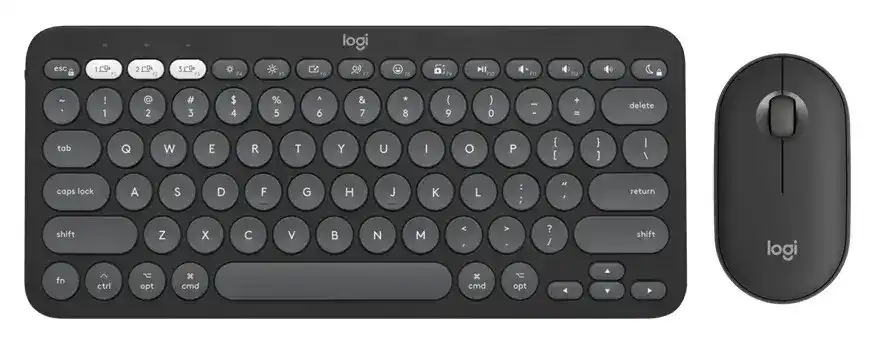
When the keyboard switches devices but the mouse stays behind, or one part of the combo appears while the other refuses to pair, the Logitech Pebble 2 Slim Bluetooth Combo Driver software is worth checking before rebuilding every connection. The combo brings together the Pebble Keys 2 K380s and Pebble Mouse 2 M350s, with Bluetooth Low Energy, Easy-Switch channels, Logi Bolt compatibility, Logi Options+ controls, and multi-computer features that depend on the two devices being configured separately.
Logitech Pebble 2 Slim Bluetooth Combo Windows Driver Download
| Driver Name | Description | Supported OS | File Size | Download |
|---|---|---|---|---|
| Logi Options+ Software | Customizes supported mouse buttons, pointer behavior, scrolling, shortcuts, gestures, and device settings. | Windows 11, Windows 10 32-bit/64-bit | 43.1 MB |
Logitech Pebble 2 Slim Bluetooth Combo Mac OS Driver Download
| Driver Name | Description | Supported OS | File Size | Download |
|---|---|---|---|---|
| Logi Options+ Software | Provides customization for mouse controls, scrolling behavior, gestures, shortcuts, and other supported device preferences. | macOS 26, macOS 15, macOS 14 | 19.54 MB | |
| Logi Options+ Software | Allows compatible Logitech device functions to be adjusted, including pointer settings, button assignments, scrolling, and shortcuts. | macOS 13 | 19 MB | |
| Logi Options+ Software | Manages supported device settings such as gestures, mouse button actions, pointer behavior, scrolling preferences, and custom shortcuts. | macOS 12.0 | 18.65 MB | |
| Logi Options+ Software | Offers controls for configuring compatible mouse functions, scrolling, pointer response, gestures, shortcuts, and device-specific preferences. | macOS 11 | 17.51 MB |
Logitech Pebble 2 Slim Bluetooth Combo Driver When Only Half of the Combo Connects
A useful detail with this combo is that Bluetooth treats the keyboard and mouse as two separate devices. Pairing the Pebble Keys 2 K380s does not automatically add the Pebble Mouse 2 M350s. If only one appears after Bluetooth setup, put the missing device into discovery mode on its own and add it from the computer’s Bluetooth menu.
Keyboard connects but the mouse remains offline
Turn the mouse on, choose an Easy-Switch channel, then hold its connection button for about three seconds. Rapid blinking indicates discovery mode. Look for Pebble M350s or Pebble M3 in the Bluetooth device list and finish that pairing separately from the keyboard. A short press of the Easy-Switch button afterward changes between previously assigned devices instead of beginning another pairing.
If the mouse was already listed but never reconnects, remove that saved Bluetooth pairing and create it again on the same channel. Rebooting the computer can also clear a Bluetooth session that has stopped responding. There is little reason to remove the working keyboard connection when the fault belongs only to the mouse.
The keyboard appears but will not finish pairing
Hold the chosen Easy-Switch key on the Pebble Keys 2 K380s until its status light flashes rapidly. The keyboard stays discoverable for a limited period, so open the computer’s Bluetooth menu while that light is still flashing. Select Pebble K380s or Pebble K3 and follow any pairing instructions shown on screen.
If an older K380s pairing remains saved, delete that old Bluetooth record first. Then turn the keyboard off and on before beginning discovery again. This is especially useful after moving a channel to another computer, because the channel may still contain the previous relationship even though the computer treats the keyboard as a new peripheral.
Three Easy-Switch Channels Can Create a Mismatched Pair
Both pieces can remember as many as three devices, but their channel numbers do not automatically stay synchronized. The keyboard can sit on channel two while the mouse remains on channel one. That makes the combo look partially disconnected even though both products are functioning exactly as assigned.
Mouse moves on one computer while typing goes to another
Check the connection lights on both devices and press the appropriate Easy-Switch control briefly until each one reaches the intended computer. Do not hold the button unless you actually want discovery mode. A long press prepares that channel for another pairing and can complicate an otherwise simple device-switching problem.
For people moving between a desktop and laptop, it helps to give the same channel number to the same computer on both products. This is an organizational choice rather than a technical requirement, but it makes manual switching far less confusing. Channel one can represent the first computer, for example, while channel two represents the second.
Changing one channel unexpectedly removes its earlier pairing
Pairing a new device on an occupied Easy-Switch channel replaces the relationship stored on that channel. Choose an unused channel when adding another computer, phone, or tablet. If all three channels already have assignments, decide which old connection you no longer need before holding a channel in discovery mode.
The Logitech Pebble 2 Slim Bluetooth Combo Driver setup becomes easier to diagnose when the keyboard and mouse channels are treated independently. A failure on channel three of the mouse does not mean channel three of the keyboard also needs to be rebuilt. Work on the part that actually lost its connection.
Logi Options+ Controls That Seem Missing or Behave Differently
Basic typing, clicking, and pointer movement do not tell you whether every software-controlled feature is ready. Logi Options+ adds customization for the Pebble Keys 2 K380s and Pebble Mouse 2 M350s. This includes keyboard shortcut assignments, application-specific controls, middle-click actions, pointer speed, wheel behavior, gestures, battery notices, and Logitech Flow.
Keyboard shortcut keys perform unexpected actions
The keyboard uses an OS-adaptive layout and normally gives direct access to its media and shortcut functions. If an application expects standard F-keys instead, press Fn and Esc to change the function-row behavior. Logi Options+ also provides a preference for using the row as standard function keys without holding Fn each time.
A wrong operating-system mode can produce stranger results, particularly after a Logi Bolt connection or when automatic detection does not identify the platform as expected. Hold Fn and P for three seconds for Windows or Android, Fn and O for macOS, Fn and I for iOS, or Fn and C for Chrome OS.
Custom shortcuts work in one program but not another
Check whether an application-specific assignment exists in Logi Options+. The K380s can give its customizable shortcut keys different actions for different applications. A key that launches one command in a browser may therefore perform another action elsewhere. Inspect the selected application profile before changing the keyboard’s general shortcut assignment.
Middle click no longer performs the expected mouse action
The scroll-wheel click on the Pebble Mouse 2 M350s is customizable. Open the mouse in Logi Options+ and check the middle-button assignment, including any application-specific profile. It can also operate as a gesture control, so an unexpected desktop or window action may come from a deliberate gesture assignment rather than a failing wheel switch.
Scroll direction and speed deserve a separate check. Logi Options+ provides wheel direction and scrolling controls, while Windows can also use smooth scrolling with this model. If pages suddenly travel opposite to the direction you expect, inspect the natural or inverted scrolling choice before changing Bluetooth connections.
Slow Response, Pointer Lag, Flow, and Battery Symptoms
The mouse pauses or feels slow while the keyboard still types
First change the surface under the Pebble Mouse 2 M350s. A mouse pad or firm non-glass surface gives its sensor a better tracking target. If movement remains inconsistent, reboot the computer and reconnect the mouse. The mouse uses one AA battery, so a known-good battery is another useful test when hesitation appears regardless of the surface.
When both the keyboard and mouse become slow or intermittently unresponsive, power becomes more significant. The keyboard uses two AAA batteries. Test new batteries in the affected device rather than assuming the software package has failed. A device that cannot maintain adequate power may reconnect briefly and then appear to lose its wireless connection again.
Logi Bolt works differently from Bluetooth pairing
The multi-OS Pebble 2 Combo can use a Logi Bolt receiver. With the combo’s matched receiver, the keyboard and mouse can work through the receiver rather than requiring two separate Bluetooth pairings. This differs from Bluetooth, where each product must be added individually. Do not confuse a Logi Bolt receiver with older Logitech Unifying hardware; they are different wireless systems.
If you need to associate a supported Pebble device with Logi Bolt again, use Logi Options+ or the appropriate Logitech pairing method rather than repeatedly removing Bluetooth records. Also verify that you are troubleshooting the connection method actually in use. Changing Bluetooth settings cannot repair a Bolt association, just as receiver pairing does not repair a lost Bluetooth channel.
Logitech Flow does not move both devices to the other computer
Flow uses the mouse to move between computers and can make the keyboard follow that transition. Logi Options+ needs to be present on both computers for this feature. If ordinary Easy-Switch operation works but Flow does not, investigate the Flow configuration rather than re-pairing an otherwise functioning keyboard and mouse.
Connection changes matter here. If you move one computer from Bluetooth to another channel or to Logi Bolt, Flow may no longer match the previous configuration. Confirm that Logi Options+ sees both computers and that the mouse’s Flow page reflects the connection now being used. Manual Easy-Switch operation is a useful comparison because it separates basic wireless operation from Flow itself.
Match the Fix to the Part That Actually Failed
The Logitech Pebble 2 Slim Bluetooth Combo Driver software should not turn a one-device fault into a complete reset of the combo. If typing works but pointer movement does not, work with the M350s connection, surface, battery, or mouse controls. When the pointer works but shortcuts are wrong, inspect the K380s OS mode, function-row state, and Logi Options+ assignments instead.
Bluetooth problems also need separate treatment for the two products. Pair the keyboard and mouse individually, preserve channels that still work, and rebuild only the channel that has stopped reconnecting. With Logi Bolt, check the receiver association instead of following Bluetooth pairing instructions. Keeping those two wireless methods distinct prevents much of the confusion around this combo.
After both devices respond normally, test Easy-Switch on each one and then check any customized controls. The final Logitech Pebble 2 Slim Bluetooth Combo Driver configuration should leave the keyboard on the intended OS layout, the mouse with the desired pointer and wheel behavior, and each multi-device channel assigned where you expect it. Add Flow only after those ordinary connections are already working.