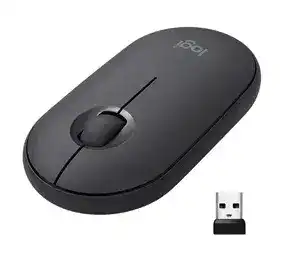
A rapidly blinking channel light should lead to a Bluetooth connection, yet the mouse may remain absent from the device list or reconnect to the wrong computer. The Logitech Pebble 2 M350s Mouse Driver works with Logi Options+ to manage its middle button, pointer speed, scrolling, battery alerts, and multi-computer functions. Bluetooth itself still depends on the operating system and its wireless adapter.
This compact mouse can remember three devices through its Easy-Switch channels. It connects directly through Bluetooth and also works with a separately purchased Logi Bolt receiver. A Bolt receiver is not normally included with the individual mouse, so an empty USB port does not mean a part is missing from the box.
Begin with the connection method rather than installing several Logitech utilities. Bluetooth pairing needs no USB dongle. Bolt pairing requires a compatible Logi Bolt receiver and the appropriate connection process. Unifying receivers do not pair with this model, even though they may look similar to a Bolt receiver.
Logitech Pebble 2 M350s Mouse Windows Driver Download
| Driver Name | Description | Supported OS | File Size | Download |
|---|---|---|---|---|
| Logi Options+ Software 64-bit | Full 64-bit software package for customizing mouse buttons, pointer behavior, scrolling, shortcuts, gestures, and device settings. | Windows 11, Windows 10 64-bit | 43.21 MB |
Logitech Pebble 2 M350s Mouse Mac OS Driver Download
| Driver Name | Description | Supported OS | File Size | Download |
|---|---|---|---|---|
| Logi Options+ Software | Provides mouse button customization, scrolling controls, pointer adjustments, shortcuts, gestures, and device preferences on newer macOS releases. | macOS 26, macOS 15, macOS 14 | 19.56 MB | |
| Logi Options+ Software | Manages button assignments, pointer movement, scrolling behavior, application shortcuts, gestures, and other mouse-specific controls. | macOS 13 | 19 MB | |
| Logi Options+ Software | Enables configurable mouse actions, scrolling preferences, pointer response, gesture commands, shortcuts, and supported device settings. | macOS 12 Monterey | 18.65 MB | |
| Logi Options+ Software | Adjusts mouse buttons, pointer behavior, scrolling functions, custom shortcuts, gestures, and available hardware preferences. | macOS 11 | 17.51 MB |
The mouse never appears in the Bluetooth list
Watch the channel indicator under the mouse. A short Easy-Switch press only changes channels; it does not always open discovery mode. Select the intended channel, then hold the button for about three seconds. The light should blink quickly, showing that the channel is ready for a new Bluetooth pairing.
If the light blinks slowly or stays steady, repeat the long press. Open the computer’s Bluetooth panel only after rapid blinking begins. Search for the model number printed beneath the mouse, because nearby Logitech products can appear with similar names.
An old pairing blocks a new connection
Remove the existing Pebble entry from the computer before pairing that channel again. Turning Bluetooth off and on may reconnect the same damaged record, so deleting the saved entry matters. Restart Bluetooth, place the selected channel back into discovery mode, and add the mouse as a new device.
On Windows, also check whether the Bluetooth adapter has stopped responding to every peripheral. Update its driver from the computer or adapter manufacturer rather than searching for a separate Bluetooth driver from Logitech. The Logitech package controls mouse features; it does not replace the computer’s wireless adapter software.
The light flashes quickly but pairing still fails
Move the mouse close to the computer during the first connection and temporarily disconnect other unused Bluetooth accessories. Then power the mouse off, wait several seconds, and switch it on again. Return to the chosen channel and restart discovery mode instead of repeatedly clicking the same saved name.
Test another channel when one channel has an unclear pairing history. Each of the three positions keeps its own device relationship. Pairing successfully on a different channel shows that the mouse and computer can communicate, while the first channel probably needs its old record replaced.
Three Channels Can Create the Wrong-Computer Problem
Many apparent disconnections happen because the bottom button changes to another Easy-Switch position. The mouse then looks inactive on the current screen while it searches for a computer assigned to that channel. Check the numbered light before changing batteries, resetting Bluetooth, or removing software.
The pointer disappears after pressing the bottom button
Press Easy-Switch briefly until the indicator returns to the number paired with the current computer. Avoid holding the button unless you intend to erase that channel’s active connection and begin discovery. A brief press changes devices; a longer hold prepares the selected position for pairing.
Give each computer a fixed channel and keep that order consistent. For example, reserve one position for a laptop, another for a desktop, and the third for a tablet. This makes an accidental change easy to identify without opening any control software.
The mouse reconnects to a nearby device instead
A channel previously paired with a tablet or another computer may reconnect there as soon as that device wakes. Turn Bluetooth off temporarily on the unwanted device, return the mouse to discovery mode, and pair the channel with the computer you now want to use.
Removing the mouse from only one computer does not clear its relationship with every device. Check the channel number carefully before deleting records. Otherwise, you may remove a working entry while the mouse remains switched to a different position.
A Logi Bolt receiver is plugged in but nothing moves
Physical connection of the receiver does not automatically pair the mouse. Use Logi Options+ or Logitech’s supported web connection method to link the Pebble 2 M350s with that Bolt receiver. Keep the mouse on the channel you want to dedicate to the USB connection while completing the pairing process.
Confirm that the receiver carries the Logi Bolt symbol. A Logitech Unifying dongle uses a different wireless system and cannot substitute for Bolt. Trying several unrelated pairing tools can leave extra background services without creating a working connection.
Logitech Pebble 2 M350s Mouse Software Inside Logi Options+
The Logitech Pebble 2 M350s Mouse Driver download is primarily the Logi Options+ application on compatible computers. The operating system handles basic clicks, movement, and scrolling, while Options+ adds middle-button assignments, app-specific actions, gestures, pointer adjustments, scroll preferences, battery notices, and Flow configuration.
Logi Options+ opens but does not show the mouse
First confirm that the pointer works through Bluetooth or Bolt outside the application. Options+ cannot configure a mouse that has not completed its normal connection. Quit the program, power-cycle the mouse, reconnect the correct channel, and reopen the application after the operating system shows the device as connected.
Remove older Logitech Options builds when both old and new control applications remain installed. Restart after uninstalling them, then install the current Logi Options+ release. Security software, restricted work accounts, or incomplete installation permissions can also prevent its background components from detecting supported hardware.
The middle click performs an unexpected action
Options+ can turn the wheel press into a shortcut, gesture control, or application-specific command. Open the mouse’s button page and inspect the middle-button assignment. Choose Middle Button when an application expects an ordinary wheel click, such as opening a browser link in another tab or using pan controls.
Check the application profiles as well as the general assignment. A command may work normally on the desktop but change when a browser, meeting program, music player, or messaging application becomes active. Delete the unwanted profile or assign the same middle-click action within that program.
A gesture assignment makes clicking feel unreliable
Gesture mode expects the user to hold the wheel button while moving the mouse. A quick press may therefore behave differently from a conventional middle click. Replace the gesture command with Middle Button when accidental desktop changes, window navigation, or delayed clicks interrupt normal work.
If the button still misses presses after remapping, test it on another device without a custom profile. Failure across different connections points toward the wheel switch itself. Software changes cannot repair a mechanical button that no longer registers consistently.
Pointer speed changes twice
Windows or macOS has its own pointer control, while Options+ adds another adjustment for the Pebble. Extreme values in both places can make movement feel too fast, slow, or uneven. Return the operating-system slider to a moderate position, then make smaller changes inside Options+.
Test the mouse on a plain, non-reflective surface before increasing speed further. Glass, glossy furniture, and strong repeating patterns may produce tracking gaps. A suitable mouse pad gives a clearer result when deciding whether the problem comes from the sensor or an overly aggressive speed setting.
Scrolling, Sleep Recovery, and Multi-Computer Features
Scroll direction, smooth scrolling, Flow, and wake behavior involve more than the physical mouse. Options+ preferences, application behavior, network access, the active Easy-Switch channel, and battery condition can each change what happens. Separating those factors prevents unnecessary Bluetooth repairs.
Scrolling reverses or feels different between computers
Open Point and Scroll in Options+ and compare the natural or standard direction on each computer. Operating-system settings can also reverse scrolling, so avoid enabling opposite choices in two places. Keep one system-level direction and use the Logitech preference only when an application genuinely needs different behavior.
Smooth scrolling is an additional Windows option. Turn it off when a game, spreadsheet, remote desktop session, or older program scrolls too far, ignores wheel notches, or responds with a delay. Standard stepped scrolling often works better in programs that expect discrete wheel input.
The wheel skips lines or changes direction by itself
Compare scrolling in several applications before altering software. A problem limited to one program usually comes from its own scroll handling or a profile. When the wheel jumps everywhere, switch off smooth scrolling, restore a moderate scroll speed, and test the mouse on another computer.
Dust around the wheel can also interrupt the encoder. Turn the mouse off and use short bursts of dry air around the wheel opening while rotating it gently. Keep liquids away from the internal mechanism. Repeated reverse movement on different computers may indicate physical wear rather than an Options+ fault.
The mouse pauses after sleep
A brief wake delay can occur while Bluetooth and the mouse leave their low-power states. Move the device or click once, then allow the connection a moment to return. When recovery takes much longer, switch to the correct channel and check whether the computer still marks the Pebble as connected.
Remove and pair the Bluetooth entry again if wake failures happen every time. Also review the computer’s Bluetooth power management and install its current adapter driver. With Bolt, reconnect the receiver directly to the computer instead of relying on a sleeping hub or dock.
Battery warnings appear too early or the mouse shuts down
The mouse uses one AA alkaline battery, and Logi Options+ can display its status and low-charge alerts. When power becomes intermittent, remove the top cover and confirm that the cell follows the marked polarity. Examine the contacts for dust or residue before inserting a known working battery.
Long advertised battery life varies with use, wireless conditions, and battery quality. A sudden shutdown shortly after replacement may come from poor contact rather than normal drain. Power the mouse off before reseating the cell, then test the connection on its usual channel.
Logitech Flow will not cross to the second computer
Install Logi Options+ on both computers and make sure the mouse already controls each one through separate Easy-Switch channels. Flow does not create the original Bluetooth or Bolt pairings. Both systems also need to communicate over the same accessible network, and firewall rules must not block the Logitech service.
Check the screen arrangement inside the Flow page when the pointer reaches the wrong edge or never crosses. Disable Flow temporarily if automatic switching causes confusion during pairing tests. Manual channel changes provide a simpler baseline before network-based movement is restored.
Match the Repair to the Indicator Light
The quickest way to diagnose this model is to look underneath it before changing anything. A steady channel light identifies the selected position. Rapid blinking means that position is waiting for a new pairing. A different channel number explains why a working mouse suddenly seems disconnected from the computer in front of you.
Use the Logitech Pebble 2 M350s Mouse Driver only for the controls that belong in Logi Options+, including the wheel press, application actions, pointer and scroll preferences, battery alerts, and Flow. Repair Bluetooth through the computer’s wireless settings, and pair a separately purchased receiver only through the Logi Bolt process.
Once each channel has a clear purpose, leave its saved connection in place. Make short presses only when changing devices and reserve the three-second hold for deliberate re-pairing. That distinction prevents most pairing loops while keeping the compact mouse ready for several computers without duplicate entries or incompatible receiver tools.