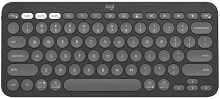
The keyboard and mouse can look paired while behaving like two separate devices, which is one reason the Logitech Pebble 2 Combo Driver software matters beyond basic cursor movement and typing. The Pebble 2 Combo combines the Pebble Keys 2 K380s and Pebble Mouse 2 M350s, with Bluetooth Low Energy, Logi Bolt connectivity, three Easy-Switch channels, and Logi Options+ controls. Most connection trouble comes from treating both parts as if they always change devices together.
Logitech Pebble 2 Combo Windows Driver Download
| Driver Name | Description | Supported OS | File Size | Download |
|---|---|---|---|---|
| Logi Options+ Software | Customizes supported mouse buttons, pointer behavior, scrolling, shortcuts, gestures, and device settings. | Windows 11, Windows 10 32-bit/64-bit | 43.1 MB |
Logitech Pebble 2 Combo Mac OS Driver Download
| Driver Name | Description | Supported OS | File Size | Download |
|---|---|---|---|---|
| Logi Options+ Software | Provides customization for supported buttons, scrolling behavior, shortcuts, gestures, and other device preferences. | macOS 26, macOS 15, macOS 14 | 19.54 MB | |
| Logi Options+ Software | Manages compatible device controls, pointer functions, scrolling options, shortcuts, and gesture assignments. | macOS 13 | 19 MB | |
| Logi Options+ Software | Lets users adjust supported device settings, button actions, scrolling preferences, gestures, and application shortcuts. | macOS 12 | 18.65 MB | |
| Logi Options+ Software | Offers controls for compatible mouse functions, pointer behavior, button assignments, scrolling, and gesture settings. | macOS 11 | 17.51 MB |
Logitech Pebble 2 Combo Driver When the Keyboard and Mouse Do Not Follow Each Other
Bluetooth treats the K380s keyboard and M350s mouse as separate products. Pairing the keyboard does not automatically add the mouse, and pairing the mouse does not complete the keyboard connection. Open the Bluetooth panel and add both devices individually. The keyboard normally appears as Pebble K380s or Pebble K3, while the mouse appears as Pebble M350s or Pebble M3.
Easy-Switch changes only one half of the combo
The keyboard and mouse each store their own Easy-Switch channels. If you press channel two on the keyboard but leave the mouse on channel one, typing moves to another computer while the pointer stays behind. Match the channel manually on both products when you use ordinary Bluetooth switching. A short press selects a saved device; holding a channel for about three seconds starts discovery for a new pairing.
This becomes confusing after adding several computers because channel numbers do not automatically describe the same computer on both devices. For example, keyboard channel two can belong to a laptop while mouse channel two belongs to a tablet. Pair corresponding channels to the same machines if you want manual switching to feel predictable.
A saved Bluetooth device suddenly will not reconnect
First select the channel that originally belonged to that computer. If it remains disconnected, hold that same Easy-Switch control until its status light flashes rapidly, then open the computer’s Bluetooth menu and pair it again. Removing a stale Pebble entry from the Bluetooth list before re-pairing can also help when the operating system keeps trying an old connection record.
Do not erase the other working channels just because one computer stopped reconnecting. Each channel keeps a separate pairing. Rebuilding only the affected one avoids turning a single Bluetooth problem into a complete three-device reconfiguration.
One Logi Bolt Receiver Can Simplify a Two-Device Problem
The Pebble 2 Combo supports Logi Bolt as well as Bluetooth, and the combo version can use its included Bolt receiver for the keyboard and mouse. With the original combo arrangement, plugging the receiver into the computer can give both products one USB-based connection path. This is different from Bluetooth, where the two pieces must be paired separately.
The receiver is present but only one product responds
Open Logi Options+ and use its device connection process when the keyboard or mouse has lost its association with the Bolt receiver. Power on the missing product and put it into pairing mode when requested. The Logitech Pebble 2 Combo Driver software should identify each component separately, so seeing the mouse in the app does not prove that the keyboard has also been paired.
Check the receiver type before spending time on repeated pairing attempts. Pebble 2 devices use Logi Bolt compatibility. An older Logitech Unifying receiver belongs to a different wireless system and should not be treated as a replacement simply because both receivers use a USB-A plug.
Bluetooth works but the Bolt connection does not
That difference narrows the problem considerably. Plug the Bolt receiver directly into another USB-A port, then check whether Logi Options+ can see the receiver and add the Pebble device. If Bluetooth remains functional, the batteries, keyboard electronics, and mouse electronics are less likely to be the reason both products disappear only on the receiver connection.
A dock or hub can add another variable, especially when several USB devices are attached. Testing the Bolt receiver directly on the computer gives you a simpler comparison. Once both parts appear normally, reconnect the dock or other accessories and see whether the fault returns.
Pebble 2 Combo Software When Shortcuts or Switching Feel Wrong
Logi Options+ provides controls that ordinary operating-system keyboard and mouse support does not expose. The K380s has ten customizable shortcut keys, while the M350s has a customizable middle click. The software can also show battery information and create application-specific actions, making it worth checking when basic typing and pointer movement work but personalized controls disappear.
The keyboard types correctly but the top row does the wrong thing
The K380s gives direct access to media and shortcut functions by default. That can surprise an application expecting a traditional F-key. Check the keyboard configuration in Logi Options+ if you need different behavior, rather than treating a working key as a failed wireless connection. App-specific assignments also deserve attention when a key works in one program but performs another action elsewhere.
Modifier keys are wrong after moving between operating systems
The keyboard adapts its modifier behavior to different operating systems, but automatic detection can occasionally leave the wrong layout active. Manual selection provides a direct correction. Hold Fn+P for three seconds for Windows or Android, Fn+O for macOS, Fn+I for iOS, or Fn+C for Chrome. This is particularly useful with a Logi Bolt connection where automatic Bluetooth OS detection is not doing the work.
Changing the OS layout is a better first move than remapping several individual keys when Command, Alt, Option, or other platform-specific shortcuts suddenly seem displaced. Once the correct mode is active, test the original shortcuts again before creating custom assignments.
Logi Flow moves the mouse but leaves the keyboard behind
The Pebble Mouse 2 M350s can participate in Logi Flow, and the K380s can follow the mouse between computers when Flow is configured. Install Logi Options+ on both computers and configure Flow from the mouse section. Both computers need working connections before automatic movement between them can succeed.
If the cursor crosses but typing remains on the previous computer, verify that the keyboard is already paired with both machines and that the intended Easy-Switch channels actually lead to those computers. Flow cannot compensate for a keyboard channel that was never paired to the destination machine.
When the Mouse Feels Slow but Pairing Still Looks Normal
The M350s hesitates or becomes unresponsive
A slow pointer does not always call for another software installation. The M350s uses one AA alkaline battery, and reduced battery power is one of the first things to rule out. Install a known-good battery, turn the mouse off and back on, then test it again before rebuilding every wireless connection.
The surface matters too. Move the M350s onto a mouse pad or another firm, non-glass surface when movement becomes erratic. If that makes no difference, re-pair the affected Bluetooth channel or reconnect it through the Bolt receiver, then restart the computer. These checks separate tracking trouble from a failed pairing without changing unrelated keyboard configuration.
The mouse works normally until a device switch
Check the status channel underneath the mouse before assuming it has gone to sleep permanently. The M350s can remember up to three devices, so one accidental Easy-Switch press may send it to another saved computer. A short press cycles to the intended channel; a long press is only needed when you actually want to pair that channel again.
This distinction matters because holding the button for several seconds can replace an existing channel association. When the mouse simply landed on another saved channel, switch back with a brief press and leave the pairing data untouched.
Battery Warnings Can Explain Problems That Look Like Software Faults
The two parts of the combo do not share a power source. The Pebble Keys 2 K380s uses two AAA alkaline batteries, while the Pebble Mouse 2 M350s uses one AA alkaline battery. That means one product may continue normally while the other begins disconnecting, waking slowly, or showing a low-battery warning.
Only the keyboard keeps dropping out
Check its battery indicator and replace both AAA cells as a pair when power is low. Insert them in the orientation marked inside the compartment, close the cover, and power the keyboard back on. Then select the existing Easy-Switch channel before deciding that its Bluetooth or Bolt association has been lost.
If the mouse remains responsive throughout the problem, there is little reason to disturb its working channels. Treating each half separately is one of the fastest ways to diagnose this combo because the keyboard and mouse have independent batteries, wireless records, and Easy-Switch controls.
Logi Options+ shows one product but not the other
Power-cycle only the missing component, confirm that it still responds through its selected Bluetooth or Bolt connection, and then reopen the software. If it has genuinely lost its wireless association, re-pair that product rather than deleting both. The application presents the K380s and M350s independently even though they were sold together.
Keep the Three Channels Deliberate
After installing the Logitech Pebble 2 Combo Driver package, the most useful organization is to make the channel assignments intentional. Put the same computer on the same Easy-Switch number for both products whenever possible. That way, switching from channel one to two means the same destination on the keyboard and mouse instead of two unrelated pairings.
Use Bluetooth when individual wireless pairing fits the device, or use the compatible Logi Bolt receiver when you want a USB connection for the computer. Keep Logi Options+ for shortcut changes, middle-click customization, battery information, Flow, and Bolt association. Those roles are separate, and knowing which one has failed usually avoids unnecessary re-pairing.
If one part fails later, follow its path instead of rebuilding the whole combo: check its power, verify its selected Easy-Switch channel, confirm Bluetooth or Bolt connectivity, and then inspect its software entry. The keyboard and mouse are sold as one set, but diagnosing them as two independently connected devices makes most Pebble 2 Combo faults much easier to isolate.